

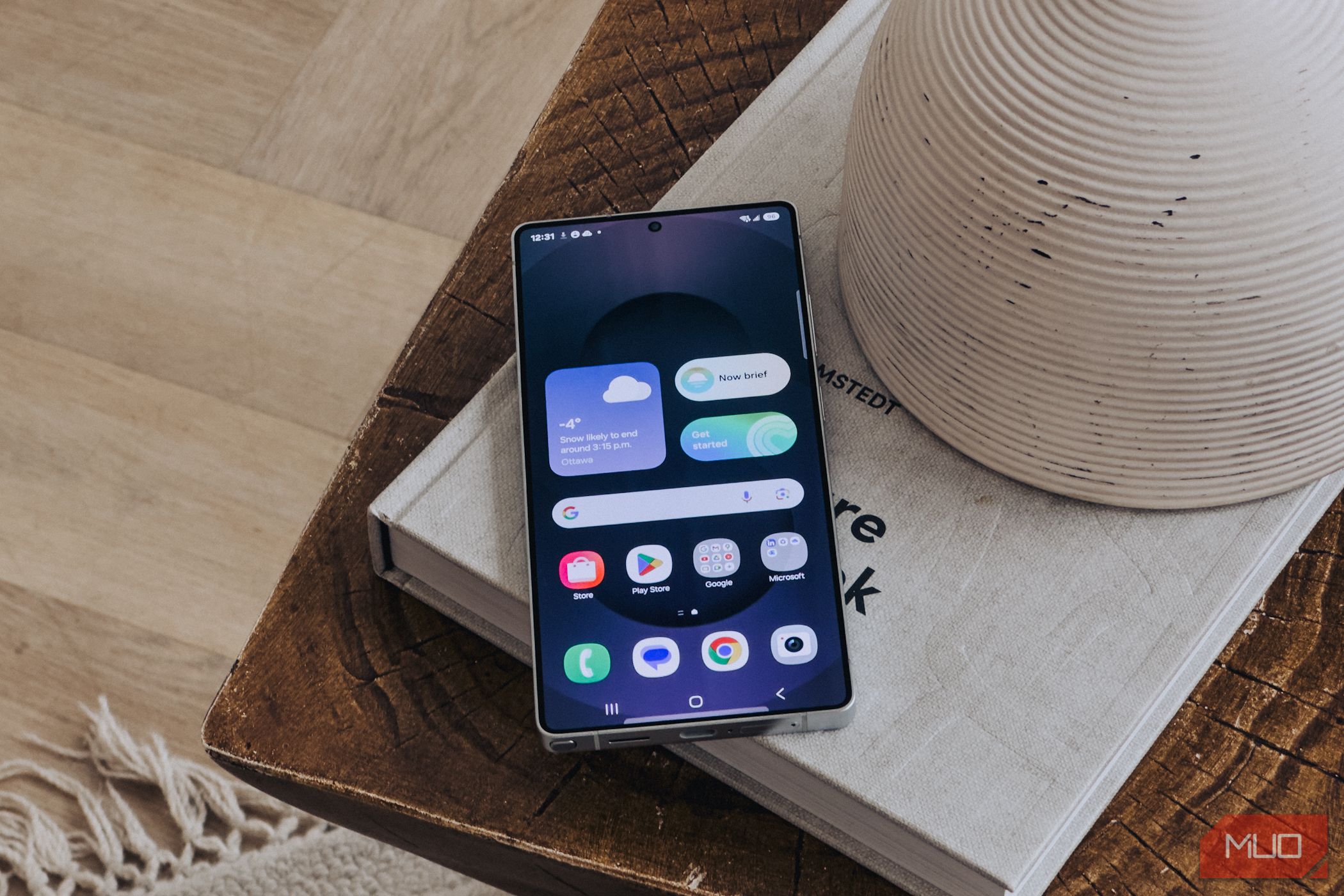
On top of Android, Samsung’s One UI adds its own layer of software and services, each with separate settings, permissions, and default data-sharing options. So even if you’ve already tightened the Android’s core privacy controls on your Samsung phone, there’s still more to do.
6
Turn Off Samsung’s Diagnostic Data Collection
By default, Google collects all kinds of data, including how you use your device, your app activity, and details about your network connections. But even if you adjust Android’s privacy settings to limit what Google can track, manufacturers like Samsung often have their own data collection systems that run quietly in the background.
Samsung’s “Send diagnostic data” feature is one of those settings that’s turned on by default. According to Samsung, this data is used to improve the user experience and fix errors. But if the idea of ongoing data collection makes you uneasy, it’s possible to stop this.
On your Samsung phone, head to Settings > Security and privacy > More privacy settings and turn off the Send diagnostic data toggle.
5
Keep Galaxy AI Data on Your Device Only
Samsung’s high-end devices come packed with handy Galaxy AI features to make your everyday tasks easier. If you have a Galaxy device that supports it, AI can summarize webpages, transcribe voice notes, and even translate phone calls in real time. But convenience often comes with a cost, and in this case, it’s your data privacy.
By default, Galaxy AI sends your interactions to Samsung’s servers for processing, and the data is also used to improve the AI experience. If you’d rather keep everything on your device, though, there’s a quick setting you can switch to make that happen.
To do this, go to Settings > Galaxy AI and turn on Process data only on device. This keeps all AI-related data processing on your device. However, there is a trade-off. Since some of the more advanced Galaxy AI features depend on cloud processing, you’ll lose access to tools like chat translation, note summarization, and generative photo editing.
4
Use Private Share for Safer File Transfers
Sharing files from your Samsung phone is something you probably do all the time. But you don’t have to rely solely on Android’s Quick Share. Your Samsung phone includes a feature called Private Share, which is more privacy-focused.
This encrypts your files before sending them and gives you full control over who can access them, for how long, and how they can interact with them. You can set an expiration date, make files read-only, and even block screenshots on the recipient’s device.
Once a file is sent through Private Share, only the recipient can view it. And if you change your mind, the services allows you to revoke access at any time. To use Private Share, open the share menu and select Quick Share. Then, tap the three-dot menu in the top-right corner and choose Turn on Private sharing. From there, set an expiration date and choose which contacts can access the file.
Of course, Samsung’s Private Share feature only works with Galaxy phones and laptops. So if you need to share something with someone using an iPhone or a Windows laptop, you’ll have to use other methods.
3
Regularly Review Your Privacy Dashboard
It’s easy to forget about apps on your phone that quietly collect data in the background. Some may only need limited access to function properly, yet they might continue to tap into your location, microphone, contacts, and more. The Privacy Dashboard feature can help you stay on top of exactly which apps are doing what, and how often.
To access it, go to Settings > Security and privacy > Permissions used in last 24 hours. You’ll see a breakdown of which apps have accessed sensitive data like your contacts, calendar, location, photos, and microphone over the past day. For a broader view, tap the drop-down menu to expand the timeline to the past 7 days. You can also tap the small i icon at the top of the screen for more specific details about what each permission controls.
Tap any listed permission to see exactly when and how often it was used, complete with timestamps. If you want to check permission usage by app, switch to the Apps tab. If something seems off—like a game accessing your contacts—tap it and select Don’t allow. If you don’t use that app or game, it’s a good idea to uninstall it.
Doing this once a week can help you catch overreaching apps before they become a problem. That said, it’s always best to review an app’s permissions before you install it.
2
Tighten Privacy Settings for Bixby and Samsung Internet
Bixby might not be the most popular Samsung feature, but it’s deeply integrated into the system. And if you haven’t disabled Bixby on your phone, you need to review what data it has access to.
Start by heading to Settings > Advanced features > Bixby. Here, tap Offline processing and make sure it’s enabled. This will ensure that voice commands are handled directly on the device rather than being sent to Samsung’s servers, whenever possible.
Next, scroll down and go to Privacy settings in the Bixby settings menu. Turn off both Allow audio recording review and Allow voiceprint review. These options let Samsung store and review voice recordings and voiceprint data, which isn’t necessary if you are not comfortable with it.
Samsung Internet is a solid alternative to Chrome and other browsers; if you use it regularly, it’s worth tweaking its privacy settings too. In the Samsung Internet app, tap the Menu icon and select Privacy. Tap on Smart anti-tracking and select Strict. This setting automatically deletes tracking cookies and blocks most attempts by websites to track your activity.
While you’re there, it’s a good idea to enable other protective features too, like Block unwanted downloads, Block pop-ups, and Warn about malicious sites.
1
Protect Sensitive Files With Secure Folder
You’ve hopefully already set up a lock screen PIN or password to protect the data on your phone. But if you have specific apps, photos, videos, or documents you want to keep extra private, Samsung’s Secure Folder can help.
Secure Folder is a protected, encrypted space within your Samsung phone. It acts like a vault and keeps anything inside it isolated from the rest of your phone. Files and apps stored here don’t show up in your main storage, gallery, or app drawer, and they’re accessible only after you unlock the Secure Folder. It’s an extra layer of security that helps keep your private data truly private.
To use Secure Folder, go to Settings > Security and Privacy > More security settings > Secure Folder, then follow the prompts to set it up. Once it’s ready, you can move photos, videos, and files into it, or even add apps. This lets you run two copies of the same app, each with its own separate data. It’s especially useful for messaging or banking apps, or if you keep separate accounts for work and personal use.
It’s even possible to hide the Secure Folder icon from the app drawer, so there’s no chance of someone accidentally stumbling across it.
Out of the box, your Samsung phone comes with several settings that quietly share more data than you might realize. All it takes is a few quick tweaks to take control of your data and enjoy a more private experience on your Galaxy device. These changes don’t take long to set up, so make sure you don’t skip them.
