


David Gewirtz / Elyse Betters Picaro / ZDNET
A few days ago, I showed you an amazing new ChatGPT feature available to paying users. Plus, Pro, and Team tier users can now point Deep Research at an entire GitHub repo and get back analysis reports.
Also: I test a lot of AI coding tools, and this stunning new OpenAI release just saved me days of work
As I showed, this capability helps speed up the process of coming up to speed on existing codebases. You might need to do this if you acquire a product from another developer or if you’re brought onto a project and need to learn the codebase quickly. It’s also good for reviewing your own codebase and refreshing yourself on how sections work — especially if you’ve moved on to other things for a while and are now coming back to the original code.
I promised I’d show you how to bring a codebase into GitHub specifically for analysis by Deep Research. That’s what we’re about to do in this article.
Moving my code into GitHub
To demonstrate this, I’m moving My Private Site into GitHub. My Private Site is a freemium WordPress plugin with about 20,000 active users I’ve been working on for about a decade. WordPress, for historical reasons, uses SVN instead of GitHub as a code repository, so I haven’t really had a need to put My Private Site into GitHub.
Also: I put GitHub Copilot’s AI to the test – its mixed success at coding baffled me
But given the opportunity to perform deep analysis on it, I decided to set it up. I’ll go through that process with you here.
Getting started with GitHub Desktop
Before we start, let’s clarify some things. Git is a distributed version control system that runs on a programmer’s local computer. GitHub is a cloud-based service that stores an enormous library of open-source and proprietary coding projects. Those projects are moved into GitHub (the cloud service) using Git (the tool).
Real programmers only use Git on the command line, where it’s known as git. No real programmer would dare to capitalize git. Real programmers command git via a range of options, creating specialized command lines that do their bidding. Failure to use git on the command line will result in your real-programmer card being revoked by the International Society of Programmers Who Are Smarter Than You.
Also: How I used GitHub Spark to build an app with just a one-sentence AI prompt
I am apparently not a real programmer. I might as well get that out of the way before the comments erupt in disdainful RPs (real programmers) mocking my lack of command-line acuity. I don’t use Git via the command line. I don’t like it. I believe humans left the cave long ago and adopted graphical user interfaces as tools of civilized society.
I, therefore, prefer using GitHub Desktop, which is a point-and-click version of Git for those not worthy of the title real programmer. And yes, my official real-programmer card has been revoked. I can live with it.
You can download GitHub Desktop here.
Screenshot by David Gewirtz/ZDNET
Once you’ve launched GitHub Desktop, either sign in to your GitHub account or create one. I’ve long had a GitHub account for other projects, so I just signed in.
How to create a GitHub repository
Next, I created a repository in the GitHub cloud for my codebase. Here it can be a little confusing. Even though I didn’t have an existing repo for My Private Site, I chose “Add an Existing Repository from your Local Drive…” because I was going to take that codebase and turn it into a repo.
Screenshot by David Gewirtz/ZDNET
GitHub Desktop is actually pretty smart about this. Once it realizes there’s no GitHub data for the folder selected, it will give you an error and offer you the option to create a repo. Click the link highlighted by the green arrow shown below.
Screenshot by David Gewirtz/ZDNET
That will present the Create a New Repository dialog. Here, I named my repo (all lowercase, with dashes between words), added a short description, told it the local path to the code on my computer, and left the rest as-is.
Screenshot by David Gewirtz/ZDNET
I didn’t need to play with the README, license, or ignore options because I’m using this repo for AI analysis, not for source control and collaboration.
It’s here I should note this article describes what you need to do to let your code be examined by ChatGPT Deep Research. This is definitely not a comprehensive how-to-set-up-GitHub article.
How to move the codebase to GitHub
It’s time to move your code up to GitHub.
Here’s a cautionary note: If you’ve kept your code private, uploading it to GitHub is sending your code to a cloud service. GitHub offers both private and public repositories, but you’re technically giving Microsoft access to your code. Microsoft owns GitHub.
Now, go ahead and hit Publish.
Screenshot by David Gewirtz/ZDNET
At this point, you’ll have the opportunity to make your repo public or private. When you connect ChatGPT to your repo, you’ll be passing along your access rights, so you can let ChatGPT examine a private repository.
Also: How to use ChatGPT: A beginner’s guide to the most popular AI chatbot
That said, I ran into some issues with Deep Research accessing my code, and one of the things ChatGPT asked me was whether my code was public. My take on that is: if your code is private and you have all your credentials and connector set up (more on that later), you can probably work on a private repo.
Since My Private Site is open source, I unchecked “Keep this code private.”
Screenshot by David Gewirtz/ZDNET
Looking at your new repository
If everything worked, you’ll see a new option: “View on GitHub.” Click it.
Screenshot by David Gewirtz/ZDNET
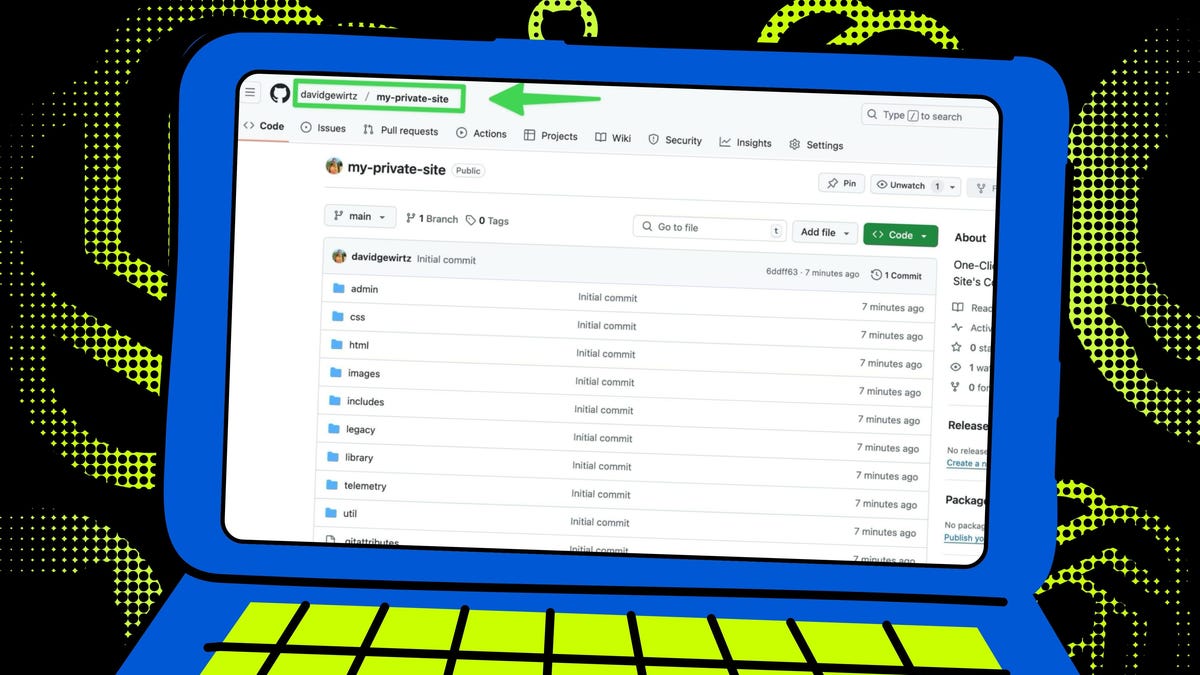
That will bring you to your newly created GitHub repo. Here’s mine.
Screenshot by David Gewirtz/ZDNET
Now that your repo is up, take note of its designation. You can find that in the upper left corner of the GitHub screen. For My Private Site, it’s davidgewirtz/my-private-site (without any spaces).
How to set up the ChatGPT connection
Now it’s time to switch to ChatGPT. The next two screenshots are the same as what I showed you in this article on the feature. But to get to the next configuration step, you’ll need to do what’s shown in the screenshots.
First, change your model to o3 and type in the prompt exactly as I did. You can probably tweak this over time, but if you have the $20-per-month Plus tier, you’re only going to be allowed 10 queries into Deep Research per month, so cutting and pasting is your friend.
Screenshot by David Gewirtz/ZDNET
Next, click the little caret next to Deep Research.
Also: Want to try ChatGPT’s Deep Research tool for free? Check out the lightweight version
Screenshot by David Gewirtz/ZDNET
Now, create the link between your ChatGPT account and your GitHub account. Go ahead (if you dare) and give Skynet — uh, I mean the AI — permission to access your GitHub account features.
Screenshot by David Gewirtz/ZDNET
Next, you’ll be asked which GitHub account should get the ChatGPT connector. I have two, so I got this choice screen. You might skip this screen if you only have one account.
Screenshot by David Gewirtz/ZDNET
Now it’s time for more permissions. This time, you’re giving permission to access either all your account’s repos or just one. I selected only the my-private-site repo.
Screenshot by David Gewirtz/ZDNET
And now, theoretically, Deep Research in ChatGPT will be connected to your repo. Theoretically. In practice, mine required another step.
What to do if ChatGPT can’t find your repo
GitHub indexes repositories, and if ChatGPT doesn’t show your repo as available, it probably means GitHub hasn’t indexed your new repository yet. That’s what happened here.
Screenshot by David Gewirtz/ZDNET
I should have been able to select or type in my full repo name (remember, davidgewirtz/my-private-site), but ChatGPT wasn’t able to locate it.
Also: I tested ChatGPT’s Deep Research against Gemini, Perplexity, and Grok AI to see which is best
To fix this, go back to your GitHub account and type in the command string shown at the top of this screenshot. Obviously, change the text in blue to match your repo name.
Screenshot by David Gewirtz/ZDNET
The command is basically repo:(repo followed by a colon), followed by the full name of your repo, followed by a space and the word import. This will tell GitHub you’d like it to index your repository.
As you can see, GitHub confirmed it was now indexing my repository.
Screenshot by David Gewirtz/ZDNET
I brewed myself a well-deserved cup of coffee as a way to give GitHub time to index my repo. Once I finished the last drop, I went back to ChatGPT, dropped down the Deep Research menu, and found my newly created repository.
Screenshot by David Gewirtz/ZDNET
Have fun with Deep Research
You’re ready to start using Deep Research on your repo. For a detailed guide on how that worked for my repo, point yourself to my earlier article on the topic.
Have fun. I was pretty blown away. You might be, as well.
Also: 5 reasons I turn to ChatGPT every day – from faster research to replacing Siri
Have you tried using ChatGPT Deep Research with your own code yet? What was your experience connecting a GitHub repo? Did you run into any indexing issues or permission snags along the way? Do you prefer using GitHub Desktop or the command line when setting up your repositories? Let us know in the comments below.
You can follow my day-to-day project updates on social media. Be sure to subscribe to my weekly update newsletter, and follow me on Twitter/X at @DavidGewirtz, on Facebook at Facebook.com/DavidGewirtz, on Instagram at Instagram.com/DavidGewirtz, on Bluesky at @DavidGewirtz.com, and on YouTube at YouTube.com/DavidGewirtzTV.
Get the morning’s top stories in your inbox each day with our Tech Today newsletter.
