


Maria Diaz / Elyse Betters Picaro / ZDNET
There are plenty of apps and websites available to keep you organized and on task, but for raw data power, nothing beats Microsoft Excel — and for repetitive tasks, its drop-down lists are a real game-changer.
Whether you’re juggling a side hustle, keeping tabs on family schedules, or just trying to make sense of a mountain of numbers, drop-down lists are a godsend that speed up typing. They can also cut down on typos and just keep everything looking neat.
Also: How to use ChatGPT to write Excel formulas
Here’s how to add them in Excel fast — plus a few expert tips to tweak and style dropdowns to your liking.
How to add drop-down lists in Excel
What you’ll need: You’ll need a Microsoft 365 subscription to use Excel, whether you’re on the web or the desktop app. I’m working from the desktop version here, so if your menu looks different online, Microsoft’s support site can help you bridge the gaps. And yes, Google Sheets (and other tools) have dropdowns too, but the setup steps aren’t exactly the same.
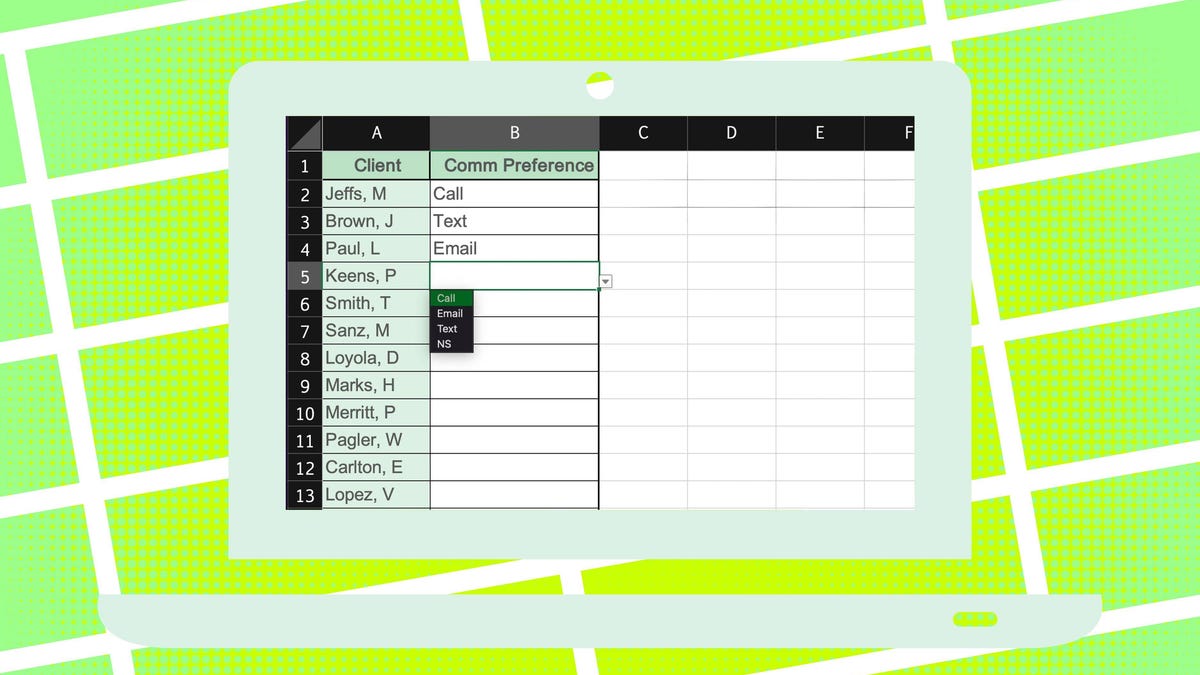
This article uses an example spreadsheet to better show how to create drop-downs. In our example, column A holds client names, and column B is for their communication preferences. Highlight the cells in column B — because that’s where you’ll want a drop-down to pick between Email, Phone Call, or Text for each client.
Also: How to remove Copilot from your Microsoft 365 plan
Show more
Select the cells where you want a drop-down.
Maria Diaz / Elyse Betters Picaro / ZDNET
Head to the Data tab in the menu bar, then click Data Validation (on Mac or the web, it might just say Validation). You’ll see the Data Validation dialog pop up — this is where the magic happens.
Show more
Select Data Validation in the menu.
Maria Diaz / Elyse Betters Picaro / ZDNET
In the Settings tab of the Data Validation pop-up, find the Allow drop-down menu and pick List.
Show more
Select List as your validation criteria.
Maria Diaz / Elyse Betters Picaro / ZDNET
Enter the values for your drop-down.
Maria Diaz / Elyse Betters Picaro / ZDNET
When you hit OK in the Data Validation pop-up to save your changes, Excel will insert your options right into the sheet. You’ll see a little arrow beside each cell — click it to open your drop-down list and pick an option. Whatever you choose will instantly fill the cell, no typing needed.
Show more
Click ‘OK’ to create your drop-down.
Maria Diaz / Elyse Betters Picaro / ZDNET
Can you edit a drop-down list after?
Absolutely. Just highlight the cells, go back to Data > Data Validation, and tweak the list of items in the Source box.
Also: How to use ChatGPT’s Advanced Data Analysis to create quality charts and tables
Pro tip: If you have a longer list (or want to easily tweak your options later), you can type them into a column on another sheet and then point the Source field in the Data Validation pop-up to that range (e.g. =Sheet1!D1:D10).
Is there a limit to the number of items?
Excel lets you add over 30,000 options to drop-down lists — but scrolling through that many choices is a real chore. If you have a huge list, try splitting it into categories or using multiple, smaller dropdowns so it’s easier.
Want to create a yes/no dropdown?
Creating a yes/no drop-down in Excel uses the process we followed for the example above. Just change what you put in the Source field to say “Yes,No”.
- Select the cells that you want to contain the drop-down lists.
- Click on Data > Data Validation or Validation from the menu bar.
- In the Settings tab of the Data Validation pop-up window, select List under Allow for your validation criteria.
- Insert “Yes,No” in the Source field on the pop-up, separated by a comma only and no spaces.
- Click OK in the Data Validation pop-up to save your yes/no drop-down list.
Can you add colors to dropdowns?
Yes. You can use Conditional Formatting to apply colors to cells.
- Create your drop-down list using Data Validation.
- Select the cells containing the drop-down list.
- Open Conditional Formatting by going to Home, then Conditional Formatting, and selecting New Rule.
- Set a rule for a value by choosing “Format only cells that contain,” entering a value, and assigning a color through Format and Fill.
- Repeat the process for other drop-down options.
- Click OK to save and apply the color-coding.
Is a formula needed to create dropdowns?
No. A formula is not needed to create drop-down lists in Excel. All you need to do is use the Data Validation menu.
Are dropdowns the same as data filtering?
People often mix up filtering with dropdowns, but they’re not the same. Filters sit in your column headers so you can hide or show rows — say by month, name, or location — while drop-down lists live inside individual cells, letting you pick a value to enter.
Can you use Copilot to create dropdowns?
No, Copilot in Excel doesn’t yet let you set up Data Validation drop-down lists directly via a prompt. You’ll still need to use Excel’s built-in Data Validation feature to insert those menus into your spreadsheet.
Get the morning’s top stories in your inbox each day with our Tech Today newsletter.
