


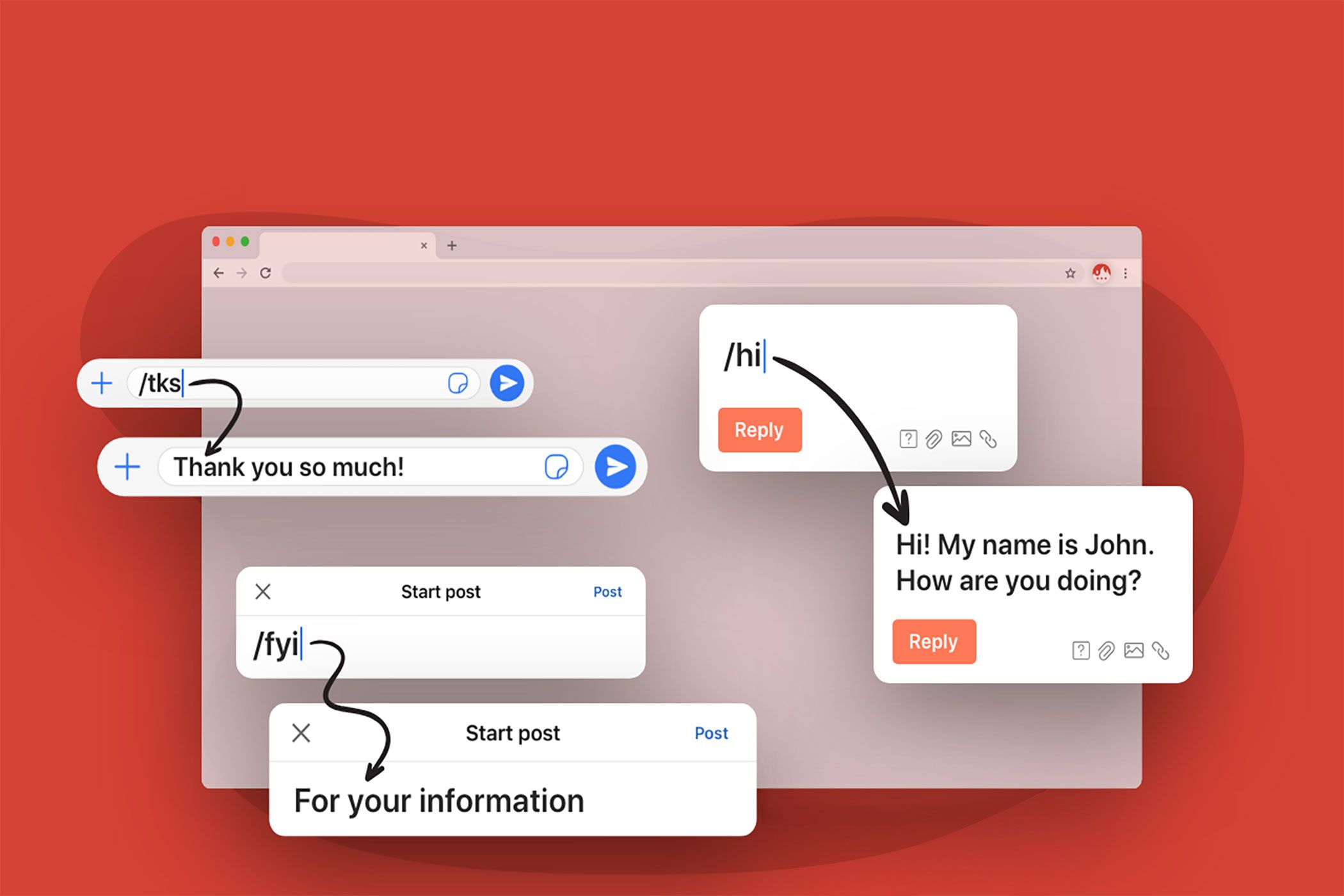
I hate typing “procrastination” or even “productivity” repeatedly. Then, I often misspell “accommodate.” If you’re tired of tedious typing or other typing misadventures, Text Blaze for Chrome can save you hours every week. Use this text expansion tool to mow down your everyday annoyances.
What Is Text Blaze and How Does It Work in Chrome?
Text Blaze is a Chrome extension that lets you create custom keyboard shortcuts called snippets for any text you use often. When you type a shortcut, Text Blaze instantly replaces it with the full text you’ve saved. It works anywhere in Chrome: Gmail, Google Docs, web forms, or even chat tools like Slack.
Setting up Text Blaze is simple. After installing it from the Chrome Web Store, you’ll see its icon on Chrome’s toolbar. Register as a new user on the Text Blaze site, and you will be welcomed to the dashboard. This account will store all your snippets.
My Chrome toolbar is crowded with other extensions. As I plan to use Text Blaze regularly, I pinned it to the toolbar for quicker access.
If you’ve used text expanders before, Text Blaze won’t take much to get used to. Go through the guided tour if you are using a text expander tool for the first time.
Click on the extension’s icon and you can start creating snippets right away. Each snippet has two parts: the shortcut you’ll type (like /ty) and the text it expands to (like “Thank you for your email. I’ll get back to you soon.”).
You can also create and organize snippets into folders from the dashboard. I recommend you think about this from the very beginning, as snippets can multiply fast.
Text Blaze supports Dynamic fields, so you can add today’s date, prompt yourself for custom input, or even insert data from your clipboard. There’s no coding required, but if you want to get fancy, you can add conditional logic and formulas. Get creative with the rich text editor on the Text Blaze dashboard. You can also use the AI Write option to create snippets with the help of artificial intelligence.
Once you have snippets ready, you simply type the shortcut in any text field within any site on Chrome, and your saved text expands instantly. The seconds saved repetitively typing across emails, documents, forms, and chat apps add up quickly.
The extension’s capabilities go beyond the custom keyboard shortcuts you can set up in any web browser.
Text Blaze has free and paid pricing plans. The free tier allows limited snippets and limited sharing. There are other constraints like using them on form fields.
How Text Blaze Helped Speed Up My Workflow
Before Text Blaze, my typing speed was dragged down by repetitive typing. I answered dozens of messages and filled in the same data in forms repeatedly. Copy-pasting from Notepad or other documents is a time sink. Typos were common, too.
After installing Text Blaze, I created a few basic snippets. For example, typing /sig inserts my full email signature. Typing /ty drops in a polite thank-you message. At first, remembering these shortcuts felt a bit strange, but soon it became second nature.
Setting up dynamic snippets was a big time saver. To answer Out of Office messages, I built a template that prompts me to enter the sender’s name and query. Typing /ooo brings up a form like this:
I fill in the blanks, and the rest inserts automatically. My replies have become faster, more accurate, and I can tweak them to make them more personal or casual.
Of course, it wasn’t perfect from day one. Sometimes I triggered snippets accidentally or forgot shortcuts. Reviewing your snippets lets you control when and where snippets work. Also, I adjusted settings and organized my snippet library to avoid confusion.
Here’s a snapshot of how I use Text Blaze through a typical workday.
1. Morning Message Routine
Despite the recommendation to not check your inbox before noon, I start my day with my inbox. Text Blaze helps me breeze through them in Slack, Gmail, and even WhatsApp Web. I have snippets for greetings, follow-ups, and common questions. Instead of typing the same sentences repeatedly, I type /gm for “Good morning!” or /fup for “Just following up on my previous message.”
2. Filling Out Forms
Whether it’s timesheets, project updates, or registration info, I’m always entering the same information. I created snippets for my name, address, and phone number. Now, I fill out forms in seconds, not minutes.
Though I suggest you don’t use snippets for information you want to keep private, like banking details.
3. Quick Notes and Templates
I keep snippets for meeting notes, to-do lists, and even code blocks. When I need to send a standard report, typing /report inserts the whole template. It’s a lifesaver during busy weeks.
As an experiment, improve your minimalist notetaking workflow with a few Text Blaze snippets.
4. Personal Journaling
Before logging off for the day, I write some thoughts in my journal. With Text Blaze, I can create the structure of a personalized recap with just a couple of keystrokes. Some snippets even insert the current date automatically.
5. AI Prompt Templates
The best ChatGPT prompts have a common structure. As it can get tiring copy-pasting them or typing them out, I save some of the more common ChatGPT prompts as snippets.
For instance, creating a dynamic snippet for a prompt can help you fill out the specific details much faster.
Go to the Text Blaze Gallery to see all the creative uses for text expansion. Use the Copy to Text Blaze button to use or customize them for your needs.
My fingers don’t race across the keyboard. As a slow typist, I no longer dread repetitive typing, and I make fewer mistakes. Maybe it can also help you reduce typing pain on your hands, too.
I like that the Text Blaze is free to start. You can upgrade for advanced features if needed. The Chrome extension is well-supported with documentation and the Text Blaze community.
