

Close Menu
TechurzTechurz

    Subscribe to Updates

    Get the latest creative news from FooBar about art, design and business.

    What's Hot

    India doubles down on state-backed venture capital, approving $1.1B fund

    February 14, 2026

    Why top talent is walking away from OpenAI and xAI

    February 13, 2026

    Fusion startup Helion hits blistering temps as it races toward 2028 deadline

    February 13, 2026
    Facebook X (Twitter) Instagram
    Trending
    • India doubles down on state-backed venture capital, approving $1.1B fund
    • Why top talent is walking away from OpenAI and xAI
    • Fusion startup Helion hits blistering temps as it races toward 2028 deadline
    • AI burnout, billion-dollar bets, and Silicon Valley’s Epstein problem
    • Score, the dating app for people with good credit, is back
    • Didero lands $30M to put manufacturing procurement on ‘agentic’ autopilot
    • Eclipse backs all-EV marketplace Ever in $31M funding round
    • Complyance raises $20M to help companies manage risk and compliance
    Facebook X (Twitter) Instagram Pinterest Vimeo
    TechurzTechurz
    • Home
    • AI
    • Apps
    • News
    • Guides
    • Opinion
    • Reviews
    • Security
    • Startups
    TechurzTechurz
    Home»Guides»Your Guide to Closing Open Apps on Any iPhone
    Guides

    Your Guide to Closing Open Apps on Any iPhone

    TechurzBy TechurzJune 7, 2025No Comments4 Mins Read
    Share Facebook Twitter Pinterest LinkedIn Tumblr Reddit Telegram Email
    Your Guide to Closing Open Apps on Any iPhone
    Share
    Facebook Twitter LinkedIn Pinterest Email


    The Download

    • iPhone X and newer: Swipe up halfway and pause to reveal the App Switcher view. Then, swipe up on the app to close.
    • iPhone SE, 8, and earlier: Double-click Home button > swipe to find the app to quit > swipe up to close it.

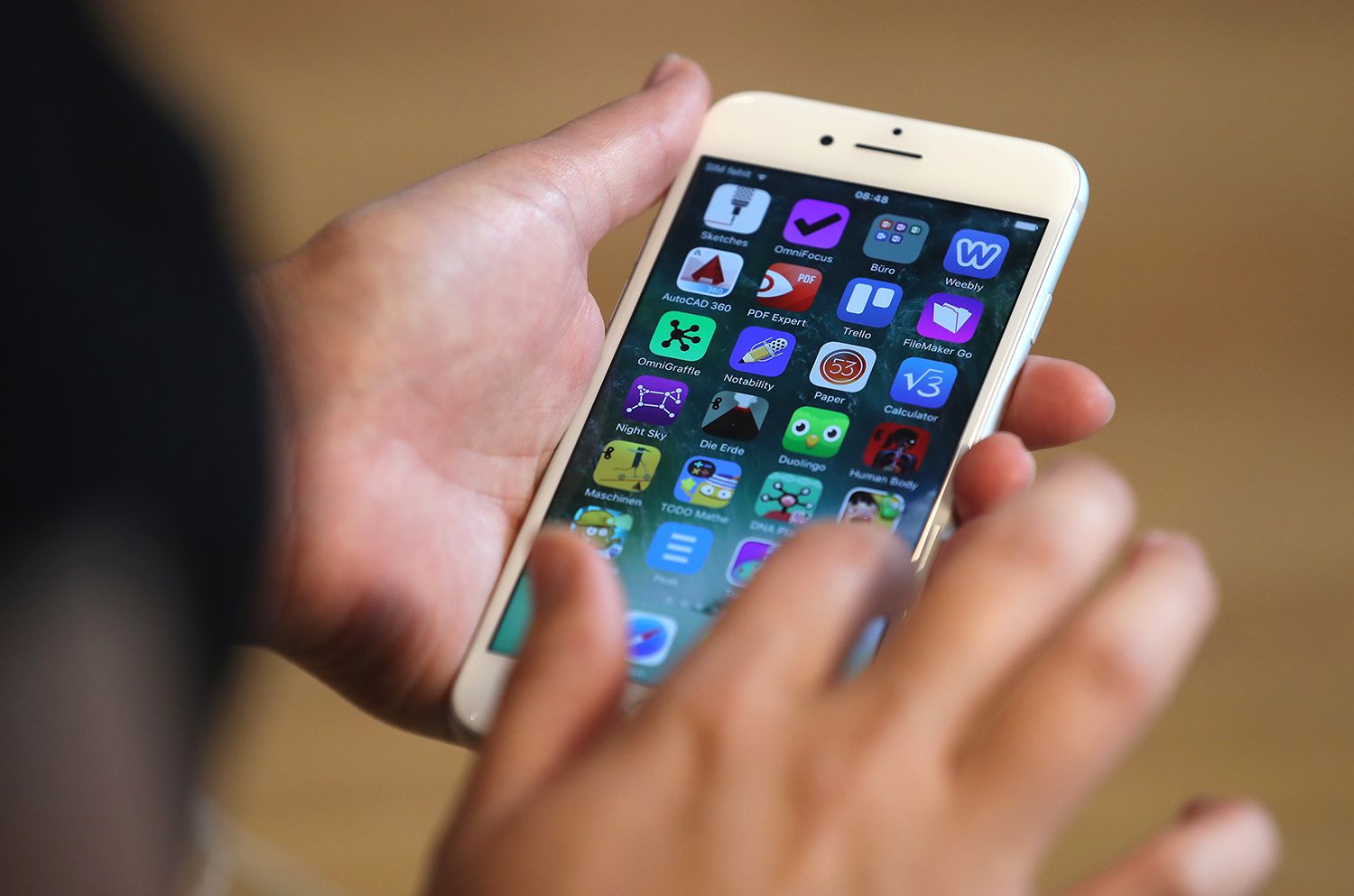
    This article explains how to close open apps on the iPhone. Instructions apply to all devices that have iOS 6 or newer.

    How to Quit or Close Open Apps on iPhone X and Newer

    The process of quitting apps on the iPhone X and newer models is a bit different from earlier iPhones (with a Home button). Here’s how to do it:

    1. Swipe up from the bottom of the screen and pause about halfway up the screen to reveal the multitasking view.

    2. Swipe the app you want to close up and off the top of the screen.

    3. Tap the wallpaper or swipe up from the bottom again to return to the Home screen.

    How to Quit or Close Open Apps on iPhone 8 and 7

    If you have the iPhone 8 or iPhone 7, quitting apps is super simple. Here’s what you need to know:

    1. To access the App Switcher feature, double-click the Home button.

      That action causes the apps to fall back a bit so that you can see the icons and screenshots of all the running apps.

    2. Slide the apps from side to side to find the one you want to quit.

    3. Swipe the app off the top edge of the screen to close it.

    4. When you’ve closed all the apps you want, click the Home button again to return to using your iPhone.

    In iOS 7 and up, you can quit multiple apps at the same time. Just swipe up to three apps to the top of the screen at the same time. All the apps you swipe disappear.

    How to Quit or Close Open Apps on iOS 6

    To close apps on iPhone 6, the process is similar. However, if you updated the operating system beyond iOS 6, refer to the instructions above.

    1. Double-click the Home button to reveal a row of apps below the dock.

    2. Slide to the app you want to quit.

    3. Tap and hold the app until a red badge with a – (Minus Sign) appears. The apps wiggle like they do when you’re rearranging them.

    4. Tap the minus sign to close the app.

    5. Repeat the process for additional apps. Click the Home button when you finish closing apps.

    How to Close Open Apps on Older iPhones

    If you have an old version of the iOS that doesn’t include multitasking, hold down the Home button at the bottom center of the iPhone for about six seconds to quit the current app and return to the main Home screen.

    If it doesn’t, you may need to restart your iPhone.

    Holding down the Home button activates Siri on newer iOS versions.

    Closing Apps Doesn’t Save Battery Life

    There is a popular belief that quitting apps running in the background can save battery life even when the apps aren’t being used.

    However, that has been proven to be incorrect and can even hurt the battery life.

    FAQ

    • How do I hide apps on an iPhone?

      To hide apps on an iPhone, launch the App Store app and tap your profile picture. On the Account screen, tap Purchased to view the apps you’ve downloaded. Tap All; find the app you want to hide, swipe left, and then tap Hide.

    • How do I unhide apps on an iPhone?

      To unhide apps on an iPhone, swipe right to left on the Home screen to open the App Library. Tap the search bar to find the app you want to unhide and tap and hold it to add it to the Home screen. In iOS 18, go to the Hidden folder and authenticate with Face or Touch ID to restore hidden apps to the App Library.

    • How do I delete apps on an iPhone?

      To delete apps from your iPhone, find the app you want to delete and tap and hold the app icon. Tap Remove app. You can also tap and hold an empty space on the home screen until all icons start wiggling; tap the minus sign on the corner of the app icon and select Delete App.

    Thanks for letting us know!

    Get the Latest Tech News Delivered Every Day

    Subscribe

    Tell us why!

    Other

    Not enough details

    Hard to understand

    apps Closing Guide iPhone Open
    Share. Facebook Twitter Pinterest LinkedIn Tumblr Email
    Previous ArticleThe Republican Party invades the Bitcoin Conference
    Next Article These $10 Ugreen Bluetooth trackers are better than AirTags for a third of the price
    Techurz
    • Website

    Related Posts

    Opinion

    2026 Joseph C. Belden Innovation Award nominations are open

    February 12, 2026
    Opinion

    Meet Gizmo: A TikTok for interactive, vibe-coded mini apps

    February 4, 2026
    Opinion

    Tiny startup Arcee AI built a 400B-parameter open source LLM from scratch to best Meta’s Llama

    January 29, 2026
    Add A Comment
    Leave A Reply Cancel Reply

    Top Posts

    College social app Fizz expands into grocery delivery

    September 3, 20251,601 Views

    A Former Apple Luminary Sets Out to Create the Ultimate GPU Software

    September 25, 202514 Views

    The Reason Murderbot’s Tone Feels Off

    May 14, 202511 Views
    Stay In Touch
    • Facebook
    • YouTube
    • TikTok
    • WhatsApp
    • Twitter
    • Instagram
    Latest Reviews

    Subscribe to Updates

    Get the latest tech news from FooBar about tech, design and biz.

    Most Popular

    College social app Fizz expands into grocery delivery

    September 3, 20251,601 Views

    A Former Apple Luminary Sets Out to Create the Ultimate GPU Software

    September 25, 202514 Views

    The Reason Murderbot’s Tone Feels Off

    May 14, 202511 Views
    Our Picks

    India doubles down on state-backed venture capital, approving $1.1B fund

    February 14, 2026

    Why top talent is walking away from OpenAI and xAI

    February 13, 2026

    Fusion startup Helion hits blistering temps as it races toward 2028 deadline

    February 13, 2026

    Subscribe to Updates

    Get the latest creative news from FooBar about art, design and business.

    Facebook X (Twitter) Instagram Pinterest
    • About Us
    • Contact Us
    • Privacy Policy
    • Terms and Conditions
    • Disclaimer
    © 2026 techurz. Designed by Pro.

    Type above and press Enter to search. Press Esc to cancel.