


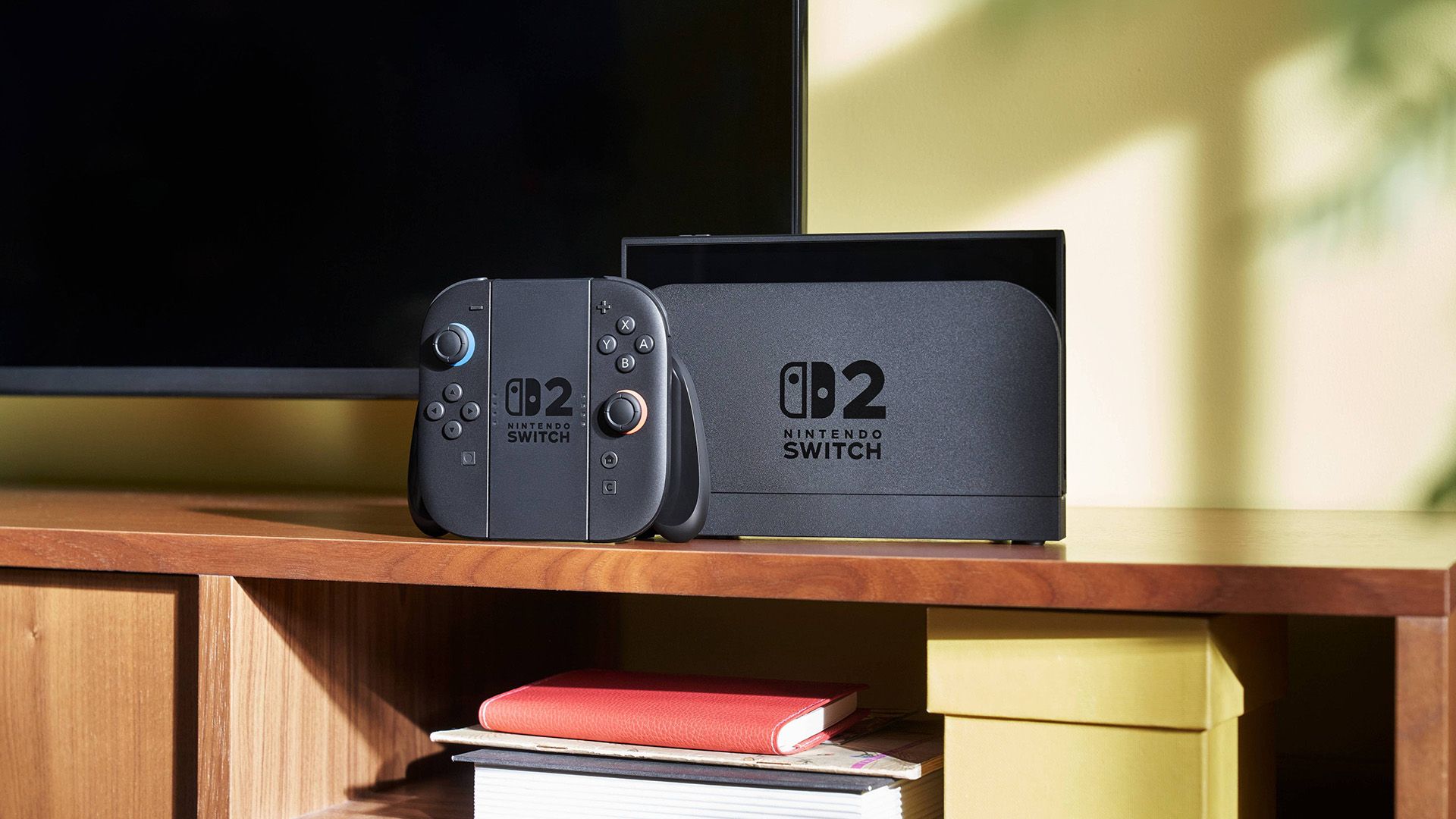
Got a Switch 2? It’s easy to get overwhelmed by the excitement of a new console and miss some of the more useful features that are staring you right in the face. We’ve combed system menus and the internet to find as many Switch 2 tidbits as we can.
GameShare is Nintendo’s take on remote game streaming, and lets Switch 2 players share a game with Switch 2 or original Switch consoles. There’s a few caveats here: the game has to explicitly support the feature, and only the Switch 2 can act as a host.
To use GameShare, launch a compatible game on a Switch 2 console (like Clubhouse Games: 51 Worldwide Classics) and select the “GameShare” feature from the relevant menu. Now on the console that’s receiving the invitation, access the “GameShare” icon on the main Home screen.
From here, choose “Join GameShare” and accept the pending invitation. You can do this locally or with users who are in a GameChat session.
2
Easily Find Lost Controllers
Lost your Joy-Con 2 down the back of the sofa? Switch 2 comes with a handy feature that lets you play a sound and vibrate any lost controllers that are paired to the console.
Of course, you’ll need to be able to control the Switch 2 in the first place. Luckily, you can pick up the console, hit the physical power button, and then tap the “Home” button three times using the touchscreen. From here, head to “Controllers” on the Home screen and use the “Search for Controllers” option to ping your missing pad.
3
Original Switch Games Perform Better
While you’re probably aware that the Switch 2 is compatible with almost every game that released for the original Switch and that Nintendo is creating Switch 2-enhanced versions of some of its most popular games, you might not realize the even unpatched games are performing better on Switch 2 hardware.
Some games, like Dragon Quest Builders 2 have seen performance triple in especially demanding areas, while others that depend on resolution scaling like The Witcher 3 see both performance and visual upgrades.
4
Most Switch Accessories Work
We’ve known this since Nintendo’s big reveal, but it’s worth repeating as it could save you some money. Most /all-the-switch-accessories-you-can-use-with-the-switch-2/original Switch accessories are compatible with the Switch 2. Most notably, this includes the Nintendo Switch Pro Controller which means you won’t have to buy the revised edition. The only gripe here is that this gamepad isn’t able to remotely power on a Switch 2 from standby.
Corbin Davenport / How-To Geek Corbin Davenport / Review Geek Corbin Davenport / LifeSavvy
You can also use original Switch Joy-Con, though you can’t charge these on a Switch 2 on account of how the peripherals connect. The full list includes most retro controllers for consoles like the NES, SNES, and N64. One thing you may need to do to solve any connectivity issues is update your controllers using System Settings > Controllers & Accessories > Update Controllers.
5
System Transfer is Only Available at Setup
Moving from an original Switch, Switch Lite, or Switch OLED to a Switch 2 is a relatively painless process, but there is one catch. While you can transfer everything from your old console to your new one, you can only access the System Transfer tool during the initial Switch 2 setup process.
This is the easiest way to bring your user profiles, save data, settings, screenshots and captures, and downloaded software across in one simple step. If you skip the process you’ll be limited to just transferring Save Data using the System Settings > Data Management > Transfer Your Save Data menu.
If you’ve made the mistake and would like to get the option back, you can reset your Switch 2 to factory settings using System Settings > System > Formatting Options > Restore Factory Settings. Remember that you’ll lose everything on the console if you do this, so if you have any save data you want to keep then transfer it first (or upload it to Nintendo Switch Online’s cloud save service).
6
Access Screenshots and Captures via Nintendo’s App
One of the biggest quality-of-life improvements for Switch 2 owners who take a lot of screenshots and need an easy way to share them is the Switch 2’s tight integration with the Nintendo Switch app. Available for iPhone and Android, this is the easiest way to get access to your console’s screenshot and video library.
Head to System Settings > Data Management > Manage Screenshots and Videos > Upload Settings and use the “Automatic Uploads” tab to make sure the setting is enabled. You might need to wait a little while if this setting was disabled.
Tim Rattray / How-To Geek | Nintendo
You can head to the Home screen and use the “Album” shortcut to select an item, hit “A” to see the menu, and then choose “Upload to Smart Device” to manually upload. Now open the app and access your uploads on the “Album” tab.
Nintendo keeps your uploads on the server for 30 days before they’re removed. One thing I love about the iPhone app is the ability to select multiple items and then use the “Share” menu to send them to specific locations (like a Mac via AirDrop) without having to save them to my Camera Roll first.
7
Quickly Switch Bluetooth Audio Devices
Something that was previously absent on the original Switch, it’s now possible to select previously paired Bluetooth headphones from the Quick Menu. You’ll need to pair these under System Settings > Bluetooth Audio first, but then you can switch to them any time (even mid-game) by holding the Home button on the right Joy-Con and selecting the audio device at the bottom of the menu.
Dan Helyer / How-To Geek
8
You Can Filter Your Wish List By Sale Items
Another nice quality-of-life feature that feels like Nintendo’s response to the rise of services like DekuDeals is the ability to filter your wish list by games that are on sale. This is part of a wider eShop overhaul, and it makes it easier to save money on your games.
Launch the “Nintendo eShop” from the Home page, then select the “Wish List” tab from the sidebar. Now check the “On Sale” box at the top of the list. Add items to your wish list while browsing using the “heart” icon next to a game’s price.
9
Switch 2 Supports USB Mice and Keyboards
The Switch 2 Joy-Cons feature small optical sensors along the inside edge of the controllers, where they connect to the main Switch console. These allow the controllers to function like a mouse, both in supported games and across the wider Switch 2 operating system (give it a go).
On top of this, any games that support mouse controls should work with many mice too (both wired and with a 2.4GHz dongle). The catch here is that USB mice don’t appear to work on the Switch 2’s basic operating system but only in supported games (as one GameFAQs poster discovered).
The same is true of keyboards, as you can see in the video above of Cyberpunk 2077.
10
GameChat Supports Regular USB Cameras and Smartphones
While HORI has produced a snazzy Piranha Plant USB-C camera for the new GameChat feature, you don’t need to shell out for a branded peripheral. It looks like almost any USB webcam will work, though you might need to use a USB-C adapter if your camera uses a USB-A connection.
Some have even discovered that you can route a capture card or a Game Boy camera into the Switch 2 and the feature still works. YouTube channel Will It Work? demonstrated the iPhone being used as a webcam (which requires a USB-C to HDMI adapter and a modern smartphone).
