


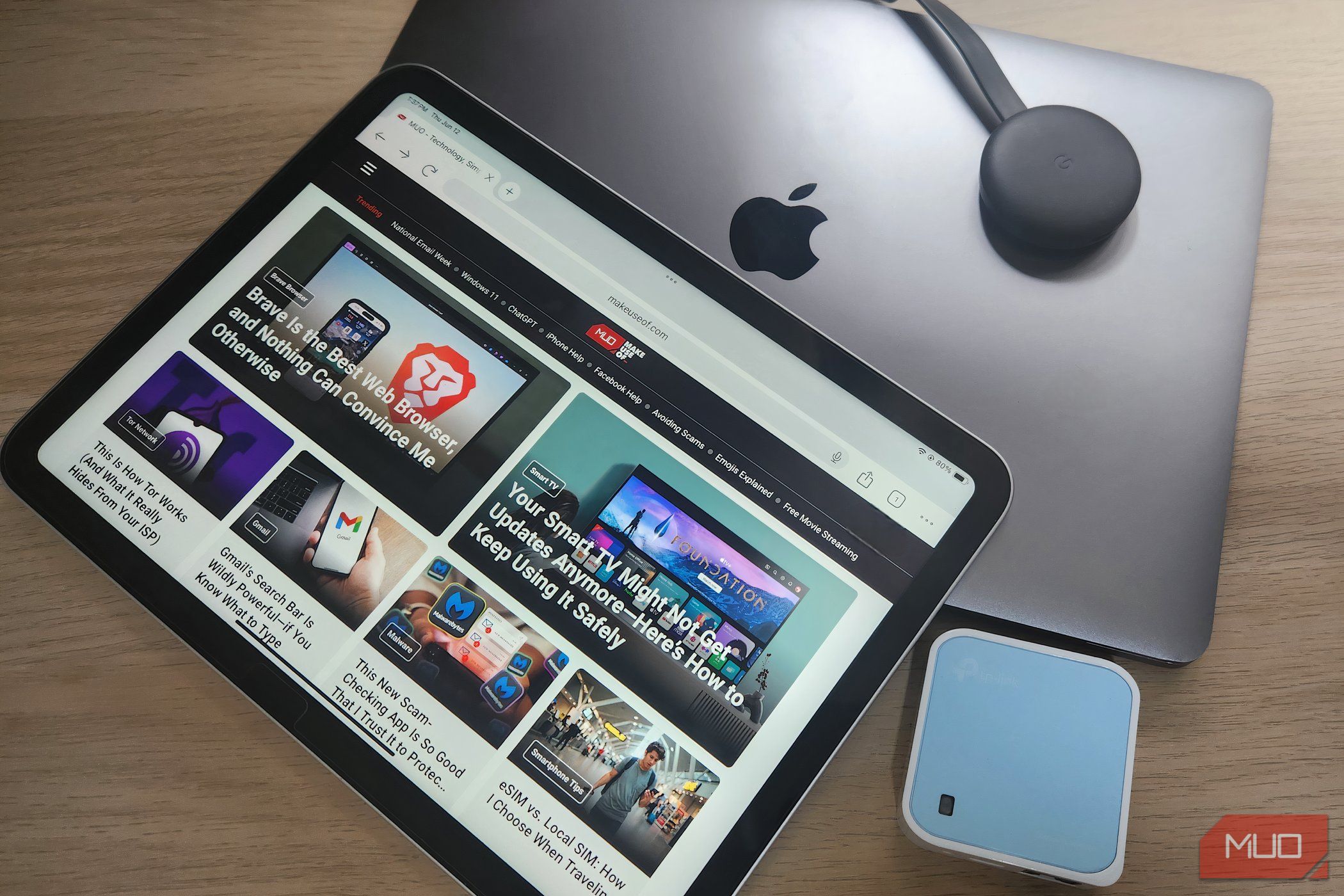
Hotel Wi-Fi often limits the number of devices, shared networks are insecure, and the signal can be weak or come with bandwidth restrictions. If you travel with several gadgets or work on the go, these solutions could save you a major headache.
Use a Travel Router to Create a Secure Network
Gavin Phillips/MakeUseOf
A travel router should be included on every frequent traveler’s checklist, as one of the easiest and most dependable ways to share your hotel’s Wi-Fi connection. These are scaled-down routers that connect to the hotel network and broadcast their own private signal to which you can connect all your devices. Setup is easy and requires just a few steps:
- Connect your travel router to a mains outlet or a laptop via USB.
- Connect the travel router to the hotel’s network (using an Ethernet cable or wireless connection).
- Configure the router using its web interface or native app.
- Connect your devices to the new private network, using your unique password credentials.
Once set up, there are several benefits to using a travel router when connecting to a public Wi-Fi network, including:
- You can access the hotel’s Wi-Fi network using a single login.
- All devices share the same secure connection.
- You create an extra layer of privacy and security between you and the public network.
- You streamline use for work and leisure with a consistent connection.
My trusty TP-Link model serves me well and cost me less than $35. However, I am considering upgrading to a model that supports both 2.4GHz and 5GHz for better compatibility and a faster connection in the near future (my current travel router only supports 2.4GHz Wi-Fi).
Related
Acer’s New 5G Wi-Fi Hotspot Is One of the Best New Products From CES 2025
It’s small, sturdy, and packed with features.
Turn Your Laptop Into a Wi-Fi Hotspot
If you don’t travel frequently or don’t want to purchase a travel router, you can use your laptop as a makeshift Wi-Fi hotspot as an alternative solution. Both Windows and macOS provide this function via their settings menus.
Windows
- Connect your laptop to the hotel’s Wi-Fi network.
- Go to Settings > Network & Internet > Mobile Hotspot.
- Turn on Share my internet connection.
- Name your Wi-Fi network and create a secure password for your hotspot.
macOS
- Connect your laptop to the hotel’s Wi-Fi network.
- Open System Settings > General > Sharing.
- Select Internet Sharing.
- Choose the Wi-Fi option as your sharing method.
- Activate Internet Sharing and create a secure password for your hotspot.
Using my laptop as a mobile hotspot has come in handy as an alternative to using a travel router, especially on short trips when I wasn’t thinking ahead. However, it’s worth noting that the laptop must remain switched on and connected while in hotspot mode, and performance is generally slower compared to that of my dedicated travel router.
Your online security should be a priority when using a public network. Both travel routers and laptop hotspots add an extra layer of security while browsing, with some travel routers providing built-in firewalls and VPN support for added convenience and peace of mind.
I travel as often as my free time and bank balance allow, and I’ve experienced plenty of hiccups while sharing hotel Wi-Fi over the years. Here are some common issues I’ve encountered and their corresponding troubleshooting methods.
Problem
Solution
Login Portal Issues
Most hotels nowadays use captive portals, where Wi-Fi networks are accessed via a web page login. As someone who travels with several devices, including a TV streaming stick, a smart speaker, a laptop, a tablet, and a smartphone, these are annoying and prohibitive.
Connect your laptop and complete the login process, then share the connection via your hotspot or travel router. Some travel routers support MAC address cloning, which allows you to mimic your laptop’s login session on other devices.
Limited Device Access
I am seeing more frequent limitations on the number of devices that I can use simultaneously, as hotels try to preserve bandwidth among their guests.
Use a travel router or a laptop’s Wi-Fi hotspot to connect your gadgets and make them appear as a single device.
Slow and Unstable Connections
Hotel Wi-Fi reception is rarely efficient across the entire facility, and it’s always a gamble as to how strong a signal will be in your particular room.
I always look for a 5GHz option in the list of available networks, as these tend to experience less interference and support higher data speeds. Additionally, a travel router can act as a signal booster between your devices and the hotel’s Wi-Fi. This is especially useful if the hotel’s access point is out in the corridor or another room.
As my work and leisure activities demand more efficient Wi-Fi connections, my list of essential gadgets grows with every trip. Yet limitations are being increasingly placed on the number of devices I can connect.
Thankfully, with a bit of preparation, it is easy to share your hotel Wi-Fi across all your devices. Whether you choose to use a travel router or opt for the laptop hotspot solution, you can enjoy a more stable and secure connection for all your work, entertainment, and social needs.
