


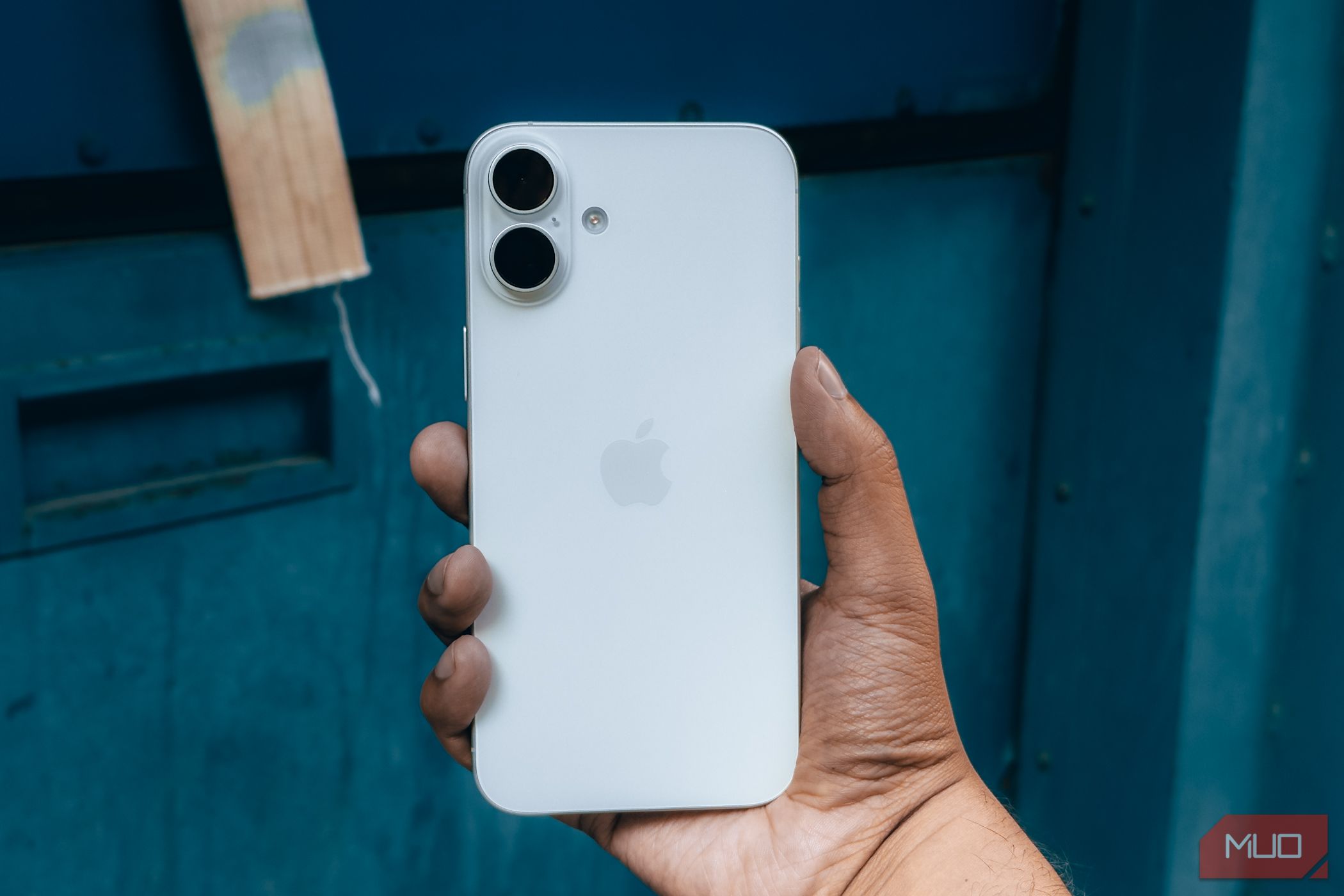
It turns out your iPhone can respond to taps on its back. I only recently found out about Back Tap, a hidden gesture that can run shortcuts, open apps, or take screenshots. And it feels like a cheat code for your phone.
What Back Tap Is and Why It’s So Handy
Zarif Ali / MakeUseOf
Back Tap is one of those nifty but hidden iOS features that Apple quietly added to the Accessibility settings menu. It first appeared in iOS 14 and uses your iPhone’s sensors to detect quick taps on the back of the device. You can assign a different action to a Double Tap and a Triple Tap, giving you two shortcuts you can activate without even touching the screen.
What makes Back Tap so useful is that it works almost anywhere. If you’re watching a video, a double-tap can take a screenshot without interrupting playback. If you’re reading, you can triple-tap to scroll down or open Siri. It’s quick, discreet, and feels surprisingly smooth once you start using it.
The best part is that you don’t need the newest iPhone to use it. Back Tap works on the iPhone 8 and newer, as long as you’ve updated to iOS 14 or later. And while it’s designed as an accessibility feature, it’s useful for everyone who wants to get more out of their device.
How to Set Up Back Tap on Your iPhone
Back Tap takes less than a minute to set up. Start by going to Settings, then tap Accessibility. Under Physical and Motor, select Touch, then scroll down and tap Back Tap.
You’ll see two options: Double Tap and Triple Tap. Tap either one to assign it an action. You can choose from options like taking a screenshot, locking the screen, opening Spotlight, scrolling, or launching the camera.
If you’ve created any Shortcuts in Apple’s Shortcuts app, those will also appear in the list. This opens up even more possibilities, like sending pre-written messages, toggling Low Power Mode, launching a playlist, or opening your favorite app.
Once you’ve made your selections, you’re done. Tap the back of your phone near the Apple logo twice or three times in quick succession, and the action you chose will run instantly.
Related
Navigate Your iPhone Faster With These 8 Tricks
These iPhone navigation tricks make everyday tasks feel effortless.
It’s worth noting that Back Tap only works when the screen is on. Additionally, any actions that you can’t do from the Lock Screen only function once your phone is unlocked. For example, if you set Back Tap to launch an app or run a Shortcut, nothing will happen until you’ve unlocked your device.
However, actions like turning off the screen or toggling Reachability will work even with a locked device. This initially threw me off, but once I understood the behavior, it made more sense. You don’t want a shortcut to trigger when your phone’s in your pocket or bag.
One other note: if this feature doesn’t seem to respond, your phone case might be getting in the way. I’ve noticed that slim cases work fine, but thick or rugged ones can make it harder for the phone to register the taps.
You don’t have to go caseless, but if Back Tap feels inconsistent, it’s worth testing with the case off to rule that out. Enabling the Show Banner option in Back Tap’s settings can help with this, as it shows a prompt when either tap registers successfully.
My Favorite Uses for Double Tap and Triple Tap
After some experimenting, I’ve found a few combinations that make my phone more responsive and personal.
Right now, I have Double Tap set to Take Screenshot. I use screenshots constantly for Instagram ads, bits of articles, app bugs, etc.—and this is much faster than pressing two buttons. It works even if something else is on the screen, which makes it feel seamless.
For Triple Tap, I built a Shortcut that grabs my current location and opens a new note. I use it to track where I’ve been when running errands or exploring. Triple-tap, type a note, and move on; it’s fast and reliable.
You can also use Back Tap to run other custom Shortcuts. I’ve tried ones that open my to-do list, paste my clipboard into the Notes app, or even control music playback. If you’ve set up any automations in the Shortcuts app, this is one of the easiest ways to trigger them without digging through menus.
There are also plenty of built-in options. Speak Screen is great if you want something read aloud, and accessibility features like Magnifier or VoiceOver are just as easy to assign.
Another gesture I use is the Accessibility Shortcut, which works a little differently. Instead of tapping the back of the phone, you press the side button three times. Scroll down to the bottom of the Accessibility menu and tap Accessibility Shortcut to access the options. Check as many as you want, using the handles to reorder them as you please. They’ll all appear in a menu when you triple-press the side button.
I’ve set mine to turn on Color Filters (setting the screen to grayscale) when I want to cut down on visual clutter or stay focused. That setting is usually buried in the Settings menu, but with this shortcut, it’s just a quick button press.
Related
9 Ways You’re Unknowingly Ruining Your iPhone Experience
The small things make a big difference.
Back Tap isn’t the kind of feature Apple shouts about, but once you start using it, it feels surprisingly natural. It’s one of those features that blends into your habits and quietly makes your phone easier to use.
If you’ve never tried it before, set it up and give it a try. You’ll probably wonder why you didn’t start sooner.
