


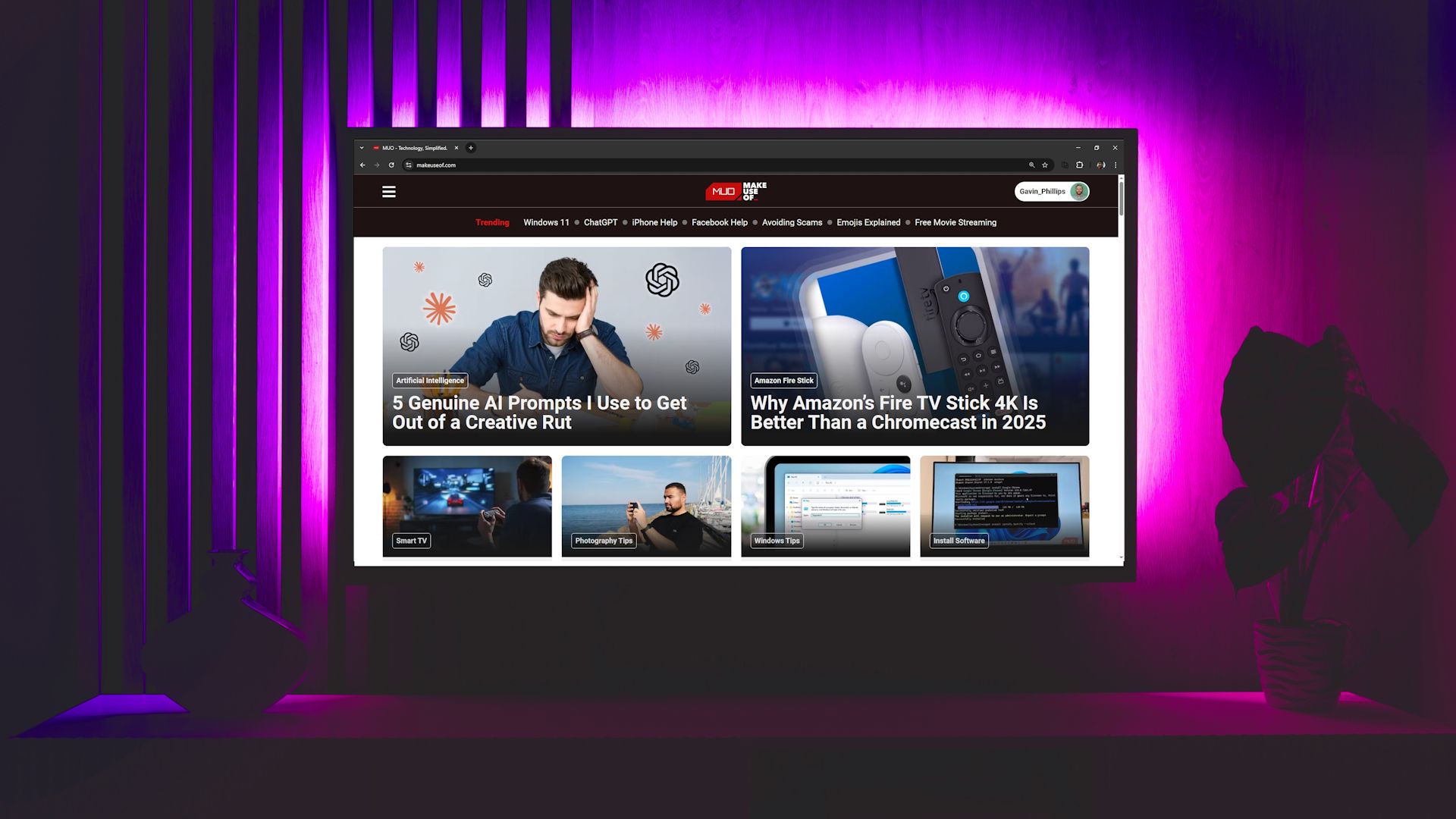
Smart TV web browsing sounds convenient until you’re stuck wrestling with on-screen keyboards and sluggish interfaces. That said, with a few simple tweaks, you can actually make the experience surprisingly smooth.
6
Switch to a TV-Friendly Browser
The first step to making browsing on a smart TV less frustrating is choosing the right browser. Your TV may already have one pre-installed, but in most cases, it won’t be the best choice.
You’ll need a browser designed specifically for TVs that offers the necessary features. There are a few good ones worth checking out, like Opera Browser, TV Bro (yes, that’s really its name), and Puffin TV Browser. I’ve had surprisingly decent luck with one called simply “Browser.” It’s not flashy, but that’s kind of the point—it just works, without making you want to throw your remote across the room.
The interface is stripped down in a good way. Bookmarks are front and center on the home screen, so you’re not stuck digging through menus. You can even adjust the cursor’s size and color, which might not sound like a big deal, but it makes a huge difference when you’re trying to spot that tiny arrow on a 55-inch screen from across the room.
But the main reason I use it is the companion remote app for Android and iOS. Once you install it on your phone and connect it to the same Wi-Fi network as your TV, you can use your phone to control the browser. You get mouse control, navigation buttons, and quick shortcuts. This way, you can type URLs and navigate pages without the pain of a TV remote.
Download: Browser (Free, in-app purchases available)
5
Bookmark Your Go-To Websites
One of the biggest annoyances when browsing the web on a smart TV is typing. Even if you’re using your phone as a keyboard (which does help), it can feel way more tedious than it should. That’s why it’s a good idea to bookmark your favorite websites.
Most TV browsers come preloaded with shortcuts for sites like YouTube, Google, or Facebook, but you don’t have to limit yourself to them. You can add your favorite news source, a streaming site, or a recipe blog you constantly revisit.
Open the browser menu and look for a section labeled Favorites, Bookmarks, or similar. From there, you can usually add a page you’re currently on with a single click. Once saved, you’ll be able to jump straight to those pages in seconds and skip all the typing and frustration.
And if you need to type within those websites, like searching for something on Google, try using voice input. Most smart TV remotes come with built-in microphones, so you can speak your query instead of typing it out letter by letter.
4
Zoom In and Adjust Font Sizes
Depending on how far your couch is from the screen, how big (or small) your TV is, and, of course, how cooperative your eyes are, the default size of text and buttons on a browser can be either comically large or annoyingly tiny. Bumping up the zoom or increasing the font size can make everything way more readable.
If you’re constantly leaning forward or squinting just to read a headline or tap a link, it’s best to tweak the zoom or font size settings. Every web browser allows you to adjust the default zoom level, typically from the page menu or the browser itself.
Some smart TVs also let you adjust system-wide font sizes from the settings menu. If you want to make text easier to read without enlarging everything else on the screen, that’s your best option.
3
Explore and Customize Browser Settings
Your browser’s default settings may not necessarily work well for you. However, taking a few minutes to explore and tweak these settings to your liking can significantly improve the browsing experience.
For example, if your browser offers a Reader Mode, turn it on when reading articles. It’ll strip away everything unnecessary except the main content. Plus, there’ll be no pop-ups, no banners, or auto-playing videos following you around. You’ll get a clean text and a few images, which is exactly what you want when reading something.
Also, check if you can enable an ad blocker in your smart TV’s browser settings, or install one if extensions are supported. Ads might be a minor annoyance when browsing on your laptop, but on a TV, they can be far more disruptive. A full-screen pop-up or floating video ad can feel ten times more intrusive when it takes over your entire living room screen.
Finally, don’t ignore the small stuff. Switch to dark mode so it feels easier on your eyes at night. Customize your home screen so you’re not constantly scrolling past irrelevant junk just to get to your bookmarks. And if the browser gives you the option to block cookies, go ahead and enable it. It’s a simple way to cut down on tracking and speed things up.
2
Use a Wireless Keyboard and Mouse
Using your smart TV’s remote to click around can be painfully slow, and every letter you type feels like a chore. To get a more PC-like experience, you can connect a keyboard or mouse to your smart TV.
Most smart TVs support Bluetooth, and all of them have USB ports you can plug a dongle into. You can easily use a wireless keyboard and mouse, or opt for a wired one if you don’t mind a cable running from your entertainment center.
Once you’ve connected them, it should feel like you’re using a large computer monitor. Scrolling through websites becomes smooth, typing is effortless, and you should be able to handle any annoying pop-ups swiftly.
There are also folding keyboards with touchpads specifically for this kind of setup. They’re affordable, lightweight, and easy to use. But if you already have a wireless keyboard and mouse lying around, they’ll work just fine. You can even use a gaming controller if that’s more your style.
1
Cast From Your Phone
Bertel King / MakeUseOf
No matter how hard you try, browsing the web on a smart TV may never feel as smooth as it does on your phone or laptop. If you don’t want to deal with finding the right browser, tweaking settings, or connecting a keyboard and mouse, the easiest solution is to cast your phone’s screen to the TV.
Most smart TVs support screen casting, whether it’s through Apple’s AirPlay, Google’s Chromecast, or built-in tools like Samsung Smart View or LG Screen Share. You simply have to open a browser on your phone, connect it to the same Wi-Fi as your TV, and cast your screen to enjoy browsing on the big screen.
By default, browsing in portrait mode can leave black bars on the sides. To fix that, rotate your phone to landscape mode while casting. It’ll fill more of the screen and look much better from the couch.
At first, browsing the web on a smart TV sounds like a great idea. After all, you get a huge screen and the comfort of your couch. But once you actually try it, that excitement can fade fast with all the limitations of the remote and the browser itself.
Still, with a few small tweaks, you can turn a clunky experience into something surprisingly usable. Of course, it’s never going to replace your laptop or phone, but it doesn’t have to be a total pain either.
