


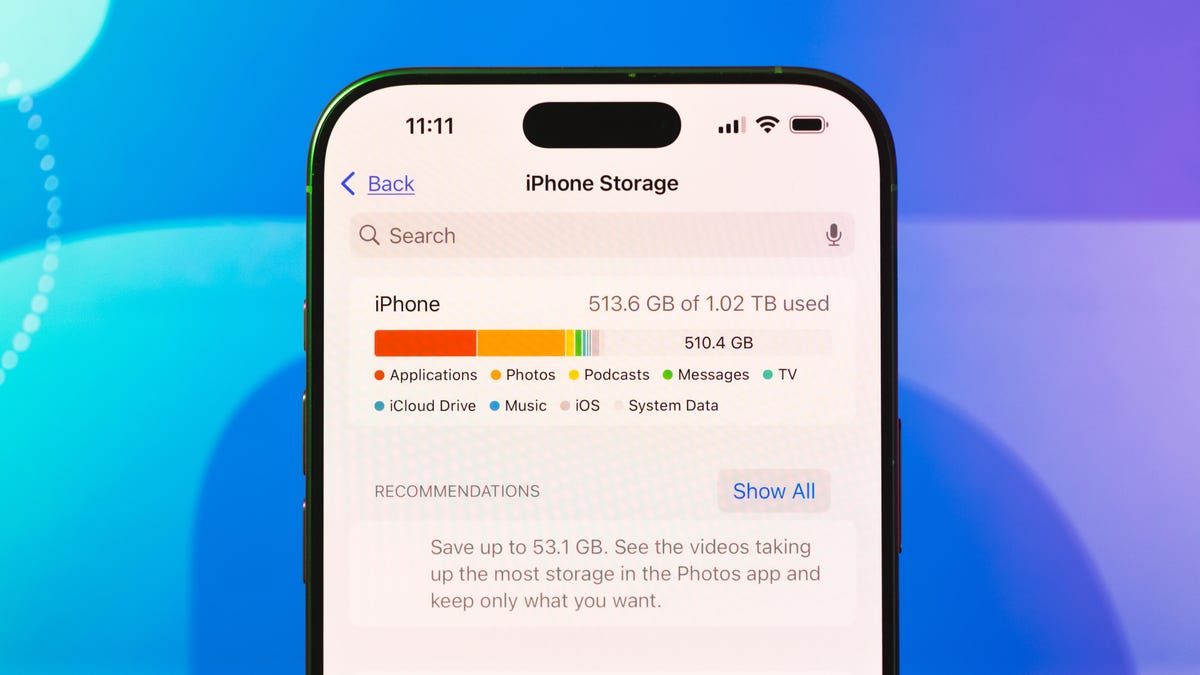
If you’ve owned your iPhone for a long time, you know the f when you’re about to snap a photo, download an app or update your phone, when suddenly a notification pops up warning you that your iPhone storage is almost full. Maybe you’ve frantically tried to figure out how to free up as much space as possible without just nuking everything.
But don’t panic. There are several ways to regain storage space from your iPhone that don’t involve starting from scratch. From offloading apps to using the cloud, we’ve compiled a helpful list of ways to help you make more room on your iPhone and manage your storage in a smarter, more efficient way.
How to check what’s taking up the most storage
Before you do any serious iPhone excavation, it’s best to find out just what is taking up so much space in it. To do so, go to Settings, then General and then select iPhone Storage. You’ll then see a colored bar chart breaking down the types of files and media that are on your phone. This is a great starting point because it’ll tell you which type of storage is taking up the most space and you can choose to tackle that first.
Additionally, Apple also makes recommendations in this section to help you free up more space, such as reviewing downloaded media or removing automatic downloads in podcast apps.
Deleting or offloading apps you don’t use much
The aforementioned iPhone Storage page will also list apps according to how much space they take up in your phone. It’ll also tell you the last time you used it. You can scroll through this list to see if you should be deleting any of the apps that you haven’t used in a while. You can delete them manually and redownload them later if you change your mind.
An easier way to handle this, however, is to have your iPhone automatically remove unused apps. On that iPhone Storage page, you can tap Enable next to Offload Unused Apps. Those unused apps will live on iCloud Drive (you can find them in the Files app). If you want to use them again, simply tap them (they’ll be marked with a cloud symbol) and they’ll be redownloaded.
Optimize photo storage by using the cloud
If the bulk of your storage issues lies in your photo library, you’re certainly not alone. Fortunately, you can mitigate this by using iCloud to automatically upload and store your photos and videos. You can then choose to store the original, full-resolution version of them in iCloud while keeping just smaller versions of them locally. To enable this, go to Settings, then scroll down and tap Apps, then scroll down and select Photos. Be sure that iCloud Photos is enabled and then select Optimize iPhone Storage. You are always free to download the full-resolution versions of your files at any time.
You could also consider using a third-party cloud storage service like Google Photos as a backup solution. Since deleting photos from your iPhone also removes them from iCloud, this is a smart idea if you plan on deleting some photos from your device but still want them in storage.
Transfer files off your phone and onto an external drive
Another way to free up space on your phone is to transfer files to an external storage solution like a USB drive or SD card. Simply connect the external storage to your iPhone via a cable and you can use a supported app like Files or Pages to copy files directly to the storage device. You may then transfer the files from your external drive to anywhere you like, such as your laptop or computer. If those files are important to you, it’s a good idea to back them up on cloud services like Box or Dropbox as well.
Watch this: Don’t Buy an iPhone! Do This to Keep Your Current Phone Alive Longer
05:35
Clear out data from within apps
Sometimes the biggest data hog lies within other apps. If you’ve downloaded videos and music to consume offline for example, they might still be taking up valuable space in your phone. One easy way to go through these is to go to that iPhone Storage page mentioned earlier (you get there by launching Settings, then tapping General and then selecting iPhone Storage).
From there, you can scroll through the list of apps to find one that you’ve downloaded content from, like Netflix. Tap on that app’s name and at the bottom of the page (below the Delete App link) you will see a list of downloaded content, which you may then swipe to delete. Alternatively, sometimes you might get a “Review Downloaded Media” recommendation on the iPhone Storage page. If you select that, you’ll see downloaded media from across several apps so you can delete them with ease.
It’s important to note, however, that this method doesn’t work with all media apps. YouTube, for example, doesn’t display downloaded media in the iPhone Storage page, and neither does Apple’s Podcasts app. However, you’ll still know if those apps hold a lot of data if they rank high on the list of the amount of space the app takes up. On my phone, for example, YouTube stores a whopping 33.82GB worth of Documents & Data and is therefore the biggest data hog on my phone. If you know which app has a lot of data stored in it, you can go to that app directly to delete any unnecessary media.
If you like downloading maps to your phone for offline viewing, that could be another reason your phone storage is full. In order to remove them, go to Maps on your iPhone, select your profile photo, and then select Offline Maps. You can either then manually remove a map by swiping and deleting, or simply select Optimize Storage to automatically delete unused maps.
Steps You Can Take Right Now to Avoid an Overheated Phone
See all photos
