


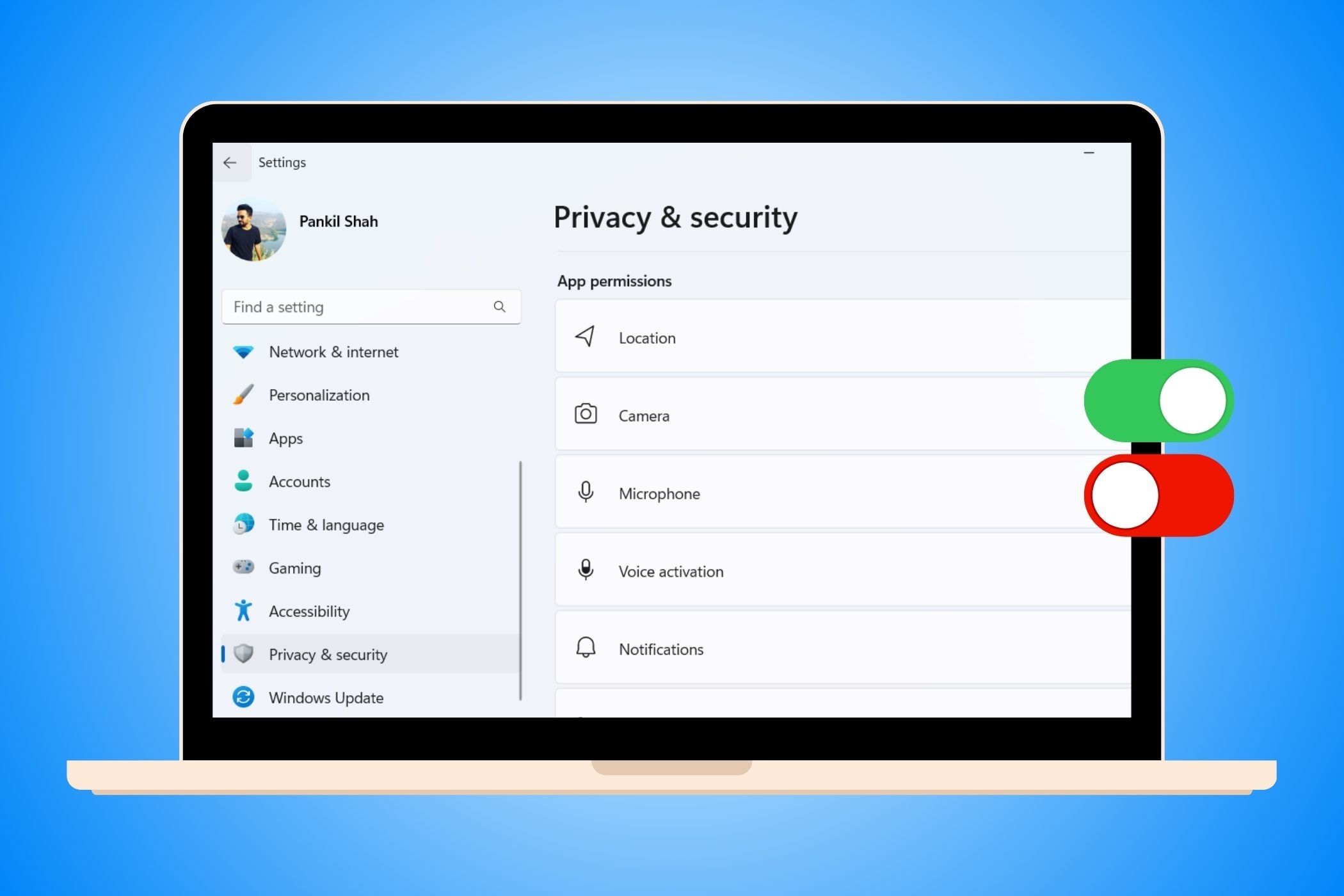
Windows 11 has been widely known to suck at privacy, since it comes with a lot of default settings that can be a privacy nightmare. But don’t worry—there are ways to regain significant control in that area. You just have to take charge.
7
Location Tracking
Windows 11 tracks your location by default, allowing Microsoft and third-party apps to know where you are. If you’re uncomfortable with this, or rarely use location-based apps like Weather or Uber, disabling location services prevents data collection. Also, doing this can save battery on laptops and tablets.
To do that, go to Settings > Privacy & Security, scroll down to the App Permissions section, and select Location. From there, toggle off Location services.
In the pop-up, click Turn off to completely disable location services.
6
App Permissions
Windows 11 grants many permissions to apps by default, which can compromise your privacy. It’s also easy to grant permissions you didn’t intend to. For both reasons, it’s best to review and adjust app permissions to ensure certain apps don’t have too much access.
To do so, go to Settings > Privacy & Security, then scroll down to the App Permissions section. Here, you will find permissions like Camera, Microphone, and Contacts. Select an app, expand the Let apps access your [permission] section, and toggle off access for apps that don’t need it.
Audit these settings regularly, especially after installing new apps, to ensure permissions haven’t changed.
5
Cloud Clipboard
The clipboard is a handy feature that temporarily stores items you’ve copied (such as text and images), allowing you to quickly paste them between apps. The clipboard history, which you bring up by pressing Win + V, is especially helpful for retrieving multiple copied items. This gets even better with the best Windows clipboard tips.
But do you want the clipboard to sync data to Microsoft’s servers or between devices, leading to data collection and potential accidental sharing of sensitive data? If you don’t, you can easily disable clipboard history by going to Settings > System > Clipboard and toggling off Clipboard history across devices.
4
Cloud Sync
Windows’ cloud sync ability can also be a privacy problem, since it stores settings, files, app data, and preferences in your OneDrive account. Besides the obvious data collection potential for Microsoft, it can also lead to persistent tracking. To stop this from happening, you can unlink your OneDrive account from Windows.
To do that, click the OneDrive icon in the bottom-right notification area. Next, click the cog icon in the top-right corner and select Settings in the menu.
Select the Account tab on the left and click the Unlink this PC link.
In the popup, click Unlink account, and that’s it—no more cloud sync.
3
Microsoft Account Settings
When installing Windows 11, you’re required to sign in with a Microsoft account to complete the installation. While there are some benefits to linking your Microsoft account with Windows, doing so also allows Microsoft to track usage patterns, collect data, and create a digital profile tied directly to your identity.
Some tricks let you bypass the Microsoft account requirement, but if you signed in anyway, the good news is that you can still sign out afterward. You’ll use what’s called a local account afterward, which offers a more private experience.
To switch to a local account, go to Settings > Accounts > Your info and click the Sign in with a local account instead link.
From there, follow the instructions to sign out of your Microsoft account. Just keep in mind that using a local account on Windows has some drawbacks.
2
Telemetry and Background Data Collection
By default, Microsoft collects data about your device and usage habits in the name of improving the OS. This is called telemetry, which can include information about your hardware, app usage, feature usage, and performance data. While you can’t disable this data collection completely, you can limit it.
To do that, go to Settings > Privacy & security > Diagnostic & feedback and expand the Diagnostic data section. Find the Send optional diagnostic data toggle and turn it off.
Afterward, it’s time to clean any diagnostic data that Microsoft may have already collected for your Windows PC. Scroll down, expand the Delete diagnostic data section, and click Delete.
1
Personalized Ads and Advertising ID
Personalized ads rely on extensive tracking of your online behavior, browsing history, and personal information without your explicit consent. This is a privacy nightmare that you can thankfully turn off by disabling your advertising ID in Settings. However, keep in mind that apps will continue to show you non-personalized ads after disabling this (based on general factors like your location and what you’re doing in the app).
Go to Settings > Privacy & security > General and toggle off Let apps show me personalized ads by using my advertising ID. Here, you will also find some additional tracking options that you might want to toggle off, such as Let websites show me locally relevant content by accessing my language list and Let Windows improve Start and search results by tracking app launches.
Disable Personalized Ads in Microsoft Edge
If you use Edge, an additional step can ensure it doesn’t serve you personalized ads while browsing. Open Edge, click the three-dot icon in the top-right corner, and head to Settings > Privacy, search, and services > Privacy. Next, toggle off the Allow Microsoft to save your browsing activity…
As you can see, Windows doesn’t offer the most private experience from the start. It’s up to you to make some much-needed changes to ensure that Microsoft gets the least amount of data from you. And since making these changes won’t take you more than an hour, they’re worth making if you highly value your privacy.
