


The Download
- Make sure Apple Watch and old iPhone are updated and synced to iCloud > back up old phone > set up new phone.
- When asked to use Apple Watch, select Continue > keep devices close > follow on-screen directions.
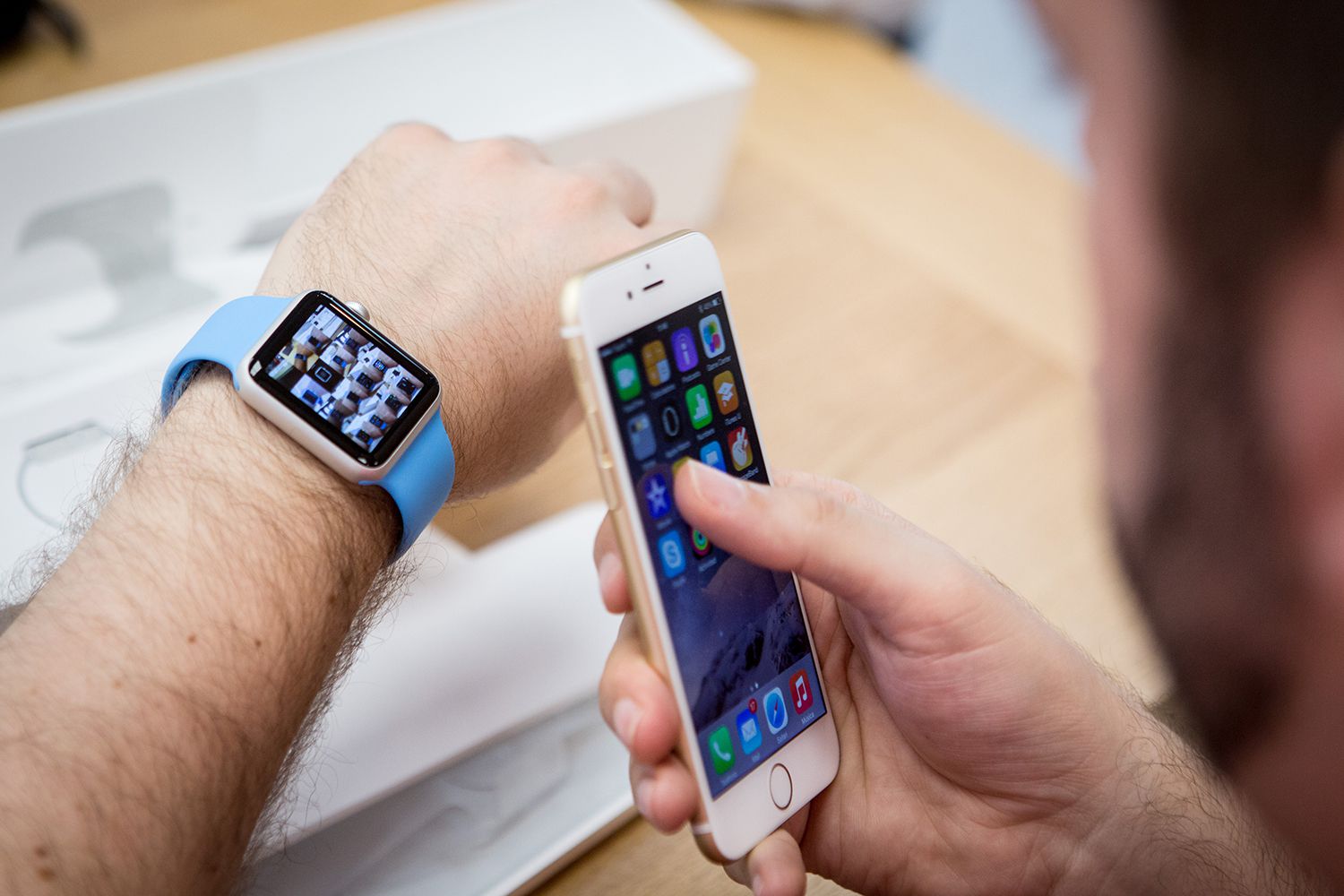
This article explains how to pair and connect your Apple Watch to a new iPhone.
How to Connect an Apple Watch to Your New iPhone
Follow these instructions to connect and pair your Apple Watch with a new iPhone to ensure you don’t lose any data.
Ideally, you have both the new iPhone and the old one you’re upgrading from. If you don’t, skip to the “What to Do If You Don’t Have Your Old iPhone” section at the end of this article.
-
First, upgrade to the latest iOS version on the phone you’re replacing and then check for a watchOS upgrade on your Apple Watch.
These checks might seem unnecessary, but they’re not. Your new iPhone will be running the latest OS, so you need to upgrade both the old iPhone and the Watch to ensure that all data transfers properly and setup goes smoothly.
-
Go to Settings > your name > iCloud and make sure the Health slider is set to on/green to confirm that your iPhone is syncing your Apple Watch Health and Activity data to iCloud. This is key to transferring the data to your new iPhone.
-
Back up your old iPhone to a Mac or PC or back up your old iPhone to iCloud, whichever you prefer.
If you use a Mac or PC, make sure you check the option to encrypt the backup. If you don’t do that, your Health and Activity data won’t be backed up and it won’t transfer to your new iPhone. You don’t want to lose all of that data!
-
Set up your new iPhone and choose to restore the backup you made in the previous step.
-
When the iPhone asks if you want to use your Apple Watch, tap Continue.
If this option isn’t presented to you, you’ll need to unpair your Apple Watch from your old iPhone, pair it to your new phone, and then restore the Watch’s data from backup.
-
Put the new iPhone and your Apple Watch near each other. On the iPhone, open the Apple Watch app and follow the on-screen instructions.
If the iPhone prompts you to start pairing the Watch, first unpair it from the old one and then continue.
What to Do If You Don’t Have Your Old iPhone
When you see this screen, the iPhone is rebooting.
iPhone image: KP Photograph/Shutterstock
If you no longer have access to your old iPhone, or if you already erased the iPhone or reset it to factory settings, your Apple Watch could still be paired to the old iPhone.
To pair the Watch to your new iPhone, follow these steps:
-
Erase your Apple Watch. On the Watch, go to Settings > General > Reset > Erase All Content and Settings. Follow the on-screen instructions.
-
Set up your new iPhone, if you haven’t already done so.
-
Pair and set up your new Apple Watch with your iPhone.
-
Restore the Watch from a backup when you’re given the option. Depending on how much iCloud data needs to sync to your new iPhone and your Watch, it could take hours or even days for the data to appear.
If you don’t have a backup, you’ll have to set up the Watch as new and will lose your data (unless you’ve been backing up to iCloud, that is. In that case, as long as you’re signed into the same iCloud account as the old iPhone, it should be synced).
What to Do If Your Health and Activity Data Is Missing
If you’ve set up your Apple Watch with a new iPhone and your Health and Activity data is missing, you have a few options.
If You Back Up This Data to iCloud
Make sure your new iPhone is signed in to the iCloud account you use on your Watch and on your old iPhone.
Next, make sure the Health slider is set to on/green in Settings > your name > iCloud. Then, connect it to Wi-Fi.
This will start the process of syncing data from iCloud to your phone. Depending on the amount of data, this could take minutes or days.
If You Have a Backup of Your Old iPhone
Try restoring it onto the new iPhone. Remember, the backup has to be encrypted or it won’t include Health and Activity data.
If you still have the old iPhone, you can make a new backup and then restore.
If You Didn’t Back Up Your Data to iCloud or Don’t Have Your Old iPhone
Unfortunately you won’t be able to get your data back and will need to start from scratch.
FAQ
-
Why won’t my Apple Watch pair?
It’s most likely that your Apple Watch won’t pair due to a connection issue or your settings. Check your iPhone and Watch connection and Airplane Mode and Bluetooth settings. You can also restart your iPhone or restart your Watch, check for updates, or clear network settings.
-
How do I connect my Apple Watch to a Peloton?
Install the Peloton app on your iPhone > select Profile > Menu > Apple Watch > Set Up. Also turn on the option to connect to the Health app if you’d like to offer this permission.
Thanks for letting us know!
Subscribe
Tell us why!
Other
Not enough details
Hard to understand
