


Some PowerToys features work so seamlessly, you’ll forget they weren’t always part of Windows. Here’s why Microsoft should stop treating them like experimental add-ons and start shipping them with the next version of Windows 11.
Download: PowerToys (Free)
8
PowerToys Run
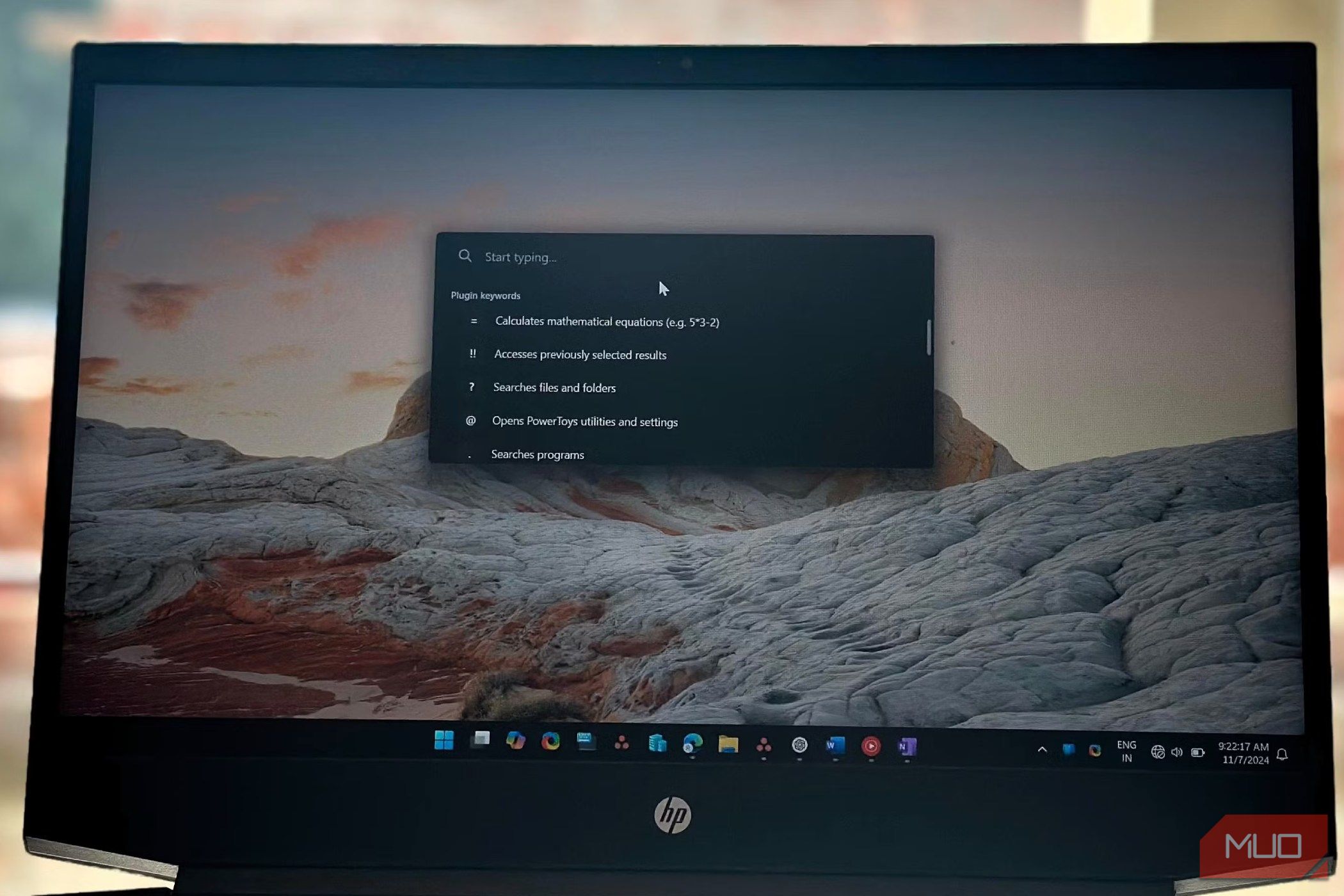
Windows Search frustrates everyone. It’s slow, misses obvious results, and prioritizes web searches over your actual files. PowerToys Run (Alt + Space) is a quick launcher that can find apps, files, folders, and system settings instantly.
Type exc and Excel appears first; type reg to open the Registry Editor. PowerToys Run learns your habits, too. If you always pick Excel when typing “ex”, it moves Excel to the top after a few uses.
To make it even more powerful, consider adding plugins like Windows Walker for switching between active windows by name, BrowserSearch to search your browsing history, or Everything to tap into its lightning-fast file search. You can also pair it with Winget to install Windows apps quickly, skipping the hassle of manual installers.
7
FancyZones
Windows Snap allows you to quickly arrange open app windows in different layouts. You can use the Win + Right/Left arrow keys or simply drag the app windows to snap them into different layouts.
But what if you need custom layouts?
FancyZones is a window manager utility that lets you create custom window layouts to improve your workflow. Hold Shift while dragging any window, and it snaps into your predefined zones.
For example, if you’re a programmer working on an ultrawide monitor, you can create a three-column layout for programming: editor in the middle, documentation on the left, and terminal to the right.
This makes it easy to set up different layouts for different tasks and switch between them with Win + Ctrl + Alt + number keys. Your windows remember their zones even after minimizing, unlike Windows 11’s basic snap layouts which forget everything the moment you click away.
6
File Locksmith
Often, when you try to delete a file, Windows warns that it can’t do so because it’s in use by another app—but won’t tell you which program. File Locksmith can help you identify which app or process is using the file and even close it with one click.
With File Locksmith enabled in PowerToys, right-click any locked file, select Unlock with File Locksmith, and see which processes have it open. Click End task to end the process, and you can continue to delete the file.
The built-in Snipping Tool in Windows 11 can do more than just take screenshots—it can also extract text from images. However, the process involves multiple steps and isn’t always accurate, especially with small text or unusual fonts. In contrast, the PowerToys Text Extractor (formerly PowerOCR) offers a faster and more reliable alternative.
To extract text, press Win + Shift + T, then click and drag to select the area containing text on your screen. Whether it’s within an image, video, or program that doesn’t support text selection, the tool will scan the selected area and instantly copy the recognized text to your clipboard.
While PowerToys Text Extractor delivers more accurate results when capturing small or low-contrast text, it currently supports only English. The Snipping Tool, by contrast, supports multiple languages, making it better-suited for multilingual workflows.
4
Always on Top
When working with multiple apps, often you need to pin a specific window to stay above all others, no matter what else you are working on. Since Windows doesn’t offer a quick way to pin any app like this, Always on Top steps in to handle the job.
Select the app you want to pin and then press Win + Ctrl + T. A thin colored border shows which window is pinned. The feature struggles with some apps (particularly non-default ones), but for everyday productivity, it eliminates constant window shuffling. You can exclude specific apps if needed and customize the border color to match your theme.
3
Color Picker
Color Picker helps you grab the exact color from anywhere on your screen—whether it’s in an app, image, icon, or website. Turn it on by pressing Win + Shift + C, then click any pixel to copy its color. It works with different formats like HEX, RGB, HSL, and CMYK.
The tool has a magnifier that zooms in so you can pick the exact pixel you want, and it automatically copies the color code to your clipboard. It also keeps track of your last 20 colors so you can use them again later. Plus, you can adjust any color you’ve picked to get the shade just right.
While not everyone needs this tool, it’s really helpful for designers, developers, and anyone creating content. It would be nice if Microsoft built this into Windows instead of making it a separate download.
2
Quick Accent
Typing loan words like café, résumé, or piñata on a US keyboard means memorizing Alt codes or switching keyboard layouts. Quick Accent solves this brilliantly—hold any letter and press Space to see all its accented versions. Then use the arrow keys to select the one you need.
You can configure it for only the languages you use, to keep the selection quick. The overlay appears at your cursor, so you never lose your place. For anyone writing in multiple languages or just wanting to spell names correctly, this beats complicated shortcuts or copying and pasting from elsewhere.
1
Awake
Awake suspends your PC’s sleep mode temporarily or indefinitely without messing up your power plans. You can toggle it from the system tray when starting a long download or running overnight backups. In my case, I use it because sleep mode kills my Wi-Fi and Bluetooth until restart—a bug that Awake helps me work around.
Awake supports three modes: indefinitely, for a set number of minutes/hours, or until a given time. That makes it as useful for a two-hour as it does for keeping awake until 6 AM for overnight tasks. You can also choose whether to keep the screen on or only prevent system sleep. When the timer expires, your standard power settings resume automatically.
Whether you’re searching for files with PowerToys Run, organizing windows with FancyZones, or keeping your PC awake during important tasks, each tool solves a real problem that Windows should handle out of the box.
Until Microsoft decides to include these features natively, PowerToys remains an essential toolkit to improve the Windows experience.
