

Close Menu
TechurzTechurz
    What's Hot

    Cursor makes its biggest India push yet ahead of SpaceX acquisition with localized pricing

    July 28, 2026

    Antares raises $470M to build nuclear reactors for the US military

    July 27, 2026

    Ilya Sutskever’s Safe Superintelligence partners with Nvidia to scale its AI research

    July 27, 2026
    X (Twitter) Pinterest YouTube LinkedIn WhatsApp
    Tech Pulse
    • Cursor makes its biggest India push yet ahead of SpaceX acquisition with localized pricing
    • Antares raises $470M to build nuclear reactors for the US military
    • Ilya Sutskever’s Safe Superintelligence partners with Nvidia to scale its AI research
    • Enigma raises $70M to make controlling a robot as easy as adjusting the volume
    • Europe got its own TBPN-style live show, and everyone’s angling for a guest spot
    X (Twitter) Pinterest YouTube LinkedIn WhatsApp
    TechurzTechurz
    • Home
    • Tech Pulse
    • Future Tech
    • AI Systems
    • Cyber Reality
    • Disruption Lab
    • Signals
    TechurzTechurz
    Home - Cyber Reality - How to send quick messages via Spotlight in MacOS Tahoe – and why I’m obsessed
    Cyber Reality

    How to send quick messages via Spotlight in MacOS Tahoe – and why I’m obsessed

    TechurzBy TechurzSeptember 24, 2025Updated:May 10, 2026No Comments3 Mins Read
    Share Facebook Twitter Pinterest LinkedIn Tumblr Reddit Telegram Email
    How to install the MacOS 26 beta on your Mac (and which models support it)
    Share
    Facebook Twitter LinkedIn Pinterest Email


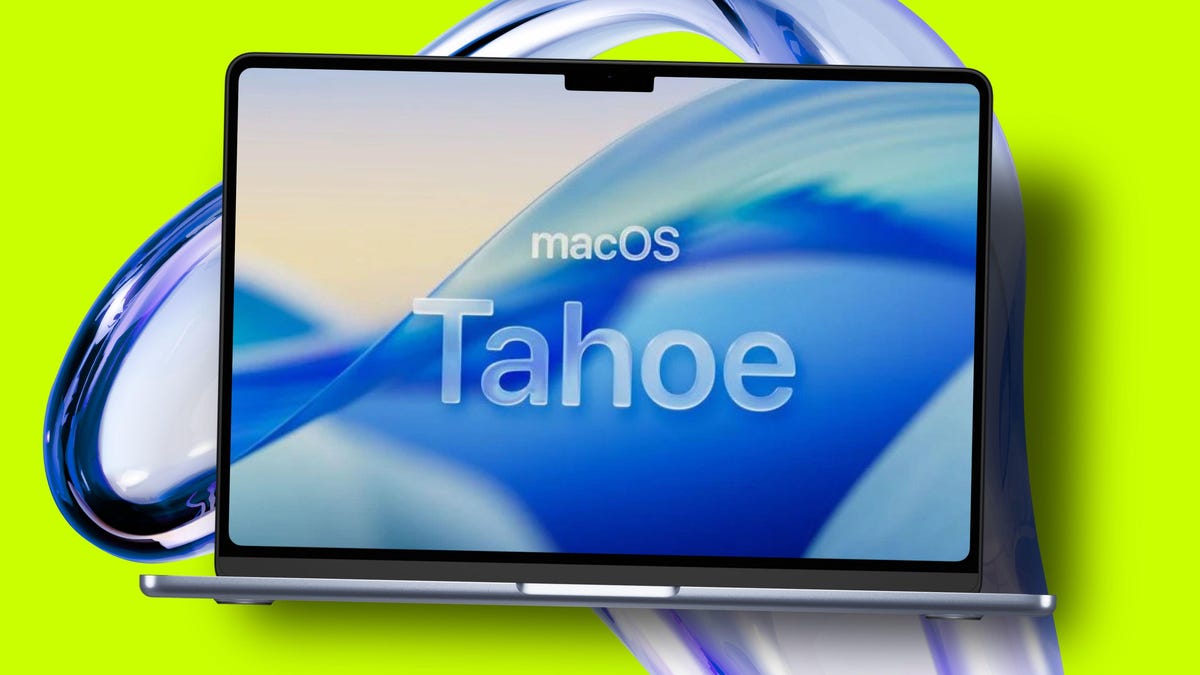
    Apple / Elyse Betters Picaro / ZDNET

    Follow ZDNET: Add us as a preferred source on Google.

    Table of contents
    1 ZDNET’s key takeaways
    2 Adding an action to Spotlight
    3 Sending an email from Spotlight

    ZDNET’s key takeaways

    • MacOS Spotlight now allows you to do much more.
    • You can quickly send emails and messages without opening the apps.
    • This feature is built in and free to use.

    So far, I think the MacOS Tahoe upgrade is hands down the best update from Apple that I can remember. It’s so good, it’s even changed my mind about using widgets. Not only is the Liquid Glass UI supremely elegant, but the Spotlight tool is finally up to the task of modern usage.

    Case in point, the ability to send messages and emails directly from the Spotlight search bar. 

    You read that right. You can now send messages and emails from within Spotlight, without having to first open Apple Mail or iMessage. It’s convenient and works like a charm. I’ve been using this feature for a few days now and have found myself working with the Mail app less and less.

    Also: 6 features I wish MacOS would copy from Linux

    Of course, you can’t reply to messages or read incoming messages, but as far as sending quick emails to people, this is the way to go.

    Notice I did say “quick emails.” You’re not going to use this feature to send paragraph after paragraph (although I suppose you could), so I would keep that in mind before you start using the Spotlight for this purpose.

    Adding an action to Spotlight

    Before you can send that first message or email from within Spotlight, you have to add an action. An action is exactly what it sounds like — it allows you to use Spotlight for purposes other than searching. There are actions for timers, notes, various apps (such as your default web browser), and more. The action I’ll demonstrate is email. 

    To add the email action, follow these steps.

    To open Spotlight, hit the Cmd+Space keyboard shortcut, which brings up the Spotlight search bar.

    Show more

    With Spotlight open, hit the Cmd+3 keyboard shortcut, which brings up the Action window.

    Show more

    You can add as many actions as you like to Spotlight.

    Jack Wallen/ZDNET

    In the Action window, locate Send Email and then click the associated “Add quick keys.” After clicking “Add quick keys,” you’ll see a cursor appear, where you’ll give the action a name. I used email as my quick key. Give this as simple a name as possible, because you’re going to use it to inform Spotlight that you want to send an email.

    Show more

    After naming the quick key, click out of the Action window to dismiss it.

    Also: How to update apps in MacOS: Two options

    Sending an email from Spotlight

    Open Spotlight again (Cmd+Space) and type your quick key (in my case, email) and then type send. Spotlight should now say “Send Message with Subject to Recipients.” What you’ll do is click in the Message section and type the message. Next, hit tab and type your subject. Finally, hit Tab and type the email address(es) of the recipient(s) of the email.

    Spotlight makes this process very obvious and easy.

    Jack Wallen/ZDNET

    Once you have the message composed in Spotlight, hit Enter on your keyboard, and the message will be sent.

    And that’s all there is to sending emails via Spotlight. If you also use iMessage, you can add that feature and quickly send messages without having to first open the app.

    Want to follow my work? Add ZDNET as a trusted source on Google.

    macOS Messages obsessed quick send Spotlight Tahoe
    Share. Facebook Twitter Pinterest LinkedIn Tumblr Email
    Previous ArticleRobot umpires approved for MLB challenges in 2026
    Next Article Why CISOs Must Rethink Incident Remediation
    Techurz
    • Website

    Related Posts

    Opinion

    Pixi’s new iOS app turns text messages into interactive AR experiences

    June 18, 2026
    Opinion

    Quick commerce FirstClub doubles valuation to $255M in nine months

    June 4, 2026
    Cyber Reality

    Digital Identity Protection: 7 Hidden Risks Most Users Miss

    May 25, 2026
    Add A Comment
    Latest Tech Pulse

    College social app Fizz expands into grocery delivery

    September 3, 20252,290

    12 Father’s Day E-Card Sites That Are Actually Good

    June 4, 202523

    SolarSquare in talks to raise up to $60M as India’s rooftop solar market draws major VC interest

    May 23, 202622
    Stay In Touch
    • YouTube
    • WhatsApp
    • Twitter
    • Pinterest
    • LinkedIn

    Techurz helps readers stay ahead of digital change with clear, practical, future focused technology intelligence written today,searched tomorrow.

    X (Twitter) Pinterest YouTube LinkedIn WhatsApp
    Company
    • About Us
    • Contact Us
    • Our Authors / Editorial Team
    • Write For Us
    • Advertise
    Policy
    • Editorial Policy
    • Privacy Policy
    • Terms and Conditions
    • Affiliate Disclosure
    • Cookie Policy
    • Disclaimer
    • DMCA
    Explore
    • AI Systems
    • Cyber Reality
    • Future Tech
    • Disruption Lab
    • Signals
    • Tech Pulse
    • Sitemap

    Join the Techurz Brief

    The future does not arrive suddenly.
    Stay ahead with fast, sharp tech signals.

    Type above and press Enter to search. Press Esc to cancel.