


The Download
- Turn on Apple Intelligence through System Settings > Apple Intelligence & Siri.
- Most features appear automatically, but you use things like Writing Tools manually.
- To use Apple Intelligence in texts and emails, look for a Summarize button.
This article explains how to use Apple Intelligence on your Mac. Instructions apply to devices running macOS 15.1 (Sequoia) and later.
How to Get Apple Intelligence on a Mac
Before you can start using Apple Intelligence, follow these quick steps to make sure it’s active.
-
Open System Settings, either from the Apple Menu or the Dock.
-
Click Apple Intelligence & Siri in the left pane.
-
Click the switch next to Apple Intelligence to turn the feature on.
What Can You Do With Apple Intelligence?
Apple Intelligence works in a variety of Apple apps to streamline work and provide guidance. You can use it to edit images in Photos, summarize and revise emails in Mail, write texts, summarize audio recordings and websites, and more.
How to Use Apple Intelligence in Mail
Apple Intelligence features in Mail include summarizing and writing tools.
When you look at your Inbox, you’ll start seeing summaries of mail messages instead of the usual previews that show the first few lines of the email. These summaries can give you a better idea of what’s in a message than just seeing a bit of it. They’ll help you decide which messages are more important and which you can let sit for now.
If you’re writing an email, you might want to use Apple Intelligence’s writing tools. These options can help you proofread or rewrite based on different moods (e.g., friendly, professional, or concise). You can also generate a summary or even create a list, table, or chart based on what you’ve written.
You can also use Apple Intelligence’s optional integration with ChatGPT to compose an email from scratch. Just make sure you read through it before you send it.
What Can Apple Intelligence Do in Messages?
If you aren’t sure how to reply to a text, Apple Intelligence will make suggestions for your consideration in the Messages app.
As in Mail, you can use Writing Tools to revise, proofread, or adjust your tone. As an example, suppose you want to tell your friend you’d like to go to the museum and look at dinosaur skeletons. Writing Tools might make the following suggestions:
- Concise: “I’d like to look at dinosaurs.”
- Friendly: “I’m itching to go on a dinosaur safari!”
- Professional: “I would like to visit a museum that houses dinosaur fossils.”
If your friend sends you a wall of text, you can also highlight it, right-click, and select either Summarize or Create Key Points to create a more digestible version.
Again, if you’ve turned on ChatGPT integration, it’ll also help you write texts in Messages from scratch.
How to Use Apple Intelligence in Photos
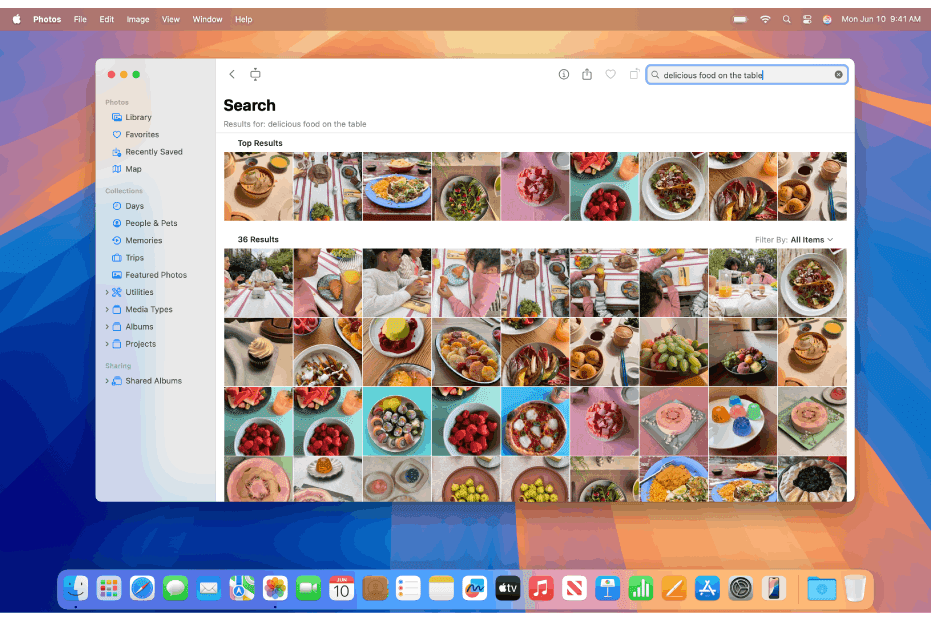
Apple Intelligence is especially powerful in Photos. You can use more natural-language search queries to find specific photos. For example, search for “trips to the zoo” to pull all of the photos you’ve taken at the zoo, even on different trips.
Photos has also gained some effective editing options that let you quickly remove distracting objects from the background, use the Clean Up feature, and then paint over or circle anything you’d like to remove. Photos will both take it out and fill in the spot where it was, so it’s like it was never there.
What Can Apple Intelligence Do in Safari?
For browsing the web, Apple Intelligence can save you some time by giving you the TL;DR version of a web page. Open the Reader by clicking the icon to the left of the URL or pressing Shift + Command + R on your keyboard. The summary will appear on the right, or you’ll see a Summarize button in the middle of the screen.
How to Use Apple Intelligence With Siri
Apple’s digital assistant gets a major overhaul with Apple Intelligence, including the ability to type to it instead of making voice requests. This feature alone can save you some embarrassment or impropriety if you need to ask Siri for something in a crowded or public space.
To type to Siri, press the Command key twice. A text window will open in the upper-right corner of your screen, and you can type your question or request.
Siri is also more capable. For example, you can create an event from a text you just received without having to go into great detail. The keyword is “context,” and the assistant will take action based on what you’re doing. And if you have a question about how to do something on your Mac, it can help you with that, too.
Which Devices Can Use Apple Intelligence?
With a few exceptions, you’ll need a device with Apple Silicon (M1 and up) to use Apple Intelligence. The only outliers are the iPhone 15 Pro and iPad Mini, both of which use the A17 Pro chip.
The following devices are compatible:
- iMac: M1 (2021) and later
- iPad Air: 5 (2022) and later
- iPad Mini: 7 (2024) and later
- iPad Pro: 5 (2021) and later
- iPhone: 15 Pro and later (including 15 Pro Max)
- MacBook Air: M1 (late 2020) and later
- MacBook Pro: M1 (late 2020) and later
- Mac Mini: M1 (late 2020) and later
- Mac Pro: M2 Ultra (mid-2023) and later
- Mac Studio: M1 Max (2022) and later
- Vision Pro: M2
Thanks for letting us know!
Subscribe
Tell us why!
Other
Not enough details
Hard to understand
