

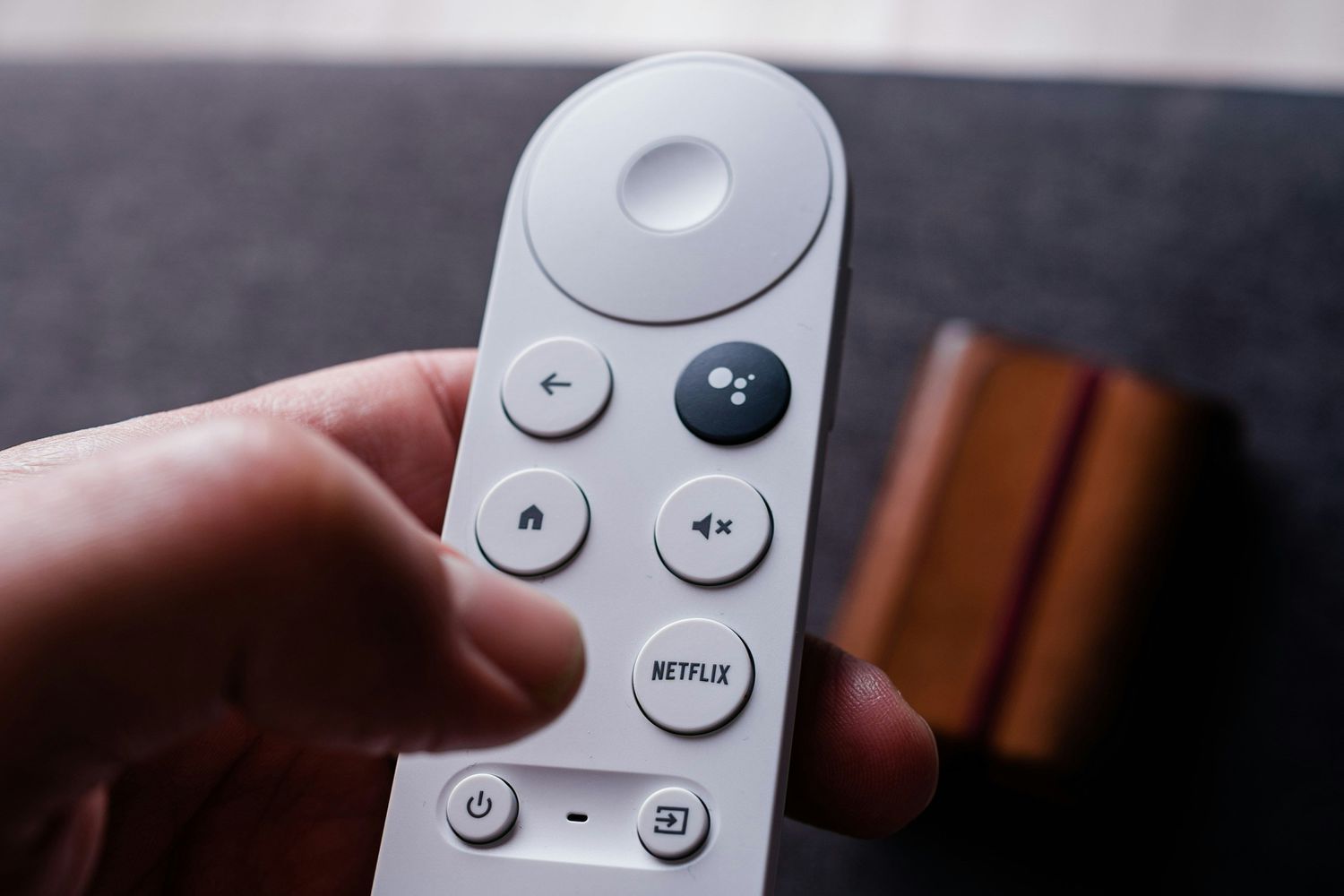
Using Chromecast with a remote is usually an enjoyable experience, but sometimes the remote can stop working properly, won’t pair, or behave strangely. This guide covers all of the best ways to fix a broken Chromecast remote.
How to Fix a Chromecast Remote That’s Not Working
Here are all of the best solutions for when you’re having trouble controlling your Chromecast with a remote. It’s best to work through these fixes in the order presented, as they’re listed from the easiest and fastest fixes to more advanced and time-consuming ones.
-
Make sure you’re using the right remote. This fix may seem a bit silly, but using the incorrect remote is actually a common cause of a Chromecast remote seemingly not working properly.
A mix-up can often happen when you have more than one Chromecast device in your house or remotes for other devices that look similar to the one that controls your Chromecast.
-
Check your TV and its media input. Make sure that your TV is on and that the HDMI port the Chromecast is connected to is selected. Your remote may be working fine, and you simply can’t see what it’s doing.
-
Check the batteries. Remove the remote’s batteries and make sure that the positive and negative ends of each one are facing the correct direction.
-
Replace the batteries. Take out the current batteries and try some new ones to see if this is the reason the Chromecast remote is not working.
-
Test alternative remotes. If you’re having trouble using Chromecast with a remote, try controlling it with the Google Home or Android TV Remote service apps. A universal remote could also work.
If any of these alternative control methods work, then the issue is definitely with the Chromecast remote. However, if you can’t control your Chromecast with anything, then you likely need to fix the Chromecast device, not the remote.
-
Update your Chromecast. Performing an update can fix a number of Chromecast remote bugs.
Updates happen automatically when they are available and when the Chromecast is connected to Wi-Fi. Rebooting (the next step) should trigger an update check.
-
Restart your Chromecast. A quick reboot can fix your remote connectivity issues and improve other streaming problems you’re experiencing. To restart your Chromecast, unplug it, wait a minute, and then plug it back in.
-
Restart your casting device. If you’re having problems only when using your remote to control media that’s being cast from a particular device (like your phone), restart that device and try casting again.
-
Restart your TV. A delay when using your remote is often caused by the TV and not the Chromecast device or remote. Your TV’s restart option can be found within its settings menu on its home screen, or just pull the plug to power it down.
-
Remove obstructions. Remove any plants, candles, Blu-rays, or anything else that’s potentially blocking your remote’s wireless connection to your Chromecast.
-
Re-pair your Chromecast remote. This will establish a brand-new connection with the TV.
From your account profile on your TV, open Settings and select Remotes & Accessories > Chromecast Remote > Forget, and then choose Yes.
Hold both Home and Back for several seconds on your remote to pair it to your Chromecast again.
-
Factory reset your Chromecast remote. Resetting remotes can be done by removing the batteries, waiting five minutes, reinserting the batteries while pressing Home, and releasing the Home button when the LED lights start flashing.
If your Chromecast remote didn’t automatically re-pair to your Chromecast device during the reset process, press and hold the Home and Back buttons for three seconds.
-
Clean your Chromecast remote. Dirt and grime could be affecting the button and overall remote functionality.
-
Turn off Bluetooth on other devices. It’s possible that the Bluetooth signal from a smartphone, laptop, or other device could be affecting your remote’s connectivity. Temporarily disable Bluetooth on some devices to see if this fixes the issue.
-
Check for physical damage. Inspect the remote for any damage on its exterior, give it a shake, and listen to see if any interior parts have been damaged. If there is noticeable damage, you’ll likely need to replace the remote.
-
Contact Google Support. If none of the above fixes work, it can be a good idea to contact Google directly. They may be able to provide more personalized advice or even offer you a replacement remote if you’ve purchased yours recently.
-
Return the remote. Taking your Chromecast and its included remote back to the store you bought it from, along with proof of purchase, could possibly get you a replacement.
-
Chromecast directly to your TV. Many smart TVs have built-in Chromecast functionality, which makes for a solid alternative when your Chromecast remote or device stops working.
When casting to your TV directly, you’ll need to use your TV remote to control the streaming media, not your Chromecast remote.
-
Try a Chromecast alternative. If your Chromecast remote and device simply refuse to work properly, try casting or streaming media directly via your TV’s built-in alternatives, if available.
You can also try similar functionality on other streaming devices such as Apple TV and Roku, or video game consoles such as the Xbox Series X and PlayStation 5. Old-school wired connections are also an option.
Why the Chromecast Remote Is Not Working
Issues with a Chromecast remote are usually caused by dead or improperly installed batteries, objects blocking the wireless signal between the remote and the Chromecast device, or damage to the remote hardware. Occasionally, a basic software or hardware conflict can be behind a problem.
Thanks for letting us know!
Subscribe
Tell us why!
Other
Not enough details
Hard to understand
