

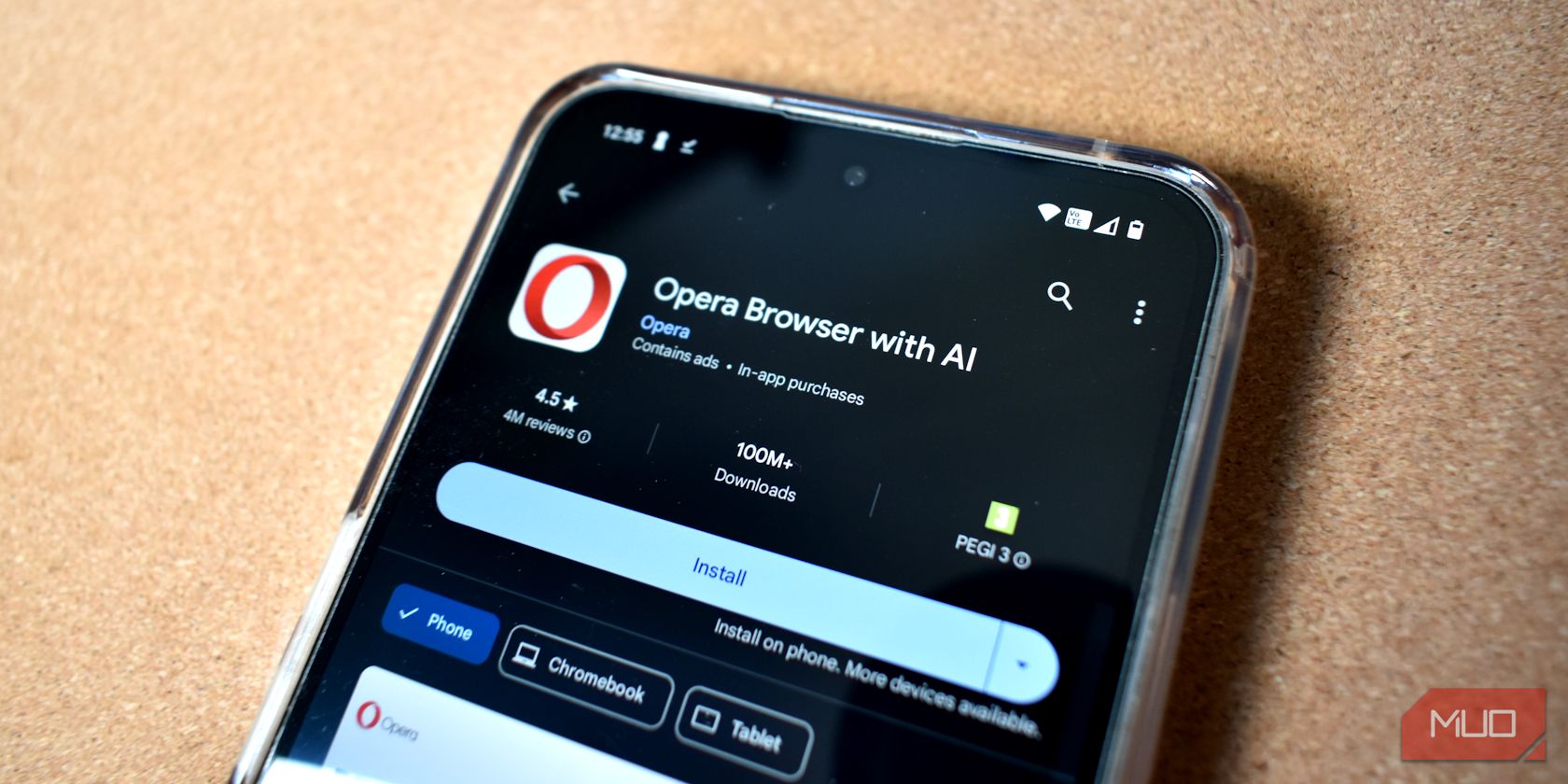
You already use the Play Store on your Android phone or tablet—but it’s not just for browsing and installing apps. It’s packed with powerful features that let you share digital purchases with family, free up storage easily, and keep your device secure.
8
Keep Your Device Safe With Play Protect
Downloading apps from the Play Store is generally safe, as Google regularly checks every listed app and game to ensure they meet its security standards. But even when you venture outside the Play Store (like by sideloading an Android app to install an older version or something not available in your region), the Play Store still has your back.
It offers a Play Protect feature that’s enabled by default and runs regular scans of your apps to detect anything that might put your device at risk. If it finds something suspicious, you’ll receive a notification. Otherwise, it quietly works in the background.
If you ever suspect that your phone might be infected, you can run a manual scan. Tap your profile icon in the Play Store, select Play Protect, and tap Scan.
The Play Protect settings menu includes a useful option called Permissions for unused apps. It shows you which apps you haven’t opened in the past six months. Aside from helping you remove permissions from apps you don’t need anymore, it provides a great place to start if your phone’s storage is running low.
7
Sync Apps Across All Your Devices
If you own multiple Android devices, such as a watch, tablet, TV, or Chromebook, there’s a good chance you use many of the same apps across them. The good news is that you don’t have to install those apps manually on each device every time. As long as you’re signed in with the same Google account on all your Android devices, you can set the Play Store to automatically sync apps between them.
On the Play Store, tap your profile icon in the top-right corner and go to Manage apps & device > Sync apps to devices. You’ll see a list of all Android devices connected to your account. Simply check the boxes next to the devices you want to sync with, and you’re all set.
6
Uninstall Apps in Bulk to Clean Up Fast
Clearing out apps and games you no longer use is a great way to free up space on your Android phone. While uninstalling individual apps is easy, the Play Store offers an even quicker way to clean up multiple apps at once when you’re ready for a full-on cleanup.
Tap your profile icon in the top-right corner and go to Manage apps & device. Then, switch to the Manage tab to view a list of all your installed apps. From here, you can sort by size or last used to easily spot the low-hanging fruit.
Finally, tick the check boxes next to the ones you no longer need, hit the trash icon in the top-right corner, and select Uninstall to confirm.
5
Save Space With Auto-App Archiving
You don’t have to uninstall apps and games manually to free up storage space. The Play Store offers a handy auto-app archiving feature that can save space without fully removing your apps.
To take advantage of this, tap your profile picture on the Play Store and go to Settings > General and enable Automatically archive apps. Once activated, the Play Store takes care of the rest.
Google Play will now automatically remove parts of unused apps from your device when storage is running low. This doesn’t affect any of the app data, and the app icon remains on your home screen, grayed out. If you ever want to use the app again, tap it, and it will re-download right where you left off.
4
Install Apps Remotely
You don’t need to have your Android phone or tablet in hand to install an app on it. The Google Play Store lets you remotely install apps to any of your connected Android devices, be it your phone, tablet, or smartwatch.
As long as you’re signed into the same Google account used on your phone, you can open the Play Store in a web browser on any device and sign in. Search for the app you want, then click the Install button on its page. Then, select the device and click Install again.
This feature also works in the Play Store app on your phone or tablet. On the app or game page, tap the arrow next to the Install button, select the device you want to install it on, and then tap Install again.
3
Get a Refund When You’re Unsatisfied
While the Google Play Store is packed with free apps and games across every category, you might make a purchase every once in a while. And thankfully, Google understands that not every paid app or game may live up to expectations.
If you spend money on something that doesn’t live up to the hype, you can request a refund directly from the Play Store. You’ll need to act quickly, though—refunds for apps and in-app purchases must be requested within 48 hours of purchase. For movies, TV shows, eBooks, and audiobooks, you have up to seven days to request a refund, provided you haven’t downloaded or streamed the content.
To get a refund, all you have to do is search for the app or game on the Play Store to open its page. If you’re within the eligible window, you’ll see a Refund button. Tap it, and you should receive an email confirmation shortly after.
For in-app purchases, the process is slightly different. Tap your profile picture in the top-right corner, go to Payments & subscriptions > Budget & history. Find the item you want a refund for and tap View to open the transaction details. Then, select Report a problem, select a reason from the dropdown menu, and hit Submit.
2
Share Apps, Games, and Movies via Family Library
For purchases you decide to keep, you can share them with up to five family members. To do so, you’ll need to set up Google Play Family Library, which lets you share your paid Android apps, games, movies, TV shows, eBooks, and even audiobooks.
Head to Play Store Settings > Family > Sign up for Family Library and follow the on-screen instructions to create your family group and invite members. You can choose to share items individually or set all eligible purchases to be shared automatically. Your family members will then be able to download and enjoy that content on their own devices, without needing to buy it themselves.
Not every item is eligible for sharing, though. To check whether an app, game, or piece of media can be added to your Family Library, look for the Family Library icon on the content’s details page.
1
Earn and Use Google Play Points
Every time you make a purchase on the Play Store, you could be missing out if you’re not earning Google Play Points. This rewards program lets you collect points for nearly every dollar you spend.
To get started, tap your profile icon in the Play Store, go to Play Points, and join the program for free. Once done, you’ll earn points automatically with every eligible purchase. The more you spend, the higher your level can climb—from Bronze up to Silver, Gold, and Platinum—each offering increasing benefits like bonus point events and special discounts.
These points aren’t just for show. You can redeem them for Google Play credit, use them to score discounts on in-app items, or even donate them to select charities.
You might not need the above Play Store features every day, but knowing they’re available can save you time, money, and storage space when it counts. So take a moment to get familiar with what the Play Store can really do—you’ll thank yourself later.
