

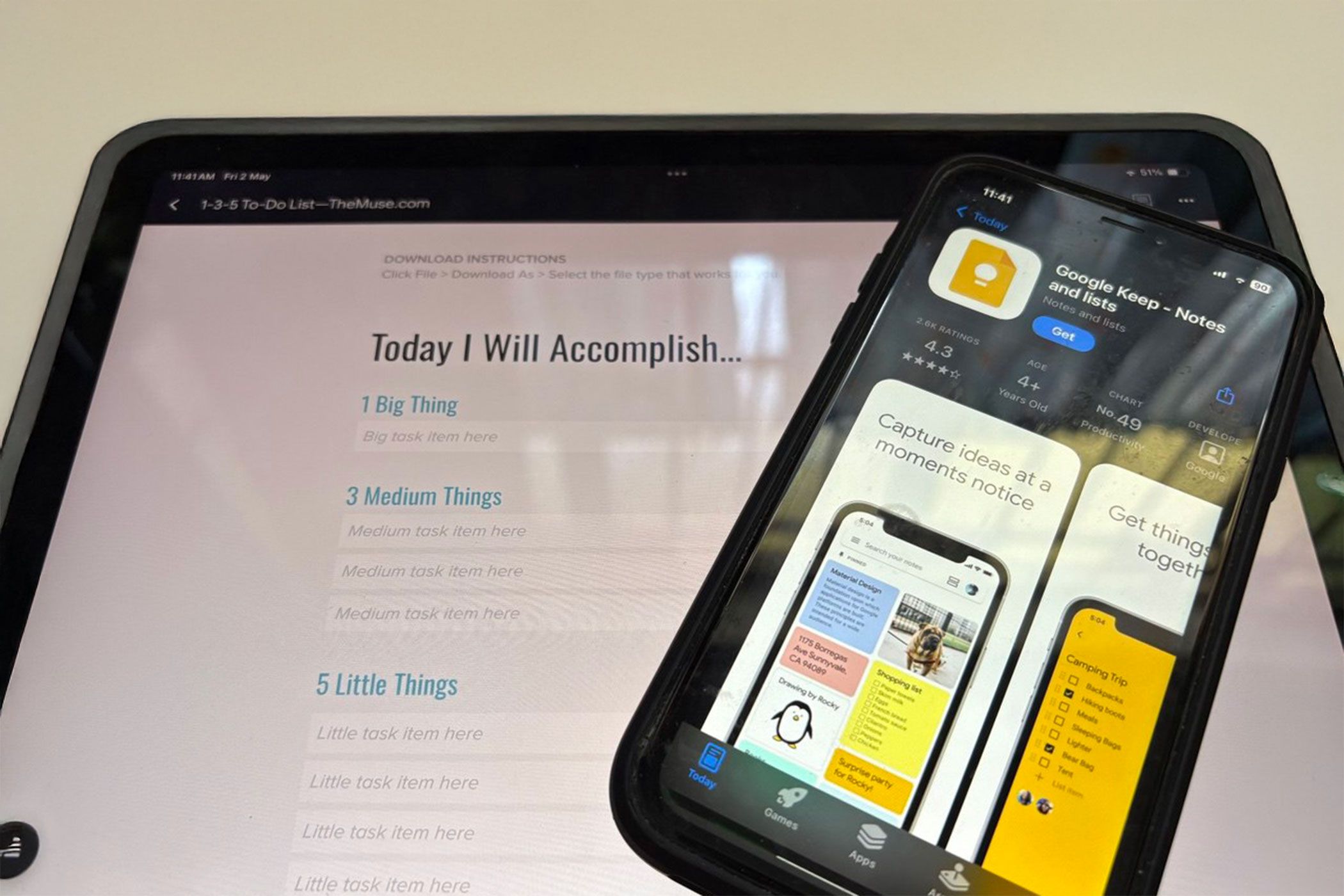
Notetaking apps are a universe of their own. Each software is tempting. That’s why I stopped chasing ideas across half a dozen apps. Now, I’ve settled on a free, minimalist two-tool system: Google Keep for lightning-fast captures and Google Docs for deliberate deep dives. It stays in sync, costs nothing, and never feels cluttered.
Capture Instantly With Google Keep
When a thought, quote, or task strikes, I open Google Keep (on my phone or browser) and type or record it. iOS doesn’t have a Keep widget, but that’s not a problem, as the “Post-It” app loads almost instantly.
I apply one of three labels—Idea, Research, or Task—and give the more urgent notes a red background. Color coding helps me glance at priority: red for now, blue for later. If something isn’t worth keeping, I delete it after a while. There are many ways to use Keep to improve your workflow, so I won’t discuss them in detail here.
Notes can easily pile up if unattended. Each evening, I get a reminder from Keep to clear my “inbox.” I review every note and archive or delete the rest I’ve processed. This daily triage keeps my capture space empty and stops me from hoarding the notes.
I use checkboxes for a daily task list or a project with milestones. When I move them into Docs, they turn into structured action items. Google Docs also has several task management features, such as real-time collaboration.
I use Keep’s image scan feature to snap whiteboard diagrams or book passages. Its OCR turns photos into searchable text. I can type a keyword later and find words inside my pictures. By treating Keep as my fleeting thought inbox, I try not to let anything slip through the cracks on a busy day.
Move to Permanent Notes in Google Docs
Notes can get scattered across Google Drive, so I keep a folder reserved for my Google Docs notetaking. You can create your own structure with folders and subfolders. A sub-folder usually hosts other assets like PDFs, audio files, or any other upload. Coloring folders and sub-folders helps to tell them apart.
At night, I open my project document in Google Docs. It’s important to have a consistent naming structure even though documents are searchable across Google Drive. For instance, I use the date and a keyword. For example 2025-05-01_ArticleIdeas can be a document or a swipe file for time sensitive information.
I can click “Copy to Google Docs” on each Keep note, but I prefer to drag and drop the relevant Keep snippet to a document from the side panel or tap the Add to document option on Google Keep alongside the open document.
As Google Keep is vanilla, most of the formatting happens in Google Docs. However, Google Docs and its pageless mode make my notes seamless.
Now, it’s easier to use tabs to break down large documents into manageable sections or keep related information together without creating separate files. Each tab in a single Google document can have its own title and content. Every tab also has its own URL; a plus when I backlink notes for easier navigation.
In Docs, I use header styles as section dividers. H1 holds my project title, H2 marks major sections like Key Points or Ideas, and H3 breaks down subpoints. Of course, there are multiple ways to organize a Google doc. You can design your own documents in many creative ways.
I insert a table of contents at the top for really long research notes. When questions or follow-ups arise that I can’t answer now, I leave a comment or mark it with an emoji reaction. Alternatively, placing a bookmark is handy for jumping from point to point.
I embed quick sketches or diagrams directly in Docs for visual context. If I scan a photo in Keep, I copy it into the relevant section. This turns Docs into a single holding for each project: research notes, draft text, to-dos, and images all live in one place.
You can also dress up each Google document with beautiful header images. Google seems to have borrowed this feature from Notion.
Sync, Search, and Simplify With Google’s Ecosystem
There are some limitations to using both note tools together. It’s impossible to perform a single, unified search across both Google Keep and Google Docs simultaneously. But you can use the side panel to open both and manually cross-check.
Adding a follow-up to Google Tasks from Docs is only possible with a Workplace or School account. However, you can again use the side panel to add follow-up tasks manually to Tasks or the Calendar.
Google’s multimodal ecosystem allows me to bring in spreadsheets, slides, photos, voice notes, maps, etc.
I take the benefits of Linked objects (Google Docs > Tools) to insert a chart, table, or slide. Any updates to the source document will automatically sync to the linked embed in the Google Doc notes.
When I travel, I switch on offline mode in Docs. I can write on a plane or train, and when I reconnect, Drive automatically syncs my changes. I don’t have to worry about version conflicts or missing edits.
Leverage Gemini for Reviewing Your Notes
If you are on a personal Google account, then you cannot access Gemini from within Drive. You just have to make do with the AI chatbot in a separate tab. Alternatively, you can link your Google Docs note file to Gemini and review your notes. For lengthy research notes, I ask Gemini to summarize each section I write. It spits back a clear, one-paragraph abstract I can refine. I prompt it to rephrase dense passages in plain English. That saves me time when I’m drafting or editing.
When I need fresh angles, I ask Gemini to suggest follow-up questions or propose subheadings. It scans the content I attach and starts the interaction. I copy those into a separate tab in the same document. A common use case for me is to use my rough notes as a starting point for composing an email with Gemini.
I play around and even prompt Gemini to change my perspective with something like,
Use second-order thinking and list counterarguments to this plan from a [role] perspective.
Gemini’s AI suggestion can be used like a sounding board, turning rough static notes into something more reciprocal without extra tools or tabs.
Notetaking Tips to Keep Your System Lean
- Weekly Decluttering (10 min): Every weekend, archive old Docs and clear any leftover Keep notes.
- Consistent Naming: Use YYYY-MM-DD_ProjectName so files sort themselves by date.
- Template Doc: Do you write notes in a specific style? Create a template and duplicate it for each new project. For instance, creating meeting note templates in Google Docs is painless.
- Quick-Capture Shortcut: Add the Keep widget to your mobile home screen (Android only) for one-tap note creation.
- Use Smart Chips and Building Blocks: Add interactivity to your notes with Smart Chips and format them better with Building Blocks.
By splitting fleeting ideas (Keep) from structured writing (Docs), I get instant capture without sacrificing order. But systematic notetaking is a habit. So, think about a workflow that’s your own. Keep it minimal so the tools don’t get in the way of the system. Soon, you’ll feel the calm of your own customized system that stays out of your way but also keeps every idea within reach.
