
Close Menu
TechurzTechurz

    Subscribe to Updates

    Get the latest creative news from FooBar about art, design and business.

    What's Hot

    It’s not your imagination: AI seed startups are commanding higher valuations

    March 31, 2026

    Yupp.ai shuts down after raising $33M from a16z crypto’s Chris Dixon

    March 31, 2026

    Whoop’s valuation just tripled to $10 billion

    March 31, 2026
    Facebook X (Twitter) Instagram
    Trending
    • It’s not your imagination: AI seed startups are commanding higher valuations
    • Yupp.ai shuts down after raising $33M from a16z crypto’s Chris Dixon
    • Whoop’s valuation just tripled to $10 billion
    • Nomadic raises $8.4 million to wrangle the data pouring off autonomous vehicles
    • The company behind ClassPass and Mindbody just got a lot bigger with a $7.5B merger
    • Exclusive: Runway launches $10M fund, Builders program to support early stage AI startups
    • Delve whistleblower strikes again, with alleged receipts about ‘fake compliance’
    • Popular AI gateway startup LiteLLM ditches controversial startup Delve
    Facebook X (Twitter) Instagram Pinterest Vimeo
    TechurzTechurz
    • Home
    • AI
    • Apps
    • News
    • Guides
    • Opinion
    • Reviews
    • Security
    • Startups
    TechurzTechurz
    Home»Guides»How to Connect a Webcam to a Smart TV
    Guides

    How to Connect a Webcam to a Smart TV

    TechurzBy TechurzJune 30, 2025No Comments3 Mins Read
    Share Facebook Twitter Pinterest LinkedIn Tumblr Reddit Telegram Email
    How to Connect a Webcam to a Smart TV
    Share
    Facebook Twitter LinkedIn Pinterest Email


    The Download

    • A USB cable is all you need to connect a webcam to a smart TV.
    • Use the remote to change the source/input to the port the webcam is using.
    • Finally, follow the prompts to connect the webcam to the internet and log onto the streaming service of your choice.

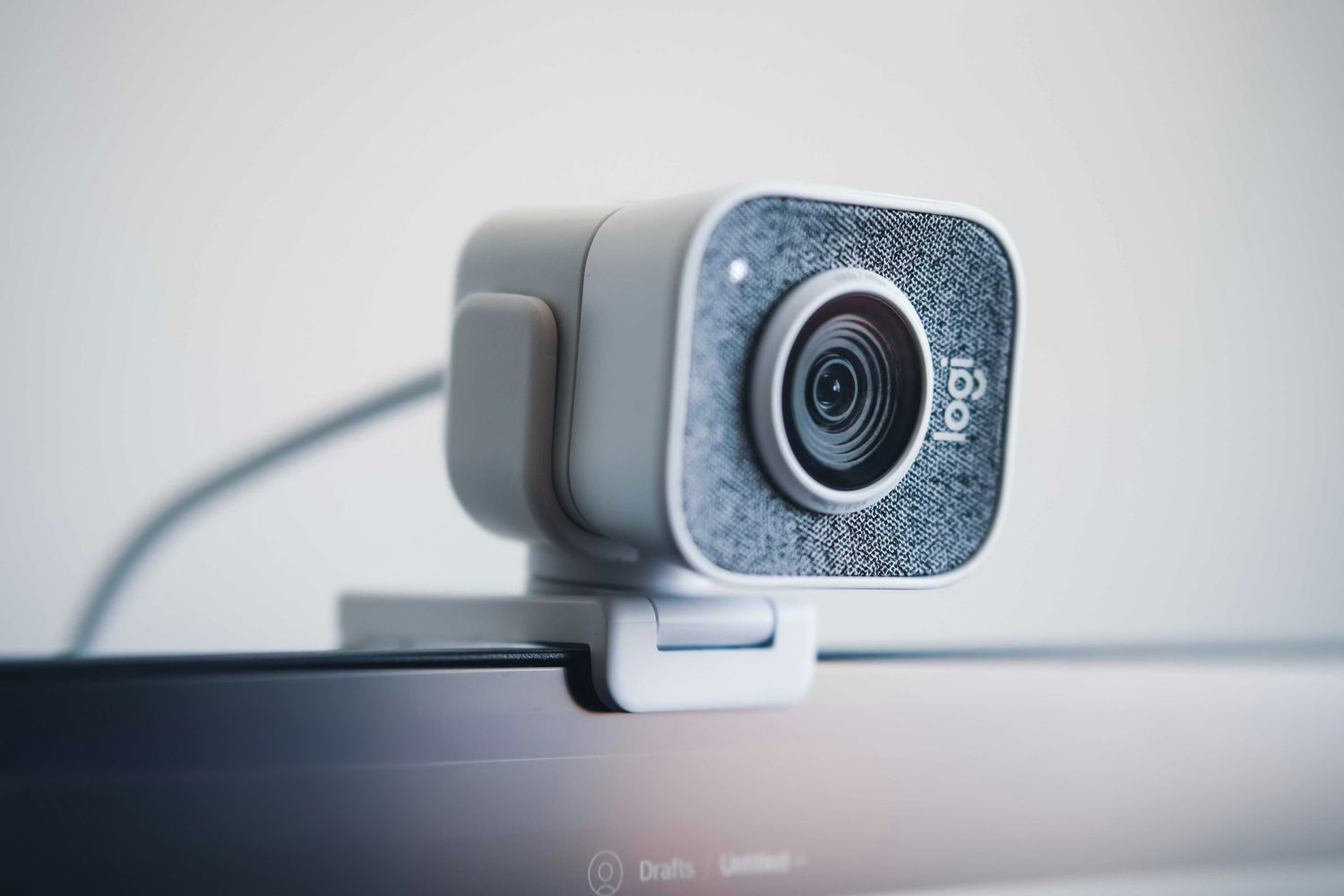
    This article describes how to connect a webcam to a smart TV using the TV’s USB port. This will let you communicate with video directly from your TV.

    How to Connect a Webcam to a Smart TV

    To start video chatting on your smart TV, make sure the smart TV is connected to the internet, then follow these instructions.

    1. Using a USB cable, connect the webcam and insert the other end into an empty USB port on your smart TV.

      If you use an external web device with USB ports connected to your smart TV to access the internet, you can connect the USB cable there as well.

    2. Select the Source or Input button on the TV remote control.

    3. Go through the input sources until you can see your webcam display on the TV screen.

    4. Adjust your webcam until you can see yourself on the screen.

    5. Follow the prompts to connect the webcam to the internet.

    6. Use your smart TV or external web device to log on to your preferred streaming service.

    What Are the Benefits of a Smart TV Webcam?

    Given that your smart TV is essentially a large monitor with high resolution that is capable of connecting to the internet, connecting an HDMI webcam only makes sense.

    Rather than having to bend over a cramped computer screen or straining to make out details on the screen, you can see everything on your smart TV. Better yet, you can utilize this technology in any room with a smart TV and enjoy comfortable seating for both personal and professional video calls.

    If you work from home or do a lot of traveling for business, you don’t need to lug your computer around from room to room or place to place. By connecting an HDMI webcam to a smart TV in a conference room or hotel room, you can stay in the loop and even give presentations without the need for a complicated computer setup.

    You can also set up an easy way for your tech-averse relatives and elderly parents to be able to video chat with you whenever they would like.

    FAQ

    • How do I connect a webcam to a Samsung smart TV?

      Use a USB cable to connect the webcam to your Samsung smart TV. With your TV remote, cycle through your TV’s input options until you see the webcam displayed on the screen.

    • How do I use my Android phone as a webcam?

    • How do I use my iPhone as a webcam?

      You can use your iPhone as a webcam with the Continuity Camera feature on your Mac. You can connect the webcam wirelessly or with a USB cable. Turn on Continuity Camera on your iPhone through Settings > General > AirPlay & Continuity. On your Mac, open an app that can use the camera, and then open the app’s menu and select your iPhone as the camera.

    Thanks for letting us know!

    Get the Latest Tech News Delivered Every Day

    Subscribe

    Tell us why!

    Other

    Not enough details

    Hard to understand

    connect Smart webcam
    Share. Facebook Twitter Pinterest LinkedIn Tumblr Email
    Previous ArticlePlantaform Smart Indoor Garden Review: Rewarding but Risky
    Next Article Today’s NYT Connections Hints, Answers for June 30, #750
    Techurz
    • Website

    Related Posts

    Opinion

    Ultrahuman bets on redesigned smart ring to win back U.S. market after Oura dispute

    February 27, 2026
    Opinion

    Proptech startup Smart Bricks raises $5 million pre-seed led by a16z

    February 10, 2026
    Opinion

    Whole Foods to install smart food waste bins from Mill starting in 2027

    December 16, 2025
    Add A Comment
    Leave A Reply Cancel Reply

    Top Posts

    College social app Fizz expands into grocery delivery

    September 3, 20252,288 Views

    A Former Apple Luminary Sets Out to Create the Ultimate GPU Software

    September 25, 202516 Views

    The Reason Murderbot’s Tone Feels Off

    May 14, 202512 Views
    Stay In Touch
    • Facebook
    • YouTube
    • TikTok
    • WhatsApp
    • Twitter
    • Instagram
    Latest Reviews

    Subscribe to Updates

    Get the latest tech news from FooBar about tech, design and biz.

    Most Popular

    College social app Fizz expands into grocery delivery

    September 3, 20252,288 Views

    A Former Apple Luminary Sets Out to Create the Ultimate GPU Software

    September 25, 202516 Views

    The Reason Murderbot’s Tone Feels Off

    May 14, 202512 Views
    Our Picks

    It’s not your imagination: AI seed startups are commanding higher valuations

    March 31, 2026

    Yupp.ai shuts down after raising $33M from a16z crypto’s Chris Dixon

    March 31, 2026

    Whoop’s valuation just tripled to $10 billion

    March 31, 2026

    Subscribe to Updates

    Get the latest creative news from FooBar about art, design and business.

    Facebook X (Twitter) Instagram Pinterest
    • About Us
    • Contact Us
    • Privacy Policy
    • Terms and Conditions
    • Disclaimer
    © 2026 techurz. Designed by Pro.

    Type above and press Enter to search. Press Esc to cancel.