
Close Menu
TechurzTechurz

    Subscribe to Updates

    Get the latest creative news from FooBar about art, design and business.

    What's Hot

    Aetherflux reportedly raising Series B at $2 billion valuation

    March 27, 2026

    OpenAI shuts down Sora while Meta gets shut out in court

    March 27, 2026

    VCs are betting billions on AI’s next wave, so why is OpenAI killing Sora?

    March 27, 2026
    Facebook X (Twitter) Instagram
    Trending
    • Aetherflux reportedly raising Series B at $2 billion valuation
    • OpenAI shuts down Sora while Meta gets shut out in court
    • VCs are betting billions on AI’s next wave, so why is OpenAI killing Sora?
    • 16 of the most interesting startups from YC W’26 Demo Day
    • Defense startup Shield AI lands $12.7B valuation, up 140%, after US Air Force deal
    • Silicon Valley’s two biggest dramas have intersected: LiteLLM and Delve
    • Why hiring the weirdos works
    • Conntour raises $7M from General Catalyst, YC to build an AI search engine for security video systems
    Facebook X (Twitter) Instagram Pinterest Vimeo
    TechurzTechurz
    • Home
    • AI
    • Apps
    • News
    • Guides
    • Opinion
    • Reviews
    • Security
    • Startups
    TechurzTechurz
    Home»Security»How to send quick messages via Spotlight in MacOS Tahoe – and why I’m obsessed
    Security

    How to send quick messages via Spotlight in MacOS Tahoe – and why I’m obsessed

    TechurzBy TechurzSeptember 24, 2025No Comments3 Mins Read
    Share Facebook Twitter Pinterest LinkedIn Tumblr Reddit Telegram Email
    How to install the MacOS 26 beta on your Mac (and which models support it)
    Share
    Facebook Twitter LinkedIn Pinterest Email


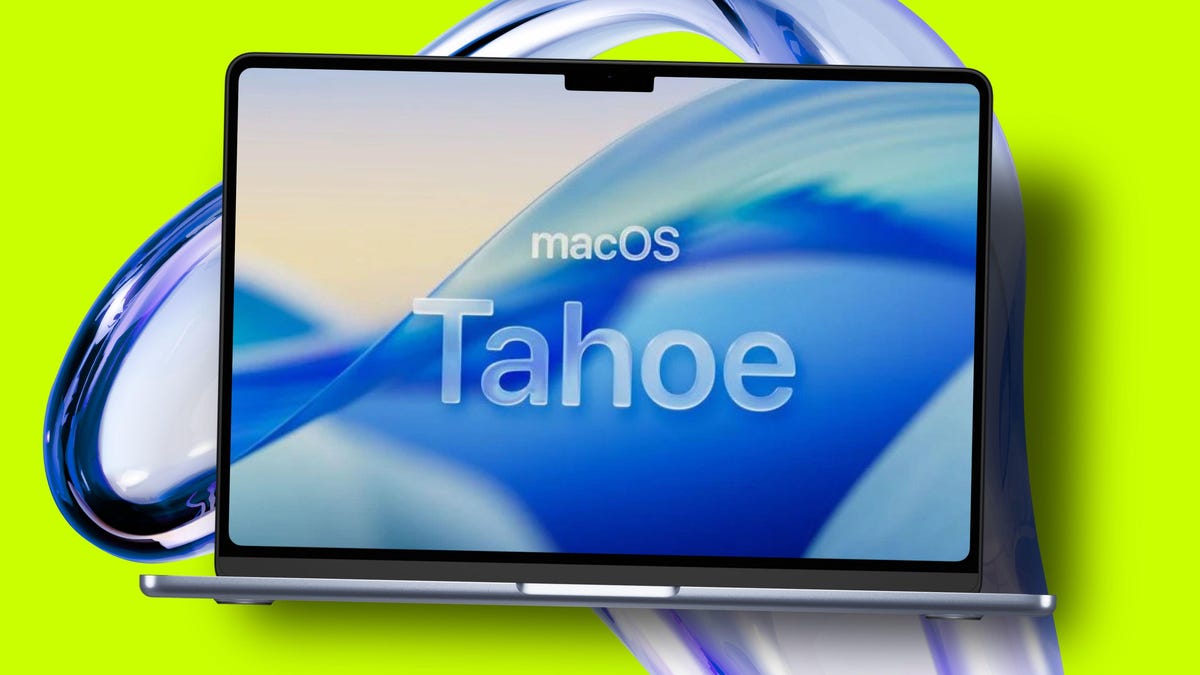
    Apple / Elyse Betters Picaro / ZDNET

    Follow ZDNET: Add us as a preferred source on Google.

    ZDNET’s key takeaways

    • MacOS Spotlight now allows you to do much more.
    • You can quickly send emails and messages without opening the apps.
    • This feature is built in and free to use.

    So far, I think the MacOS Tahoe upgrade is hands down the best update from Apple that I can remember. It’s so good, it’s even changed my mind about using widgets. Not only is the Liquid Glass UI supremely elegant, but the Spotlight tool is finally up to the task of modern usage.

    Case in point, the ability to send messages and emails directly from the Spotlight search bar. 

    You read that right. You can now send messages and emails from within Spotlight, without having to first open Apple Mail or iMessage. It’s convenient and works like a charm. I’ve been using this feature for a few days now and have found myself working with the Mail app less and less.

    Also: 6 features I wish MacOS would copy from Linux

    Of course, you can’t reply to messages or read incoming messages, but as far as sending quick emails to people, this is the way to go.

    Notice I did say “quick emails.” You’re not going to use this feature to send paragraph after paragraph (although I suppose you could), so I would keep that in mind before you start using the Spotlight for this purpose.

    Adding an action to Spotlight

    Before you can send that first message or email from within Spotlight, you have to add an action. An action is exactly what it sounds like — it allows you to use Spotlight for purposes other than searching. There are actions for timers, notes, various apps (such as your default web browser), and more. The action I’ll demonstrate is email. 

    To add the email action, follow these steps.

    To open Spotlight, hit the Cmd+Space keyboard shortcut, which brings up the Spotlight search bar.

    Show more

    With Spotlight open, hit the Cmd+3 keyboard shortcut, which brings up the Action window.

    Show more

    You can add as many actions as you like to Spotlight.

    Jack Wallen/ZDNET

    In the Action window, locate Send Email and then click the associated “Add quick keys.” After clicking “Add quick keys,” you’ll see a cursor appear, where you’ll give the action a name. I used email as my quick key. Give this as simple a name as possible, because you’re going to use it to inform Spotlight that you want to send an email.

    Show more

    After naming the quick key, click out of the Action window to dismiss it.

    Also: How to update apps in MacOS: Two options

    Sending an email from Spotlight

    Open Spotlight again (Cmd+Space) and type your quick key (in my case, email) and then type send. Spotlight should now say “Send Message with Subject to Recipients.” What you’ll do is click in the Message section and type the message. Next, hit tab and type your subject. Finally, hit Tab and type the email address(es) of the recipient(s) of the email.

    Spotlight makes this process very obvious and easy.

    Jack Wallen/ZDNET

    Once you have the message composed in Spotlight, hit Enter on your keyboard, and the message will be sent.

    And that’s all there is to sending emails via Spotlight. If you also use iMessage, you can add that feature and quickly send messages without having to first open the app.

    Want to follow my work? Add ZDNET as a trusted source on Google.

    macOS Messages obsessed quick send Spotlight Tahoe
    Share. Facebook Twitter Pinterest LinkedIn Tumblr Email
    Previous ArticleRobot umpires approved for MLB challenges in 2026
    Next Article Why CISOs Must Rethink Incident Remediation
    Techurz
    • Website

    Related Posts

    Opinion

    This startup will send 1,000 people’s ashes to space — affordably — in 2027

    January 23, 2026
    Security

    AI is becoming introspective – and that ‘should be monitored carefully,’ warns Anthropic

    November 3, 2025
    Security

    Perplexity’s new AI tool lets you search patents with natural language – and it’s free

    November 3, 2025
    Add A Comment
    Leave A Reply Cancel Reply

    Top Posts

    College social app Fizz expands into grocery delivery

    September 3, 20252,288 Views

    A Former Apple Luminary Sets Out to Create the Ultimate GPU Software

    September 25, 202516 Views

    The Reason Murderbot’s Tone Feels Off

    May 14, 202512 Views
    Stay In Touch
    • Facebook
    • YouTube
    • TikTok
    • WhatsApp
    • Twitter
    • Instagram
    Latest Reviews

    Subscribe to Updates

    Get the latest tech news from FooBar about tech, design and biz.

    Most Popular

    College social app Fizz expands into grocery delivery

    September 3, 20252,288 Views

    A Former Apple Luminary Sets Out to Create the Ultimate GPU Software

    September 25, 202516 Views

    The Reason Murderbot’s Tone Feels Off

    May 14, 202512 Views
    Our Picks

    Aetherflux reportedly raising Series B at $2 billion valuation

    March 27, 2026

    OpenAI shuts down Sora while Meta gets shut out in court

    March 27, 2026

    VCs are betting billions on AI’s next wave, so why is OpenAI killing Sora?

    March 27, 2026

    Subscribe to Updates

    Get the latest creative news from FooBar about art, design and business.

    Facebook X (Twitter) Instagram Pinterest
    • About Us
    • Contact Us
    • Privacy Policy
    • Terms and Conditions
    • Disclaimer
    © 2026 techurz. Designed by Pro.

    Type above and press Enter to search. Press Esc to cancel.