

Summary
- Keeping all system tray icons visible helps me stay aware of what’s running in the background.
- Visible icons aren’t cluttered if screen space allows and background apps are limited.
- System tray icons should all be shown by default, as they’re important for productivity.
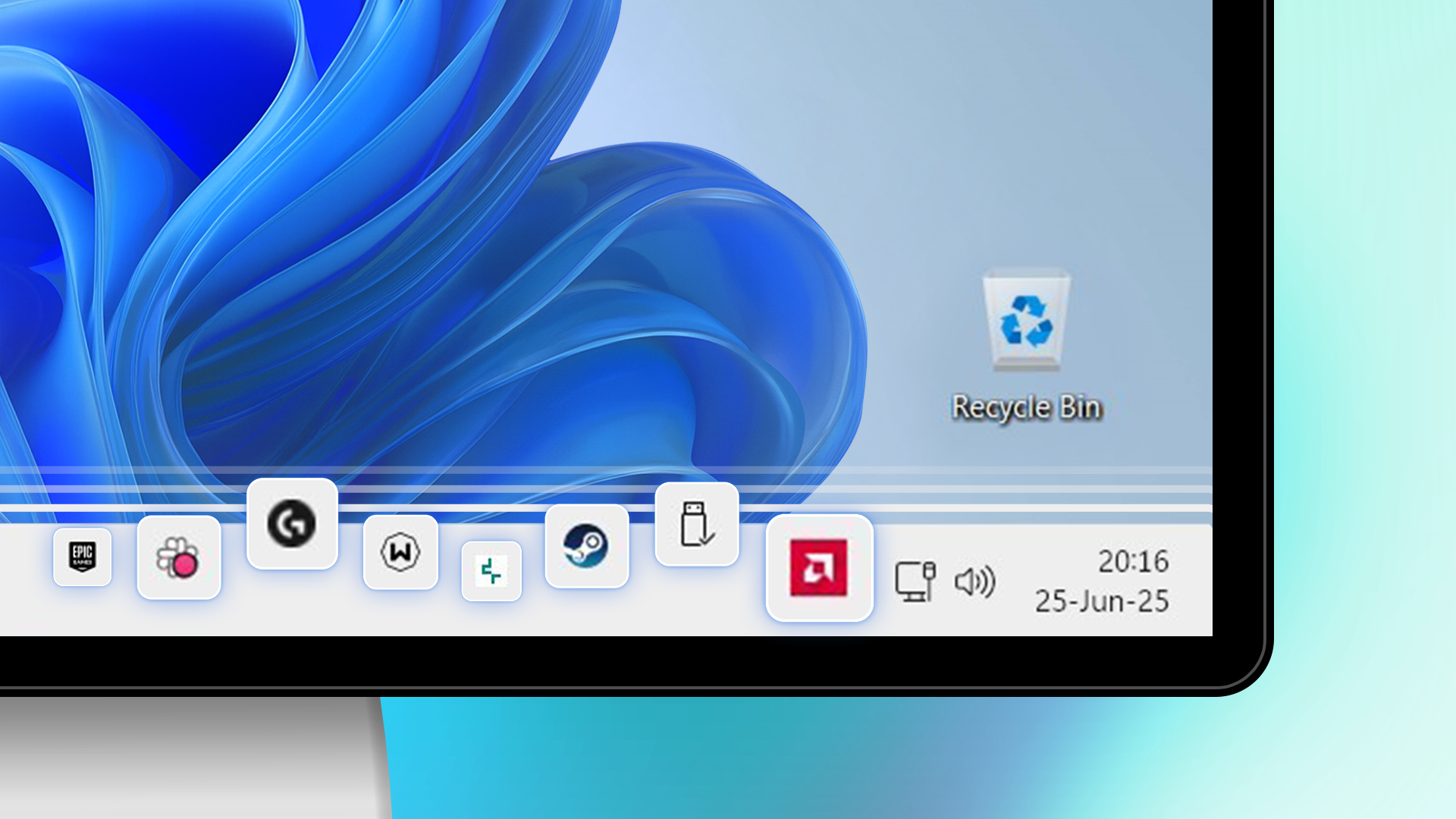
People these days obsess over minimalistic user interfaces, to the point that they sacrifice functionality for aesthetics, and I get it. I keep my desktop fairly clean, too. But when it comes to my taskbar, it’s a different story; I keep every system tray icon shown, and it’s been working great for me.
Why I Keep All My System Tray Icons Visible
In case you’re not fluent in Windows’ lingo, the system tray is the right part of the taskbar where all the little icons of apps running in the background reside. Normally, the system tray only shows a few essential icons, with the rest hidden in a small arrow sub-menu. Think of it as a folder for background apps.
When I installed Windows 11 for the first time on my new PC earlier this year, I started digging around the various settings and realized that there’s an option to show all system tray icons. It’s not a new feature, but I’d never really considered using it before.
The main reason I enabled it is just to stay aware of what apps are active in the background. In some cases, it helps me figure out what I want to do on the go. If I see that Screenpresso is active, I know I can press Print Screen to instantly take a precise, cropped screenshot. If it isn’t, I might turn it on or use Win+Shift+S for a cropped shot instead, or press Print Screen and paste the full screen into chat to quickly share it with a friend.
It’s also worth noting that background can still consume lots of system resources like RAM, CPU processing power, and internet bandwidth.
Lucas Gouveia / Justin Duino / How-To Geek | LariBat / Shutterstock
For example, if I forget that Steam is running in the background and a game starts auto-updating, slowing down my browsing to a halt, I can glance at the system tray and quickly figure out what’s going on. Even though my PC can handle background apps, I still close anything non-essential before launching a game. It’s a simple, easy, and effective way to squeeze out extra performance.
Another benefit is that I can easily see notifications on apps like Slack, as they display a dot over the icon. I also get subtle update alerts for things like graphics drivers and Java.
Related
How to Disable Background Apps in Windows 11
Disable Background Apps on your Windows device and enhance its speed and performance.
It’s also just more convenient. For instance, I occasionally have to reset SignalRGB (my go-to app for syncing RGB) after waking up from sleep or even a cold boot because it sometimes glitches and doesn’t work. Keeping the icon always visible means I can just right-click and close it quickly, which saves me the extra click that I’d otherwise have to do if the app were hidden in the additional icons sub-menu.
It’s Not About Being Disorganized
While having all of my background apps permanently shown in the system tray sounds like it would be a cluttered mess, it’s actually not. I’m a fairly organized and tidy person—my desktop is only reserved for installed games, my Start Menu is sorted into folders, and I only have a few of my most essential apps pinned in the taskbar.
Related
Why I Like a Messy Windows Desktop
Another instance of where being the contrarian is better!
Moreover, the system tray icons are actually fairly small. On my 1440p 27-inch LG monitor and with UI scaling at 125%, they’re just the right size that I can make out what icons they are without being so large that they take up half the screen. It’s hard to convey the size of my system tray, but it’s only about as tall and long as my index finger.
That said, the situation could look completely different on a much smaller display, such as a 12-inch laptop, where a system tray like mine would take up a significant portion of the screen, creating a mess.
Moreover, I don’t usually have that many apps running in the background. I like to close video game launchers as soon as I’m done playing, and I do the same with work-related apps. The only ones that stay open all the time are Discord, SignalRGB, graphics card software, and a few peripheral-related apps. On my 14-inch Dell Latitude 5420 laptop, it’s just the Intel graphics driver, Slack, and Asana.
I’d much rather see all these apps and have easier access to them than deal with a clean but non-functional taskbar. Besides, who says icons are messy anyway?
Related
6 Settings to Make Your Windows 11 Desktop More Minimalist
Keep your desktop tidy!
This Should Be the Default
Realistically, most people don’t run enough background apps to justify hiding them behind a separate menu, so I don’t get why that’s the default behavior. A UI, any UI, should prioritize information first and aesthetics second.
The average person would be better off knowing what apps are running in the background in case their computer or internet slows down, as clicking the arrow to see all background apps isn’t exactly intuitive. One would assume that Windows will show you the most resource-intensive background apps first, but it doesn’t.
If you decide to go this route, there’s only one small annoyance: every time an app updates (like Discord, which updates constantly), you’ll need to re-enable it in the settings. There’s no global “always show all icons” option, just a per-app toggle in the menus. Fortunately, I found a permanent fix for this on GitHub (install at your own risk) that automatically keeps all icons and notifications visible in the tray.
