


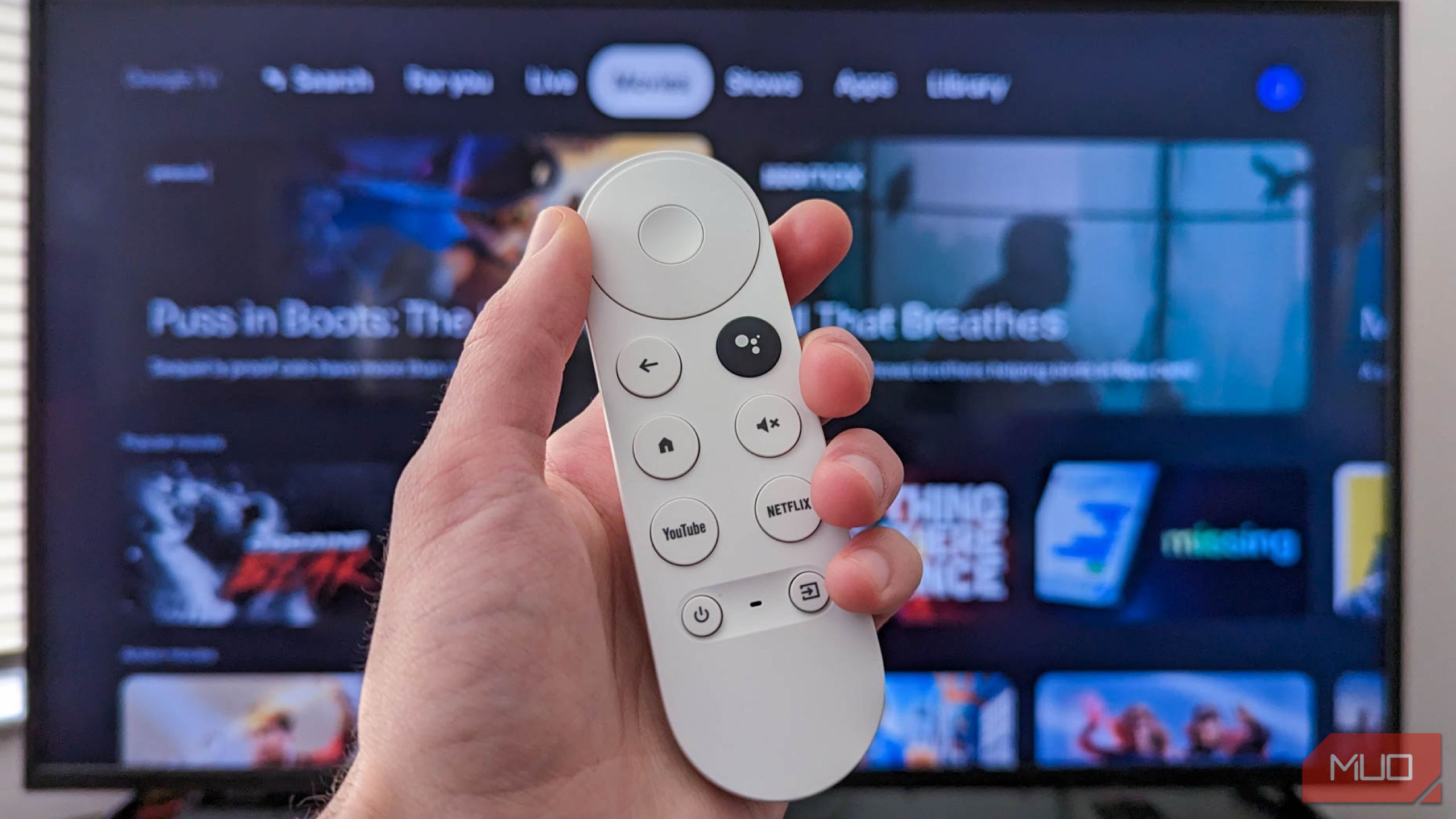
While there are plenty of streaming devices, Google TVs are a leap ahead, mainly due to the Android-based OS running behind the scenes. However, the default setup doesn’t always deliver the best experience, and there are a few Google TV settings I always change for a better viewing experience.
6
Manage Content Recommendations
During the Google TV setup, you’re asked to input and enable your subscription services and apps. Using this, in addition to showing you the list of apps and games on your device, Google TVs also show a variety of other content, like TV shows and movies, on the home screen. This offers an easy way to find new content to stream and continue watching from where you left off.
However, if you add or forget to enable a service subscription during setup, it’s easy to manage. To choose which services Google TV recommends on your home screen, follow these steps:
- Scroll to the bottom of the home screen.
- Click Manage services.
- Turn home screen recommendations on or off for each service.
5
Disable Auto-Playing Video Previews
Similarly, in addition to displaying recommendations, Google promotes a significant amount of content on the home screen in the bar above the recommendations. While this is beneficial for some users, as it allows them to view trailers and previews while exploring new content, it can be annoying, especially since these videos start playing automatically by default. You can easily turn off these video previews on Google TV:
- Open Settings.
- Select Accounts & sign-in.
- Now select the profile for which you want to disable video previews.
- Scroll down and disable the toggle for video previews.
Related
You’re Not Using Your Smart TV’s Best Features—Here’s What You’re Missing
Your smart TV has so many amazing features you should be making the most of.
4
Turn Off Animations for a Faster Experience
Similar to Android smartphones, Google TVs are available in various price ranges. The now-not-sold Chromecast with Google TV started at $40, while the new Google TV Streamer is sold at an expensive $100. Other players also offer Google TV streaming devices, such as Xiaomi and Walmart. These offer different hardware, but often struggle with processing.
One way to improve your Google TV experience is by disabling animations. This gives your streaming device more resources to process data rather than spending them on rendering animations. To do this, you’ll need to enable Developer Settings first and then disable the animations altogether.
Here’s how you can get started:
- Open Settings.
- Go to System, then About.
- With the selector on Android TV OS Build Number, click the OK button on your Google TV’s remote seven times.
- Go back to System settings, then select Developer Options.
- In Developer Options, scroll down and set Window animation scale, Transition animation scale, and Animator duration scale to Animation off.
This small tweak can make a big difference to your Google TV device’s performance.
3
Enable Apps-Only Mode
If you find the default home screen of Google TV too busy, you should try the Apps Only mode. This mode turns off unnecessary recommendations from the home screen and puts your apps at the forefront.
It is, however, worth noting that the Apps Only mode disables Google Assistant and Google Home integration, and you will also be unable to download new apps. For that, you’ll have to disable Apps Only mode again.
To turn on Apps Only mode on your Google TV, follow these steps:
- Go to Settings.
- Select Accounts & sign-in.
- Select the profile for which you want to disable home screen clutter.
- In the profile settings, turn on the toggle for Apps only mode.
Select Turn on, and now you have a much simpler Google TV home screen.
2
Set Up User Profiles
More often than not, you’re not the only one using the TV in the house. There might be other family members or friends using the same TV. In such cases, you can set up a profile for each user, allowing everyone to have their own personalized recommendations and watchlists without mixing them up with the main profile.
To add more profiles to your Google TV, follow these steps:
- Open Settings.
- Select Accounts & sign-in.
- Click Add account and sign in with the Google ID of the other members using the QR code.
Give them a try, as it can streamline your Google TV experience.
1
Bonus: Use a Custom DNS
The Domain Name System (DNS) is like a phonebook for the internet, turning website names into IP addresses. By default, most Google TVs rely on Google’s DNS servers, and while they’re rarely down, a DNS issue could be why some video streaming apps on your smart TV are buffering.
Thankfully, you can easily switch to a custom DNS on your TV for better speeds and improved privacy, like Cloudflare’s 1.1.1.1 DNS service. Other benefits include ad-blocking and bypassing content restrictions.
To change DNS on your Google TV:
- Go to Settings and select Network & Internet.
- Select the Wi-Fi your device is connected to and go to IP Settings.
- Select Static.
- Do not change the IP Address, Gateway, or Network prefix length; keep hitting Next.
- Now, set a custom DNS on your Google TV.
Keep in mind that using some custom DNS servers can cause issues. In this case, simply forget the network and reconnect to return to the default settings.
