


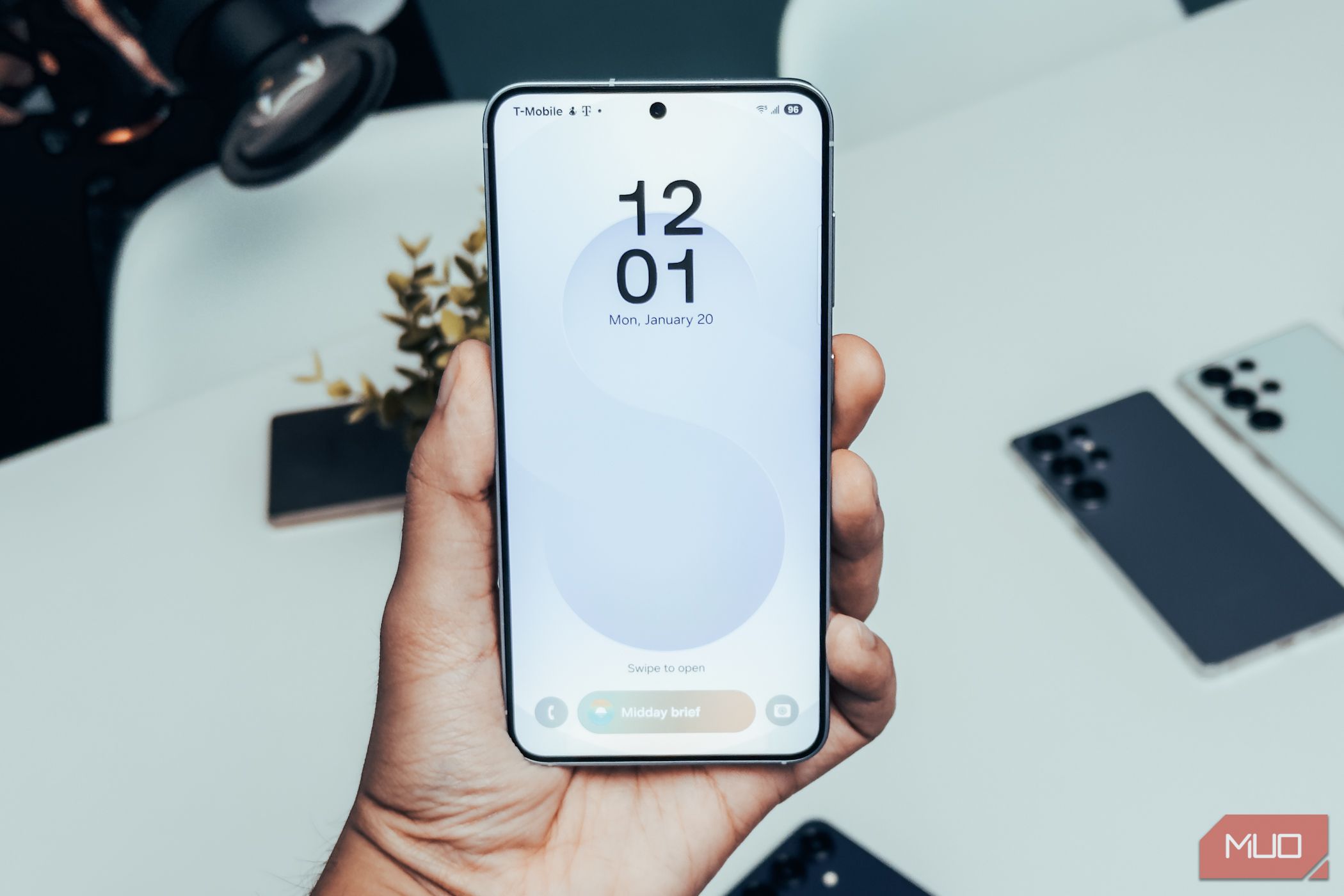
Like most smartphones, your Samsung Galaxy device may start to slow down over time. Without the right care, though, that decline can happen sooner than you expect. The good news is a few simple maintenance habits can help keep your phone running smoothly for years.
6
Delete Apps and Games You Don’t Use
As you continue to use your Samsung phone, it’s easy to accumulate a long list of apps and games—many of which you won’t even open for months. But those unused apps aren’t just sitting there harmlessly. They take up storage, slow things down, and can even hit you with random notifications. Hence, it’s a good idea to clean them out.
Fortunately, you don’t have to search through your phone to find the apps and games you rarely use. The Play Store offers a simpler way to identify and remove them. Here’s what you need to do:
- Open the Google Play Store on your phone.
- Tap your profile icon in the top right corner and select Manage apps & device.
- Switch to the Manage tab.
- Tap the filter option and select Least used.
- Scroll through the list and use the checkboxes to select the apps you want to remove.
- Tap the trash icon in the top right corner and select Uninstall.
If you’d rather not uninstall apps manually, you can turn on the auto-archive feature on your phone. It will automatically archive unused apps to help free up storage, but they’ll still appear in your app drawer and can be restored whenever you need them.
5
Review App Permissions Once A Month
Even if you check app permissions before installing them, it’s a good idea to review them regularly. Over time, some apps might quietly update or ask for new access without you noticing. That can include sensitive permissions like your location, contacts, call logs, text messages, or microphone.
To stay on top of this, head to Settings > Security and privacy > Permissions used in last 24 hours. There, you’ll see a clear summary of which apps have recently accessed important features.
You can review each permission individually to see which apps used it and when. If something seems off—like a simple flashlight app asking for access to your call logs—you can either take away that permission or just delete the app altogether.
Doing a quick check like this can help keep your personal data safe and even boost your phone’s performance by cutting down on background activity that wastes battery and slows things down.
4
Regularly Clear App Cache
The apps you use every day store various temporary files, known as cache, to run more smoothly. While this can speed things up in the short term, too much cached data can build up over time and start to take a toll on your Samsung phone.
Sometimes, this can also cause your apps to lag, throw errors, or even crash abruptly. To avoid this, you should make it a habit to clear the app caches regularly. Fortunately, Samsung’s One UI offers an easy way to clear all the app caches at once. Here’s how to do it:
- Open the Settings app on your phone.
- Head to Device care > App cache.
- Select the apps you want to clear the cache for.
- Tap Clear cache, then confirm by tapping Clear again.
If you don’t see the option to clear the cache in the Device Care menu, it likely means there isn’t enough cached data to remove. In that case, you can check again in a few days.
3
Don’t Ignore Apps and OS Updates
One of the best ways to keep any smartphone working like new is by keeping it up to date. Each software update usually brings new features, security patches, bug fixes, and performance improvements. By staying on top of updates, you’re not just getting the latest features but also helping them run more smoothly over time.
You’ll usually get a notification when a new update is available. If not, you can manually check by going to Settings > Software Update. Also, don’t forget to perform a few essential checks and tweaks after updating your Android phone.
The same applies to app updates. When apps aren’t updated, they can slow down, crash more frequently, or even put your phone’s security at risk. Skipping updates might make your phone feel outdated and sluggish, even if the hardware is still in good shape.
Since app updates come more often than system updates, it’s a good idea to automate them. Here’s how to do that.
- Open the Play Store on your phone and tap the profile icon in the top right corner.
- Select Settings from the list.
- Tap Network preferences to expand it.
- Tap Auto-update apps and choose Update over Wi-Fi only.
2
Monitor Battery Health and Performance
If there’s one part of your Samsung phone that’s most likely to wear out over time, it’s the battery. Lithium-ion batteries gradually lose capacity with each charge, and after a few years, that can mean shorter battery life.
Even if you apply the best battery-saving tricks, your Samsung phone won’t last forever. The good news is that it’s quite easy to tell when it’s time to replace the battery.
- Download and install the Samsung Members app from the Play Store or Galaxy Store.
- Switch to the Support tab.
- Tap Phone diagnostics and select Battery status from the following menu to run the diagnosis.
The app will show whether your battery is in “Good,” “Normal,” or “Weak” condition. If it says “Good,” you’re good to go. But if you see a warning like “Weak” or “Bad,” it’s a sign you should think about replacing the battery. Once you do, your Samsung phone will run like it used to, with better battery life.
In the Samsung Members app, you can also use the Phone diagnostics menu to ensure the rest of your phone’s hardware is working properly. You can test everything from the touchscreen and microphones to physical buttons and sensors. Doing this will help you catch any potential hardware issues before they become a bigger problem.
1
Keep the Device Clean
Keeping your Samsung phone clean might not seem like a big deal, but it matters more than you’d think. Dust, dirt, and grime can slowly build up in the charging port, speaker grills, and around buttons, leading to problems like muffled audio or spotty charging. Even your camera’s performance can take a hit if the lens is smudged or dirty. This can make photos from your flagship device look surprisingly mediocre.
You can avoid most of these issues by simply making it a habit to gently clean your phone once a week. All you need is a soft microfiber cloth to wipe down the screen and body. For tougher spots, slightly dampen the cloth with water.
If you use a screen protector, consider replacing it every few months since scratches and smudges can make your display look dull. Finally, don’t forget about the case. Swapping it out occasionally can give your phone a fresh new look.
When you’ve spent a decent amount on your Samsung phone, the last thing you want is to feel like you need a new one every few years. With some simple care and a few smart habits, your device can stay fast, responsive, and dependable long after most people would think about upgrading.
