


Much of what I do on a day-to-day basis involves a lot of typing. As a result, wherever possible, I prefer to not have to break my flow by reaching for a mouse. Here are some of the shortcuts I use the most with Windows File Explorer.
Windows+E (Open File Explorer)
If I don’t use Command Palette to open File Explorer (which is what I do most of the time), I use Windows+E to quickly open up File Explorer.
As a general rule, shortcuts that involve the Windows key will work from within any app, except for some fullscreen applications, which sometimes block them.
By default, that shortcut will take you to your File Explorer’s Home page.
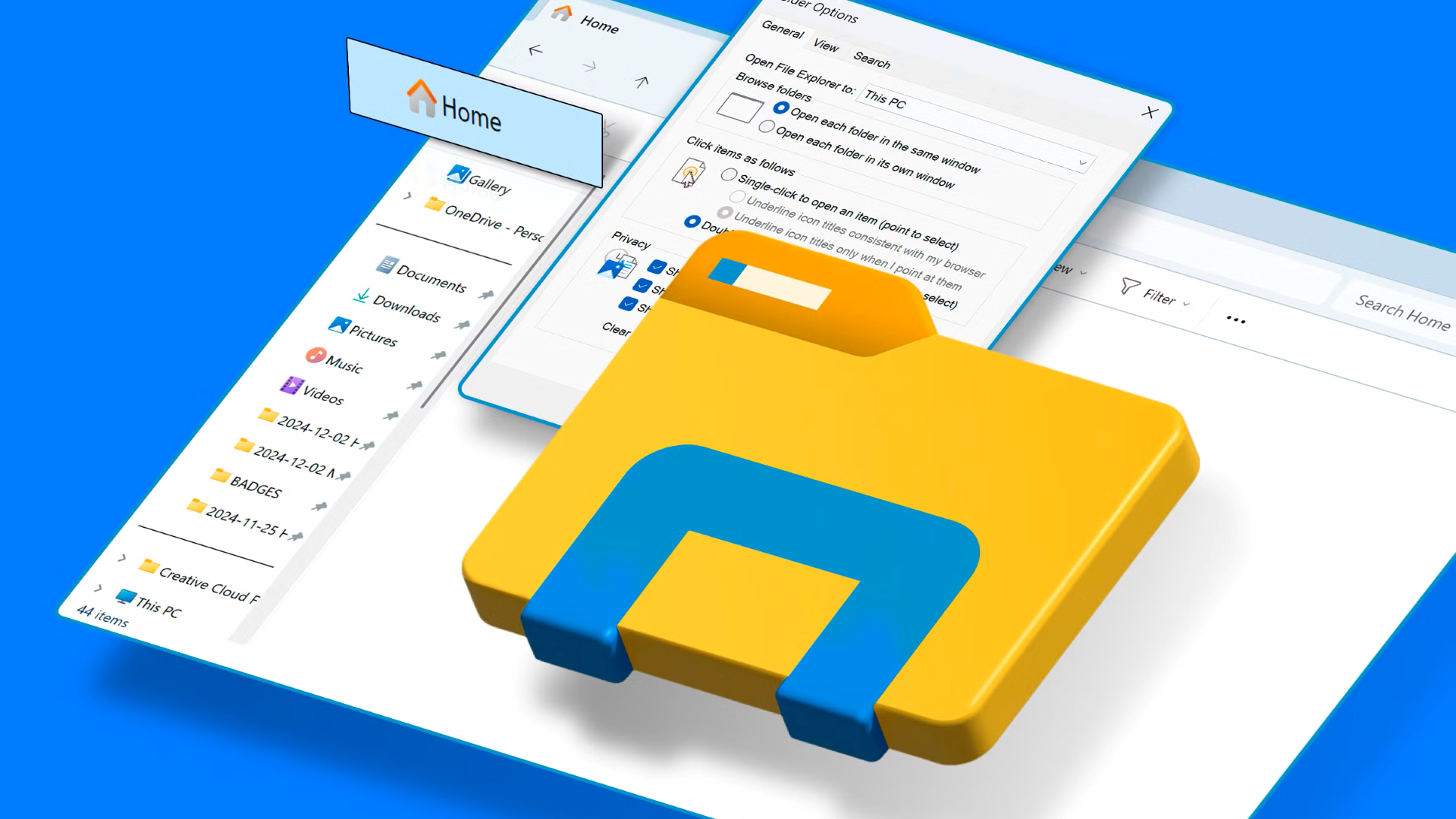
However, if you’d like it to open to somewhere else, click the three-dot menu icon along the top, go to “Options,” then pick something else from the Open File Explorer To drop-down menu.
Ctrl+T (Open a New File Explorer Tab)
File Explorer picked up browser-like tabs, which is one of the best additions the program has seen in decades. Since the feature was introduced, I only really use separate windows if I expect I’ll need move files between them.
If you want to open a new tab, just tap Ctrl+T while File Explorer is open.
Like with Windows+E, Ctrl+T opens to whatever folder you have specified in the “Open File Explorer” drop-down menu.
Ctrl+N (New File Explorer Window)
When I need to move files between folders, there is no substitute for having two windows side-by-side.
The quickest way to open up a new File Explorer window is by tapping Ctrl+N.
This is probably my second most used File Explorer shortcut, since there isn’t a convenient “Open New Window” button in File Explorer’s UI. You’re stuck opening a new tab and then dragging it off or launching another instance of File Explorer however you do it normally.
Ctrl+Shift+N (New Folder)
When you create a new folder, you have to name it something, even if that is just asdfasdfasf, which requires using your keyboard.
Rather than right-click and use the context menu to create a new folder, I press Ctrl+Shift+N instead. That way, all I have to do is start typing once the new folder has been created to name it.
It probably doesn’t save me any significant amount of time, but it feels more efficient somehow.
Windows+Arrow Keys
It is easy enough to click and drag a Window around on your screen, but if you want to snap a window to one particular side of the screen, shortcuts are potentially faster, especially if your hands are already on the keyboard.
To snap a window to one side of the screen, hold the Windows key, then tap the appropriate arrow key.
For example, if I wanted to snap my current window to the left side of the screen, I’d tap Window+Left Arrow.
It isn’t a File Explorer exclusive shortcut, but I probably use it the most with File Explorer.
Ctrl+F (Search)
Despite my best efforts to organize my files, I inevitably wind up with a few folders that are completely overflowing with random stuff. That means I do a lot of searches.
Rather than click the search bar, I just tap Ctrl+F any time I need to find some obscure file I downloaded three months ago and mostly forgot about.
Unfortunately, this doesn’t do anything to help Windows 11’s sluggish search. For that, you need to ensure Windows 11 has properly indexed your drives.
Ctrl+W (Close File Explorer)
Ctrl+W is a bit like File Explorer’s miniature version of Alt+F4—it closes your current window instantly.
I’ll most frequently use this after I’ve used Ctrl+V to paste a file and I’m finished in a folder.
There is also something very satisfying about smacking Ctrl+W when you’re finally finished rather than just clicking the “X” button.
Shortcuts might not be as easy to pick up as clicking things in a graphical user interface (GUI), but once you get used to them, they can speed up your workflow, especially if you’re doing a lot of writing.
They also really shine on a laptop, where your hands are usually closer to the keyboard than when you’re using a desktop with a mouse.
