


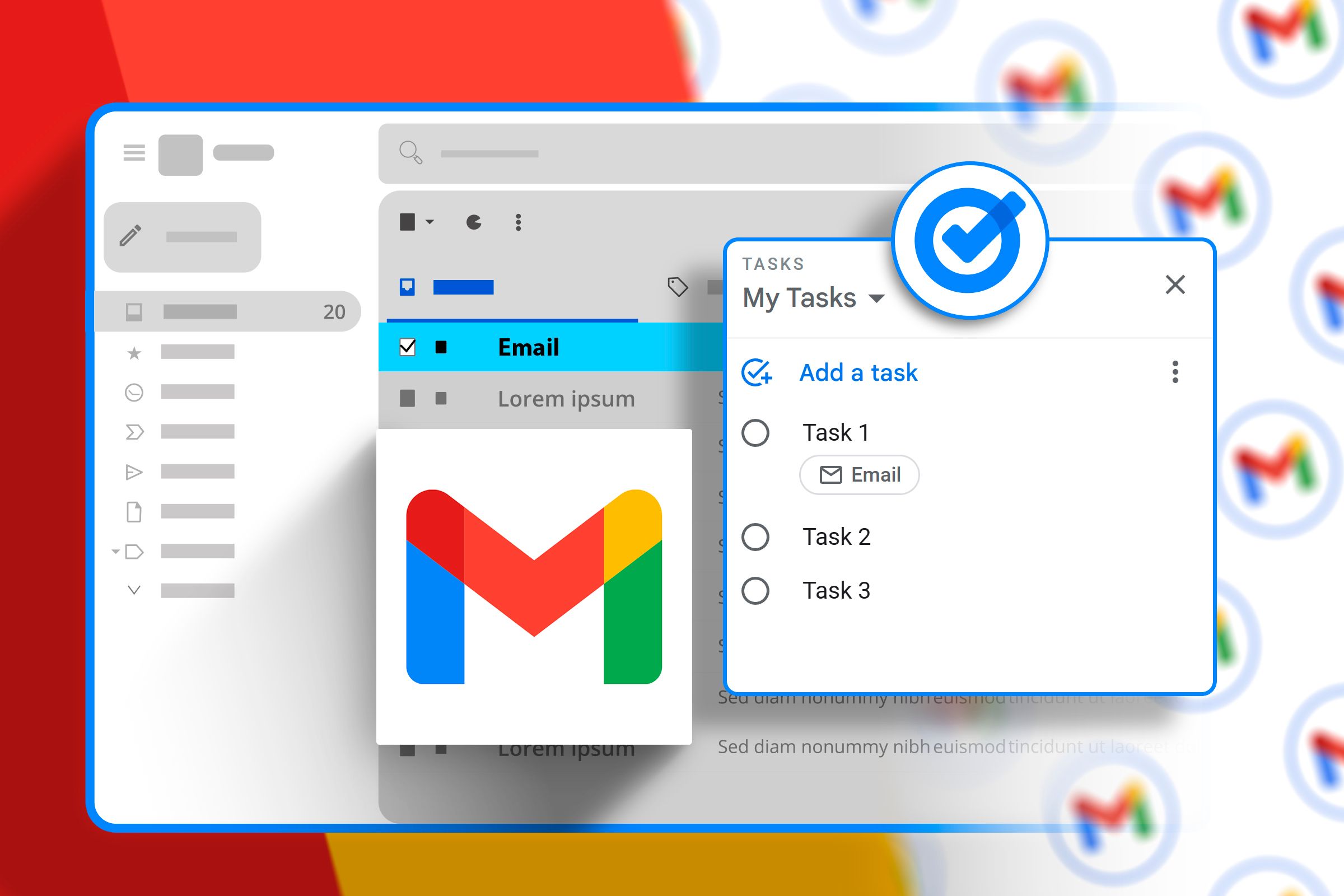
Google Tasks isn’t just a basic checklist app; it’s a powerful, intuitive, and seamlessly integrated solution designed to bring order to your digital chaos. You can easily transform your fleeting thoughts, urgent emails, and important chat messages into actionable steps that you can track, prioritize, and complete.
7
Turn Emails Into Tasks
Often, while going through your inbox, you’ll come across an email that requires action—a response, document creation, or a follow-up. But if you don’t handle it immediately, it can easily get buried under new incoming messages. It’s a common issue and a major productivity killer.
Related
How to Add Emails to Your Tasks To-Do List in Gmail
Create Tasks from emails.
Thanks to Google Tasks’ seamless Gmail integration, you can instantly convert that action-oriented email into a trackable task, pulling it from digital obscurity and placing it squarely on your to-do list. For example, while in Gmail, simply open the email you want to transform into a task. Click the three vertical dots and look for the Google Tasks icon or Add to Tasks option, then click it.
A new task entry will automatically appear in your Tasks sidebar, pre-filled with the email’s subject as the task title. You can then easily add details, set a due date, or even create subtasks (more on that shortly!).
Also, one thing that I love about this feature particularly, is that when you click on the task later, it takes you right back to the original email. You don’t need to search through your inbox trying to find that important message and waste your time.
6
Add Subtasks With Due Date
I’m a fan of creating subtasks for larger, more complex tasks. Why? Because it not only ensures the overall task feels less overwhelming, but also delivers a clear roadmap for execution. What’s even better is that Google Tasks lets you assign specific due dates to these subtasks, which is incredibly useful for phased projects or tasks with multiple dependencies.
To add subtasks in Google Tasks, first select the original task you intend to break down. Then, click on the Add a subtask option within the task details. A new line will display where you can type a description. Repeat this process to add as many subtasks as needed.
To assign a due date to a subtask, simply click on the due date icon next to the subtask and choose your desired date and time.
5
Add Tasks From Google Chat
You’re deep in a Google Chat thread with your team when someone mentions a task. Instead of switching tabs to jot it down, you can create the task on the spot, again, thanks to Google Chat’s integration with Tasks. It’s incredibly helpful—you no longer need to copy and paste information or try to remember where the request came from.
Related
How to Create Personal Tasks Directly in Google Chat
Turn a message into task in two clicks.
In Google Chat, hover over the message containing the action you want to capture. A small menu will appear. Look for the Add to Tasks option, this might be under the More actions (three dots) menu. Click it, and just like with emails, a new task entry will appear in your Google Tasks sidebar, complete with a link to the original conversation.
Also, If you use Google Chat Spaces, you can generate and assign tasks directly from your conversations. This is ideal for group projects or team discussions where action items frequently arise.
Open the Chat app and navigate to the Space where you’re collaborating. Look for the Tasks tab at the top, then tap the New task button. Enter a title, add details if needed, and here’s the best part, you can assign the task to anyone in the Space. You can also set a date and time, and Google will send reminders to keep everyone on track.
Whenever someone creates or updates a task, everyone in the Space is notified. If a task is assigned to you, it will also appear in your personal Google Tasks list—so you won’t miss it, even if you’re not actively checking the Space.
4
View Tasks in Google Calendar
Another feature that helps me plan my time effectively and ensure that my tasks are completed on schedule is the ability to display tasks in Google Calendar. This simple integration transforms your task list into a visual schedule. When tasks have due dates, they automatically appear in your calendar.
Related
How to Use Google Calendar for Tasks and Reminders
Make it easier to see when you have tasks or reminders due by including them in your schedule.
To view your tasks in Google Calendar, open the Calendar and look for the Tasks option in the sidebar. Make sure the checkbox next to Tasks is selected.
Your tasks will pop up on their respective due dates. You can also click on Tasks in the sidebar to see a full list of all your tasks.
One added benefit of this integration is the ability to drag and drop tasks within your calendar to reschedule them. If your day gets unexpectedly busy, simply move tasks to a more convenient time—no need to open Google Tasks separately.
3
Add More Than One Reminder
Sometimes, one reminder just isn’t enough. We all have critical tasks or events that require attention at multiple intervals, like planning ahead for birthdays or project deadlines.
Natively, Google Tasks does not support multiple reminders for a single task. Still, you can work around this by creating duplicate tasks with different reminder times. Simply open the task, add multiple subtasks, and assign different dates and times to each one.
Alternatively, you can skip Google Tasks entirely and create an event in Google Calendar with the same details as the task. You’ll be able to set multiple notifications at various intervals. Keep in mind, though, that this event will appear in your calendar, not your Google Tasks list.
Related
How to Add, Edit, or Delete Recurring Events in Google Calendar
Stop scheduling individual calendar events for recurring meetings.
2
Create Tasks Using Google Gemini
Google’s AI assistant, Gemini (formerly known as Bard), brings a new dimension to task management by letting you create tasks using natural language. This feature is perfect for quickly capturing tasks when you’re multitasking or don’t want to navigate through apps.
To create tasks using Gemini, simply open the assistant and say or type something like, “Create a task to finish the quarterly report by Friday,” or “Remind me to buy groceries tomorrow afternoon.”
That’s it! Gemini will add the task to your Google Tasks list. You can also use Gemini to create multiple tasks in one go.
Google Tasks mobile widget is like having a mini version of your to-do list living directly on your phone’s home screen. It offers instant visibility and quick access without needing to open a standalone app. You can glance at your home screen to see what’s next, or tap a button to quickly add a new task or mark one as complete.
Related
The 10 Best Android Widgets I Can’t Live Without
Widgets, because who needs app shortcuts?
To set up the widget on your Android or iOS device, long-press on an empty area of your home screen, choose Widgets, and scroll to find the Google Tasks widget. Finally, drag it to your desired location and resize as needed.
Once added, your upcoming tasks will be prominently displayed. The widget allows you to add new tasks or mark them complete with just a tap.
By now, you’ve seen how Google Tasks can do much more than hold a simple to-do list, and when you bring Google Calendar into the mix, it all starts to work in harmony. Using them together means you’re not just listing tasks, you’re actually planning when to tackle them. You get a clear view of your day, week, or month, with everything from small reminders to big deadlines—right where you can see it.
