


The Download
- You can delete email accounts on iPhone through Settings > Apps > Mail > Mail Accounts.
- Removing an email account does not delete it forever. It’s still accessible from other devices.
- Alternative options include disabling the account or hiding new email alerts.
This article explains how to delete an email account from an iPhone. These instructions apply to iOS 12 and later.
How to Delete Email Accounts on iPhone
Email accounts accessed through the Mail app are managed not from the app itself, but instead from the Settings app. Follow these directions to learn how to delete an email account on your iPhone:
When you delete an email account from your phone, you’re simply removing your access to it from that device. The account still exists online, meaning you set up the email account again and access it from a web browser.
-
Open Settings.
-
Scroll down and select Apps > Mail > Mail Accounts.
-
Choose the email account you want to remove.
-
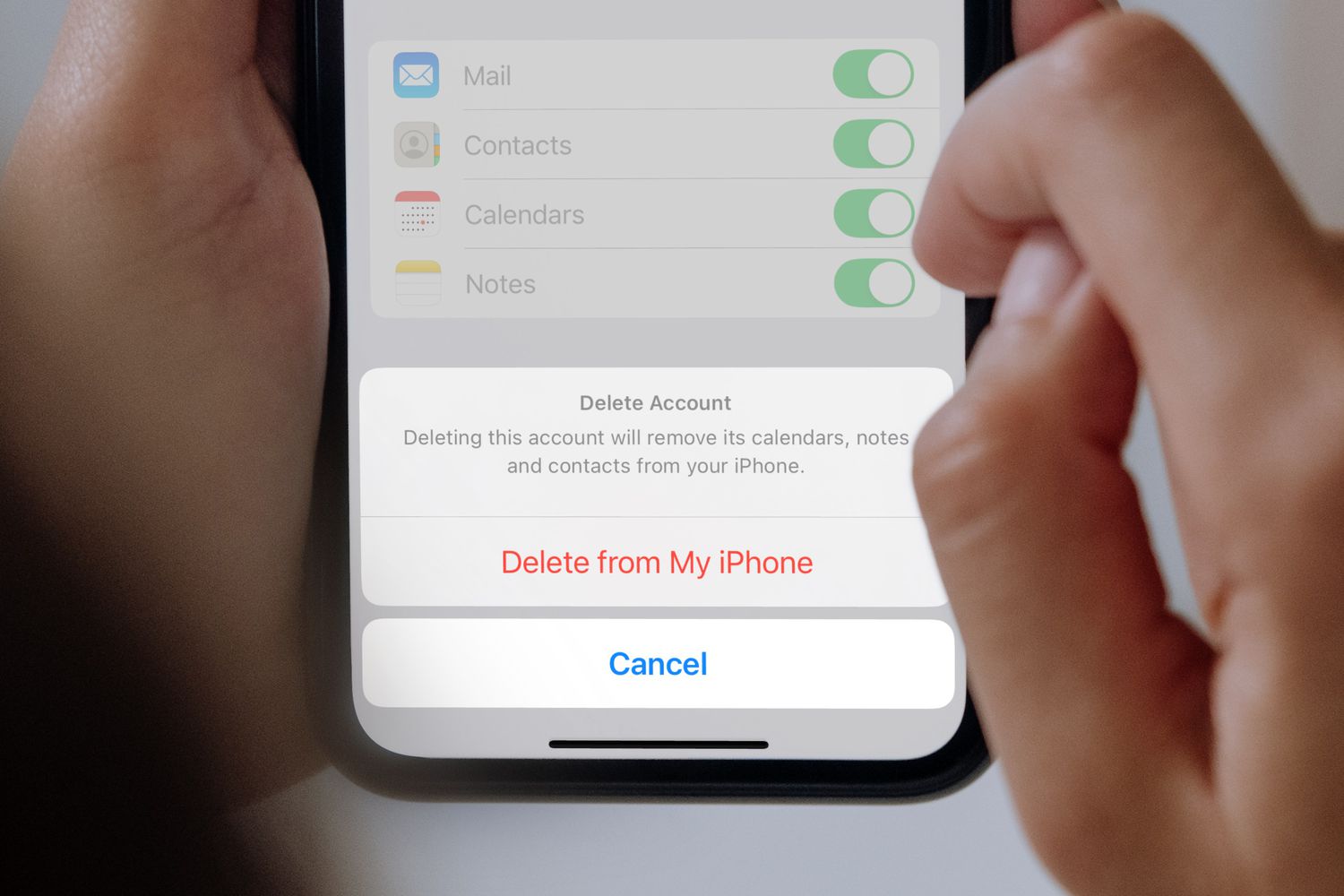
Select Delete Account.
-
To confirm, tap Delete Account or Delete from My iPhone.
Considerations for Email Account Removal
Before you remove an email account, evaluate the implications.
Deleting an Email Account Removes all Emails From the iPhone
IMAP, POP, and Exchange, as well as accounts configured with automatic settings (such as Gmail, Outlook.com, and iCloud Mail), will have all content wiped from the iPhone—iOS Mail removes all emails and folders listed and created under the account. In other words, you’ll no longer see messages in the Mail app.
Deleting an Email Account From the iPhone Doesn’t Delete the Account
When an email account is deleted from an iPhone, the email account and address remain unchanged. You can still receive and send emails on the web or in other email programs set up to use the email account. Re-adding the account later to the same phone is also acceptable.
Deleting an Email Account Doesn’t Delete the Emails From the Server
For IMAP and Exchange accounts, nothing changes on the server or in any other email program set up to access the same account. iPhone Mail stops accessing the messages and folders, and you are no longer able to send email from the account using that app. Nothing changes for POP accounts either.
With POP, the iPhone may be the only place where emails are stored. This is the case if iOS Mail is set up to delete emails from the server after downloading them and the messages have not been saved anywhere else.
Deleting Calendars and Other Features of Your Account
Deleting an email account from an iPhone also removes calendars, notes, to-do items, and contacts that use this account. If you want access to those features, disable only the email for that account.
How to Disable Email From Your Account
Follow these steps to turn off an email account on iPhone but not disable access to the calendar:
-
In the Settings app, scroll down and select Apps > Mail > Mail Accounts.
-
Choose an email account.
-
For IMAP and Exchange accounts, turn off the Mail toggle switch. For POP email accounts, turn off Account.
On older versions of iOS, tap Done. If you don’t see the Done button, the changes are saved, and you can exit the settings.
How to Edit Push Settings for Emails
You can also disable automatic mail checking. Doing this still lets you access your emails and send and receive new messages, but emails will not download to your device automatically, which can help save battery life.
Here’s how to do that:
-
Open Settings > Apps > Mail > Mail Accounts.
-
Tap Fetch New Data.
-
Choose the email account.
-
Select Manual. To find the Manual option on older versions of iOS, tap Select Schedule.
How to Disable Email Notifications
Something else you can do with your email account on iPhone is allow the downloading of your messages, but disable notifications. Follow these directions to turn off email alerts on your phone without affecting anything else:
-
Open the Settings app and tap Notifications.
-
Scroll down and select Mail.
-
Select the account for which you want to disable new mail notifications.
-
Turn off the Allow Notifications toggle switch.
Some older versions of iOS have different settings. If you don’t see the above, go to Alert style when unlocked and select None. Also, turn off Show in Notification Center and Show on Lock Screen. Optionally, disable the Badge App Icon.
How to Hide a Mailbox Within the Mail App
If you don’t want to delete the email account, you can hide its inbox. Here’s how:
-
From the Mail app, swipe left to display the Mailboxes screen.
-
Select Edit.
-
Tap Inbox to clear its check mark.
To move an inbox or account, drag the three-bar icon (≡) next to the account to a different place in the list.
-
Choose Done to save the changes.
You will receive notifications for emails from VIP senders. Notifications for these messages are handled separately; you receive them even if you have notifications turned off for an account. To change the VIP notification settings, go to Notifications > Mail > Customize Notifications > VIP.
The same applies to thread notifications. If iOS Mail is set to alert you to replies you receive in a conversation, the settings for thread notifications apply instead of those for the account where you receive the email. You can change other alert settings through Settings > Notifications > Mail.
FAQ
-
How do I manage an email account on an iPhone?
Tap the Mail app and choose an email account. Swipe left on a single email and select More. The More screen includes the usual Reply, Reply All, and Forward choices as well as Mark as Read, Archive Message, Flag, Mute, and others. Note that this only works with one email at a time.
-
How do I bulk delete emails from an account on an iPhone?
Scroll through the list of emails and tap the ones you want to delete. Select Trash at the bottom of the screen. There is no Select All option in the Mail app on the iPhone, so this is the best way to remove emails in bulk.
-
Why is the email account on my iPhone offline?
This can happen if you have disabled Cellular Data for the Mail app. Check it by going to Settings > Cellular > Cellular Data and confirm the slider is in the On position. If you’ve travelled recently, check that Airplane Mode is turned off. It can also cause your email account to be offline.
Thanks for letting us know!
Subscribe
Tell us why!
Other
Not enough details
Hard to understand
