


Why you can trust TechRadar
We spend hours testing every product or service we review, so you can be sure you’re buying the best. Find out more about how we test.
XPPen Artist Pro 19 Gen 2: one-minute review
The XPPen Artist Pro 19 Gen 2 is the second incarnation of this 19-inch, 4K drawing tablet that offers 16K pressure levels, assignable shortcuts and 1.07 billion colors. Retailing for $899.99 / £899.99 / AU$1,499.99, it hardly occupies the budget end of the market. But once you factor in that this package includes absolutely everything you need, including two styluses, a stylus case, all cabling, and a wireless shortcut remote, the price looks like seriously good value.
The XPPen’s 19-inch 4K display is a stunner. While its pixel density is a relatively modest 239ppi, it’s capable of an average brightness of 250 nits and 1.07 billion colors, thanks to its 99.8% sRGB, 96% AdobeRGB, 98% Display P3 color gamut. One-inch bezels deliver a decent amount of space to rest your wrists, while its built-in feet hold it up at a 19-degree angle, making it well-suited to working on a desk. Sadly, though, its bulk and cable setup mean you’re unlikely to want to sketch away with it on your lap for long periods.
Whether you’re sketching or retouching photos, the Artist Pro 19 Gen 2 offers performance that can compete with some of the best drawing tablets. Once it’s properly calibrated, there’s no hint of parallax or jitter, and its customizable 16K pressure curves make it easy to adapt strokes to your personal preference. You can also customize the shortcuts available on its styluses and wireless remote, although I did experience a rare bug here that prevented some of these working and that took a while to resolve.
You may like
The styluses provided are well designed and comfortable to use over long drawing sessions. In particular, the X3 Pro Roller Stylus is beautifully balanced, with a center of gravity that sits perfectly in the middle of your grip. It’s easy to accidentally knock both styluses’ shortcut buttons on occasion, but the X3 Pro Slim Stylus comes with a swappable faceplate, allowing you to remove the buttons if you’d rather go without. My only real criticism of the styluses is that I wish they had eraser buttons on their tips – I find such a setup far more intuitive to use and it would free up one of the buttons for a different shortcut.
Everything considered, the XPPen Artist Pro 19 Gen 2 offers a great all-round package. The display doesn’t quite have the pixel density of the 275ppi Xencelabs Pen Display 16, or the gargantuan 24-inch screen of its sibling, the XPPen Artist Pro 24 Gen 2. Nevertheless, it offers gorgeous color reproduction, accurate performance and, most importantly for some users, significant value compared to some rivals. If you want a great balance between screen size, performance and price, the XPPen Artist Pro 19 Gen 2 is well worth checking out.
(Image credit: Future)
- XPPen Artist Pro 19 (Gen 2) (Silver) at Amazon Singapore for SG$1,199.99
XPPen Artist Pro 19 Gen 2 review: price & availability
- Launched August 27, 2024
- Retails for $899.99 / £899.99 / AU$1,499.99
Launched on August 27, 2024, the XPPen Artist Pro 19 Gen 2 has a list price of $899.99 / £899.99 / AU$1,499.99. However, this doesn’t mean you can’t pick it up for less; at the time of writing, XPPen was offering a reduced price of $719.99 / £854 / AU$1,199.99 in a short-term flash sale. It’s worth keeping your eyes peeled in case you can make a saving here.
As prices go, even its MSRP is pretty reasonable for what you’re getting. The closest Wacom product by size, the Wacom Cintiq Pro 17, goes for a whopping $2,499.95 / £2,349.98 / AU$3,999 – although it’s stunningly bright and comes Pantone Validated. The smaller Xencelabs Pen Display 16 costs $999 / £969 (around AU$1597), but also comes with fewer accessories as standard, meaning you’ll have to stretch to the $1,299 / £1,199 (around AU$2,080) bundle if you want its USB hub, additional cabling, and the customizable Quick Keys accessory. Viewed through that lens, the Artist Pro 19 Gen 2 is a good price for an all-in-one package.
(Image credit: Future / Josh Russell)
XPPen Artist Pro 19 Gen 2 review: specs
Swipe to scroll horizontally
Dimensions
18.1 x 12.1 x 0.8 inches (460 x 306.6 x 21.5mm)
Active drawing area
16.1 x 9.1 inches (409 x 230mm)
Weight
4.91lbs (2.23kg)
Display resolution
3840 x 2160 pixels
Pressure levels
16,384
Compatibility
Windows 7 or later; macOS 10.13 or later (latest update); Android (USB3.1 DP1.2); Chrome OS 88 (or later); Linux
(Image credit: Future / Josh Russell)
XPPen Artist Pro 19 Gen 2 review: design
- Vibrant yet accurate 18.4-inch display
- Great range of included accessories
- Not as portable as some rivals
Despite its “19” moniker, the XPPen Artist Pro 19 Gen 2 actually measures only 18.4 inches across; but this is still a massive amount of screen estate. However, it’s worth noting that it offers the same 3840 x 2160 area as any 4K 16:9 drawing tablet, which means you’re getting a lower pixel density than some smaller tablets. It offers a more modest 239ppi compared to the 16-inch Xencelabs Pen Display 16’s near-print-quality 275ppi.
Thanks to its 1.07 billion colors and the 99.8% sRGB, 96% AdobeRGB, 98% Display P3 coverage of its color gamut, any artwork I opened on-screen looked lush and vibrant without appearing unrealistic – it’s definitely superior to the poorly calibrated screen of my 2017 MacBook Pro. Brightness averages out at 250cd/㎡, which is very decent, although that’s still a little duller than the 300cd/㎡ the larger XPPen Artist Pro 24 Gen 2 can hit.
However, vision isn’t the only sense that matters when it comes to a drawing tablet’s screen: how it feels in use is almost as important. The Artist Pro 19 Gen 2 fares pretty well on this front. It doesn’t have the super-realistic texture of an e-paper display, for example, even when using one of the felt nibs for its pens. Nevertheless, this means your stylus is unlikely to catch on the screen while you sketch and doesn’t slip either, so there’s still a good balance here.
In use, the design of XPPen’s drawing tablet is ergonomic – up to a point. Its one-inch bezels are about the perfect size to give you somewhere to rest your arms, while the built-in wrist-rest helps prevent ache building up during long drawing sessions. The inclusion of an integrated stand is a nice touch, although it offers only a single angle, 19 degrees, which felt a little steep for me. At 2.23kg, the whole device is pretty unwieldy – I’m not sure you’ll be using it on your lap all that often.
Another reason you’re likely better off using it on a desk is cabling. Don’t get me wrong: the Artist Pro 19 Gen 2 doesn’t come with the 15-wire highway intersection that some tablets do. But it also has a substantial power draw – while I could run it directly from my MacBook Pro, this only worked while my laptop had a decent amount of charge left; otherwise, it would disable USB-C power output. Realistically, then, for most of the time you’ll be using at least two cables – one USB-C data cable and one mains power – which makes it a little messier to use while kicking back in an armchair.
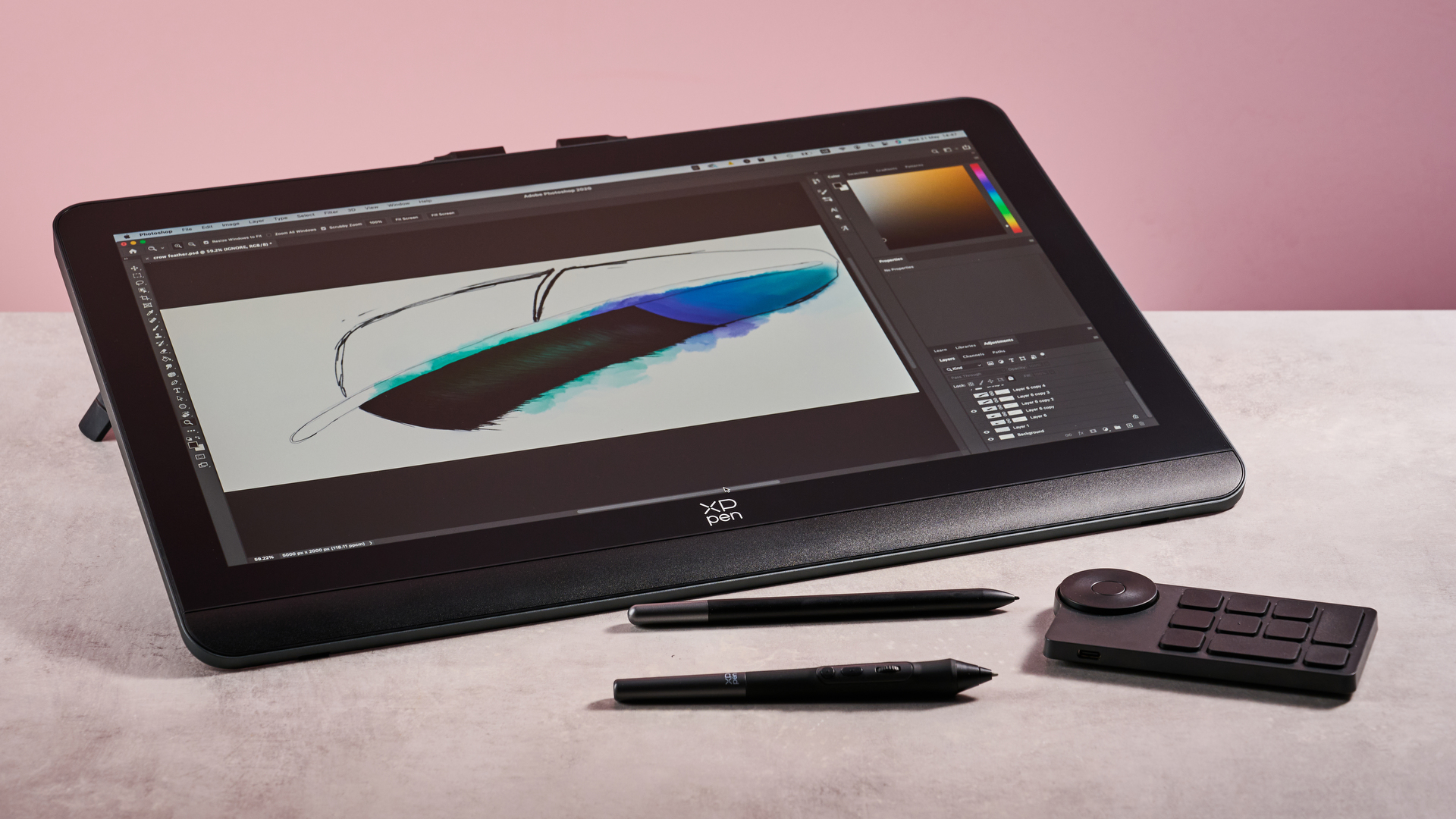
XPPen has been pretty generous with accessories here. In addition to the aforementioned stand, this package includes a wireless shortcut remote and a stylus case – which includes the X3 Pro Roller Stylus, the X3 Pro Slim Stylus, eight nibs, a USB dongle for the shortcut remote, a nib-changing tool, and a button cap for the slim stylus. It also provides full cabling, including two USB-C to USB-C cables, a USB-C to USB-A cable, a 3-in-1 USB and HDMI cable, and a power cable. On the downside, there’s neither a carry case for the tablet nor any tablet-mounted rests for the styluses, both of which would have been welcome additions.
(Image credit: Future / Josh Russell)
XPPen Artist Pro 19 Gen 2 review: performance
- No parallax or jitter
- Easily customizable using drivers
- Experienced some issues getting shortcuts to work
To test the XPPen Artist Pro 19 Gen 2’s mettle, I carried out a range of line tests as well as working on some of my own sketches. Generally speaking, it’s impressively accurate. While there was a bit of parallax throwing things off at first, once I’d calibrated it, this totally vanished. There’s also no noticeable jitter, although there’s a little lag when you’re moving fast – this wasn’t sufficient to cause any inaccuracies, however.
Subjectively speaking, when I was initially sketching on the XPPen it didn’t feel quite as expressive and responsive as a drawing tablet such as the Xencelabs Pen Display 16 – the barbs of the magpie feather I was drawing felt ever so slightly less nuanced and refined. However, once I dug around in XPPen’s driver settings, it was easy to tailor things to my liking; you can either pick one of seven pressure-curve presets or shape your own, and once I’d done this, strokes felt much more realistic and pencil-like.
The driver app allows you to customize far more than this, though. You can adapt the device’s working area to specific screens, all of your screens or a subsection of one of them, and you can also assign shortcuts to the buttons on its styluses and wireless shortcut remote. Buttons are assignable to any keyboard shortcut, mouse shortcut, or a range of other functions such as opening apps, switching to the driver software, or shifting monitor focus. Alternatively, the roller on the remote or the X3 Pro Roller Stylus can be assigned to Zoom, Scroll, Brush size or any function that can be increased or decreased by two keys.
While this should be very handy, in practice I did run into some problems. While both the remote and stylus responded to my programmed keyboard shortcuts – for example, flashing up the label “CMD + Z” when I hit the undo button – this didn’t activate the relevant menu shortcut. After quite a lot of back and forth with XPPen’s support team, I did manage to resolve the issue: it seems that having a wired keyboard plugged into my USB dock at the same time as the wireless shortcut remote’s dongle prevented it from accessing the menus. It’s unlikely you’ll encounter similar problems; It’s an odd quirk, one that I haven’t experienced with other drawing tablets.
(Image credit: Future)
XPPen Artist Pro 19 Gen 2 review: stylus
- Attractive ergonomic shape and balance
- Responsive pressure curves
- No eraser tips
On the whole, XPPen’s styluses are excellent. Naturally, the slighter X3 Pro Slim Stylus is the best option for nimble scribbling. But even the chunkier X3 Pro Roller Stylus felt comfortable for long scribbling sessions – despite spending hours drawing a magpie feather, there was never any hint of aching or strain from the sustained grip. The Roller stylus is nicely weighted, too, with its center of mass sitting right on the fulcrum of your fingers, making it easy to spin and pivot as you sketch.
Both styluses respond pretty fluidly to pressure as well. On paper, the 16K pressure levels sound amazing; in practice, though, you’re unlikely to notice much difference from an 8K device. Certainly, I couldn’t really tell the difference in terms of the smoothness of the pressure gradients of the lines I was drawing. In fact, when using the XPPen driver’s pressure gauge, I found it pretty much impossible to reduce the pressure to below 2,000 and to keep the stylus nib consistently on the screen. As such, I’d say the sensitivity here is far higher than you’re ever realistically going to use.
As with styluses from other brands, I did find I’d occasionally knock the shortcut keys by accident. I’m not sure you can hold this against XPPen, though: part of the price of having convenient shortcuts right where your fingers can find them is that sometimes your fingers do find them. And on the Slim stylus, it’s possible to hot-swap out the shortcut buttons for a plastic cap, meaning you can easily avoid this if you find yourself nudging them too often.
My only real criticism of the styluses is the lack of erasers on their far ends. I get that some people would probably rather switch tools to the eraser with a shortcut, to save removing the nib from the screen. But I make mistakes all the time and I find it psychologically much easier to fall back on the muscle memory of the analog pencil eraser than I do shifting between shortcuts. You might find this bothers you less, but I do wish XPPen’s styluses gave me that option.
(Image credit: Future)
Should you buy the XPPen Artist Pro 19 Gen 2?
Swipe to scroll horizontally
Attributes
Notes
Rating
Design
Bright, vibrant display and a decent array of accessories; but it’s chunky enough that you’ll probably only want to use it at a desk.
4 / 5
Performance
There’s zero parallax or jitter, and it offers a great range of customizable shortcuts – even if I had some difficulties getting them to work.
4 / 5
Stylus
Excellent pressure sensitivity, good customizability, great ergonomic balance; but eraser tips would have been a nice option.
4.5 / 5
Value
With its bright display, responsive performance, 16K pressure levels and comprehensive accessories, you get a lot for the price.
4.5 / 5
Buy it if…
Don’t buy it if…
(Image credit: Future)
XPPen Artist Pro 19 Gen 2 review: also consider
Swipe to scroll horizontallyHeader Cell – Column 0
XPPen Artist Pro 19 Gen 2
Xencelabs Pen Display 16
Xencelabs Pen Display 24
Dimensions
18.1 x 12.1 x 0.8 inches (460 x 306.6 x 21.5mm)
16.1 x 10.2 x 0.47 inches (410 x 259.4 x 12mm)
24.4 x 15.3 x 1.4 inches (619.8 x 388.6 x 35.6mm)
Active drawing area
16.1 x 9.1 inches (409 x 230mm)
13.55 x 7.6 inches (344.2 x 193.6mm)
20.75 x 11.7 inches (52.71 x 29.72cm)
Weight
4.91 lbs (2.23kg)
2.67 lbs (1.21kg)
13.3 lbs (6kg)
Display resolution
3840 x 2160 pixels
3840 x 2160 pixels
3840 x 2160 pixels
Pressure levels
16,384
8,192
8,192
Compatibility
Windows 7 or later; macOS 10.13 or later (latest update); Android (USB3.1 DP1.2); Chrome OS 88 (or later); Linux
PC: Windows 7 or later (latest service pack/build); macOS 10.13 or later (latest update); Linux – Ubuntu 14.04 or above, Debian 9.5, CentOS 7.0 or above, RedHat 7.0 or above
PC: Windows 7 or later (latest service pack/build); Mac OS X 10.13 or later (latest update); Linux – Ubuntu 14.04 or above, Debian 9.5, CentOS 7.0 or above, RedHat 7.0 or above
How I tested the XPPen Artist Pro 19 Gen 2
- Tested the drawing tablet over three weeks
- Conducted multiple line tests
- Worked on various sketches and retouched some photos
I tested the XPPen Artist Pro 19 Gen 2 over a period of multiple weeks. First, I carried out a range of line tests to test its accuracy when it came to parallax and jitter, as well as evaluating its responsiveness to pressure. I also played around with its driver settings, tweaking its properties to see how it affected the drawing experience, and experimented with the various shortcuts you can assign to its remote.
I then worked on a range of artworks in both Adobe Illustrator and Photoshop to get a sense of how the drawing tablet performed in use. As well as creating a line drawing of a magpie feather and adding watercolor hues as an overlay, I retouched multiple photographs to see how well it could handle airbrushing work.
Having spent nearly two decades creating digital artwork, I have a lot of experience in working with digital sketching and photo retouching tools. In addition, through my time working in print publishing, I’ve spent many years assessing proofs for color accuracy and detail, and so have a keen eye for how artwork should look at its best.
XPPen Artist Pro 19 (Gen 2): Price Comparison
Deal ends Sun, 8 Jun, 2025
