

Close Menu
TechurzTechurz
    What's Hot

    Arena, the AI leaderboard everyone uses, is now a $100M business

    June 29, 2026

    Omen AI’s plan to optimize data centers is all wet

    June 29, 2026

    Asian AI startups launch Mythos-like models as Anthropic’s export ban drags on

    June 27, 2026
    X (Twitter) Pinterest YouTube LinkedIn WhatsApp
    Tech Pulse
    • Arena, the AI leaderboard everyone uses, is now a $100M business
    • Omen AI’s plan to optimize data centers is all wet
    • Asian AI startups launch Mythos-like models as Anthropic’s export ban drags on
    • Corgi, the buzzy Y Combinator-backed insurance tech startup, says it didn’t steal an open source product
    • OpenAI poaches Uber India chief to lead its biggest market outside the US
    X (Twitter) Pinterest YouTube LinkedIn WhatsApp
    TechurzTechurz
    • Home
    • Tech Pulse
    • Future Tech
    • AI Systems
    • Cyber Reality
    • Disruption Lab
    • Signals
    TechurzTechurz
    Home - Guides - Mastering Text Highlighting in Pages
    Guides

    Mastering Text Highlighting in Pages

    TechurzBy TechurzJune 8, 2025Updated:May 12, 2026No Comments3 Mins Read
    Share Facebook Twitter Pinterest LinkedIn Tumblr Reddit Telegram Email
    Mastering Text Highlighting in Pages
    Share
    Facebook Twitter LinkedIn Pinterest Email


    Table of contents
    1 The Download
    2 How Do You Highlight Text in Pages on a Mac?
    3 How to Change the Color of Highlighted Text
    4 How to Leave Comments on Highlighted Text in Pages on Mac
    5 FAQ

    The Download

    • Select some text, then click Insert > Highlight to highlight some text.
    • To change your highlight color: View > Comments & Changes > Author Color > select a custom color.
    • To comment on highlighted text: Mouseover highlighted text > Add a Comment > type your comment > click Done.

    This article explains how to highlight text in Pages, including how to leave notes once you’ve highlighted something.

    How Do You Highlight Text in Pages on a Mac?

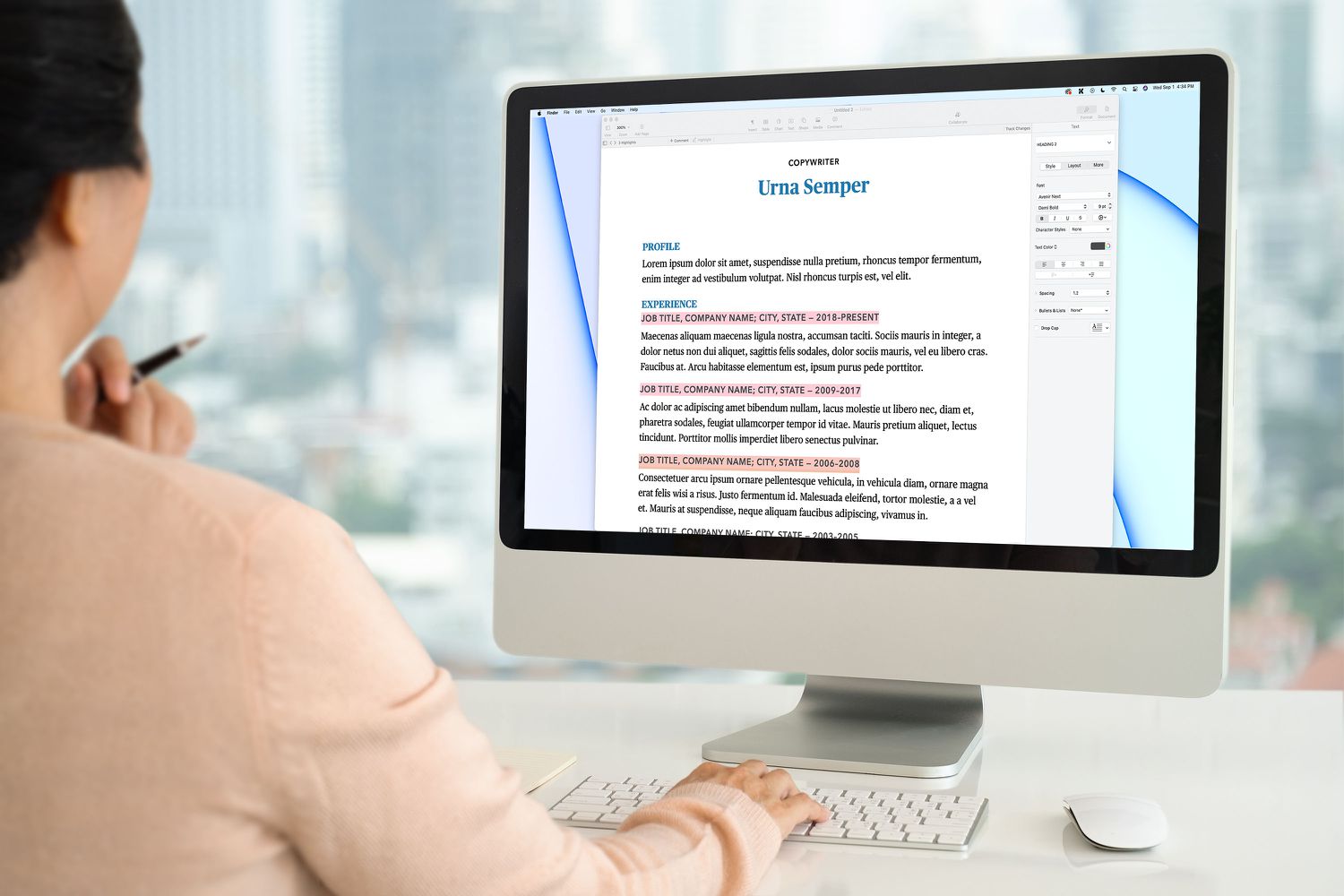
    Pages allows you to highlight text so a specific section stands out from the rest of the document.

    Here’s how to highlight text in Pages on a Mac:

    1. Open a Pages text document.

    2. Select the text you want to highlight.

      Not sure how to select text on a Mac? Position the mouse cursor at the beginning of the text, click and hold the mouse button, drag to the end of the text, then let go of the mouse button. You can also select text by holding down Shift and then moving the cursor with the arrow keys.

    3. Click Insert > Highlight on the menu bar.

    4. Your text is now highlighted.

      The Review Toolbar will now appear at the top of the document. To highlight additional text, select it and click Highlight in this toolbar.

    How to Change the Color of Highlighted Text

    Once you’ve highlighted some text, you can change the highlight color. If your document has multiple people collaborating on it, you can also assign a different color to each person.

    Here’s how to change the color of highlighted text in Pages on a Mac:

    1. Highlight some text using the method described above.

    2. Click View on the menu bar.

    3. Click Comments & Changes.

    4. Click Author Color.

    5. Click the color you want to use for highlights.

      Other people who have access to this document will see this color when you make highlights. They can set their own color using this same method, and you will see their highlights in the color they choose.

    6. Your highlights will change to the color you selected.

    How to Leave Comments on Highlighted Text in Pages on Mac

    When you highlight text in Pages, you can add a comment to the selection to help remind you of why you highlighted the text, or to see if there was some change you wanted to make later.

    Here’s how to leave comments on highlighted text in Pages on a Mac:

    1. Highlight some text using the method described above.

    2. Move your mouse cursor over the highlighted text, and click in the Add a Comment box when it appears.

    3. Type your comment, and click Done.

    4. If you move your mouse over the highlighted text in the future, your note will pop up.

      Comments are also useful if you’re collaborating because the other people who have access to your document will be able to see your comment and leave their own.

    FAQ

    • How do I remove a highlight in Pages?

      To remove highlighted text in Pages, click the highlighted text section > select Delete from the pop-up box that appears. Removing a highlight doesn’t remove any text; it removes only the highlight.

    • How do I highlight text in Pages on an iPad?

      In Pages on your iPad, select the text, and then tap Highlight. To remove the highlight, double-tap on the highlighted text and then tap Remove Highlight.

    Thanks for letting us know!

    Get the Latest Tech News Delivered Every Day

    Subscribe

    Tell us why!

    Other

    Not enough details

    Hard to understand

    Highlighting Mastering Pages text
    Share. Facebook Twitter Pinterest LinkedIn Tumblr Email
    Previous ArticleCall of Duty: Black Ops 7 officially announced and it stars that one Gilmore Girls actor
    Next Article Why Apple’s VisionPro won’t make XR headsets mainstream
    Techurz
    • Website

    Related Posts

    Opinion

    Pixi’s new iOS app turns text messages into interactive AR experiences

    June 18, 2026
    Opinion

    AI agent Poke makes setting up automations as easy as sending a text

    April 8, 2026
    Opinion

    Inception raises $50 million to build diffusion models for code and text

    November 6, 2025
    Add A Comment
    Latest Tech Pulse

    College social app Fizz expands into grocery delivery

    September 3, 20252,290

    SolarSquare in talks to raise up to $60M as India’s rooftop solar market draws major VC interest

    May 23, 202622

    Future of Digital Privacy and Security: 7 Truths Nobody Tells You

    May 25, 202619
    Stay In Touch
    • YouTube
    • WhatsApp
    • Twitter
    • Pinterest
    • LinkedIn

    Techurz helps readers stay ahead of digital change with clear, practical, future focused technology intelligence written today,searched tomorrow.

    X (Twitter) Pinterest YouTube LinkedIn WhatsApp
    Company
    • About Us
    • Contact Us
    • Our Authors / Editorial Team
    • Write For Us
    • Advertise
    Policy
    • Editorial Policy
    • Privacy Policy
    • Terms and Conditions
    • Affiliate Disclosure
    • Cookie Policy
    • Disclaimer
    • DMCA
    Explore
    • AI Systems
    • Cyber Reality
    • Future Tech
    • Disruption Lab
    • Signals
    • Tech Pulse
    • Sitemap

    Join the Techurz Brief

    The future does not arrive suddenly.
    Stay ahead with fast, sharp tech signals.

    Type above and press Enter to search. Press Esc to cancel.