

Close Menu
TechurzTechurz

    Subscribe to Updates

    Get the latest creative news from FooBar about art, design and business.

    What's Hot

    What we’re looking for in Startup Battlefield 2026 and how to put your best application forward

    March 30, 2026

    ScaleOps raises $130M to improve computing efficiency amid AI demand

    March 30, 2026

    Qodo raises $70M for code verification as AI coding scales

    March 30, 2026
    Facebook X (Twitter) Instagram
    Trending
    • What we’re looking for in Startup Battlefield 2026 and how to put your best application forward
    • ScaleOps raises $130M to improve computing efficiency amid AI demand
    • Qodo raises $70M for code verification as AI coding scales
    • Elon Musk’s last co-founder reportedly leaves xAI
    • From Moon hotels to cattle herding: 8 startups investors chased at YC Demo Day
    • Aetherflux reportedly raising Series B at $2 billion valuation
    • OpenAI shuts down Sora while Meta gets shut out in court
    • VCs are betting billions on AI’s next wave, so why is OpenAI killing Sora?
    Facebook X (Twitter) Instagram Pinterest Vimeo
    TechurzTechurz
    • Home
    • AI
    • Apps
    • News
    • Guides
    • Opinion
    • Reviews
    • Security
    • Startups
    TechurzTechurz
    Home»Guides»Add More Security With iCloud Two-Factor Authentication
    Guides

    Add More Security With iCloud Two-Factor Authentication

    TechurzBy TechurzJune 15, 2025No Comments3 Mins Read
    Share Facebook Twitter Pinterest LinkedIn Tumblr Reddit Telegram Email
    Add More Security With iCloud Two-Factor Authentication
    Share
    Facebook Twitter LinkedIn Pinterest Email


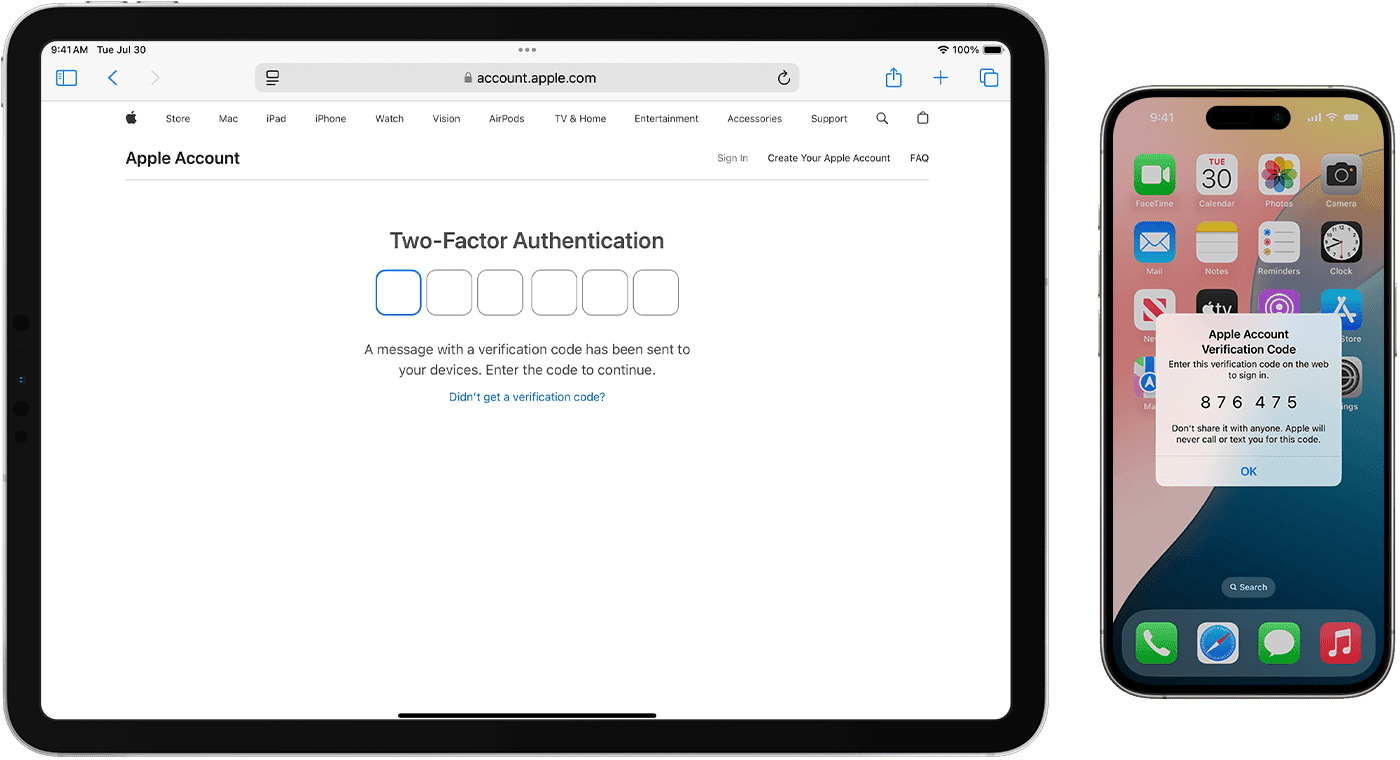
    This article explains how to turn on iCloud two-factor authentication to protect your Apple ID/Apple Account from theft, hacking, and other misuses by unauthorized parties.

    Two-factor authentication adds a barrier between whoever’s logging in and the account by requiring authentication in two ways, such as a computer and phone. This method is more secure than a password alone.

    Turn on Two-Factor Authentication for iCloud Mail

    Here’s how to enable two-factor authentication for your iCloud Mail account and other programs associated with your Apple Account from a Mac, iPhone, or Apple website.

    Set Up Two-Factor Authentication for iCloud Mail Using a Mac

    1. Go to the Apple menu and select System Settings.

      This option might be labeled System Preferences.

    2. Select Apple Account.

      In some versions of macOS, this option is called “Apple ID.”

    3. Click Sign-In & Security.

      In some macOS versions, you may see this option labeled Password & Security.

    4. Select Turn on beside Two-Factor Authentication.

      Add your Apple Account email and password if prompted.

    5. Answer security questions and click Continue > Verify when you’re done.

    6. Enter the phone number you want to use for verification codes and select Continue again.

    7. On your Mac, enter the code you receive on your trusted phone.

    Set Up Two-Factor Authentication for iCloud Mail Using an iOS Device

    You can also set up two-factor authentication for your Apple Account using an iPhone.

    1. Go to Settings > Apple Account > Sign-In & Security.

      In some versions of iOS, this option is called “Apple ID.”

    2. Tap Turn on Two-Factor Authentication > Continue.

    3. Enter the phone numbers you want to use as Trusted Phone Numbers. Choose to receive the two-factor authentication codes by text message or automated phone call.

    4. When you tap Next, Apple sends a verification code to the phone number you provided. Enter the verification code to verify your phone number and turn on two-factor authentication.

    Turn on Two-Factor Authentication Using a Web Browser

    If you don’t have access to a Mac or iOS device, use a browser to turn on two-factor authentication.

    1. In a browser, open the Apple Account page and select Sign In to log in to your account.

    2. Sign in and scroll down to Sign-In & Security > Account Security.

    3. Follow the prompts to create security questions and trusted phone numbers.

    How to Create Secure App-Specific Passwords

    Another layer of protection you can add is to create app-specific passwords for third-party apps you use with your Apple Account.

    Here’s how to generate secure app-specific passwords.

    1. Make sure iCloud two-factor authentication is enabled for your Apple account.

    2. In a browser, go to Manage Your Apple Account and click Sign In to enter your Apple Account information.

    3. From Sign-In & Security, select App-specific Passwords.

    4. Select Generate an app-specific password.

    5. Enter a label for the program or service for which you want to create the password and select Create.

    6. Re-enter your Apple Account and password.

    7. Click Done after you grab the password generated for you and paste it directly into the app you want to use it with.

    Thanks for letting us know!

    Get the Latest Tech News Delivered Every Day

    Subscribe

    Tell us why!

    Other

    Not enough details

    Hard to understand

    add authentication iCloud Security TwoFactor
    Share. Facebook Twitter Pinterest LinkedIn Tumblr Email
    Previous ArticleAlexa von Tobel has high hopes for ‘fintech 3.0’
    Next Article I write novels and build AI. The real story is more complicated than either side admits
    Techurz
    • Website

    Related Posts

    Opinion

    Conntour raises $7M from General Catalyst, YC to build an AI search engine for security video systems

    March 26, 2026
    Opinion

    Delve did the security compliance on LiteLLM, an AI project hit by malware

    March 26, 2026
    Opinion

    Databricks bought two startups to underpin its new AI security product

    March 24, 2026
    Add A Comment
    Leave A Reply Cancel Reply

    Top Posts

    College social app Fizz expands into grocery delivery

    September 3, 20252,288 Views

    A Former Apple Luminary Sets Out to Create the Ultimate GPU Software

    September 25, 202516 Views

    The Reason Murderbot’s Tone Feels Off

    May 14, 202512 Views
    Stay In Touch
    • Facebook
    • YouTube
    • TikTok
    • WhatsApp
    • Twitter
    • Instagram
    Latest Reviews

    Subscribe to Updates

    Get the latest tech news from FooBar about tech, design and biz.

    Most Popular

    College social app Fizz expands into grocery delivery

    September 3, 20252,288 Views

    A Former Apple Luminary Sets Out to Create the Ultimate GPU Software

    September 25, 202516 Views

    The Reason Murderbot’s Tone Feels Off

    May 14, 202512 Views
    Our Picks

    What we’re looking for in Startup Battlefield 2026 and how to put your best application forward

    March 30, 2026

    ScaleOps raises $130M to improve computing efficiency amid AI demand

    March 30, 2026

    Qodo raises $70M for code verification as AI coding scales

    March 30, 2026

    Subscribe to Updates

    Get the latest creative news from FooBar about art, design and business.

    Facebook X (Twitter) Instagram Pinterest
    • About Us
    • Contact Us
    • Privacy Policy
    • Terms and Conditions
    • Disclaimer
    © 2026 techurz. Designed by Pro.

    Type above and press Enter to search. Press Esc to cancel.