

Close Menu
TechurzTechurz
    What's Hot

    Evotrex raises $30M to build the RV that doesn’t need a charging station

    June 9, 2026

    It’s not FAANG anymore. It’s MANGOS.

    June 9, 2026

    Zepto’s IPO filing reveals fast growth, bigger losses, and a valuation question nobody’s answered yet

    June 9, 2026
    X (Twitter) Pinterest YouTube LinkedIn WhatsApp
    Tech Pulse
    • Evotrex raises $30M to build the RV that doesn’t need a charging station
    • It’s not FAANG anymore. It’s MANGOS.
    • Zepto’s IPO filing reveals fast growth, bigger losses, and a valuation question nobody’s answered yet
    • How to apply to Startup Battlefield 2026, what you need ahead of today’s June 8 deadline
    • Beyond Instagram: Introducing the next generation of social apps
    X (Twitter) Pinterest YouTube LinkedIn WhatsApp
    TechurzTechurz
    • Home
    • Tech Pulse
    • Future Tech
    • AI Systems
    • Cyber Reality
    • Disruption Lab
    • Signals
    TechurzTechurz
    Home - Guides - Add More Security With iCloud Two-Factor Authentication
    Guides

    Add More Security With iCloud Two-Factor Authentication

    TechurzBy TechurzJune 15, 2025Updated:May 12, 2026No Comments3 Mins Read
    Share Facebook Twitter Pinterest LinkedIn Tumblr Reddit Telegram Email
    Add More Security With iCloud Two-Factor Authentication
    Share
    Facebook Twitter LinkedIn Pinterest Email


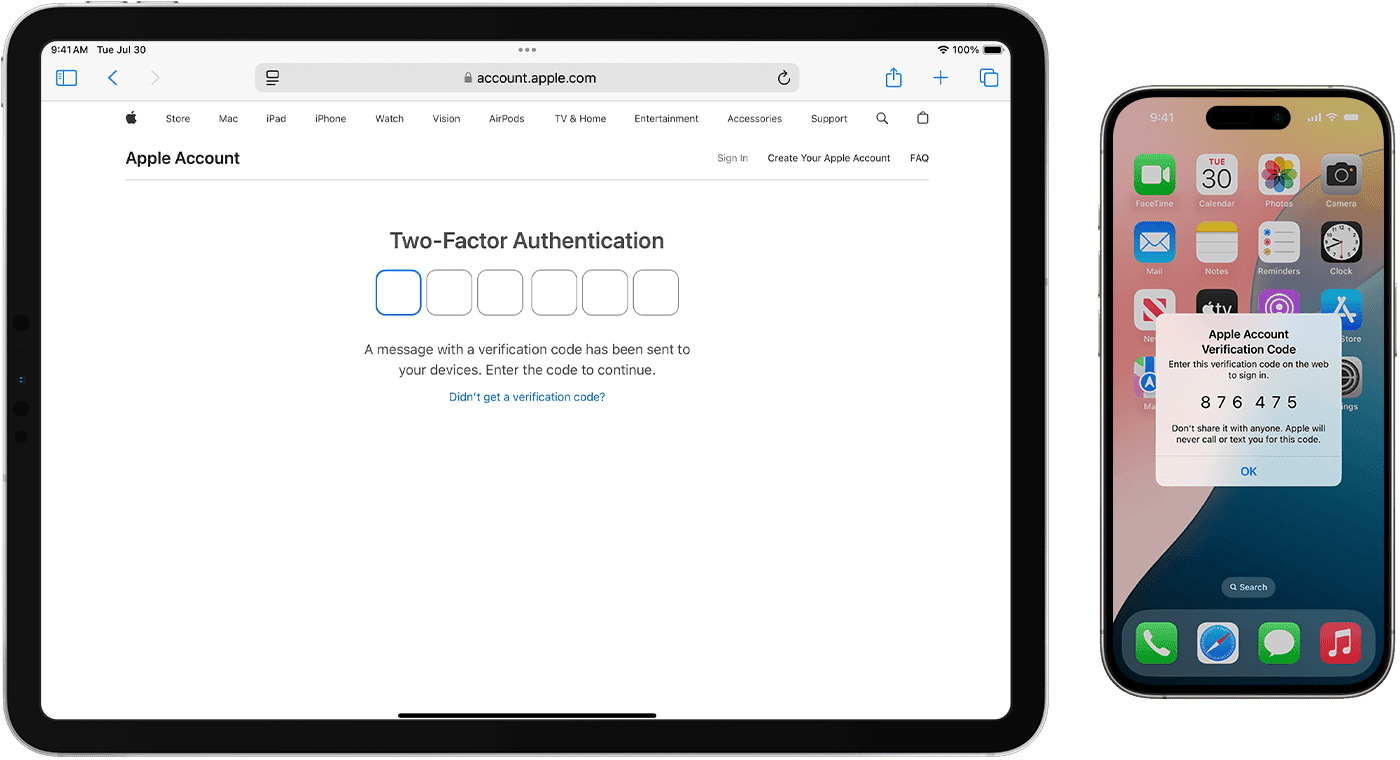
    This article explains how to turn on iCloud two-factor authentication to protect your Apple ID/Apple Account from theft, hacking, and other misuses by unauthorized parties.

    Two-factor authentication adds a barrier between whoever’s logging in and the account by requiring authentication in two ways, such as a computer and phone. This method is more secure than a password alone.

    Turn on Two-Factor Authentication for iCloud Mail

    Here’s how to enable two-factor authentication for your iCloud Mail account and other programs associated with your Apple Account from a Mac, iPhone, or Apple website.

    Set Up Two-Factor Authentication for iCloud Mail Using a Mac

    1. Go to the Apple menu and select System Settings.

      This option might be labeled System Preferences.

    2. Select Apple Account.

      In some versions of macOS, this option is called “Apple ID.”

    3. Click Sign-In & Security.

      In some macOS versions, you may see this option labeled Password & Security.

    4. Select Turn on beside Two-Factor Authentication.

      Add your Apple Account email and password if prompted.

    5. Answer security questions and click Continue > Verify when you’re done.

    6. Enter the phone number you want to use for verification codes and select Continue again.

    7. On your Mac, enter the code you receive on your trusted phone.

    Set Up Two-Factor Authentication for iCloud Mail Using an iOS Device

    You can also set up two-factor authentication for your Apple Account using an iPhone.

    1. Go to Settings > Apple Account > Sign-In & Security.

      In some versions of iOS, this option is called “Apple ID.”

    2. Tap Turn on Two-Factor Authentication > Continue.

    3. Enter the phone numbers you want to use as Trusted Phone Numbers. Choose to receive the two-factor authentication codes by text message or automated phone call.

    4. When you tap Next, Apple sends a verification code to the phone number you provided. Enter the verification code to verify your phone number and turn on two-factor authentication.

    Turn on Two-Factor Authentication Using a Web Browser

    If you don’t have access to a Mac or iOS device, use a browser to turn on two-factor authentication.

    1. In a browser, open the Apple Account page and select Sign In to log in to your account.

    2. Sign in and scroll down to Sign-In & Security > Account Security.

    3. Follow the prompts to create security questions and trusted phone numbers.

    How to Create Secure App-Specific Passwords

    Another layer of protection you can add is to create app-specific passwords for third-party apps you use with your Apple Account.

    Here’s how to generate secure app-specific passwords.

    1. Make sure iCloud two-factor authentication is enabled for your Apple account.

    2. In a browser, go to Manage Your Apple Account and click Sign In to enter your Apple Account information.

    3. From Sign-In & Security, select App-specific Passwords.

    4. Select Generate an app-specific password.

    5. Enter a label for the program or service for which you want to create the password and select Create.

    6. Re-enter your Apple Account and password.

    7. Click Done after you grab the password generated for you and paste it directly into the app you want to use it with.

    Thanks for letting us know!

    Get the Latest Tech News Delivered Every Day

    Subscribe

    Tell us why!

    Other

    Not enough details

    Hard to understand

    add authentication iCloud Security TwoFactor
    Share. Facebook Twitter Pinterest LinkedIn Tumblr Email
    Previous ArticleAlexa von Tobel has high hopes for ‘fintech 3.0’
    Next Article I write novels and build AI. The real story is more complicated than either side admits
    Techurz
    • Website

    Related Posts

    Opinion

    Another customer of troubled startup Delve suffered a big security incident

    April 23, 2026
    Opinion

    Conntour raises $7M from General Catalyst, YC to build an AI search engine for security video systems

    March 26, 2026
    Opinion

    Delve did the security compliance on LiteLLM, an AI project hit by malware

    March 26, 2026
    Add A Comment
    Latest Tech Pulse

    College social app Fizz expands into grocery delivery

    September 3, 20252,289

    SolarSquare in talks to raise up to $60M as India’s rooftop solar market draws major VC interest

    May 23, 202621

    A Former Apple Luminary Sets Out to Create the Ultimate GPU Software

    September 25, 202518
    Stay In Touch
    • YouTube
    • WhatsApp
    • Twitter
    • Pinterest
    • LinkedIn

    Techurz helps readers stay ahead of digital change with clear, practical, future focused technology intelligence written today,searched tomorrow.

    X (Twitter) Pinterest YouTube LinkedIn WhatsApp
    Company
    • About Us
    • Contact Us
    • Our Authors / Editorial Team
    • Write For Us
    • Advertise
    Policy
    • Editorial Policy
    • Privacy Policy
    • Terms and Conditions
    • Affiliate Disclosure
    • Cookie Policy
    • Disclaimer
    • DMCA
    Explore
    • AI Systems
    • Cyber Reality
    • Future Tech
    • Disruption Lab
    • Signals
    • Tech Pulse
    • Sitemap

    Join the Techurz Brief

    The future does not arrive suddenly.
    Stay ahead with fast, sharp tech signals.

    Type above and press Enter to search. Press Esc to cancel.