


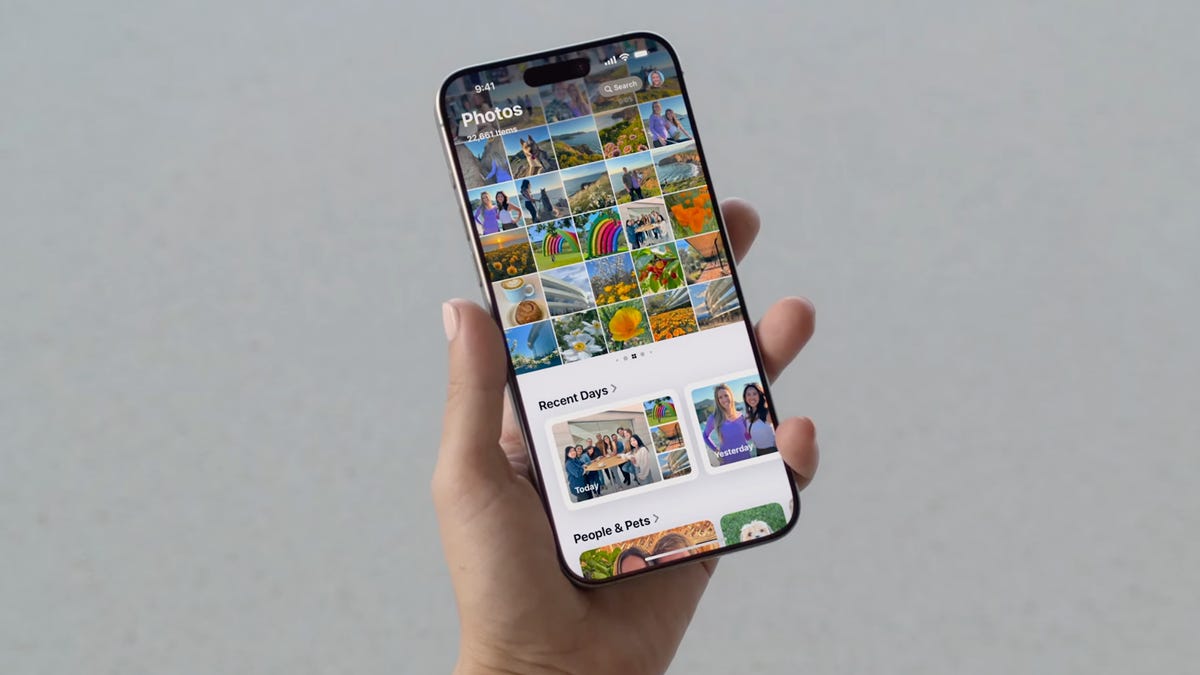
I’ve definitely opened my iPhone just to be hit in the face with photos of people or times that I’d just rather forget.
Apple wants to remind you of the good times you’ve had with featured photos and memories but this trip down nostalgia lane can backfire. These two iPhone features work together to create “featured content,” to highlight the moments you want to remember. Unfortunately, along with your favorite vacation with friends, you might also end up looking at photos of your ex.
The worst part is that featured content isn’t exclusive to the Photos app. Featured content appears across your device, like in the search page and on widgets on your home screen.
Don’t miss: How to Download iOS 26 Right Now
Having these unexpected photos randomly show up on your iPhone, especially if you’re showing something on your phone to someone, or someone else is using your phone, can become a headache … that you can luckily avoid.
If you want to stop unwanted photos from randomly appearing across your iPhone, here’s how to stop it.
While you’re here, check out all the new features coming on iOS 26 and how to disable the most annoying Apple Intelligence feature.
Your iPhone Wants These 11 Essential Accessories in the New Year
See all photos
You can show a person less frequently or not at all
If someone is featured pretty prominently across your photo library, iOS will consider them an important person in your life. That person will definitely show up in your memories and featured photos across your device. For most, it’s a joyous experience, reliving precious memories with your favorite people.
If things are not so precious anymore and you no longer talk to that person, you probably don’t want to see their face randomly pop up on your phone. Sure, you could go through your camera roll and scrub every photo and video with that person in it but that’s a lot of work. Fortunately, there’s an easy way to hide photos with a specific person.
To feature a person less frequently or not at all in memories, features photos and widgets, open the Photos app, find a photo or video with the person you want to show less often, tap the three-dot menu button in the top-right and then hit Feature This Person Less.
You can now choose from two options:
- Feature This Person Less: You won’t see any individual photos or videos of this person in memories or featured photos, but if this person is in a group photo, those may still appear.
- Never Feature This Person: You won’t see any photos or videos with this person, including group photos.
If you still want to see group photos featured across your device, choose the first option. If you really don’t want to see that person, choose the second.
You can also completely disable memories and featured photos
Now, not everyone’s unexpected photo is going to be of an ex-spouse or former friend. An embarrassing photo of yourself or something borderline inappropriate might pop up on your phone somewhere, and if you’re worried about that happening, you might just want to get rid of memories and feature photos completely.
In the Settings app, go to Apps > Photos and toggle off Show Featured Content. This will stop all featured content across your device, including albums in the Photos app, widgets on your home screen and photos in search.
Instead of seeing memories and featured photos, you’ll see a gray box that says “Featured Content is Turned Off.”
Other tips you can follow to prevent unexpected photos from showing up
What I’ve detailed above is a great start to prevent certain photos from appearing across your device, but you can do more, especially if the two tips don’t really do it for you.
- Remove photos widgets from your lock and home screen. There is a photos widget that only shows featured photos, and that may end up being embarrassing or unwanted photos. Simply remove them from your phone, or choose a photo widget that isn’t a “featured” one.
- Hide collections in the Photos app. Starting with iOS 18, you can now hide certain collections that may preview photos you don’t want to necessarily see. In Photos, go to Customize & Reorder and check off the collections you want to hide. These collections include Recent Days, People & Pets, Trips and more. If you have featured content disabled, you’ll notice that some collections are grayed out.
- Turn off holiday memories. If you don’t want to see memories of recent holiday events, like Christmas or Thanksgiving, you can go to Settings > Apps > Photos and toggle off Show Holiday Events.
- Stop photos from appearing in search. If you type something into search, you may see photos appear. You can stop this from happening by going to Settings > Apps > Photos and toggling off Show App in Search and Show Content in Search.
- Don’t choose a featured wallpaper on your lock screen. On iOS 18, you can have featured photos appear as your lock screen, changing through the day. Choose any other wallpaper than the featured photos wallpaper to avoid unwanted photos from appearing on your lock screen.
Watch this: I’m Impressed With iOS 26. Apple Just Made iPhones Better
05:40
If you want to learn more about iOS, check out how to get more iPhone storage with these two tips and why the iPhone 16 camera control button is also a secret action button.
