


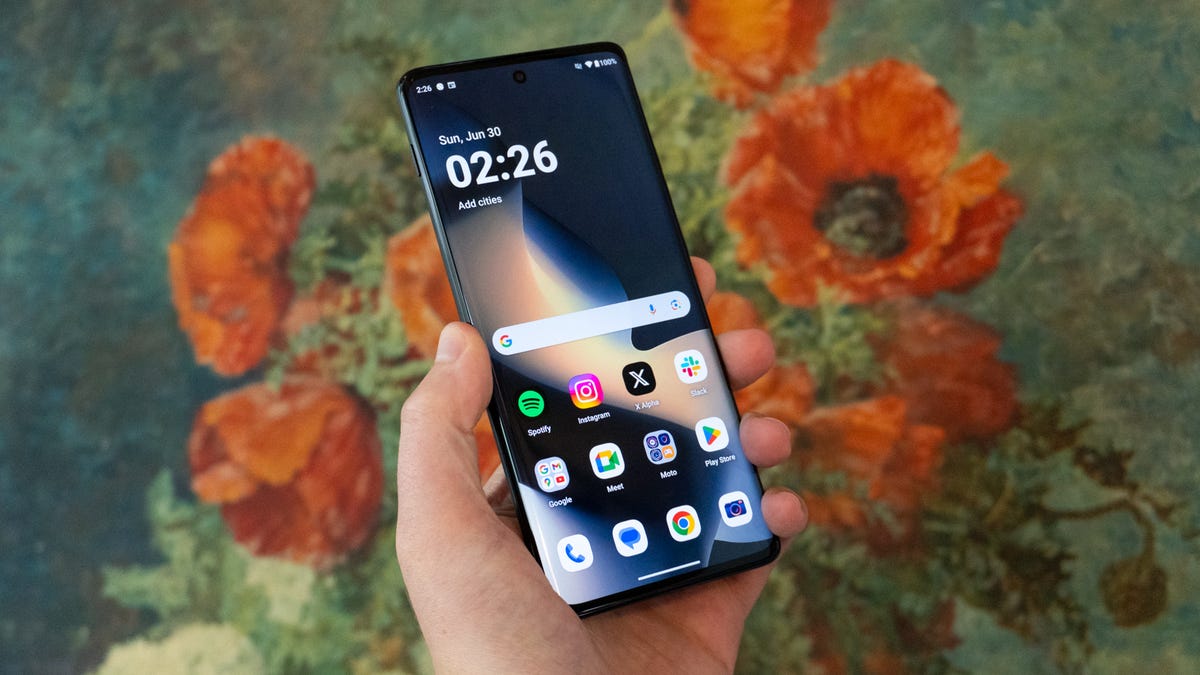
Max Buondonno/ZDNET
Google’s Pixel phones aren’t the only ones with battery-saving secrets to explore. Motorola offers almost as many features inside its menus. After three weeks with the Moto Razr Ultra and separately, the Moto G Stylus 2025, I discovered a handful of tweaks hiding in plain sight that you’ll likely find on your Motorola device if you know where to look.
1. Battery Saver keeps the lights on when your gauge hits the red
Jason Howell/ZDNET
Battery anxiety is the worst, and Battery Saver is a no-brainer feature that helps at just the right time. Standard Battery Saver steps in at the 20% mark, dims the interface, drops the screen refresh rate, and pauses some non-essential background data that might normally eat away at the battery over time. Calls, texts, and mapped navigation still break through, but almost everything else waits until you plug in again. It’s an easy and effective solution.
Also: 6 hidden Android features every user should know – and how they make life easier
Open Settings > Battery > Battery Saver and tap Standard Battery Saver. While you’re at it, head into Schedule and Reminders to set a default battery level that will trigger when the feature turns on automatically for you.
Maximum Battery Saver goes even further by freezing live wallpapers, shutting down Moto Actions, forcing a 15-second screen timeout, and even deactivating the 5G modem. I set my most essential apps to bypass these drastic changes so I can stay safe and connected to mission-critical tasks.
2. Adaptive Battery locks freeloading apps in the back room
Most applications hope to gain background privileges, but few deserve unfettered access. Adaptive Battery studies your habits, spots the apps you rarely open, and moves them into a restricted bucket that ramps these tools down when they’re not in use.
Head into Settings > Battery > Adaptive Battery to switch the feature on, and from there, Android handles the gatekeeping while growing more accurate over time as it gathers data about your usage.
3. Adaptive Brightness handles the dimmer switch with no extra effort
Jason Howell/ZDNET
Screens are often the number one consumer of battery on smartphones. Adaptive Brightness is here to help, using an ambient light sensor to pick a comfortable brightness level for your environment. Over time, it monitors how you manually tweak your settings in different environments and refines those automatic settings even further.
Also: The best Motorola phones you can buy, and where the new Razr ranks
Enable the feature in Settings > Display > Adaptive Brightness. Remember to give it a few weeks to learn your usage. That’s when the benefits show.
4. Efficiency-First refresh rate, smooth enough and far leaner
High-refresh displays look amazing, no question, but they can dramatically impact battery life. The Razr Ultra tops out at a whopping 165Hz, in fact, and that rate can impact longevity during heavy usage days. I sometimes switch to the 60Hz Efficiency setting before travel sprints. Sometimes, I’d rather opt for 120Hz, which looks amazing while still being a saving from the max setting on the Moto Razr.
Change the rate by going to Settings > Display > Display Refresh Rate > Efficiency First for 60Hz operation, or Smart & Balanced for 120Hz.
5. A shorter screen timeout trumps camera-based face detection
Jason Howell/ZDNET
If the screen isn’t on, it isn’t depleting battery. That fact makes the screen timeout setting one of the easiest ways to change battery life on smartphones. I generally choose a 30-second timeout for most occasions, but sometimes I’ll bring it down to 15 seconds to make it through tech events like the Consumer Electronics Show.
Also: This $300 Motorola has a better battery life and display than some flagships – at half the price
Motorola offers Attentive Display, which keeps the screen lit up as long as it sees your face, but be careful. As well-intentioned as that feature is, it requires the selfie camera to fire repeated checks, and that approach burns battery in the process.
Open Settings > Display > Screen timeout and set your preferred delay. Leave Attentive Display disabled so the camera can stay off and your battery can breathe.
6. Dark Mode lets OLED pixels take a nap
OLED panels draw almost no power when pixels stay black. A permanent dark theme, therefore, acts like a free energy rebate. I live inside Dark Mode almost full-time, but the sunrise-to-sunset schedule still delivers a respectable boost for anyone who prefers a bright daytime palette.
Flip the switch in Settings > Personalize > Dark Mode and pick Dark or Transition. You could even go one step further and set a pure-black wallpaper on your home screen so unused pixels stay off more often. Every little bit helps.
7. Turn off Mobile Data Always Active inside Developer Options
Jason Howell/ZDNET
Android keeps the cellular modem awake while Wi-Fi handles data, so you never feel a handoff delay. However, that readiness comes at the cost of steady current. I turn that flag off and accept a half-second pause when moving away from connected Wi-Fi, which is a reasonably unnoticeable tradeoff for battery gain.
Also: Why I recommend this $200 Motorola over phones that cost twice the price
This feature is a bit hidden, though, so bear with me. First, unlock Developer Options by opening Settings > About phone, tapping Build number seven times, and activating Developer Options. Then open Settings > System > Developer options, scroll to Mobile Data Always Active, and disable it.
8. Optimized Charging guards tomorrow’s battery health
Lithium cells hate to sit at full voltage for hours on end, which is often the case when we plug our devices in overnight. Optimized Charging studies your nightly routine, holds the battery at 80% most of the night, and tops up to full just before your alarm rings.
You can activate the feature under Settings > Battery > Optimized Charging. Fewer peak-voltage hours should expand the lifespan of your battery, so you can keep your device even longer.
Also: This $500 Motorola proves you don’t need to spend more on flagship phones
Whether you bought a Motorola smartphone for its foldable nostalgia or that useful stylus, these eight adjustments should keep you from experiencing a nasty case of battery anxiety.
Follow my latest tech reviews and projects across social media. You’ll find me on YouTube at YouTube.com/@JasonHowell, on X (formerly Twitter) at @JasonHowell, and on Instagram at Instagram.com/thatjasonhowell.
Get the morning’s top stories in your inbox each day with our Tech Today newsletter.
