
Close Menu
TechurzTechurz

    Subscribe to Updates

    Get the latest creative news from FooBar about art, design and business.

    What's Hot

    When startups become a family business

    March 12, 2026

    Chinese brain interface startup Gestala raises $21M just two months after launch

    March 12, 2026

    Former Apple engineer raises $5M for a note-taking pendant that only records your voice

    March 12, 2026
    Facebook X (Twitter) Instagram
    Trending
    • When startups become a family business
    • Chinese brain interface startup Gestala raises $21M just two months after launch
    • Former Apple engineer raises $5M for a note-taking pendant that only records your voice
    • India neobank Fi winds down banking services on its platform
    • Zendesk acquires agentic customer service startup Forethought
    • Ride hailing inDrive acquires Pakistan’s Krave Mart to bolster grocery delivery
    • Lovable says it added $100M in revenue last month alone, with just 146 employees
    • Quince hits $10B valuation with giant $500M round led by Iconiq
    Facebook X (Twitter) Instagram Pinterest Vimeo
    TechurzTechurz
    • Home
    • AI
    • Apps
    • News
    • Guides
    • Opinion
    • Reviews
    • Security
    • Startups
    TechurzTechurz
    Home»Guides»Boost Your Mic Volume on Windows 10 Easily
    Guides

    Boost Your Mic Volume on Windows 10 Easily

    TechurzBy TechurzJuly 16, 2025No Comments2 Mins Read
    Share Facebook Twitter Pinterest LinkedIn Tumblr Reddit Telegram Email
    Boost Your Mic Volume on Windows 10 Easily
    Share
    Facebook Twitter LinkedIn Pinterest Email


    The Download

    • You can make your mic louder by adjusting settings in Windows 10 sound options.
    • Checking your microphone properties can help you find and increase your mic volume.

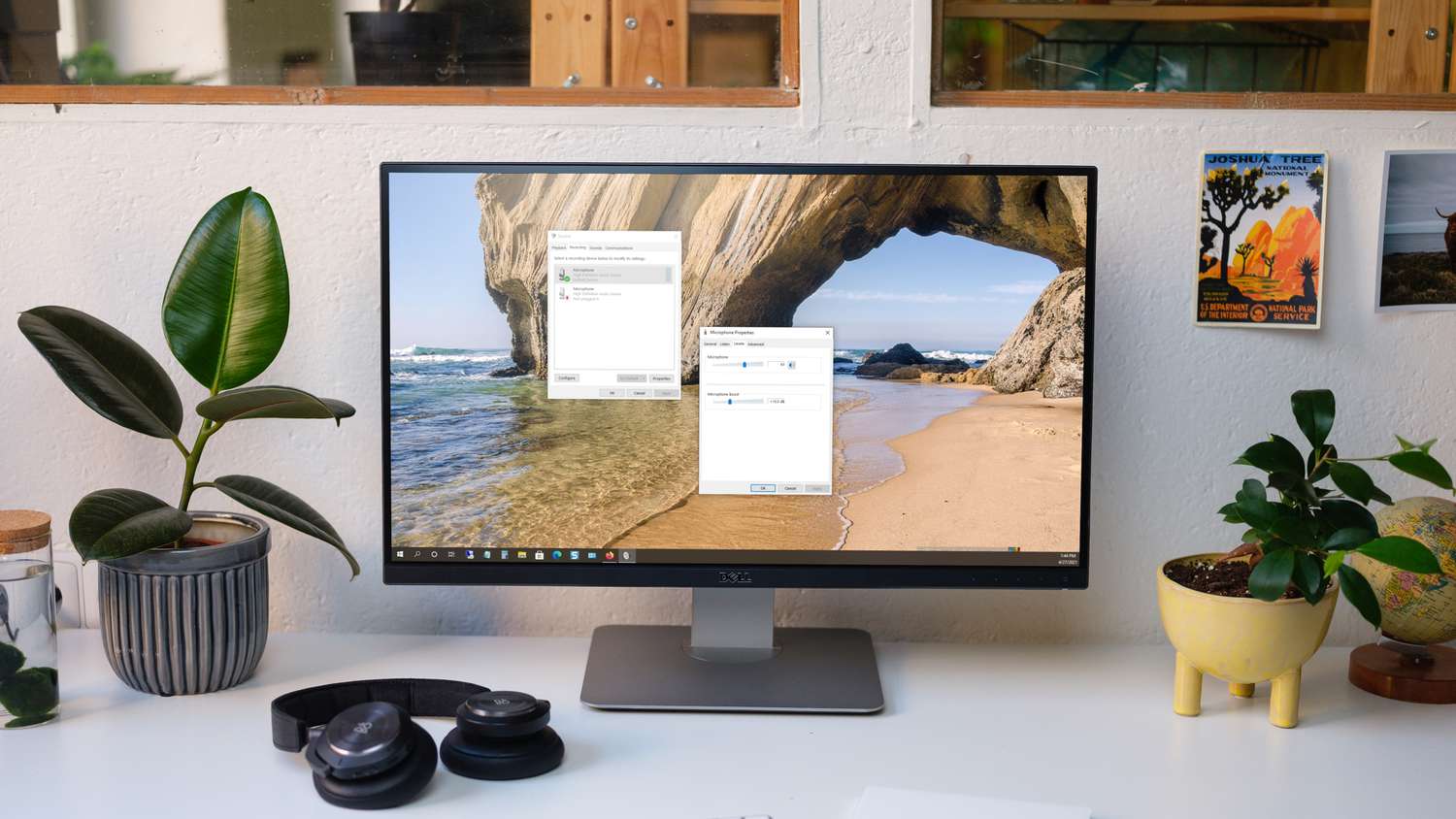
    This article explains how to increase your microphone volume on a Windows 10 computer. You can adjust the settings using either the Settings app or the Control Panel.

    Change the Microphone Volume in Settings

    The Settings app, which you can open from the Start menu, allows you to adjust your microphone volume.

    1. Open the Start menu and select Settings.

    2. Click on System.

    3. Choose Sound from the menu on the left.

    4. Under the Input section, select your microphone from the drop-down list if you have more than one.

    5. Click on Device properties. If you’re using a headset with a mic, it’s labeled as Device properties and test microphone.

      To access this window quickly later, right-click the sound icon in the taskbar and choose Open Sound settings or Sounds.

    6. Use the Volume sslider to increase the microphone volume.

      To test your microphone volume level, click Start test or Test, and then speak into the mic. You’ll see the volume level detected by your computer.

    Change the Microphone Volume in Control Panel

    If you prefer the Control Panel for adjusting microphone settings, follow these steps:

    1. Open Control Panel as you usually would and go to Hardware and Sound.

    2. Click Sound. 

    3. Switch to the Recording tab.

    4. Right-click on your Microphone, then select Properties.

    5. Navigate to the Levels tab, adjust the volume using the slider, or type a higher number to increase it.

    6. Press OK to exit each pop-up window and apply the changes.

    If your microphone doesn’t work after increasing the volume, check out these troubleshooting steps to fix your microphone on Windows 10.

    FAQ

    • How do I change my microphone volume on Skype in Windows 10?

      In the Skype desktop app, go to your profile and then select Settings > Audio & Video > Microphone. Turn off the Automatically adjust microphone settings  to manually control your microphone volume.

    • How do you boost microphone levels in Windows 10?

      Navigate to Start > Settings > System > Sound. Under Input, ensure your mic is selected and click on Device properties. Select Additional device properties, go to the Levels tab, adjust Microphone Boost, then click OK.

    Thanks for letting us know!

    Get the Latest Tech News Delivered Every Day

    Subscribe

    Tell us why!

    Other

    Not enough details

    Hard to understand

    Boost Easily mic volume Windows
    Share. Facebook Twitter Pinterest LinkedIn Tumblr Email
    Previous ArticleRex Salisbury’s Cambrian Ventures raises new fund, bucking fintech slowdown
    Next Article M4? Nah. M3? Pfft. This brand-new M1 MacBook Air is a steal at $599
    Techurz
    • Website

    Related Posts

    Opinion

    Simular’s AI agent wants to run your Mac, Windows PC for you

    December 2, 2025
    Security

    Thinking of buying an Arm-based Windows PC? These three issues might be dealbreakers

    November 1, 2025
    Security

    Chinese hackers target Western diplomats using hard-to-patch Windows shortcut flaw

    October 31, 2025
    Add A Comment
    Leave A Reply Cancel Reply

    Top Posts

    College social app Fizz expands into grocery delivery

    September 3, 20252,286 Views

    A Former Apple Luminary Sets Out to Create the Ultimate GPU Software

    September 25, 202514 Views

    The Reason Murderbot’s Tone Feels Off

    May 14, 202511 Views
    Stay In Touch
    • Facebook
    • YouTube
    • TikTok
    • WhatsApp
    • Twitter
    • Instagram
    Latest Reviews

    Subscribe to Updates

    Get the latest tech news from FooBar about tech, design and biz.

    Most Popular

    College social app Fizz expands into grocery delivery

    September 3, 20252,286 Views

    A Former Apple Luminary Sets Out to Create the Ultimate GPU Software

    September 25, 202514 Views

    The Reason Murderbot’s Tone Feels Off

    May 14, 202511 Views
    Our Picks

    When startups become a family business

    March 12, 2026

    Chinese brain interface startup Gestala raises $21M just two months after launch

    March 12, 2026

    Former Apple engineer raises $5M for a note-taking pendant that only records your voice

    March 12, 2026

    Subscribe to Updates

    Get the latest creative news from FooBar about art, design and business.

    Facebook X (Twitter) Instagram Pinterest
    • About Us
    • Contact Us
    • Privacy Policy
    • Terms and Conditions
    • Disclaimer
    © 2026 techurz. Designed by Pro.

    Type above and press Enter to search. Press Esc to cancel.