

Close Menu
TechurzTechurz
    What's Hot

    Slate Auto’s radically simple electric truck starts at $24,950

    June 24, 2026

    Valor Equity Partners looks to raise a $2.5B Fund VII, per Bloomberg

    June 24, 2026

    Superhuman acquires AI detection startup GPTZero

    June 23, 2026
    X (Twitter) Pinterest YouTube LinkedIn WhatsApp
    Tech Pulse
    • Slate Auto’s radically simple electric truck starts at $24,950
    • Valor Equity Partners looks to raise a $2.5B Fund VII, per Bloomberg
    • Superhuman acquires AI detection startup GPTZero
    • HaloBraid raises $7M from Seven Seven Six to end the six-hour hair salon appointment
    • 4 days left to save up to $190 on Founder Summit 2026
    X (Twitter) Pinterest YouTube LinkedIn WhatsApp
    TechurzTechurz
    • Home
    • Tech Pulse
    • Future Tech
    • AI Systems
    • Cyber Reality
    • Disruption Lab
    • Signals
    TechurzTechurz
    Home - Guides - Boost Your Mic Volume on Windows 10 Easily
    Guides

    Boost Your Mic Volume on Windows 10 Easily

    TechurzBy TechurzJuly 16, 2025Updated:May 12, 2026No Comments2 Mins Read
    Share Facebook Twitter Pinterest LinkedIn Tumblr Reddit Telegram Email
    Boost Your Mic Volume on Windows 10 Easily
    Share
    Facebook Twitter LinkedIn Pinterest Email


    Table of contents
    1 The Download
    2 Change the Microphone Volume in Settings
    3 Change the Microphone Volume in Control Panel
    4 FAQ

    The Download

    • You can make your mic louder by adjusting settings in Windows 10 sound options.
    • Checking your microphone properties can help you find and increase your mic volume.

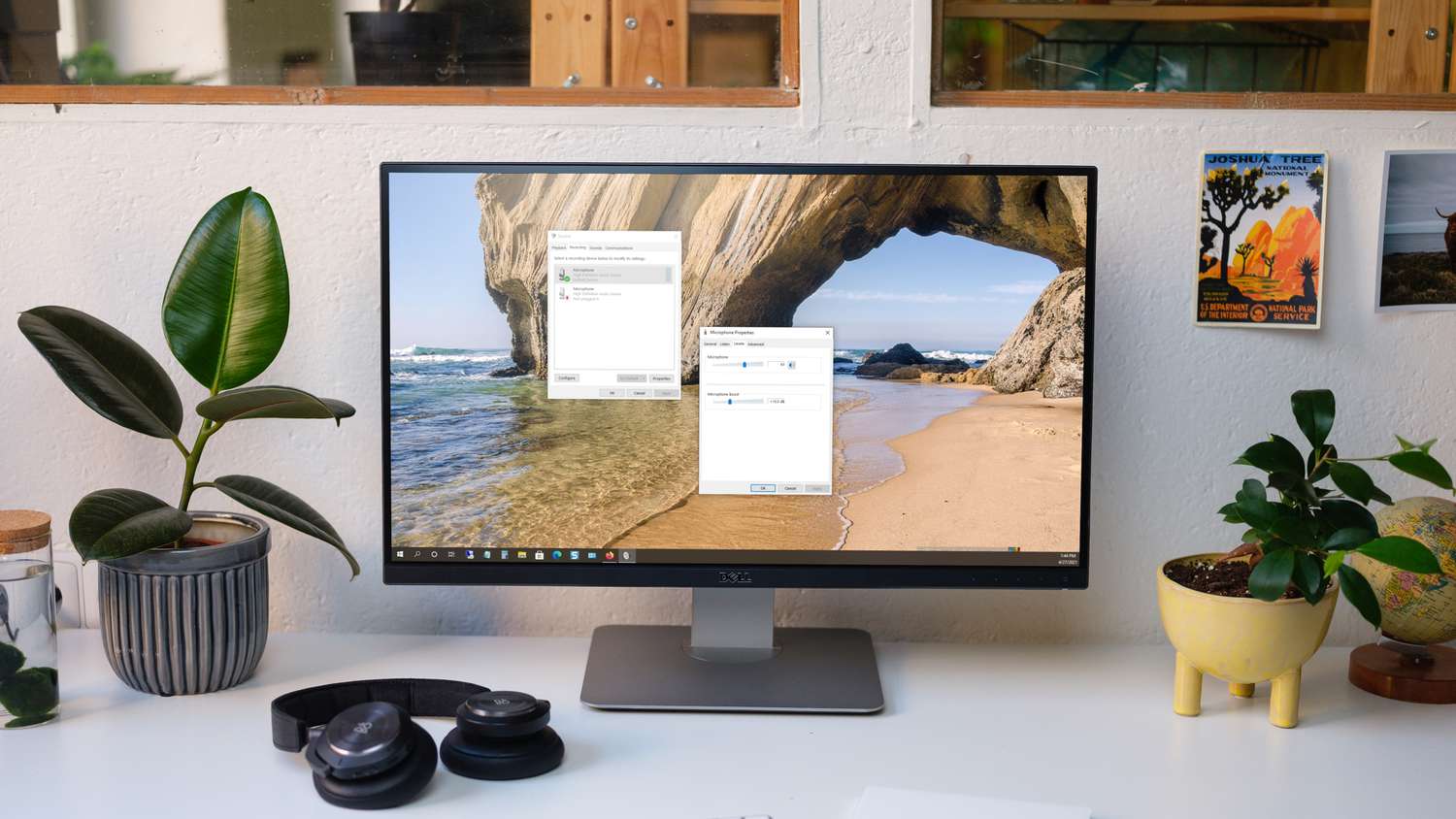
    This article explains how to increase your microphone volume on a Windows 10 computer. You can adjust the settings using either the Settings app or the Control Panel.

    Change the Microphone Volume in Settings

    The Settings app, which you can open from the Start menu, allows you to adjust your microphone volume.

    1. Open the Start menu and select Settings.

    2. Click on System.

    3. Choose Sound from the menu on the left.

    4. Under the Input section, select your microphone from the drop-down list if you have more than one.

    5. Click on Device properties. If you’re using a headset with a mic, it’s labeled as Device properties and test microphone.

      To access this window quickly later, right-click the sound icon in the taskbar and choose Open Sound settings or Sounds.

    6. Use the Volume sslider to increase the microphone volume.

      To test your microphone volume level, click Start test or Test, and then speak into the mic. You’ll see the volume level detected by your computer.

    Change the Microphone Volume in Control Panel

    If you prefer the Control Panel for adjusting microphone settings, follow these steps:

    1. Open Control Panel as you usually would and go to Hardware and Sound.

    2. Click Sound. 

    3. Switch to the Recording tab.

    4. Right-click on your Microphone, then select Properties.

    5. Navigate to the Levels tab, adjust the volume using the slider, or type a higher number to increase it.

    6. Press OK to exit each pop-up window and apply the changes.

    If your microphone doesn’t work after increasing the volume, check out these troubleshooting steps to fix your microphone on Windows 10.

    FAQ

    • How do I change my microphone volume on Skype in Windows 10?

      In the Skype desktop app, go to your profile and then select Settings > Audio & Video > Microphone. Turn off the Automatically adjust microphone settings  to manually control your microphone volume.

    • How do you boost microphone levels in Windows 10?

      Navigate to Start > Settings > System > Sound. Under Input, ensure your mic is selected and click on Device properties. Select Additional device properties, go to the Levels tab, adjust Microphone Boost, then click OK.

    Thanks for letting us know!

    Get the Latest Tech News Delivered Every Day

    Subscribe

    Tell us why!

    Other

    Not enough details

    Hard to understand

    Boost Easily mic volume Windows
    Share. Facebook Twitter Pinterest LinkedIn Tumblr Email
    Previous ArticleRex Salisbury’s Cambrian Ventures raises new fund, bucking fintech slowdown
    Next Article M4? Nah. M3? Pfft. This brand-new M1 MacBook Air is a steal at $599
    Techurz
    • Website

    Related Posts

    Opinion

    Sam Altman makes ‘mic drop’ offer to every Y Combinator startup

    May 20, 2026
    Opinion

    Simular’s AI agent wants to run your Mac, Windows PC for you

    December 2, 2025
    Cyber Reality

    Thinking of buying an Arm-based Windows PC? These three issues might be dealbreakers

    November 1, 2025
    Add A Comment
    Latest Tech Pulse

    College social app Fizz expands into grocery delivery

    September 3, 20252,289

    SolarSquare in talks to raise up to $60M as India’s rooftop solar market draws major VC interest

    May 23, 202622

    Future of Digital Privacy and Security: 7 Truths Nobody Tells You

    May 25, 202619
    Stay In Touch
    • YouTube
    • WhatsApp
    • Twitter
    • Pinterest
    • LinkedIn

    Techurz helps readers stay ahead of digital change with clear, practical, future focused technology intelligence written today,searched tomorrow.

    X (Twitter) Pinterest YouTube LinkedIn WhatsApp
    Company
    • About Us
    • Contact Us
    • Our Authors / Editorial Team
    • Write For Us
    • Advertise
    Policy
    • Editorial Policy
    • Privacy Policy
    • Terms and Conditions
    • Affiliate Disclosure
    • Cookie Policy
    • Disclaimer
    • DMCA
    Explore
    • AI Systems
    • Cyber Reality
    • Future Tech
    • Disruption Lab
    • Signals
    • Tech Pulse
    • Sitemap

    Join the Techurz Brief

    The future does not arrive suddenly.
    Stay ahead with fast, sharp tech signals.

    Type above and press Enter to search. Press Esc to cancel.