


The Download
- Restarting your Samsung Galaxy device can often fix the ‘Camera Failed’ error easily.
- Updating apps and the system software might stop the camera error from happening again.
- Clearing the camera’s app cache can help make it work better and fix the error.
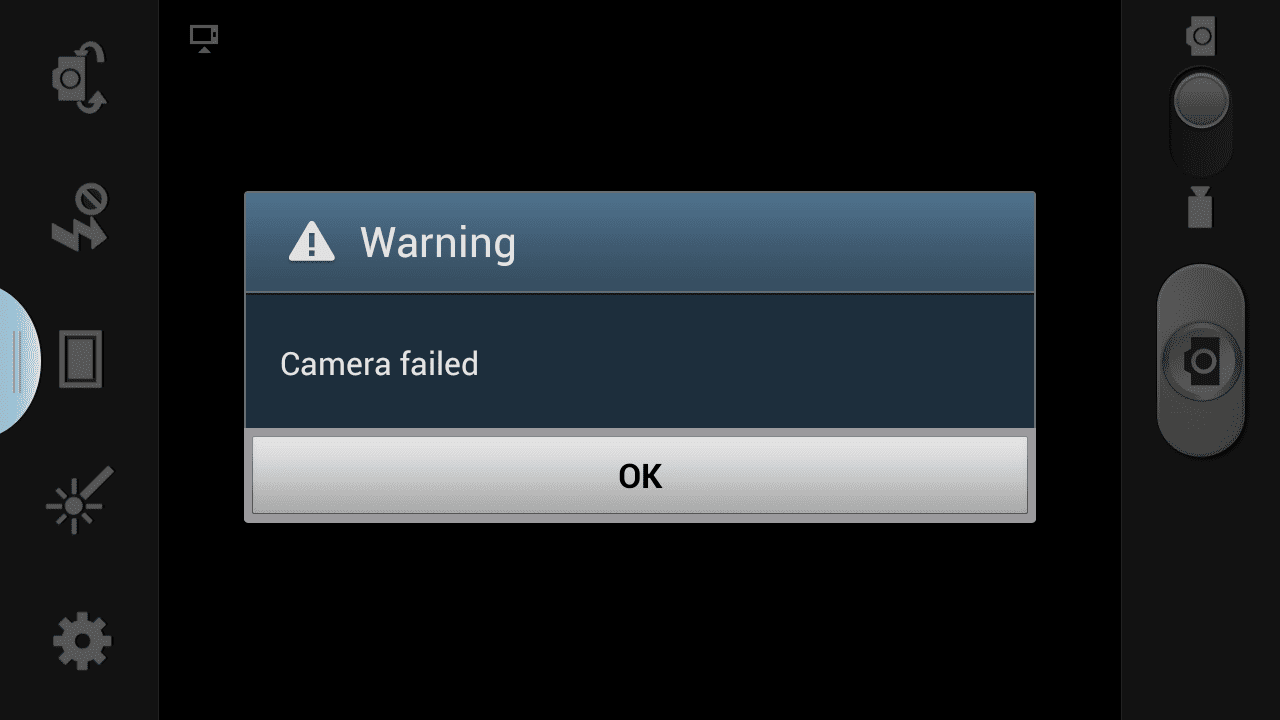
Samsung Galaxy smartphones and the discontinued Samsung Galaxy digital camera are known for their excellent picture quality. However, like all electronic devices, they can sometimes malfunction. A common issue is the Camera failed error. What causes this, and how can you fix it? There are several potential causes and solutions.
How to Fix the Camera Failed Error in Samsung Galaxy Smartphone Cameras
You may have to try several strategies to fix this camera error. Work through these steps in order to try the simpler solutions first.
-
Restart your phone. A simple restart can resolve many software-related errors.
A restart and reset are two very different things. Restarting your phone simply powers it down and then starts it back up. None of your apps, files, or settings will be removed.
-
Check for system and app updates. An outdated operating system or app can cause this camera error.
-
Power up in Safe Mode, then check to see if your camera works properly. If it does, the problem could be a third-party app that conflicts with the camera software.
Restart the phone in regular mode and remove recently installed or updated third-party apps one at a time until the problem is resolved. You may need to restart the phone after removing each app to ensure it’s completely removed.
Third-party apps are a common cause of the Camera Failed error, so don’t skip this step.
-
Clear the Camera’s app cache and storage data. Once the cache is cleared, restart the Camera app and test it to see if the issue is resolved.
-
Remove and then reinsert the microSD card. Occasionally, a Galaxy phone camera may encounter an error reading the SD card, leading to the Camera Failed error. Reformat the card if prompted.
Reformatting a microSD card erases all data on the card. If there are pictures or apps you wish to keep, transfer these files to your computer using a microSD card reader.
-
Turn off Smart Stay. This feature uses the selfie camera to monitor your face’s position when you’re looking at the screen for a long time without touching it. Since it utilizes the camera, it can sometimes conflict with the rear camera when Smart Stay is active.
-
Reset your phone. If nothing has worked up to this point, the last thing to try is a full factory reset. This returns the phone to its factory settings, after which you’ll need to go through the initial setup process again as if it’s a ew device.
Completing this step will erase everything on your phone, including all apps you’ve added since you first got the device, any downloaded files, and photos and videos stored on the phone. Back up anything you don’t want to lose before starting the factory reset process.
-
Try customer support. If you’re still getting the error even after resetting the phone’s software, contact Samsung Support for further assistance.
How to Fix the Camera Failed Error in the Samsung Galaxy Camera
Samsung Galaxy cameras can experience the same Camera Failed error as Galaxy smartphones, though some troubleshooting steps differ.
Ensure the camera battery is fully charged before continuing. Some of these steps could take several minutes to complete. If the battery dies during the process, you may encounter other errors and have to start the troubleshooting process over.
-
Press-and-hold the Power button to turn off the camera. Once it’s off, allow the camera to sit for at least 30 seconds before powering it back on. Many issues that cause software errors can be fixed with a simple restart.
-
Shut down running processes that could be causing a camera conflict and then restart the camera.
To do this, go to Settings > Device care > Memory . Then, tap Clean now.
-
Reformat the SD card. Occasionally, the Samsung Galaxy camera encounters an error reading the SD card, leading to the Camera Failed error. Reformatting the card may resolve the issue.
Here’s how: Go to Settings > Storage > Memory > Format SD card.
A reformat will erase all of its data. If you don’t want to lose the pictures on the card, transfer the files to your computer using an SD card reader before performing a reformat.
-
Restore the camera to its factory default settings. This option is available in Settings > Apps > Camera > Camera Settings > Reset Settings.
-
Visit Samsung’s Digital Camera Support page for repair information. At this point, if the camera error remains after resetting the software, reaching out to Samsung is the next best choice.
Causes of the Camera Failed Error in Samsung Devices
This error doesn’t include any other information about why the camera isn’t working correctly. That makes troubleshooting difficult. It’s not impossible to fix, though, since, in most cases, it’s a simple software issue. The error can be caused by an incomplete firmware update, out-of-date third-party apps, or an SD card the camera suddenly doesn’t recognize.
Thanks for letting us know!
Subscribe
Tell us why!
Other
Not enough details
Hard to understand
