


The Download
- Press Ctrl+Alt+Del to see if you can log in and continue the updates.
- Restart your computer if the update is stuck and won’t finish installing.
- Try Safe Mode to finish installing updates or fix problems by undoing recent changes.
Usually, Windows Update functions smoothly without requiring much attention from us.
Although we might sometimes install updates manually, most Windows 11/10 computers automatically apply important updates. Older versions, like Windows 8 and 7, typically do this on Patch Tuesday.
However, sometimes during shutdown or startup, a patch or service pack installation can get stuck�freezing, locking up, or hanging. When Windows Update seems to take forever, it’s clear that action is needed.
Fixing a Stuck Windows Update Installation
Follow these steps in order, starting with the simplest solutions first.
-
Press Ctrl+Alt+Del. In certain cases, the update might be stuck at a specific part of the installation process, and executing the Ctrl+Alt+Del keyboard command.
If so, log on as you normally would and let the updates continue to install successfully.
If your computer restarts after Ctrl+Alt+Del, read the second Note in Step 2 below. If nothing happens (most likely) then move on to Step 2.
-
Restart your computer using either the reset button or by powering it off and then back on with the power button. Windows will start normally and finish installing the updates.
If the Windows update installation is truly frozen, you must perform a hard reboot.
Depending on how Windows and BIOS/UEFI are configured, you might have to hold down the power button for several seconds before the computer will turn off. On a tablet or laptop, removing the battery may be necessary.
If you’re automatically taken to the Advanced Boot Options or Startup Settings menu after restarting, choose Safe Mode and see the comments in Step 3 below.
If you’re using Windows 11, 10, or 8, and you reach the sign-in screen after restarting, try selecting the power icon at the bottom-right and choose Update and Restart, if available.
-
Start Windows in Safe Mode. This diagnostic mode only loads the essential drivers and services that Windows needs, allowing installations to complete if another program or service conflicts with a Windows update.
If the Windows updates do install successfully, and you continue to Safe Mode, just restart from there to enter Windows normally.
-
Complete a System Restore to undo the changes made so far by the incomplete installation of the Windows updates.
Since you can’t access Windows normally, try doing this from Safe Mode. See the link in Step 3 if you’re not sure how to start in Safe Mode.
During the System Restore, be sure to choose the restore point created by Windows just prior to the update installation.
Assuming a restore point was made, and System Restore is successful, your computer should be returned to the state it was in before the updates started. If this problem occurred after automatic updating, like what happens on Patch Tuesday, be sure to change Windows Update settings so this problem doesn’t reoccur on its own.
-
Try System Restore from Advanced Startup Options (Windows 11, 10 & 8) or System Recovery Options (Windows 7 & Vista) if you’re not able to access Safe Mode or if the restore failed from Safe Mode.
Since these menus of tools are available from “outside” of Windows, you can try this even if Windows is completely unavailable.
System Restore is only available from outside of Windows if you’re using Windows 11 through Vista. This option is not available in Windows XP.
-
Start your computer’s “automatic” repair process. While a System Restore is a more direct way of undoing changes, in this case of a Windows update, sometimes a more comprehensive repair process is in order.
-
Test your computer’s memory with a free program. It’s possible that failing RAM could be causing the patch installations to freeze. Fortunately, memory is really easy to test.
-
Update BIOS. An outdated BIOS isn’t a common cause for this problem, but it’s possible.
If one or more of the updates Windows is trying to install is involved with how Windows works with your motherboard or other built-in hardware, a BIOS update could solve the issue.
-
Do a clean install of Windows. A clean Windows installation involves completely erasing the hard drive that Windows is installed on, and then installing Windows again from scratch on that same hard drive.
You don’t want to do this if you don’t have to, but it’s a very likely fix if the steps prior to this one were unsuccessful.
It might seem likely that reinstalling Windows, and then these same exact Windows updates, will cause the same problem, but that isn’t usually what happens. Since most lockup issues caused by updates by Microsoft are actually software conflicts, a clean installation of Windows, followed promptly by the installation of all available updates, typically results in a perfectly working computer.
Still Having Stuck/Freezing Issues Related to Windows Update?
If updates are stuck installing on or just after Patch Tuesday (the second Tuesday of the month), see our details on the latest Patch Tuesday for more on these specific patches.
Cause of a Frozen or Stuck Windows Update
The installation of one or more Windows updates is probably stuck or frozen if you see one of the following messages persist for a long time:
- Preparing to configure Windows. / Do not turn off your computer.
- Configuring Windows updates / x% complete / Do not turn off your computer.
- Please do not power off or unplug your machine. / Installing update x of x…
- Working on updates / x% complete / Don’t turn off your computer
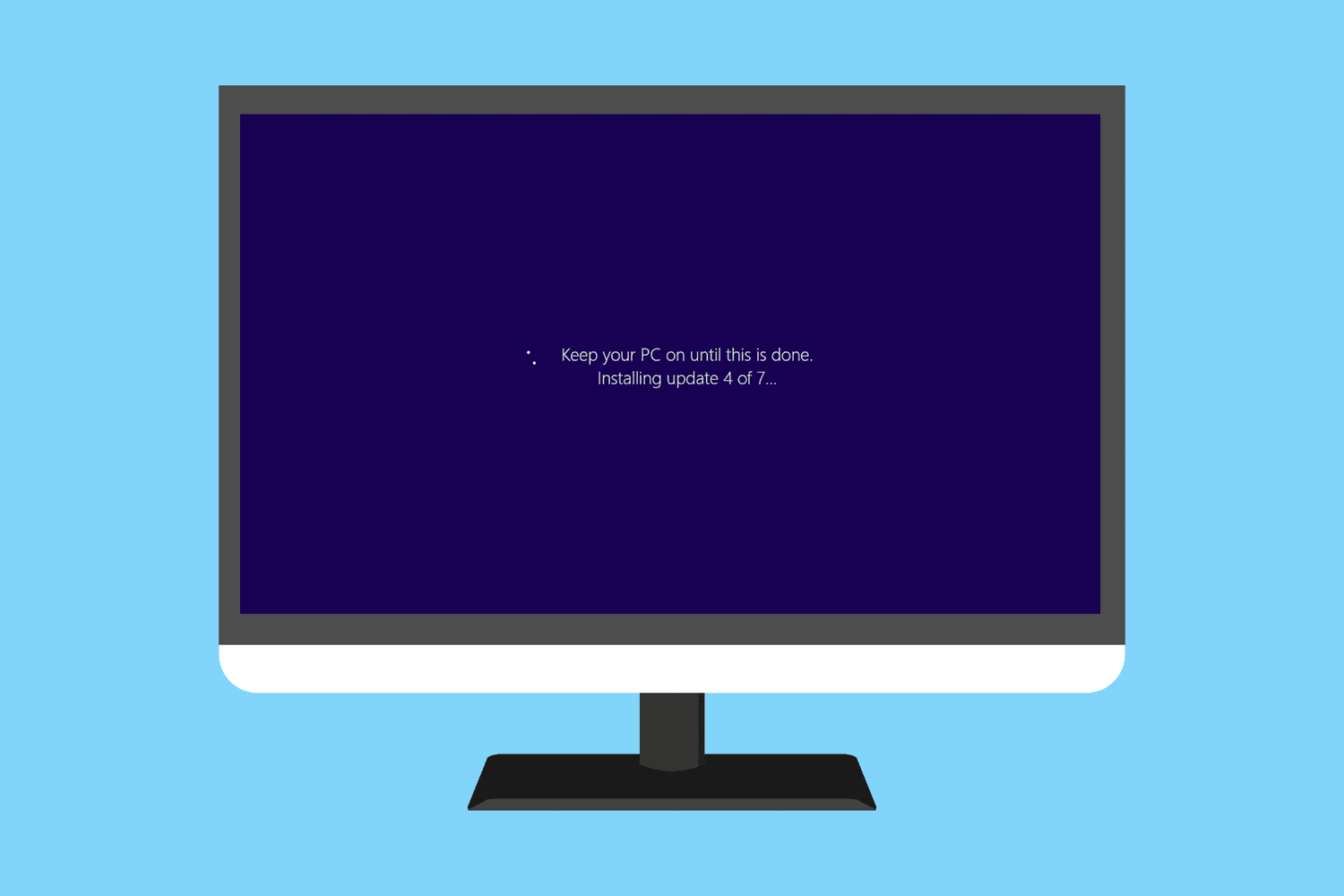
- Keep your PC on until this is done / Installing update x of x…
- Getting Windows ready / Don’t turn off your computer
You might also see Stage 1 of 1 or Stage 1 of 3, or a similar message prior to the second example. Sometimes Restarting is all you’ll see on the screen. There might also be some wording differences depending on which version of Windows you’re using.
If you don’t see anything at all on screen, especially if you think the updates might have been installed completely but could be the cause of whatever you’re experiencing, see our How to Fix Problems Caused by Windows Updates tutorial instead.
There are several reasons why the installation or finalization of one or more Windows updates can hang.
Most often, these types of problems are due to a software conflict or a preexisting issue that simply wasn’t brought to light until the updates started installing. Much more rarely are they caused by a mistake on Microsoft’s part regarding the update itself, but it does happen.
Any of Microsoft’s operating systems could experience freezing issues during Windows updates, including Windows 11, Windows 10, Windows 8, Windows 7, Windows Vista, Windows XP, and others.
There’s an actual issue with Windows that can cause Windows Update installations to freeze like this, but it’s only applicable to Windows Vista and only if SP1 hasn’t yet been installed. If your computer fits that description, install Windows Vista SP1 or later to solve the problem.
Make sure the updates are actually stuck. Windows updates can take several minutes or more to configure or install, so you want to make sure the updates are truly stuck before moving on. Trying to fix a problem that doesn’t really exist might just create a problem.
You can tell if Windows updates are stuck if nothing happens on screen for 3 hours or more. If there’s any wonder after that long, take a look at your hard drive activity light. You’ll see either no activity at all (stuck) or very regular, but very short, flashes of light (not stuck).
Chances are that the updates are hung before the 3-hour mark, but this is a reasonable amount of time to wait and longer than we’ve ever seen a Windows update take to successfully install.
Thanks for letting us know!
Subscribe
Tell us why!
Other
Not enough details
Hard to understand
