


The Download
- Connect for first time: Devices > Add + > Google Nest or partner device > follow on-screen instructions.
- New network: Tap device > Settings > Device information > Wi-Fi > Forget This network. Repeat setup steps.
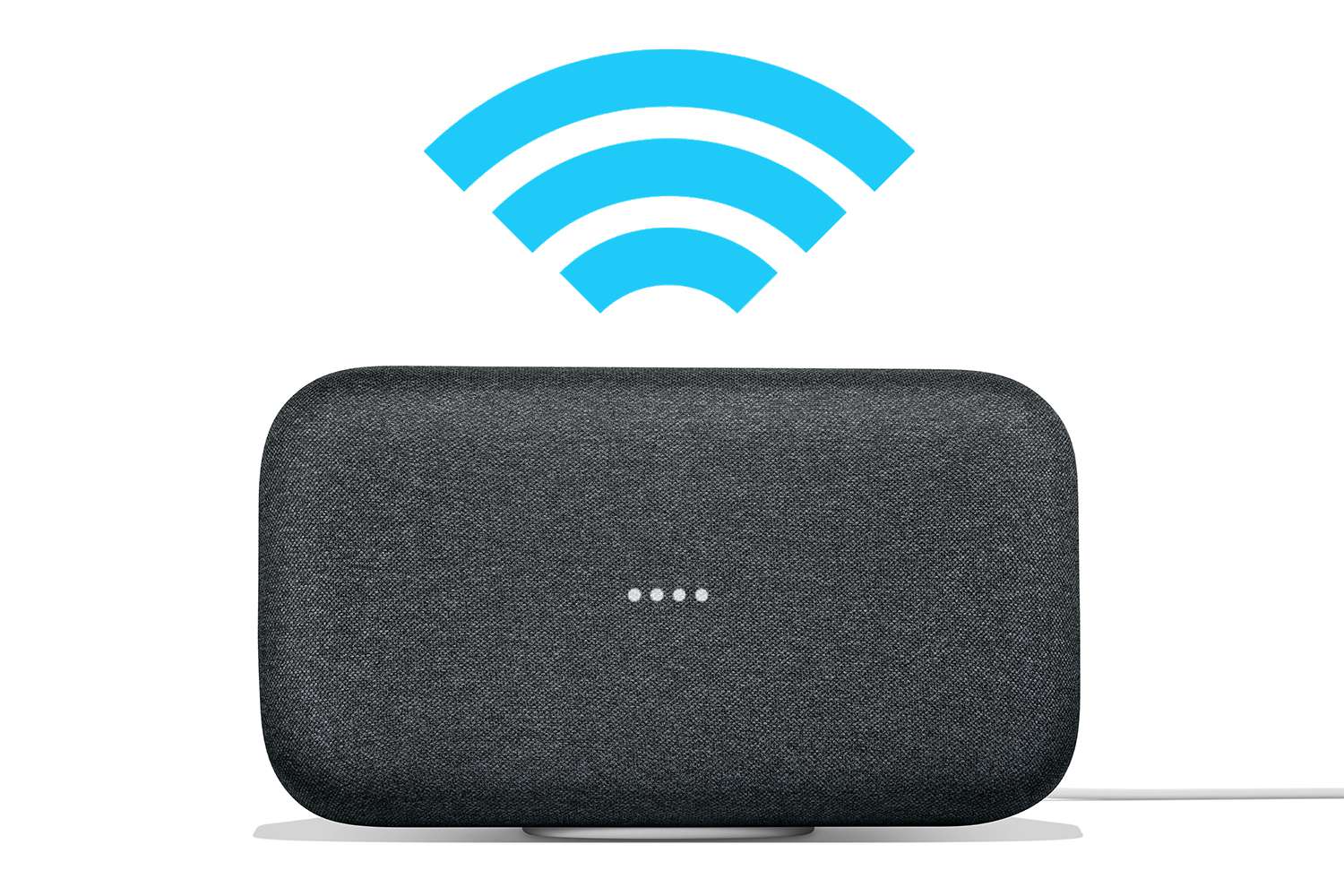
This article explains how to connect your Google Home to Wi-Fi so you can issue voice commands and control devices through the app. We also include troubleshooting tips.
How to Connect Google Home to Wi-Fi for the First Time
To connect your Google Home device to your existing Wi-Fi network, download the Google Home app. Also, make sure you have the wireless network name and password handy.
-
Open the Google Home app.
-
Select or enter the Google account that you wish to associate with the Google Home device.
-
Tap Devices > Add + > Google Nest or partner device.
-
Choose the Home to connect the device to > Next.
-
The speaker should make a sound. If you hear this sound, select Yes.
-
On the Where is this device screen, select the location of your device (for example, Living Room).
-
Enter a unique name for the Google Home speaker.
-
In the list of available Wi-Fi networks, choose the network to which you want to connect the Google Home device, then tap Next.
-
Enter the Wi-Fi network password, and tap Connect.
-
A successful connection message appears following a brief delay.
How to Connect Google Home to a New Wi-Fi Network
If your Google Home speaker was set up but now needs to be connected to a different Wi-Fi network or an existing network with a changed password, take the following steps.
-
Open the Google Home app.
-
Tap Devices > select your speaker’s tile.
-
Tap Settings > Device information > Wi-Fi.
-
You’ll see the Google Home device’s Wi-Fi settings. If the Google Home is currently connected to a network, select Forget This network.
-
Choose Forget Wi-Fi network to confirm.
-
On the app’s home screen, tap Devices > Add + to repeat the Wi-Fi setup steps to connect your device to a new network.
-
You’re prompted to go to the iOS or Android device’s Wi-Fi settings and connect to the customized Google Home hotspot in the network list.
This hotspot is represented by a name followed by four digits or by the custom name you previously gave your Google Home device during the setup.
-
Return to the Google Home app. The speaker should make a sound. If you hear this sound, select Yes.
-
In the Where is this device screen, select the location of your device (for example, Living Room).
-
Enter a unique name for the Google Home speaker.
-
In the list of available Wi-Fi networks, choose the network to which you want to connect Google Home. Then tap Next.
-
Enter the Wi-Fi network password, then tap Connect.
-
A successful connection message appears following a brief delay.
Troubleshooting Tips
If Google Home still won’t connect to Wi-Fi, try these troubleshooting tips:
- Restart the modem and router.
- Reset Google Home to factory settings. Press and hold the microphone button, typically found on the bottom of the device, for approximately 15 seconds.
- Confirm you have the right Wi-Fi password. Connect another device using the same password to make sure it’s correct.
- Update the firmware on the modem and router.
- Move the Google Home speaker closer to the wireless router.
- Move the Google Home speaker away from possible sources of signal interference, such as baby monitors or other wireless electronics.
If you’re still unable to connect, visit the Google Home setup and help web page for more information.
FAQ
-
How do I connect Google Home to a TV?
While you can’t connect Google Home to a TV physically, you can plug a Chromecast device into your TV and set it up with the Google Home app. Once the Chromecast is linked to Google Home, use Google Assistant voice commands to stream video to your TV from compatible apps.
-
How do I connect Google Home to Bluetooth?
To connect Google Home to Bluetooth speakers, open the Google Home app and select the Google Home device. Select Settings > Audio > Default music speaker. Put your Bluetooth speaker into pairing mode. Back in the Google Home app, select Pair Bluetooth speaker, and then select the speaker from the screen.
-
How do I connect Ring to Google Home?
Unfortunately, Ring isn’t compatible with Google Home. You can connect Ring to Alexa via the Ring skill in the Alexa app.
Thanks for letting us know!
Subscribe
Tell us why!
Other
Not enough details
Hard to understand
