

Close Menu
TechurzTechurz
    What's Hot

    Get up to $400 off your TechCrunch Disrupt 2026 pass until tomorrow

    August 6, 2026

    Defense tech Hadrian raises $1.37B at $8B valuation

    August 6, 2026

    Omilia raises $67M to scale its customer support platform

    August 6, 2026
    X (Twitter) Pinterest YouTube LinkedIn WhatsApp
    Tech Pulse
    • Get up to $400 off your TechCrunch Disrupt 2026 pass until tomorrow
    • Defense tech Hadrian raises $1.37B at $8B valuation
    • Omilia raises $67M to scale its customer support platform
    • Get up to $400 off your TechCrunch Disrupt 2026 pass until Friday
    • Trump’s DOJ gains oversight of OpenAI’s green-card employee sponsorships
    X (Twitter) Pinterest YouTube LinkedIn WhatsApp
    TechurzTechurz
    • Home
    • Tech Pulse
    • Future Tech
    • AI Systems
    • Cyber Reality
    • Disruption Lab
    • Signals
    TechurzTechurz
    Home - Reviews - How to Reduce Browser Battery Drain in Chrome, Edge, and Opera
    Reviews

    How to Reduce Browser Battery Drain in Chrome, Edge, and Opera

    TechurzBy TechurzMay 18, 2025No Comments3 Mins Read
    Share Facebook Twitter Pinterest LinkedIn Tumblr Reddit Telegram Email
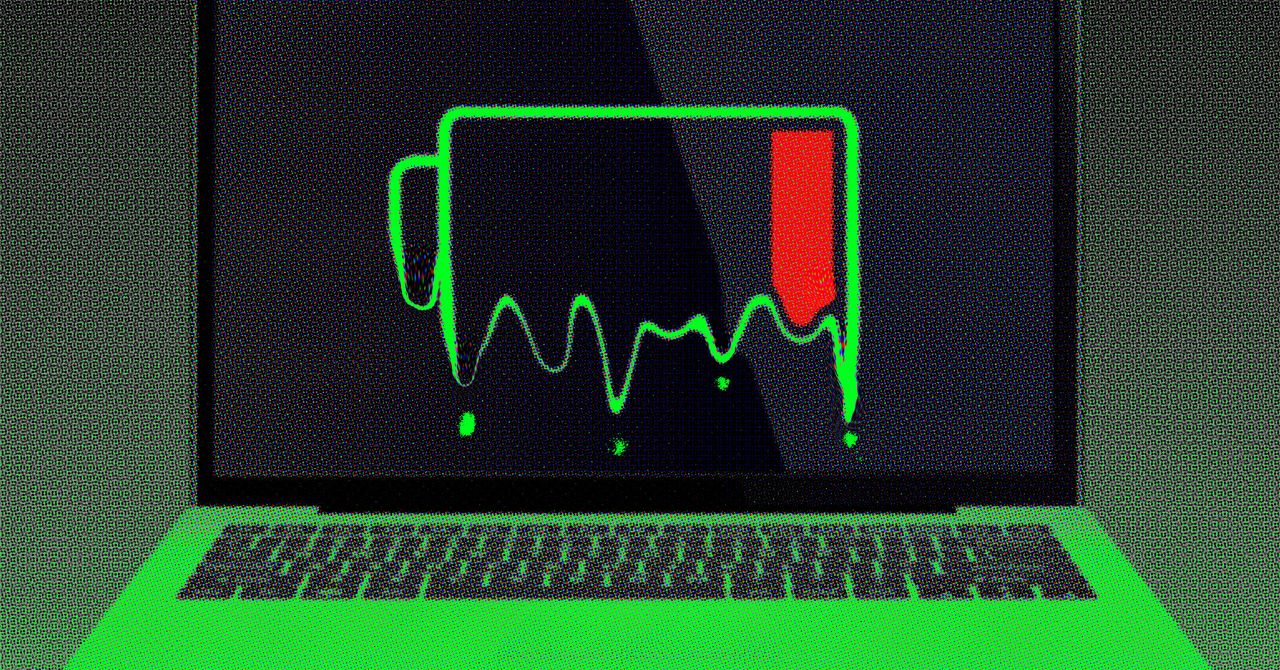
    How to Reduce Browser Battery Drain in Chrome, Edge, and Opera
    Share
    Facebook Twitter LinkedIn Pinterest Email

    Click the three dots in the top-right corner of any Edge tab, then click Settings. Open the System and Performance tab, and you’ll see an Efficiency Mode toggle switch. Alongside it are some related settings, including how long Edge should wait before putting tabs to sleep, and whether or not you want Efficiency Mode to kick in automatically whenever your laptop is running on battery power.

    There’s also a Maximum savings option you can switch to, if you want to prioritize battery life savings over everything else. Edge doesn’t specify exactly what additional actions are taken, but notes that “you may experience some visible slowdowns” when browsing if you turn on Maximum savings.

    Opera

    Opera comes with a built-in Battery Saver feature.Courtesy of David Nield

    The Opera browser isn’t quite as well known as Chrome or Edge, but it does offer plenty of useful features, including a handy Battery Saver mode. With this mode enabled, the browser is more selective when it comes to allowing background tasks to run. Opera says you can expect up to an hour of extra battery life with Battery Saver enabled.

    You can find it on Windows by clicking the Opera button (a red O) in the top-left corner of the browser, then choosing Settings. On macOS, open the Opera menu, then pick Settings. The Battery Saver toggle switch is under the Features tab, and you can also opt to have the mode kick in automatically whenever you’re on battery power, or whenever your laptop’s battery drops below a certain point.

    Farther down the same settings screen is a Snooze inactive tabs to save memory toggle switch: While this isn’t strictly part of the Battery Saver feature, it can help reduce the demands of the browser a little more.

    Other Browsers

    You can also turn on dark mode for certain browsers, including Firefox.Courtesy of David Nield

    There are no dedicated battery saving modes in the other popular web browsers—perhaps their developers would rather not fess up to the issue of significant battery drain—but there are still a couple of ways you can maximize battery life while navigating the web, and they apply to pretty much any browser you might use.

    First and foremost, keep your open tabs to a minimum. Every tab your browser has to open adds to the work it has to do and the demands on your laptop’s battery. If you find you’re not great at managing this yourself, enlist the help of an extension to organize your tabs: something like Tab Stash for Firefox or OneTab for Chrome.

    Switching to dark mode in your browser can also help cut down on the energy use of your display. By default, browsers will usually follow the lead of your operating system when choosing how to display content, but several browsers have a separate setting too. In Firefox, for example, click the three-line menu button (top right) in Windows or the Firefox menu in macOS, then choose Settings to find Automatic, Light, and Dark options.

    battery Browser Chrome Drain edge Opera reduce
    Share. Facebook Twitter Pinterest LinkedIn Tumblr Email
    Previous ArticleiOS beta: How to get iOS beta updates on iPhone
    Next Article MIT disavows doctoral student paper on AI’s productivity benefits
    Techurz
    • Website

    Related Posts

    Opinion

    Hark previews its browser use agent for completing tasks

    August 5, 2026
    Opinion

    Here’s why Slate changed the battery in its cheap EV truck

    June 24, 2026
    Opinion

    As the browser wars heat up, here are the hottest alternatives to Chrome and Safari in 2026

    May 30, 2026
    Add A Comment
    Latest Tech Pulse

    College social app Fizz expands into grocery delivery

    September 3, 20252,290

    12 Father’s Day E-Card Sites That Are Actually Good

    June 4, 202523

    SolarSquare in talks to raise up to $60M as India’s rooftop solar market draws major VC interest

    May 23, 202622
    Stay In Touch
    • YouTube
    • WhatsApp
    • Twitter
    • Pinterest
    • LinkedIn

    Techurz helps readers stay ahead of digital change with clear, practical, future focused technology intelligence written today,searched tomorrow.

    X (Twitter) Pinterest YouTube LinkedIn WhatsApp
    Company
    • About Us
    • Contact Us
    • Our Authors / Editorial Team
    • Write For Us
    • Advertise
    Policy
    • Editorial Policy
    • Privacy Policy
    • Terms and Conditions
    • Affiliate Disclosure
    • Cookie Policy
    • Disclaimer
    • DMCA
    Explore
    • AI Systems
    • Cyber Reality
    • Future Tech
    • Disruption Lab
    • Signals
    • Tech Pulse
    • Sitemap

    Join the Techurz Brief

    The future does not arrive suddenly.
    Stay ahead with fast, sharp tech signals.

    Type above and press Enter to search. Press Esc to cancel.