

Close Menu

    Subscribe to Updates

    Get the latest creative news from FooBar about art, design and business.

    What's Hot

    OpenAI co-founder Greg Brockman takes charge of product strategy

    May 17, 2026

    Marketing operating system Nectar Social raises $30M Series A led by Menlo

    May 17, 2026

    The haves and have nots of the AI gold rush

    May 17, 2026
    Facebook X (Twitter) Instagram
    Tech Pulse
    • OpenAI co-founder Greg Brockman takes charge of product strategy
    • Marketing operating system Nectar Social raises $30M Series A led by Menlo
    • The haves and have nots of the AI gold rush
    • Meridian Ventures launched $35M fund to back MBA-deferred founders
    • Lovable just backed a company that’s looking to bring vibe coding to hardware
    X (Twitter) Pinterest YouTube LinkedIn WhatsApp
    Techurz
    • Home
    • AI Systems
    • Cyber Reality
    • Future Tech
    • Disruption Lab
    • Signals
    • Tech Pulse
    Techurz
    Home - Guides - How to Use Copilot in PowerPoint: A Beginner’s Guide
    Guides

    How to Use Copilot in PowerPoint: A Beginner’s Guide

    TechurzBy TechurzJune 27, 2025Updated:May 12, 2026No Comments3 Mins Read
    Share Facebook Twitter Pinterest LinkedIn Tumblr Reddit Telegram Email
    How to Use Copilot in PowerPoint: A Beginner’s Guide
    Share
    Facebook Twitter LinkedIn Pinterest Email


    The Download

    • New slide: Choose the Copilot icon > complete the prompt > use Designer to change the look.
    • Presentation from file: Copilot > Create a presentation > paper clip > upload file > edit topics > Generate Slides.
    • Copilot in Powerpoint requires Microsoft 365 and a Copilot subscription.

    This guide will show you how to use Microsoft Copilot in Powerpoint to add new slides or create presentations from a file.

    A good rule of thumb is to use generative AI as a helpful starting point for projects. Make sure to verify all provided information for accuracy and avoid passing off AI-generated work as your own.

    How to Create New Slides With Copilot in Powerpoint

    You can use Copilot in Powerpoint to create new slides in an existing or new presentation. Here’s how to do that.

    Choose a blank presentation to start from scratch, or a template or theme to give you a starting off point. Copilot can utilize either or both to help generate slides and presentations in line with your needs.

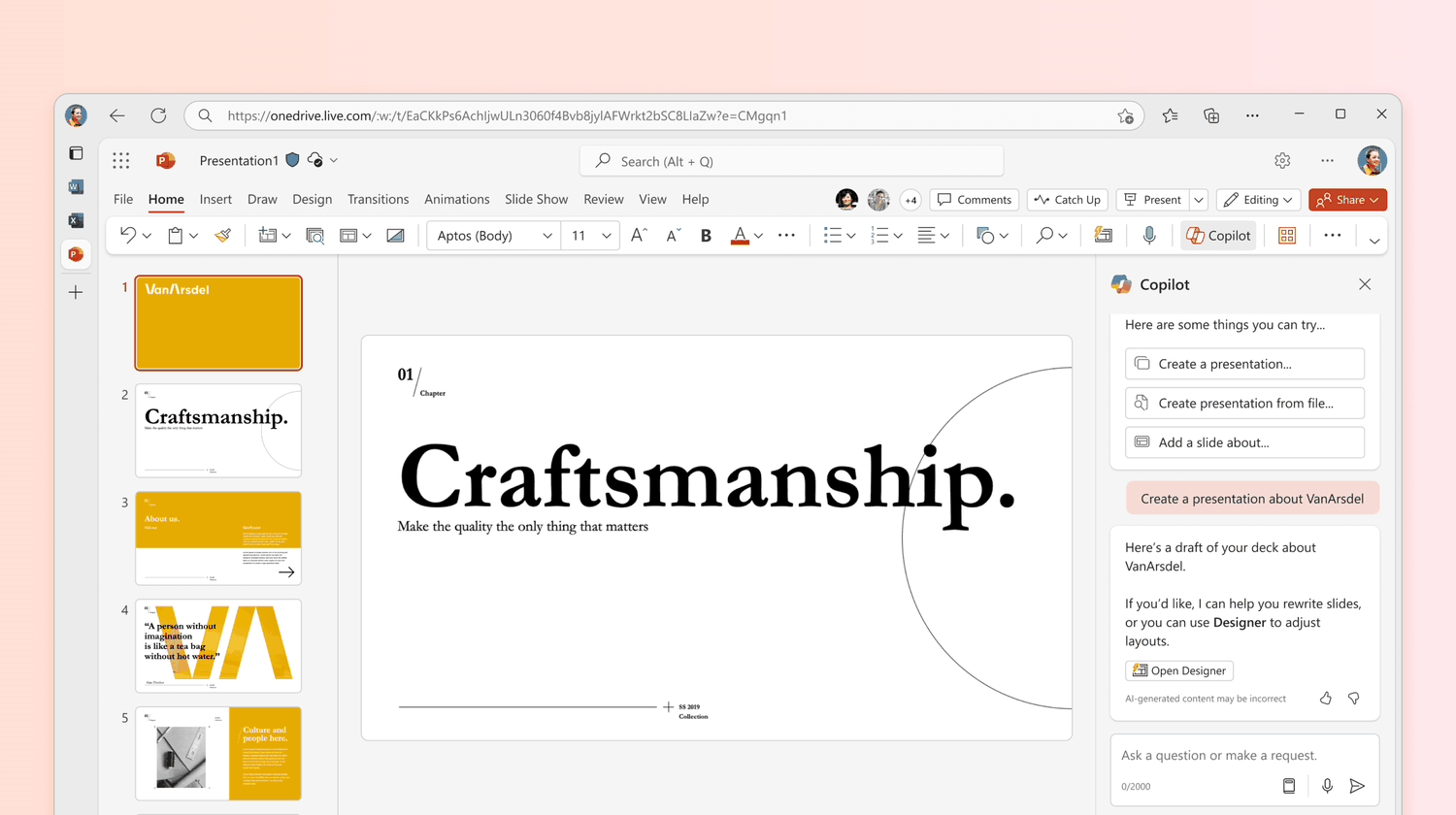
    1. Open Powerpoint and select the Copilot icon above the presentation.

      Microsoft

    2. In the Copilot chat window, include any information you feel is relevant to the task. You can optionally paste text or links to online content into the chat window to ask Copilot to include it.

      If you need some help, receive more suggestions by selecting the Prompt Book icon at the bottom of the chat window.

      Jon Martindale

    3. Select the Designer icon to preview or apply a different look or style of the presentation.

    How to Create a New Presentation From a Word File With Copilot

    Another option is to generate a presentation from a reference file, such as a Word file.

    1. Select the Copilot icon in the ribbon.

    2. Choose Create a presentation.

    3. In the prompt window, select the paper clip icon or slash and choose the Word reference file.

      Jon Martindale

    4. Edit the subject and topics Copilot generates and select Generate Slides.

    5. Once generated, you can manually edit the slides or use the Designer tab to choose between different versions.

    How to Get Access to Copilot in Powerpoint

    To use Copilot in Powerpoint, you need a subscription to the Microsoft Copilot Pro plan, which costs around $20 per month per user.

    You get one month free, so you can use the free trial period to play around with the feature if you like.

    This membership lets you use Copilot in the free web versions of Microsoft’s various office applications, like Word and Powerpoint.

    However, to use Copilot in the offline version of those tools, you’ll need a subscription to Microsoft 365 as well. That plan lets you use Copilot online and offline in any of Microsoft’s various office applications.

    Thanks for letting us know!

    Get the Latest Tech News Delivered Every Day

    Subscribe

    Tell us why!

    Other

    Not enough details

    Hard to understand

    beginners Copilot Guide PowerPoint
    Share. Facebook Twitter Pinterest LinkedIn Tumblr Email
    Previous ArticlePetLibro’s new smart camera uses AI to describe your pet’s movements, and it’s adorable
    Next Article Huawei outlines telecom growth plan for China built around 130 million influencers and 10GbE deployment
    Techurz
    • Website

    Related Posts

    Cyber Reality

    The MSP Cybersecurity Readiness Guide: Turning Security into Growth

    November 1, 2025
    Cyber Reality

    Copilot diagrams could leak corporate emails via indirect prompt injection

    October 28, 2025
    Cyber Reality

    The best AI chatbots of 2025: ChatGPT, Copilot, and others worth trying

    October 27, 2025
    Add A Comment
    Leave A Reply Cancel Reply

    Top Posts

    College social app Fizz expands into grocery delivery

    September 3, 20252,288 Views

    A Former Apple Luminary Sets Out to Create the Ultimate GPU Software

    September 25, 202516 Views

    The Reason Murderbot’s Tone Feels Off

    May 14, 202512 Views
    Stay In Touch
    • Facebook
    • YouTube
    • TikTok
    • WhatsApp
    • Twitter
    • Instagram
    Latest Reviews

    Subscribe to Updates

    Get the latest tech news from FooBar about tech, design and biz.

    Most Popular

    College social app Fizz expands into grocery delivery

    September 3, 20252,288 Views

    A Former Apple Luminary Sets Out to Create the Ultimate GPU Software

    September 25, 202516 Views

    The Reason Murderbot’s Tone Feels Off

    May 14, 202512 Views
    Our Picks

    OpenAI co-founder Greg Brockman takes charge of product strategy

    May 17, 2026

    Marketing operating system Nectar Social raises $30M Series A led by Menlo

    May 17, 2026

    The haves and have nots of the AI gold rush

    May 17, 2026

    Subscribe to Updates

    Get the latest creative news from FooBar about art, design and business.

    Facebook X (Twitter) Instagram Pinterest
    • About Us
    • Contact Us
    • Privacy Policy
    • Terms and Conditions
    • Disclaimer
    © 2026 techurz. Designed by Pro.

    Type above and press Enter to search. Press Esc to cancel.