


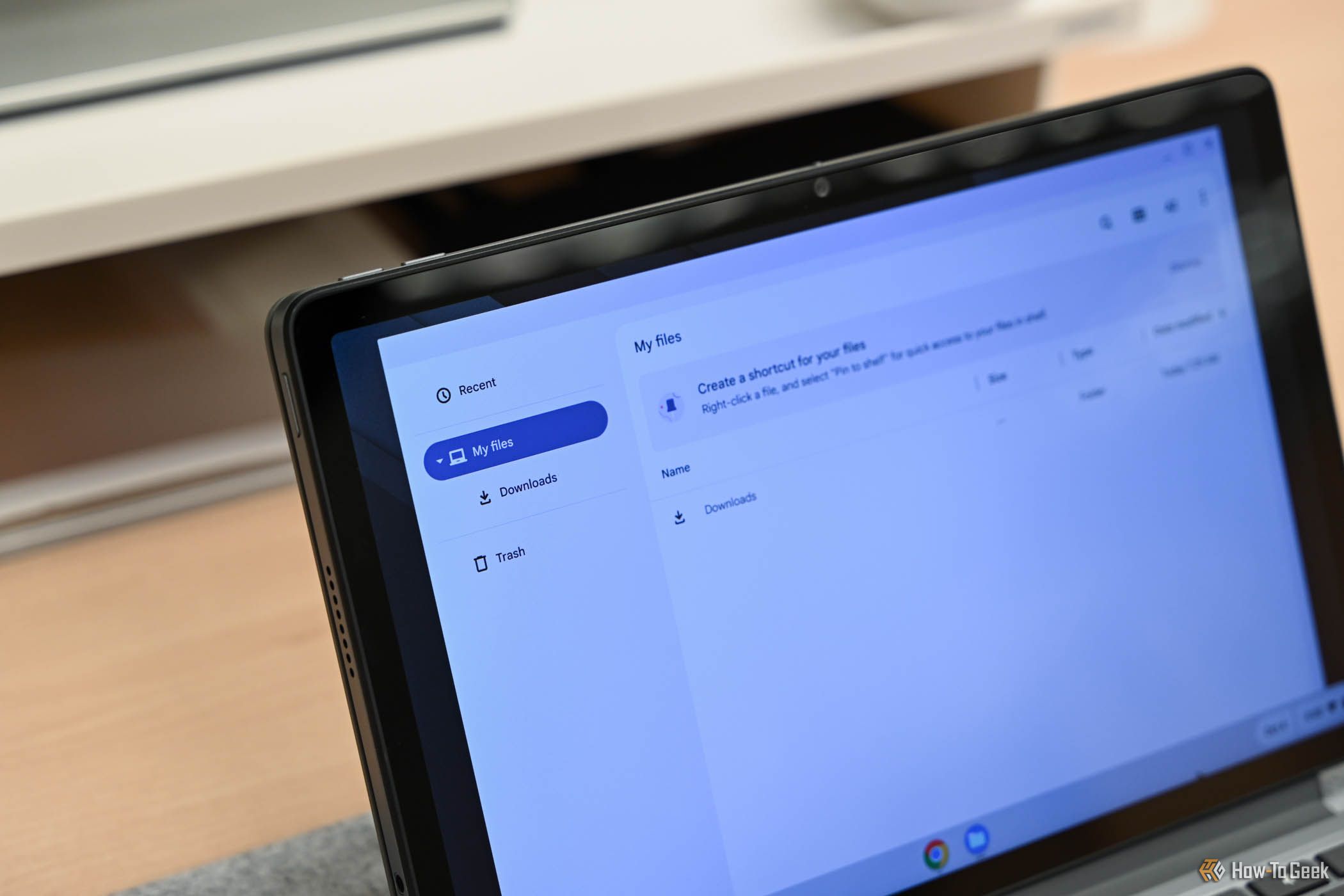
Chromebooks have limited storage space, which can fill up quickly if you don’t manage it well. As a result, your device may feel cramped, performance might slow down, and you’ll get frustrating low storage warnings. Whenever I notice my Chromebook running low on space, here’s how I free it up.
5
Remove Unnecessary Apps
Over time, we overload our Chromebooks with apps—some you tried once and forgot about, others you rarely use but never remove, and a few you’ve kept despite regularly using their web versions instead. If you’ve lost track of how many apps are sitting on your Chromebook, removing the ones you no longer need is a good first step to free up space.
Uninstalling apps is easy: go to your device’s Settings, then navigate to System Preferences > Storage Management, where you can view the storage usage of apps and other data. Click on the apps you no longer need or can replace with web versions, and click “Uninstall.”
Removing unused apps frees up storage and reduces background activity, which can help your Chromebook run more smoothly and give the interface a cleaner, more organized look.
4
Clean Up Downloads and Other Folders
Everything you download on your Chromebook automatically ends up in the Downloads folder. This often-overlooked location can quietly eat up several gigabytes of storage. It may be filled with duplicate files, old attachments, PDFs you no longer need, or leftover installers you’ve already used—all of which you can remove to reclaim space.
To clean it up, open the Files app and navigate to the “Downloads” folder. Click on the “Size” column to sort files by size, making it easier to identify the largest ones, like ISO files you may have used. Select the files you no longer need and click on the bin icon. Then, go to the “Trash” folder and click “Empty Trash Now” to permanently delete data.
Similarly, expand the “Play Files” menu and remove unnecessary data from other folders. I clean out these folders once a week as part of my routine.
3
Move Large Files to Cloud or External Storage
If you look closer at your storage, you’ll likely find that only a few large files or folders occupy most of the space. These might include videos, albums of high-resolution photos, or large project folders. You can free up a significant amount of space by moving these bulky files and folders out of your local storage. You can offload this extra data in several ways.
One option is to use a cloud storage service like Google Drive, which helps save space on your device and gives you access to your files from any device. Alternatively, you can use external storage solutions such as USB flash drives, portable SSDs, or microSD cards (if your Chromebook has a card slot).
Just make sure to move only files that you use occasionally. If you use some data frequently, keep it in your local storage.
Related
6 Reasons You Need an External Drive (Even If You Have Cloud Storage)
Say goodbye to connectivity issues, data breaches, and monthly fees.
2
Turn Off Google Drive Offline Access
If you use Google Drive for cloud storage, it has an offline mode that allows you to store local copies of your online files to access and edit them without an internet connection. However, when Google Docs, Sheets, and Slides files are cached locally, they take up storage space on your device. If you collaborate on shared files, this can add up quickly.
To free up this space, you can turn off Google Drive’s offline mode. Simply log in to your Google Drive account, click on the gear icon to open Settings, navigate to the “Offline” section, and uncheck the box that says, “Create, open, and edit your recent Google Docs, Sheets, and Slides files on this device while offline.”
To view files available offline, go to Files > Google Drive > Offline. To restrict offline access, uncheck the toggle next to “Available Offline.”
1
Clear Browsing History and Cache
As you browse the web, your browser stores data like cached images, cookies, and site data. While this data helps speed up your browsing and loading times on subsequent visits, it can consume a significant portion of your storage if it’s not cleared periodically. To free up space, you have to clear this data out.
To clear your browsing data, click the three vertical dots in the top-right corner and select “Settings.” Next, go to Privacy and Security > Delete Browsing Data, choose your desired time range, check the boxes for the data you’re comfortable deleting, and click “Delete Data.”
If browsing data has been taking up a lot of storage, you must make a habit of clearing it regularly to prevent your storage from filling up.
That’s how I free up storage space on my Chromebook when it starts to get low. Look at the data types mentioned above to see what’s taking up space on your device, then remove any unnecessary apps, downloaded files, offline cloud data, and browsing data. Additionally, consider moving files to the cloud or external drives to clear up more space.
