

The Download
- Go to Settings > General > Keyboard and select the options you wish to change.
- To create a keyboard shortcut, go to Settings > General > Keyboards > Text Replacement > + and enter the shortcut info.
- You can also download and install custom keyboards.
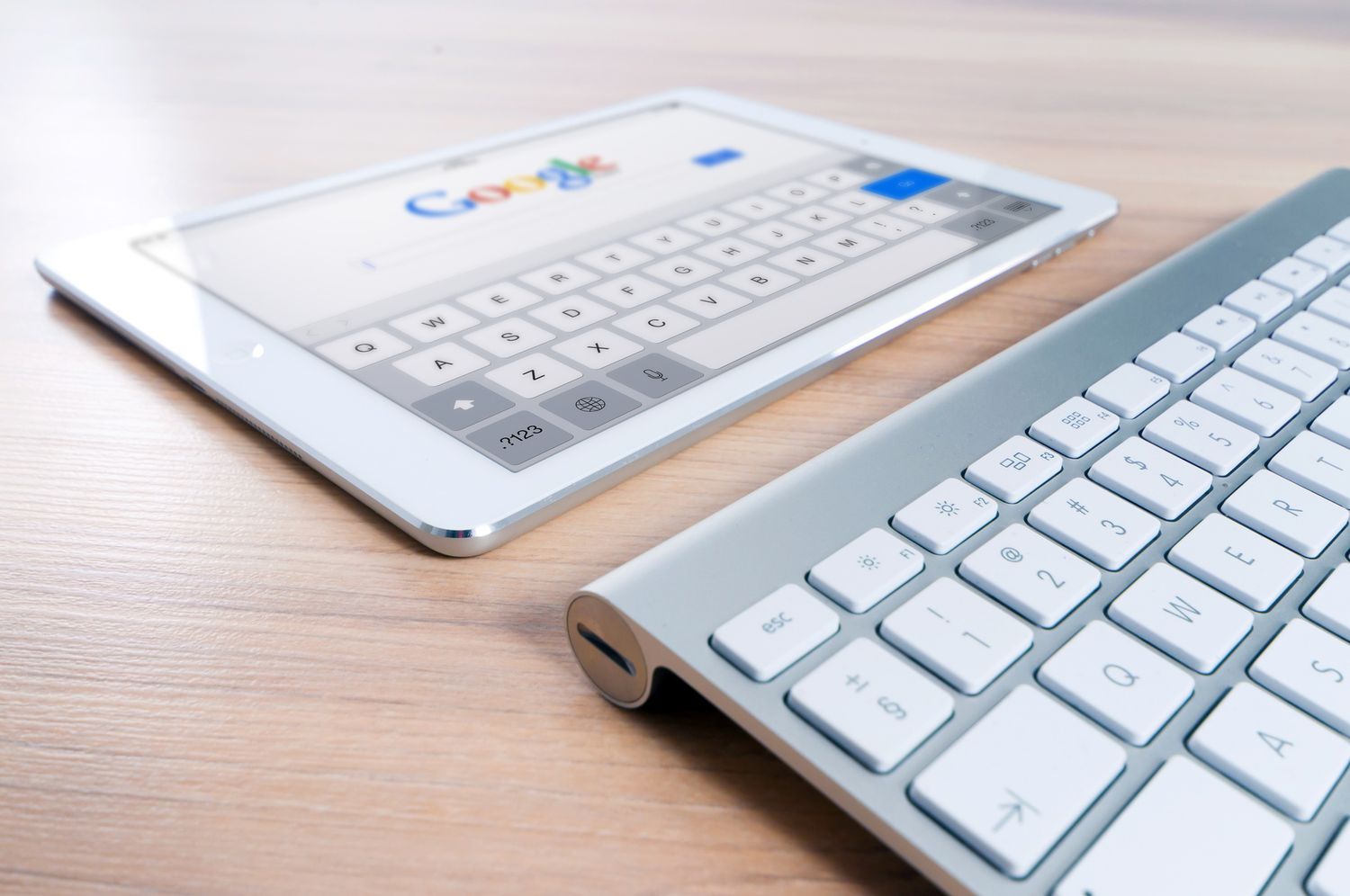
This article explains how to change the default keyboard on iPad devices running iOS 11 and later. Among the settings you can modify are the keyboard layout, the keyboard type, predictive text, and auto-correct function.
How to Customize Your iPad Keyboard
To adjust the settings for your keyboard, you’ll go to the Settings app. Here’s what to do:
-
Open your iPad’s Settings app.
-
On the left-side menu, choose General to display the general-purpose device settings on the right side of the screen.
-
Scroll down the right side of the screen until you see Keyboard, then tap that item to open the keyboard settings menu.
-
You now have several options for changing your keyboard language, layout, and features.
Customizable Settings for the iPad Keyboard
The iPad keyboard settings help you customize your iPad. Most of them are switches you toggle off and on. Here’s a quick summary of some of the changes you can make:
- Keyboards: The iPad has built-in keyboards in dozens of languages. You can also install third-party keyboards like Swype or the Hanx Writer keyboard. Tapping this option and then Add New Keyboard will show you every choice available. You can also change your keyboard’s layout from QWERTY to another layout by tapping Keyboards and then English to get to the English keyboard options.
- Text Replacement: This item is the old “keyboard shortcut” given a new name that better describes the feature. Text Replacement adds entries to the auto-correct library, so if you frequently misspell a word and your iPad doesn’t catch it, this override will fix it for you.
- Auto-Capitalization: By default, the iPad automatically capitalizes the first letter in a new sentence. This setting toggles that behavior.
- Auto-Correction: This item toggles the auto-correct tool. When the feature is active, the iPad will automatically correct common misspellings on your behalf.
- Check Spelling: The spell-checker reveals misspellings through red underlines under your typos. It’s a useful toggle if you prefer to keep auto-correct disabled.
- Enable Caps Lock: By default, the iPad will turn off the caps key after you type in your next letter, number, or symbol. But if you double-tap the caps key, it turns on caps lock, which will allow you to type in capital letters until you shut the feature off.
- Shortcuts: This setting allows you to turn Text Replacement on or off without wiping out all of the replacement text you may have entered.
- Predictive: While you type, the iPad will attempt to predict the word you are typing and display it just above the on-screen keyboard. Tapping these words will finish the typing for you.
- Split Keyboard: This setting splits the keyboard in half, with one side of the keyboard on one side of the display and the other side of the keyboard on the other side of the display. It is great for thumb-typing.
- Enable Key Flicks: In iOS 11, the iPad keyboard gained a new functionality that lets you quickly type special characters above keys by “flicking” them down. This switch turns this feature on and off.
- “.” Shortcut: If you tap the space bar twice in a row, the iPad will insert a period in place of the first space.
- Enable Dictation: Voice Dictation lets you speak to your iPad and have your words converted to text. This feature sends what you speak to Apple to be translated, so it is very accurate, but you may want to turn this feature off if you are concerned with privacy.
How to Create an iPad Keyboard Shortcut
A shortcut allows you to type an abbreviation like “idk” and have it replaced by a longer phrase like “I don’t know.” Keyboard shortcuts on the iPad work in the same way as the auto-correct feature. You type out the shortcut, and the iPad will automatically replace it with the whole phrase.
Here’s how to set one up:
-
In the Keyboards section of Settings (Settings > General > Keyboards), tap Text Replacement.
-
Tap the plus sign in the upper-right corner to add a new shortcut.
-
Type the longer Phrase you want to use and the Shortcut to activate it in the text boxes.
-
Tap Save to save your shortcut.
-
When you type the shortcut you set, the iPad will automatically replace it with the phrase you tied it to.
How to Install a Custom Keyboard
To set up a custom keyboard, you must first download one of the App Store’s alternative keyboards. There is even a keyboard from Grammarly that will check your grammar as you type.
-
Download the keyboard you want to add from the App Store.
-
In the Keyboard settings, tap the Keyboards heading.
-
Tap Add New Keyboard.
-
You will get a list of available keyboards that you have installed on the iPad. Tap the keyboard you want to activate.
You can remove a keyboard by tapping Edit on the custom keyboards page. The tap reveals a red circle with a minus sign next to the available keyboards. Tapping this button will remove the keyboard from the activated list.
Deactivating a keyboard doesn’t uninstall it. You must uninstall the app to delete the keyboard completely.
How to Change the iPad Keyboard to QWERTZ or AZERTY
The familiar QWERTY keyboard gets its name by the five letters across the top of the letter keys, and two popular variations (QWERTZ and AZERTY) get their name the same way. Change your iPad keyboard layout to either of these variations in the Keyboard Settings.
Access these alternative layouts by choosing Add a Keyboard and then finding them in the list of available layouts. They’re both variations of the U.S. English version. In addition to QWERTZ and AZERTY, you can choose from other layouts like U.S. Extended or British.
- The QWERTZ layout is used in Central Europe, and it is sometimes known as a German layout. Its biggest difference is the exchanged placement of the Y and Z keys.
- French speakers in Europe often use the AZERTY layout. The main difference is the exchanged placement of the Q and A keys.
Thanks for letting us know!
Subscribe
Tell us why!
Other
Not enough details
Hard to understand
