


A brand-new iPhone can easily last all day, but that wanes over time as parts age. But newer software takes its toll too, as the latest iOS 18 software and apps, including Apple Intelligence AI, can drain them quickly. Shooting photos and videos, playing games and watching shows and movies can deplete the battery, too. But before you consider buying a new Apple phone, like the new iPhone 16 or the more affordable iPhone 16E, give these battery hacks a try to make your long-lived iPhone a bit more daytime before needing to recharge it.
Some of the causes of battery drain are easy to control, like features turned on by default that can be switched off. Others might require a lifestyle change as you switch up how you use your iPhone throughout the day, breaking habits and going without some minor perks. In all cases, it’s helpful to keep a pocketable power bank in your pocket or bag just in case.
Here are eight tips for diagnosing and extending your iPhone’s battery life.
Apple’s iPhone 16, 16 Plus Show Off Bolder Colors and Buttons
See all photos
1. Find what’s draining your battery
Some apps drain more of your iPhone’s battery than others, and it’s no surprise that the biggest offenders are those that track location, stream video or generate graphics (games, for example, especially fast-paced online ones). If it makes your phone heat up a bit, it’s probably running down your battery faster than casual use.
There’s a way to specifically check which apps are draining your battery the most. Head to Settings > Battery and scroll down to see which apps are the worst culprits for taking the biggest percentage of your screen time. Also, don’t skip the Insights and Suggestions section, as it does all the analysis for you and shows you which apps and settings to change.
Note that these are the biggest uses of your battery, but you’ll have to parse through them to see which are big battery drainers, like YouTube or TikTok. In my case, Safari takes the biggest chunk of my use, which represents a lot of endless scrolling of sites and forums — but YouTube is in second.
2. Drop the battery-draining apps
Let’s face it — whether it’s Instagram, TikTok or something else, one or two apps are probably draining an outsized chunk of your battery every day. If you want longer battery life, remove the app by long-pressing its icon on the Home Screen and clicking the “x” in the corner.
Yes, you could try to limit your use before wiping these apps from your phone. If you believe in your willpower, you could just stick the offending app in a folder to keep it out of sight, out of mind.
But if you need some help from your iPhone itself, you can set a time limit for individual apps or whole categories. Go to Settings > Screen Time and tap App Limits. From there tap the Add Limit button to select by entire categories or specific apps.
3: Turn down your screen brightness
You can save battery by turning down your iPhone screen’s brightness. This one’s pretty easy: tap-and-drag from the top-right corner to bring up the Control Panel and manually lower the brightness bar. Alternatively, you can find these controls in Settings > Display & Brightness or if you prefer to be verbose, you can ask Siri to reduce the brightness.
While you’re in the Display & Brightness sub-menu, tap Auto-Lock to set your phone to have a shorter time before locking itself. That way you won’t be draining battery if you put your phone down and paying attention to something else.
4: Turn on Low Power Mode
Apple’s Low Power Mode helps conserve iPhone battery life.
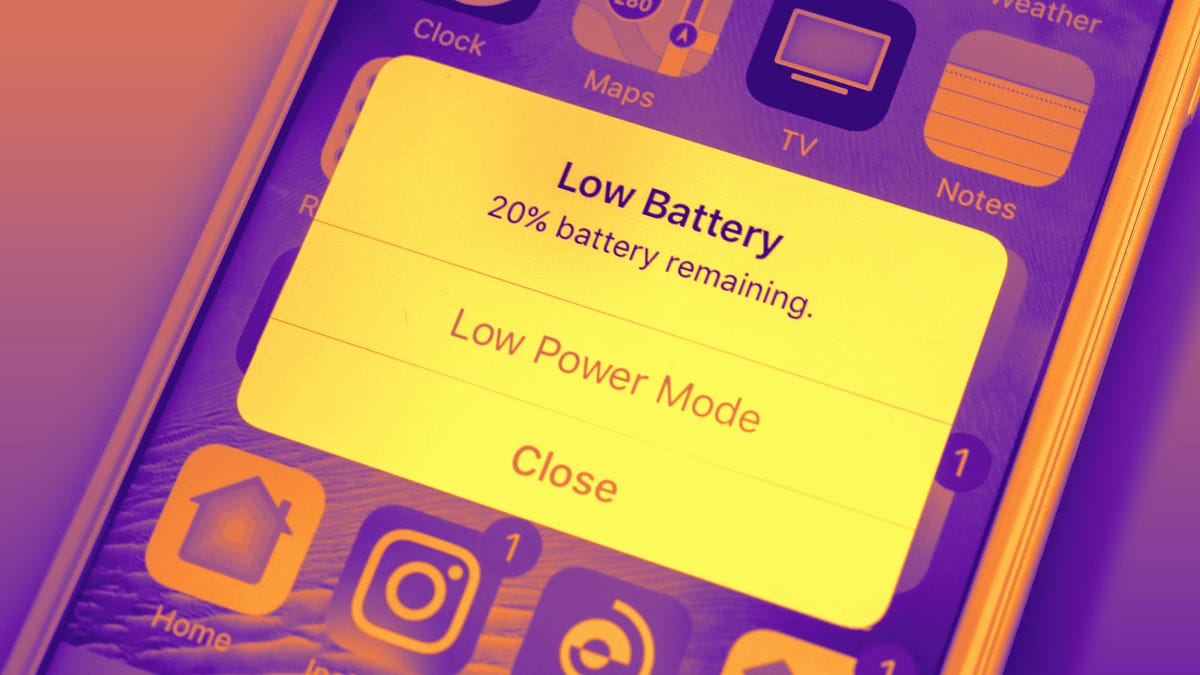
Whenever you dip below 20% battery, your iPhone will ask if you want to extend your remaining battery life by turning on Low Power Mode. But you can also manually activate it at any time, either by opening up the Control Panel (if a shortcut has been set there) or by going to Settings > Battery and switching it on there.
Low Power Mode is a catch-all setting that ekes out more battery life by reducing drain from several active and passive sources. It dials down background activity like downloads and mail fetching, lowers the screen brightness; as well as turns off the Always On Display.
5: If your 5G signal is bad, switch to 4G LTE
While carriers have built out their 5G networks over the years, some phone owners will struggle to get a strong signal in areas with poor coverage — or in places 5G struggles to reach, like within buildings and underground. Your iPhone burns a lot of battery trying to stay connected, so if you don’t have a great connection, it might be best to manually revert to 4G LTE.
To do so, head to Settings > Cellular, then tap on Cellular Data Options. If you don’t see Cellular Data Options, select the SIM or eSIM that you’re currently using. On the next screen, tap Voice & Data and select LTE. You’ll only use 4G LTE to connect to mobile networks, which should be more widely available among carriers.
You should also be aware that downloading data drains battery, too, so manually restricting that could extend your battery life. To do so, head to Settings > Cellular, then tap on Cellular Data Options. If you don’t see Cellular Data Options, tap on the SIM or eSIM that you’re currently using. On the next screen, tap Data Mode then tap Low Data Mode, which will pause automatic updates and background tasks.
6: Selectively disable location services
Tracking your location drains battery, so turning it off when possible is a good idea if you don’t need it. Triangulating your position actually takes multiple sensors, so it’s not an insignificant amount of battery saved — your iPhone uses GPS, Bluetooth, and crowdsourced Wi-Fi to narrow down where you are.
To see which apps track your location, tap Settings > Privacy & Security > Location Services and tap through to tweak each individually. But you can also turn off Location Services entirely with the toggle at the top of the screen.
It’s worth nothing that Location Services are required for Apple’s Find My feature, so if you want to track down another object linked to your account, you’ll need Location Services turned on. Likewise, you’ll need it turned on if you ever lose the iPhone you’re using, so make sure to reactivate it later.
7: Turn off Always On Display
You can also turn off your lock screen’s wallpaper to make the iPhone 14 Pro’s always-on display black.
Introduced in the iPhone 14 Pro series in 2023 and only available on the newest Pro and Pro Max models, Always On Display does what it says: It keeps a dimmed version of your lock screen on. This allows you to check the time, on-screen widgets and how many notifications you have without needing to fully unlock your phone. But it also saps your battery by having that low-light version of your display constantly activated.
If you can live without having that quick info at a glance, go to Settings > Display & Brightness > Always On Display and turn it off. It may not be a huge power saver, but it’s one of the features on the newer iPhone Pro models that seemingly counteracts any battery increase Apple ekes out of the phones. Under the Always On Display settings, you can also disable the Wallpaper and Notifications for a more minimal version that only shows the date and time against a black background.
8: Install a new battery
A new battery can go a long way toward making your phone feel like new.
Over years of use, your iPhone’s battery will degrade and it simply won’t be able to hold as much juice as it could when brand-new. Thankfully Apple has made it easy to check how your battery is doing — just go to Settings > Battery > Battery Health and you’ll get an easy diagnosis, an estimate of its maximum capacity on a full charge and how many full recharge cycles it’s gone through.
Watch this: iPhone 16 Review: All About the Buttons
10:04
Apple generally recommends replacing your battery when it dips below 80% maximum capacity. Keep in mind that it’s not just the maximum battery life that might suffer if you don’t swap out for a new battery — the quality might degrade so much that the battery itself could swell and warp enough to damage sensors and internal parts of the iPhone — which is rare.
Apple offers in-store battery replacement for $99 for the newest iPhone 15 models, which drops down to a minimum of $69 for the oldest iPhone SE and iPhone 5 models the company still supports. Third-party phone repair shops may offer their own rates for replacing batteries, and iFixit has a guide if you want to boldly order a new battery and attempt the swap yourself — just keep in mind that it may violate any AppleCare agreement if you go outside Apple’s repair ecosystem.
I Took 600+ Photos With the iPhone 15 Pro and Pro Max. Look at My Favorites
See all photos
