


Lance Whitney / Elyse Betters Picaro / ZDNET
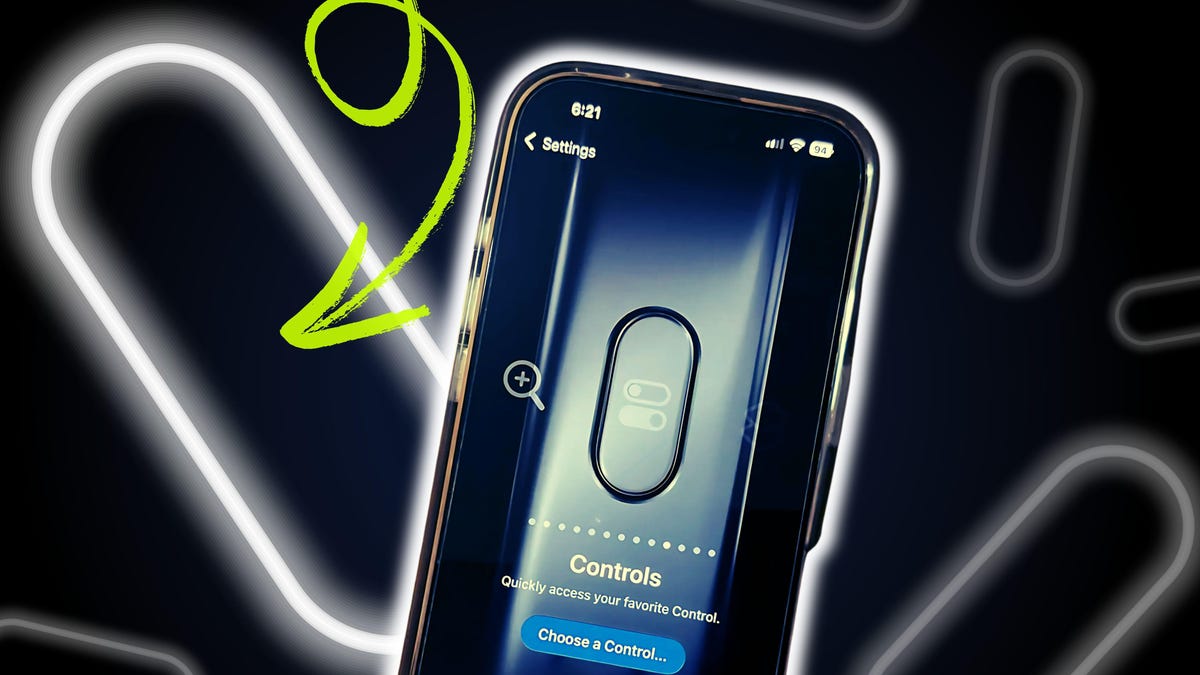
The iPhone 16 comes with a physical Action button that you can program to launch a specific task. By default, the button switches your phone between Ring and Silent mode. But you can change that to trigger other features, including the camera, the flashlight, or the magnifier. You can also program the button to activate a certain control or Siri shortcut.
Also: Here’s how to get a free iPhone 16 Pro from T-Mobile with no trade-in required
I’ve tried using the Action button for different tasks. Here’s how this works, and here are the ones I like best.
Though I own an iPhone 16 Pro, the Action button is available on any iPhone 16 model, including the iPhone 16e as well as the iPhone 15 Pro and 15 Pro Max. It works the same on all supported devices, so my experience with it will apply no matter which of these phones you own.
First, make sure you’re running the latest version of iOS. Head to Settings, select General, and tap Software Update. Allow the latest update to download and install.
Show more
Screenshot by Lance Whitney/ZDNET
Go to Settings, select Action button, and then swipe through the available actions. When you see an action you like, simply exit Settings or go back to the Home screen. The actions currently available include the following:
- Silent Mode – Switches between silent and ring mode for calls and alerts
- Focus – Puts your phone into Focus mode to silence notifications
- Camera – Opens the Camera app
- Visual Intelligence – Activates the Visual Intelligence feature to analyze what you capture through the camera
- Flashlight – Turns on the built-in flashlight
- Voice Memo – Lets you record voice memos and other audio snippets
- Recognize Music – Uses Shazam to identify the song currently playing
- Translate – Translates phrase or conversations between two different languages
- Magnifier – Turns on the magnifier to zoom in on nearby objects
- No action – Disables the Action button
Show more
Screenshot by Lance Whitney/ZDNET
Three of the screens let you choose from a variety of actions. These include:
- Controls – Lets you use a specific control, such as the timer, clock, calculator, or one from a third party
- Shortcut – Lets you use a Siri shortcut
- Accessibility – Lets you choose an accessibility feature, such as contrast, VoiceOver, or Zoom
For these, simply tap the Choose button and then select the specific action you want to use.
Show more
Screenshot by Lance Whitney/ZDNET
Triggering an action varies based on the action itself. For most of them, press and hold the Action button. With certain actions, pressing the button switches between two states. For example, with Silent Mode, holding the button once switches your phone to silent mode; holding it down again switches it back to ring mode.
Also: Google Pixel 9a vs. iPhone 16e: I took 100 photos with both phones, and here’s the winner
In some cases, you can also tap the Action button to perform a follow-up action. For example, with Camera set up as an action, pressing the button launches the camera; tapping it then snaps a photo.
Show more
Screenshot by Lance Whitney/ZDNET
After trying out a variety of different actions, certain ones stand out. Since I have an iPhone 16 Pro, I use the dedicated Camera control to activate the camera and launch Visual Intelligence, so those are already set.
Also: I replaced my iPhone 16 Pro with the 16e for two weeks – here’s my buying advice update
Among the direct actions, the ones I’ve used most frequently are Silent Mode, Focus, and Translate. Silent Mode and Focus both come in handy when my wife and I attend live performances or other events where I need to silence my phone or activate Do Not Disturb mode. At other times, Translate provides a quick way to translate a single phrase or sentence between English and another language.
Show more
Screenshot by Lance Whitney/ZDNET
Beyond using a few direct actions, I like to use the Action button to launch a specific control, shortcut, or accessibility feature.
Of the controls, my favorites launch an AI in conversation mode: Open ChatGPT Voice Mode, Talk to Copilot, or Gemini’s Talk Live. To set these up, install the ChatGPT, Copilot, or Gemini app; different options for each appear when you view the Controls screen.
Also: How to program your iPhone’s Action Button to summon ChatGPT’s voice assistant
Among the shortcuts, I have one for Music that lets me choose an artist or album to play, another for Podcasts that automatically plays the next episode, and a third for Yelp that helps me find nearby restaurants. For accessibility, I sometimes add the magnifier.
Show more
Screenshot by Lance Whitney/ZDNET
Surveying all the actions I can set up, I typically keep the button set to trigger Talk to Copilot.
Though I usually use ChatGPT and Gemini as my go-to AIs, I prefer Copilot’s conversation mode, so that’s my favorite bot for chatting. Programming the Action button for Copilot this way is a quick, easy way to start a conversation.
Get the morning’s top stories in your inbox each day with our Tech Today newsletter.
