


Lance Whitney / Elyse Betters Picaro / ZDNET
Microsoft has expanded the powers and reach of its Copilot Vision AI to help you with all types of content. In a blog post published Thursday, the company revealed that Copilot Vision is now baked into the Copilot Windows app, where you can ask it to analyze and answer questions about any item on your screen.
A big leap forward
Available in the US for Windows 10 and 11 and coming soon to other non-European countries, Copilot Vision on Windows acts as a virtual companion, providing another set of eyes to help you with files, apps, and other items displayed and shared on the screen. You can ask it to analyze or summarize the content or respond to any questions about it.
Not sure how to use a specific application? With the Highlights option, you’re able to ask Copilot how to accomplish a certain task. The AI will then show you where to go and what to do.
Also: 8 ways I use Microsoft’s Copilot Vision AI to save time on my phone and PC
For example, maybe you’re playing a game and are stuck at a certain level. Ask Copilot Vision for tips on how to proceed, and it will nudge you along. Perhaps you’re viewing a photo in a program like Adobe Photoshop Elements and are wondering how to improve the lighting. Ask Copilot Vision for advice, and it will explain the specific steps to follow in Photoshop Elements.
You can even share two apps or files at a time, and Copilot Vision will connect the dots between them. For example, you might share both your calendar and a web page of interesting events and ask the AI to find dates when you’d be free to attend the events you like. Copilot Vision will find a suitable date and even talk you through the steps to add the event to your calendar.
This latest skill is a big leap forward for Copilot Vision. Previously, the desktop version of the tool worked only in Edge and could only analyze and answer questions about your current web page. Now anything you open in Windows is available for you to share with Copilot.
How to try it
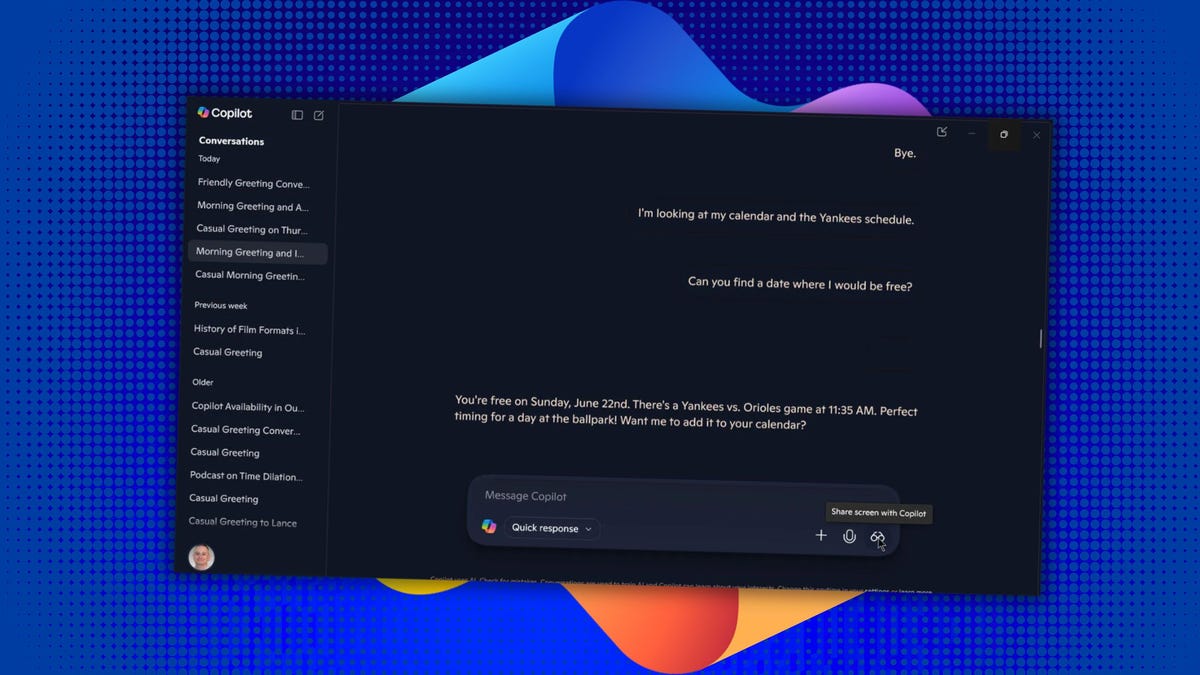
In Windows 10 or 11, open the Copilot Windows app. Click the eyeglasses icon to the right of the prompt. You’ll see a list of all your open files, apps, and windows. Turn on the switch for the item you wish to share with Copilot. The AI should then greet you in whatever voice you set up. (I use the Wave voice with its classy British accent.)
Also: Microsoft’s Copilot for Gaming arrives in beta – how to try it on your phone
You can then ask it any question about the shared content, and it should provide the information you need or guide you through a specific process. When you’re done with the conversation, just click Stop or X to return to the Copilot prompt.
Should you want to include a second item in the conversation, click the eyeglasses icon again and turn on the switch for the additional window. You can then ask a question that refers to the two open items.
My experience
I took Copilot Vision for a spin using some of the examples I listed. For instance, I opened a photo in Photoshop Elements that had some reflections of light on it and asked Copilot how to remove them. It explained where and how to use the Spot Healing Brush tool in the program to eliminate the reflections.
I also opened my calendar and a schedule of upcoming New York Yankees games. I asked Copilot to find a date when I’d be free to see a game between the Yankees and the Orioles. It pinpointed a specific date and even asked me if I wanted to add the event to my calendar and offered to show me how to do that.
Also: Microsoft unveils 9 new Copilot features – you can try some now
Privacy is always a concern with screen-sharing and capturing tools (Recall, I’m thinking of you). But with Copilot Vision, you’re in the driver’s seat. You must actively choose to share a specific window with the AI; otherwise, it can’t see or analyze what’s on your screen.
“Copilot Vision on Windows is an all-new way to engage with your Windows PC, assisting you when needed,” Microsoft said in the blog post. “When you choose to enable it, Copilot Vision can see what you see and talk to you about it in real time. It acts as your second set of eyes, able to analyze content, help when you’re lost, provide insights, and answer your questions as you go. Whether you’re browsing, working, or deep in a project, Copilot Vision offers instant insights and answers, keeping your flow smooth and effortless.”
Get the morning’s top stories in your inbox each day with our Tech Today newsletter.
