


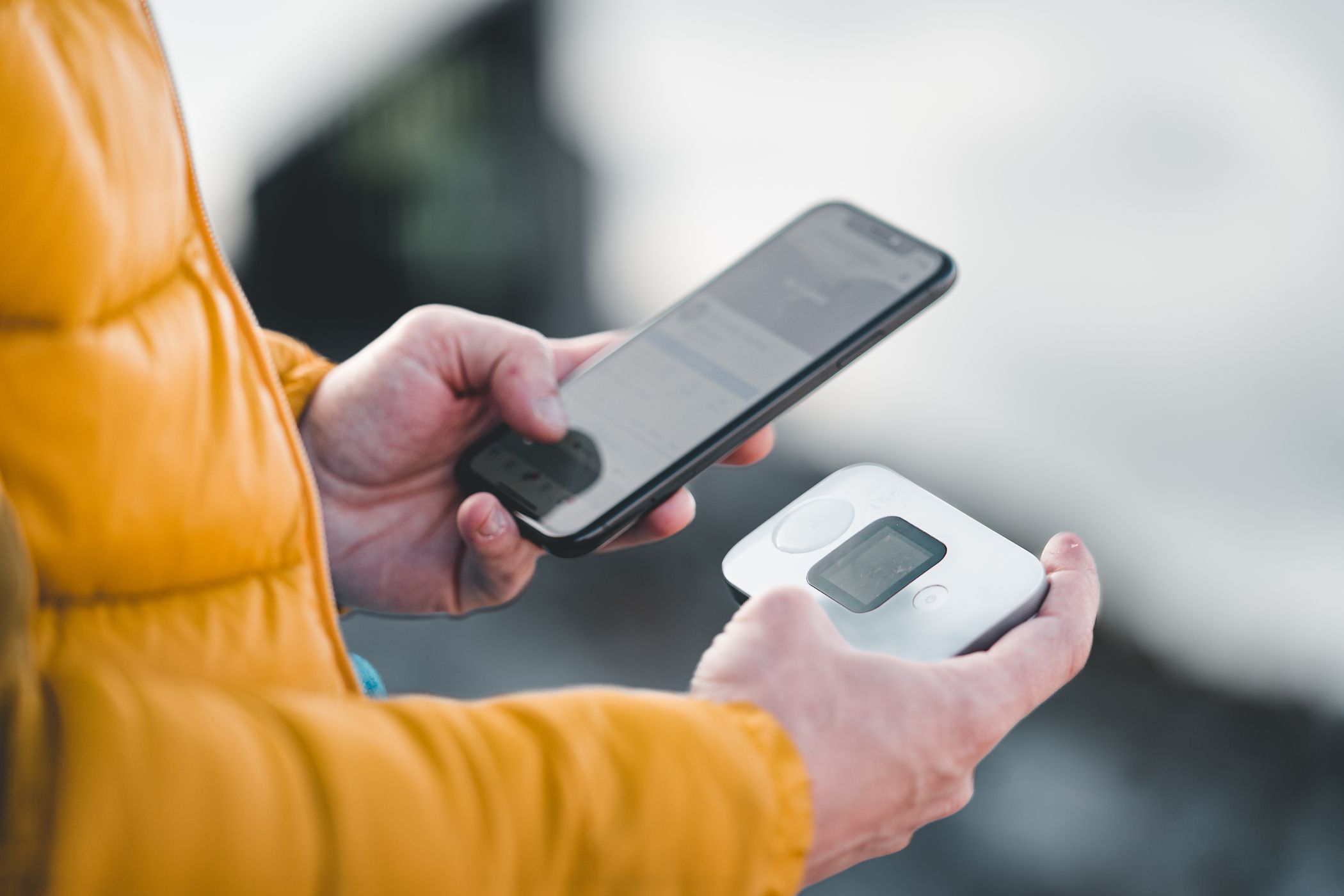
Slow mobile hotspot speeds can be a real showstopper. That’s why whenever my hotspot slows down, I turn to a handful of tried-and-tested tips that instantly boost performance, whether I’m working remotely or streaming videos away from Wi-Fi.
6
Check Data Usage and Plan Limits
One issue you may not think about while battling slow hotspot speeds is your cellular plan. Monitoring data usage is crucial when using a mobile hotspot, especially if your plan has limits or throttling thresholds.
Even with an “unlimited” plan, check the fine print to ensure you’re still within the specified fair usage policy. Once you exceed a certain amount of data, your speed may still be subject to throttling.
Most smartphones let you monitor data usage in the settings, and some carriers also offer apps or alerts to help track your consumption. If you’ve hit your plan’s limit, consider upgrading to a plan with more hotspot data or switching to a carrier that offers better terms.
5
Stop or Pause Data-Heavy Processes on Your Hotspot Device
Apple | Gabo_Arts/Shutterstock
Unlike a dedicated router, your phone performs many tasks besides providing internet access. The mobile phone you’re using as a hotspot might be juggling multiple tasks, leading to slow internet speed.
If it’s handling data-heavy processes like system updates, cloud backups, or large downloads, it can quickly consume your hotspot bandwidth, slowing everything down. The main culprits to keep in check include streaming content, app updates, system updates, file downloads, and cloud backups.
To enjoy the full speed while using your mobile hotspot, stop or pause such tasks on the device. This way, all the bandwidth is available for use by the connected devices.
4
Limit the Number of Connected Devices
Like regular Wi-Fi, the number of devices connected to your mobile hotspot affects speed. Each device shares the same data bandwidth, so the more gadgets you have connected, the less speed each one gets.
So, connecting too many devices to your mobile hotspot can quickly slow things down. Limit the number of connected devices to maintain a fast and stable connection at any point.
Related
How to Check Who’s Connected to Your Android Hotspot
Find that one person who’s using up your Android phone’s cellular data.
Especially if you need to download a large file or stream your favorite show at the best quality on a specific device, ensure you disconnect those that are not in active use. Many modern devices perform background updates that you may overlook, but are secretly eating up your hotspot bandwidth.
3
Turn Off Battery Saver or Low Power Mode
Modern smartphones include a battery-saving feature to reduce battery use. It’s one of the quickest ways to make your battery last longer on Android or iOS devices.
However, while battery saver or low power mode works like a charm in extending battery life, it limits performance. In an attempt to stretch battery life, your device can throttle your data speeds, leading to slower mobile hotspot speeds.
When enabled, your phone might not fully power the network functions needed for a strong, stable connection. Thus, for the best performance, it’s best to keep these power-saving features off.
To turn off low power mode on iOS, go to Settings > Battery and toggle off Low Power Mode. On Android devices, navigate to Settings > Battery > Battery Saver and toggle off Use Battery Saver.
The steps to turn off the battery saver on your specific Android device may vary depending on the model and Android version.
2
Optimize Hotspot Placement
Hamlin Rozario / MakeUseOf
Since your phone acts as both a modem and router when you’re using a mobile hotspot, placement matters. Network signal strength significantly impacts hotspot speed. You can tell how strong the cell signal is by checking the level of network bars available in the status bar. If the network indicator isn’t full or above 80%, your signal may be too weak.
Optimizing your hotspot placement can significantly improve your connection speed. For the best results, keep it in an open, elevated spot—ideally near a window where it can catch a stronger cell signal.
Avoid enclosed areas like drawers, bags, or behind thick walls, as these can block signal strength and reduce speeds. If you’re indoors, try different spots around your home or workspace to see where the signal performs best. Additionally, place the connected device closer to the hotspot for the best results.
1
Switch to the Fastest Frequency Band
The first and most effective way to increase the speed of your mobile hotspot is to use the fastest available frequency band. Smartphones support several frequency bands, including 3G, 4G, and 5G.
The higher the number, the faster your hotspot speeds will be. So, switching from 4G to 5G on your phone can make a huge difference. If your phone and carrier support 5G, use it. Otherwise, stick with 4G. 3G is being phased out in the US and other European countries, and doesn’t provide enough bandwidth for a strong mobile hotspot.
Related
What Is 5G? Here’s How It’ll Make Mobile Internet Faster and Better
Feel your mobile internet is too slow? 5G is the latest generation of mobile internet, and will make mobile data faster than ever.
On iOS, go to Settings > Mobile Service > Mobile Data Options > Voice & Data to change your frequency band. On Android devices, open Settings > Network & Internet > SIMs, select the SIM card you’re using for data, then tap Preferred network type.
Mobile hotspot speeds can fluctuate due to many factors. However, following these tips will help you maximize performance and enjoy a smoother, more reliable connection wherever you are.
