


Jack Wallen / Elyse Betters Picaro / ZDNET
Follow ZDNET: Add us as a preferred source on Google.
ZDNET’s key takeaways
- Not all Linux desktop environments are created equal.
- Some desktops are better suited for skilled Linux users.
- There are some desktops that make new users feel right at home.
One aspect of Linux that has always been a strength is choice. As a user, you have the choice of making the open-source OS exactly what you want it to be. There are options for just about everything, from the kernel all the way up to the desktop environment.
Also: The best Linux laptops right now
Although the choice of kernel might not make things easier for new users, the desktop environment certainly will. Some Linux desktops simply aren’t built for those new to the platform. For example, the tiling i3 window manager is not for the faint of heart. As far as GNOME is concerned, it’s an easy-to-use desktop, but it’s different enough that many users might struggle to understand how it works at first.
Choosing the right desktop environment can make or break your experience. Choose the wrong desktop and you’ll find yourself more frustrated than not. On the other hand, if you choose a desktop that’s perfectly at home in the hands of new users, that experience will be easy enough to keep you on board with Linux.
Also: This Linux distro puts more than 20 desktops a click away
But which of those desktop environments are best suited for new users? Let me offer you my top five, each of which makes for an ideal new user environment.
1. KDE Plasma
When you first log into KDE Plasma, you’ll find everything looks familiar… but with a bit more panache.
KDE Plasma offers a similar layout to the desktops you’ve used since you first placed your fingers on a keyboard. It has a desktop menu, a panel, a system tray, clickable icons, notifications, and all of the things that come together to make a newbie-friendly desktop. On top of that, KDE Plasma is gorgeous, so you won’t feel like you’re using a Linux desktop from the early 2000s.
Also: 4 ways the latest KDE Plasma release is better than ever – and how to try it yourself
One of my favorite aspects of KDE Plasma is that it can be a new user’s nirvana, but also grows with the user as they gain more and more experience. At first, you’ll leave the default settings and probably won’t change much. As you learn more about Linux, you may find yourself digging into the Settings app and tweaking the desktop to better suit your new Linux skills or simply to create an amazingly beautiful desktop. KDE Plasma is very good at that.
KDE Plasma also makes it easy to connect your phone to the desktop with KDE Connect (with file manager integration). In other words, this desktop simplifies nearly everything without compromising aesthetics.
It doesn’t take much effort to turn KDE Plasma into a more modern-looking desktop.
Jack Wallen/ZDNET
KDE Plasma ships as the default desktop environment for distributions such as Kubuntu, KDE Neon, Fedora KDE Spin, openSUSE Tumbleweed, Mandriva, and Manjaro KDE.
2. Cinnamon
Imagine KDE Plasma without the modern looks. That’s how I see Cinnamon.
This desktop environment came about after the GNOME developers evolved from the 2.x series to GNOME 3 (Shell). Some were outraged at the dramatic shift, and a crew of developers decided they’d create a new desktop based on GNOME 2. Cinnamon is perfectly suited for those who don’t want to change how they interact with their computer and don’t really care as much about aesthetics. That’s not to say Cinnamon is ugly… it’s not.
It is, however, fairly plain-looking, especially when compared to KDE Plasma. That being said, Cinnamon is also a lightweight desktop, which means it is perfectly suited for older hardware. This could be a boon to those who want to try Linux and have an older spare machine lying around. Cinnamon offers a similar UI to KDE Plasma, complete with a desktop menu, panel, system tray, and clickable icons. On the other hand, Cinnamon isn’t nearly as configurable as KDE Plasma.
Also: How to replace Windows with Linux Mint on your PC
If you’re looking for a lightweight desktop environment that harkens back to Windows XP or 7, and you don’t care about a bunch of bells and whistles, Cinnamon is perfectly suited for you.
Cinnamon is slightly more modern and customizable than MATE.
Jack Wallen/ZDNET
Cinnamon ships as the default desktop environment for distributions such as Linux Mint, Fedora Cinnamon, Manjaro Cinnamon, EndeavorOS (can be selected during installation), and Solus.
3. MATE
MATE (pronounced Ma-Tay) is another continuation of GNOME 2, so it has a lot of similarities to Cinnamon.
The way I see MATE is a less modern version of Cinnamon. With MATE, you get two different panels — one on the bottom and one on the top. But don’t let the simplicity fool you, as there are tweaks to be had. You can change the theme, fonts, create more panels, customize the defaults, add applets, and more.
Also: Want to learn Linux? These 5 games make it fun – and they’re free
When you use MATE, you will feel as if you’ve been transported to the early 2000s, when GNOME 2 was all the rage. And although MATE might look a bit old-school, it is in active development. The developers are dedicated to the desktop retaining that GNOME 2 look and feel, so chances of it getting a more modern touch are slim. One of the best things about MATE is that it is perfectly suited for users of all Linux skill levels. It’s super easy for new users, and those familiar with Linux will appreciate the speed and simplicity of the desktop, so they can concentrate more on getting things done.
In less than a minute, you can have a much more modern-looking UI for Ubuntu MATE.
Jack Wallen/ZDNET
MATE is available as a desktop environment option for distributions like Linux Mint, Debian, Kali Linux, Fedora MATE-Compiz, SparkyLinux, Ubuntu MATE, PCLinuxOS, and MocaccinoOS.
4. Pantheon
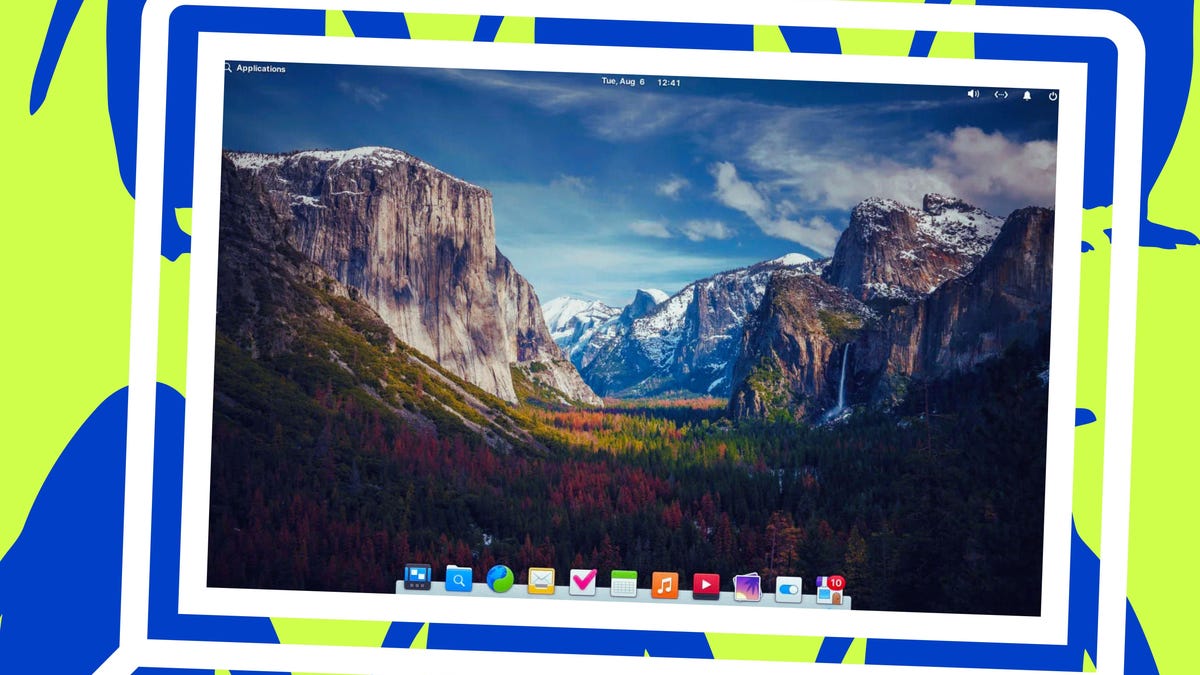
If you like the MacOS desktop, you’ll enjoy Pantheon with equal gusto.
Pantheon looks and feels very much like the MacOS UI (minus the new Glass theme), but is much more lightweight (so it’ll feel faster). Pantheon includes a top bar, a dock, and a desktop menu, so if you’ve used MacOS, you’ll feel right at home with Pantheon. This desktop environment is often considered a minimal desktop, but I find that not to be quite true, as Pantheon includes all the features you need to work efficiently and simply. If you like a modern-looking desktop but want to stick with something familiar, Pantheon is a great option. This Linux desktop is immediately familiar and simple to use.
Also: 5 reasons to switch to an immutable Linux distro today – and which to try first
One thing about Pantheon is that it’s not very customizable. That’s actually a good thing for new users, especially given that MacOS takes the same approach. Don’t be fooled, however; you can customize Pantheon… especially the dock (Plank). Another thing I really respect about Pantheon is that the development team is good about listening to users and adopting the most wanted features.
elementary OS is as easy to use as it is classy.
Jack Wallen/ZDNET
Pantheon is the default desktop environment for elementaryOS, but it can also be installed on Arch Linux and Debian.
5. Budgie
I love Budgie. I really do. Not only is it beautiful, but it’s also highly customizable. If you can imagine a new layout, Budgie can comply. However, out of the box, Budgie looks very much like a Windows desktop. Budgie includes a bottom panel, a desktop menu, a system tray, and clickable icons. At the same time, Budgie can be morphed into a desktop that resembles MacOS… or something completely different, all the while looking about as good as a desktop environment can.
Also: 6 reasons why I’ve stuck with Ubuntu-based Linux distros for the last 20 years
Even though Budgie sticks with a typical desktop layout, it still manages to look very modern. Like KDE Plasma, Budgie can grow with the user. Stick with the default layout at first and, as you learn more about Linux, dive into the customizations and make it look and behave exactly how you want. There’s also the Budgie Welcome Wizard, which helps new users get familiar with the desktop. That’s a big plus in my book.
You may not see the Welcome Wizard at first login, but you’ll find it in the menu, and I highly recommend using it.
It’s beautiful, it’s bold, it’s Budgie.
Jack Wallen/ZDNET
Budgie ships as the default desktop environment for Ubuntu Budgie but can also be selected with RebornOS, EndeavorOS, and installed on most Linux distributions.
