


The Download
- Remote: Quickly press the Star button four times in a row.
- From Settings: Accessibility > Screen Reader > Off.
- Turn off the remote shortcut from Settings > Accessibility > Screen Reader > Shortcut > Disabled.
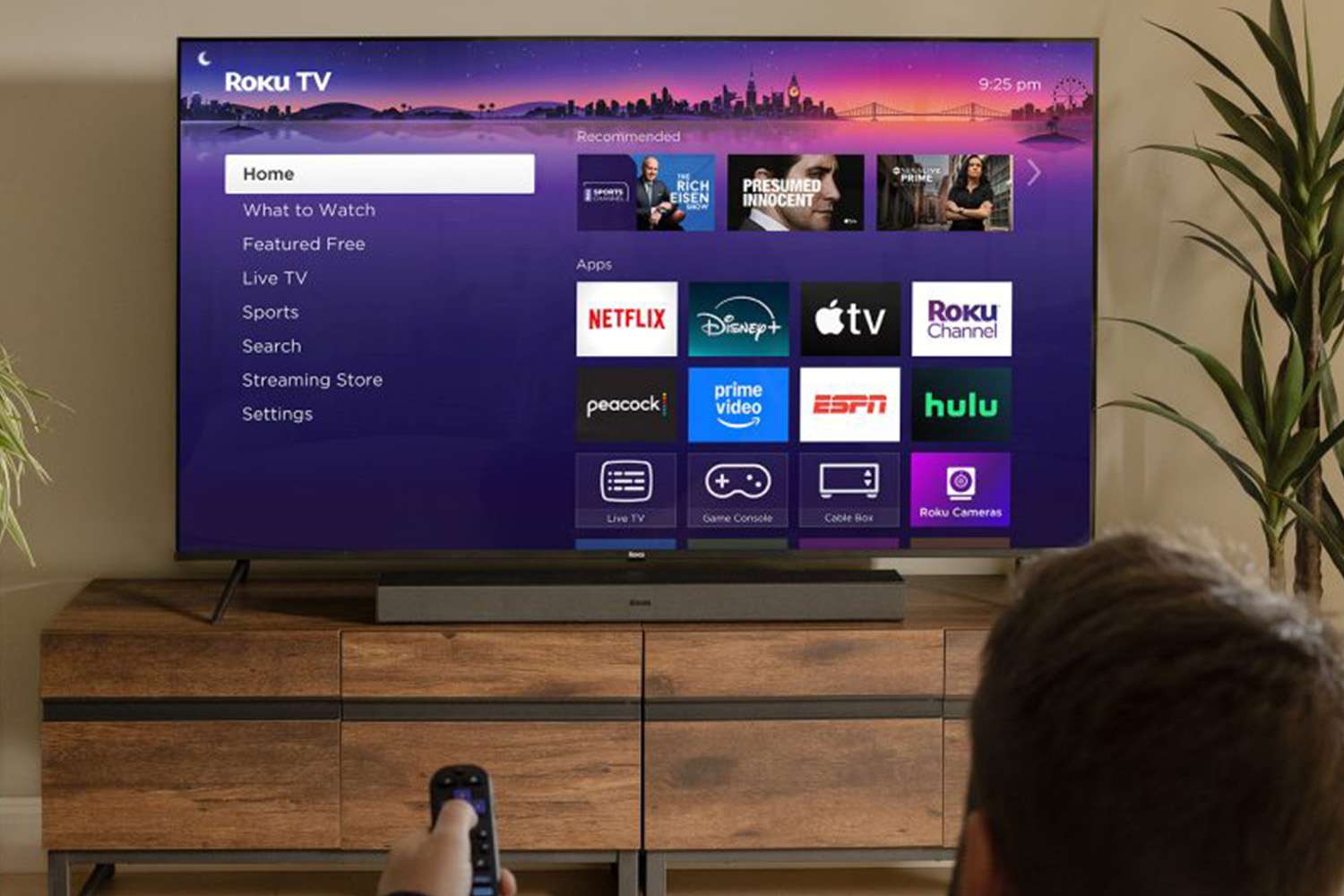
This article explains how to turn off the narrator on a Roku streaming device or TV. You can use a remote shortcut or disable the feature from the Accessibility settings.
Certain Roku channels also offer audio-guided content, which you can turn off or on during playback or from the app settings.
How to Turn Off the Narrator on Roku
If you turn on the Roku narrator—also known as the Roku Screen Reader (formerly Audio Guide)—by accident, you have two options for disabling this feature.
Use the Roku Remote Shortcut
The fastest option for turning off narration on your Roku is to use the remote shortcut.
Before you try this shortcut, make sure it’s turned on.
-
Go to Settings > Accessibility.
-
Look for the Screen Reader (formerly Audio Guide) section of the Accessibility menu.
On some versions of Roku this step may be unnecessary.
-
Select Shortcut and toggle the selection from Disabled to Enabled.
-
Now you can press press the Star button on your remote four times in quick succession to turn off the text-to-speech screen reader.
If rapid-pressing the Star button doesn’t work or your remote is unresponsive, use this guide to fix Roku remote issues.
Use Roku Accessibility Settings
You can also turn off narration on your Roku from the Accessibility options.
-
From the Roku Home screen, go to Settings > Accessibility.
-
Go to Screen Reader (formerly Audio Guide).
-
Highlight Off to disable this feature.
Why Is My Roku Narrating Movies?
Roku Screen Reader describes Roku system interactions (your location on the screen, channel names, etc.) and navigation items within apps.
This text-to-speech feature on Roku doesn’t include video narration.
If you hear descriptions of scenes and actions in movies or TV shows, you might have enabled an audio description track for that specific program.
How Do I Turn Off Descriptive Audio?
If you don’t want to hear scene narration, check and change the audio track selection during playback in the app.
Not all titles across streaming platforms come with descriptive audio. If you see no other audio options, guided audio isn’t available to turn on or off in the app.
You can find this feature from the audio/language or accessibility settings on Roku apps with descriptive audio. Here’s how to do that in these popular apps.
- HBO Max: While playing content, open the Audio & Subtitles menu > Audio.
- Hulu: Press the Up button on your Roku remote > select Settings > Audio.
- Netflix: Press the Down button on the remote to view the language options box. Change the selection from Language – Audio Description to a language without narration.
- Prime Video: Press the Roku remote Up button > Audio & Languages > and choose the available language without audio description.
- Apple TV: Go to Settings > Accessibility > Audio Descriptions > and select Off.
How Do I Turn Off Video Description on Roku?
If you use a cable TV source with your Roku TV or player and notice the video description feature on TV shows and movies, turn off the Secondary Audio Programming (SAP) settings. For example:
- On Xfinity X1: Choose Device Settings > Languages > Audio Language (SAP) Reset.
- With Spectrum TV for Roku: Open the app with the Roku remote and go to Settings > Preferences > Audio Language (SAP).
If you use a non-Roku smart TV, you might also want to check the SAP preferences on the device. Look for this feature in the Audio or Accessibility area of your TV’s settings.
FAQ
-
How do I turn off closed captions on Roku?
Press Home > Settings > Accessibility > Captions mode > Off. If closed captioning won’t turn off on your Roku after changing this setting, check app-specific caption settings. Open a channel such as Hulu on your Roku and play content. Then bring up the Options menu by pressing the Star button and select Closed captioning > Off.
-
How do I turn off Amazon Prime subtitles on my Roku?
You can turn off Amazon Prime Video subtitles on Roku during playback. Select a program to play > press the Up button on your Roku remote > select Subtitles (the speech bubble icon) > On > and then select Off.
Thanks for letting us know!
Subscribe
Tell us why!
Other
Not enough details
Hard to understand
