

Close Menu
TechurzTechurz
    What's Hot

    This young startup is taking on a fragrance industry that hasn’t changed in a almost half century

    May 21, 2026

    Maka Kids is redefining kids’ screen time with a streaming app optimized for well-being, not engagement

    May 21, 2026

    Beauty booking startup Fresha hits $1 billion valuation with KKR backing

    May 21, 2026
    Facebook X (Twitter) Instagram
    Tech Pulse
    • This young startup is taking on a fragrance industry that hasn’t changed in a almost half century
    • Maka Kids is redefining kids’ screen time with a streaming app optimized for well-being, not engagement
    • Beauty booking startup Fresha hits $1 billion valuation with KKR backing
    • General Catalyst just led a $63M bet on India’s travel payments market
    • Clouted wants to take the guesswork out of making short videos go viral
    X (Twitter) Pinterest YouTube LinkedIn WhatsApp
    TechurzTechurz
    • Home
    • Tech Pulse
    • Future Tech
    • AI Systems
    • Cyber Reality
    • Disruption Lab
    • Signals
    TechurzTechurz
    Home - Guides - Use Your Apple Watch as a Nightstand Clock
    Guides

    Use Your Apple Watch as a Nightstand Clock

    TechurzBy TechurzJuly 25, 2025Updated:May 12, 2026No Comments3 Mins Read
    Share Facebook Twitter Pinterest LinkedIn Tumblr Reddit Telegram Email
    Use Your Apple Watch as a Nightstand Clock
    Share
    Facebook Twitter LinkedIn Pinterest Email


    The Download

    • Set up in Watch app: General > turn on Nightstand Mode.
    • Set alarms on watch: Alarms app > + (Plus sign) > adjust time > ✓ (check mark sign).
    • On iPhone Watch app: Scroll to Clock > turn on Push Alerts From iPhone.

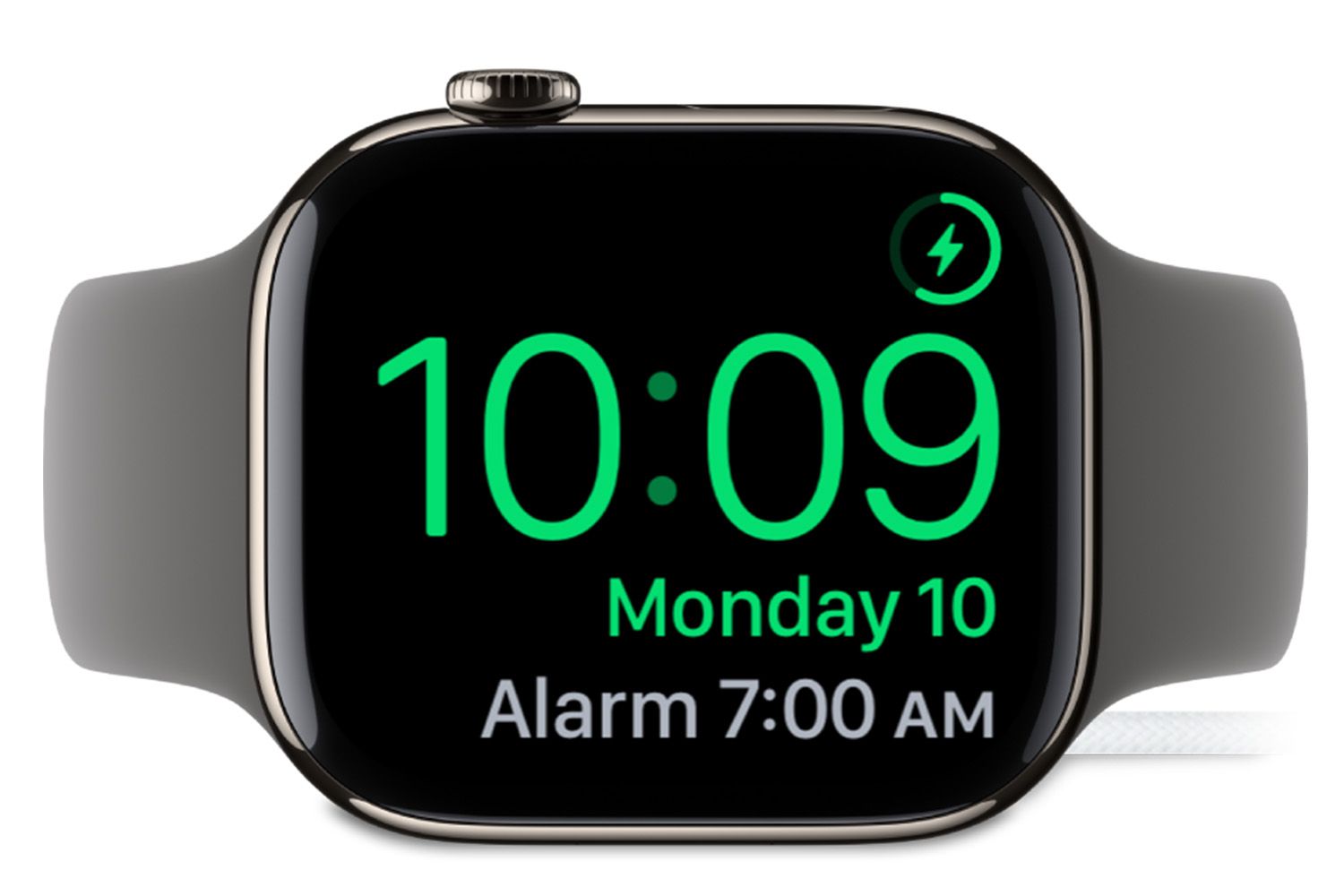
    This article explains how to use Apple Watch Nightstand Mode to turn your watch into a bedside clock and alarm.

    How to Set Up Apple Watch Nightstand Mode

    By default, the Apple Watch Nightstand mode should be active. Sometimes though, for whatever reason, it has been switched off. Here’s how to turn it on. 

    1. On your iPhone, open the Watch app.

    2. Scroll down and select General.

    3. Scroll down to Nighstand Mode and toggle it on so that the button is green.

      Earlier versions of watchOS call this option “Bedside Mode.”

    While charging, your Apple Watch will always stay in Nightstand Mode unless you press the Digital Crown or side button. For all watches before the Apple Watch Series 5, the display is off until you touch the watch (tapping your nightstand also wakes up the display).

    How to Set the Alarm on Apple Watch

    In a few simple steps, you can easily set an alarm on your Apple Watch, turning it into a nightstand alarm clock. Here’s what you need to know.

    1. Open the Alarms app on your Apple Watch.

    2. Select + (Plus sign) to add a new alarm.

    3. Turn the Digital Crown to adjust the time for the alarm.

      If your clock is set to 12-hour, remember to choose AM or PM when setting the time.

    4. Select the ✓ (check mark sign, formerly Set) once complete. 

    5. To set it to repeat on the same day every week, tap the set alarm and edit how often it goes off via the Repeat button. 

    How to Set the Apple Watch Alarm Using Your iPhone

    If you’d prefer to set your Apple Watch alarm via your iPhone, the steps are just as simple. Here’s how to set an alarm and push it through to your Apple Watch.

    1. Open the Clock app on your iPhone.

    2. Select Alarms and turn one on by toggling the green switch.

      Alternatively, you can create a new alarm by tapping the + (Plus sign).

    3. Open the Watch app. 

    4. Scroll down to Clock and toggle Push Alerts from iPhone so that it’s green.

    Tips and Tricks for Apple Watch Nightstand Mode

    Here are a few useful shortcuts to keep in mind when using Apple Watch Nightstand Mode:

    • To switch the alarm off: Press the side button or Stop on the display.
    • To snooze the alarm: Press the Digital Crown to snooze it for 9 minutes or tap Snooze at the top of the display.
    • When the alarm is playing: The numbers on the screen flash to indicate visually that it’s time to get up.

    FAQ

    • How Do I Turn Off Nightstand Mode?

      On your watch, go to Settings > General > Nightstand Mode and set the switch to the Off position.

    • What is the Apple Watch Nightstand Mode?

      Nightstand Mode (Bedside Mode in some earlier models) turns your Apple Watch into a bedside clock. Your Watch goes into Nightstand mode once it’s connected to a charger—solely highlighting the time, date, and any alarms you have set. It then goes to sleep waiting for you to tap it whenever you need to see what time it is.

    Thanks for letting us know!

    Get the Latest Tech News Delivered Every Day

    Subscribe

    Tell us why!

    Other

    Not enough details

    Hard to understand

    Apple clock Nightstand Watch
    Share. Facebook Twitter Pinterest LinkedIn Tumblr Email
    Previous ArticleTrump’s Anti-Bias AI Order Is Just More Bias
    Next Article Fire TV feeling slow? I changed these 10 settings to dramatically improve the performance
    Techurz
    • Website

    Related Posts

    Opinion

    Beyond Lovable and Mistral: 21 European startups to watch

    May 2, 2026
    Opinion

    Apple acquires video editing software company MotionVFX

    March 16, 2026
    Opinion

    Former Apple engineer raises $5M for a note-taking pendant that only records your voice

    March 12, 2026
    Add A Comment
    Latest Tech Pulse

    College social app Fizz expands into grocery delivery

    September 3, 20252,289 Views

    A Former Apple Luminary Sets Out to Create the Ultimate GPU Software

    September 25, 202516 Views

    AI is becoming introspective – and that ‘should be monitored carefully,’ warns Anthropic

    November 3, 202512 Views
    Stay In Touch
    • YouTube
    • WhatsApp
    • Twitter
    • Pinterest
    • LinkedIn

    Techurz helps readers stay ahead of digital change with clear, practical, future-focused technology intelligence - written today, searched tomorrow.

    X (Twitter) Pinterest YouTube LinkedIn WhatsApp
    Company
    • About Us
    • Contact Us
    • Our Authors / Editorial Team
    • Write For Us
    • Advertise
    Policy
    • Editorial Policy
    • Privacy Policy
    • Terms and Conditions
    • Affiliate Disclosure
    • Cookie Policy
    • Disclaimer
    • DMCA
    Explore
    • AI Systems
    • Cyber Reality
    • Future Tech
    • Disruption Lab
    • Signals
    • Tech Pulse
    • Sitemap

    Join the Techurz Brief

    The future does not arrive suddenly.
    Stay ahead with fast, sharp tech signals.

    Type above and press Enter to search. Press Esc to cancel.