


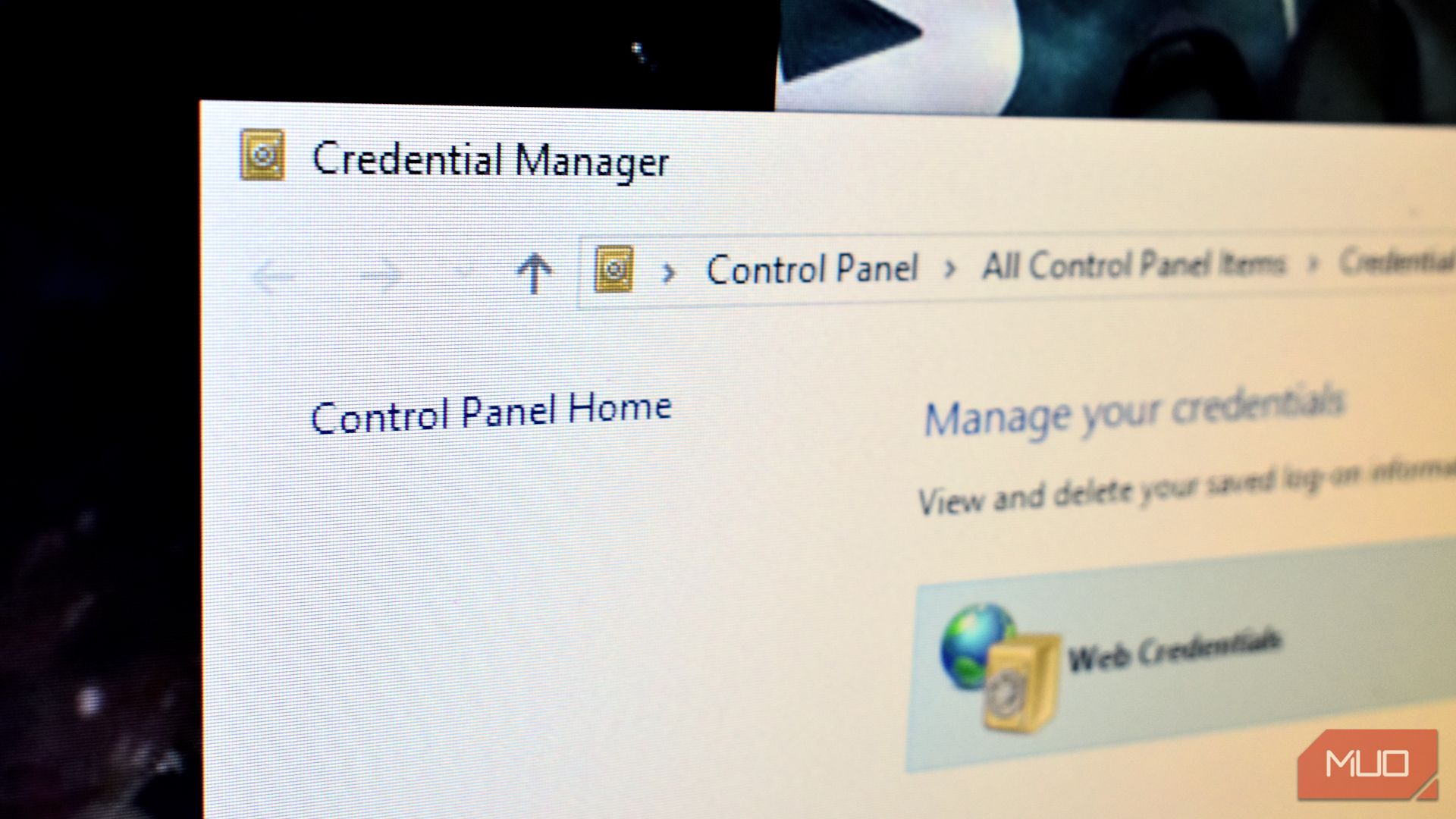
Windows has a built-in Credential Manager, but it’s not what you think—and certainly not a replacement for your password manager.
What Windows Credential Manager Actually Does
As the name suggests, Credential Manager is a built-in password manager, but one focused on system-level credentials. It stores usernames and passwords for things like network shares, Remote Desktop connections, and certain Windows apps.
It’s built for handling logins within the Windows environment, especially in workplace settings. But it’s not designed to manage the dozens of personal accounts most people use today, and its limitations make it unsuitable as a full-fledged password manager.
You can access the Credential Manager by typing Credential Manager into the Windows search bar and selecting the Best Match, or navigating via Control Panel > User Accounts > Credential Manager.
Why You Can’t Use the Credential Manager to Replace Your Password Manager
So, although the Windows Credential Manager sounds like an apt replacement for a password manager, there are several reasons why it can’t be used in the same way.
Weak Cross-Platform Compatibility
Whether you are using an open-source free password manager like KeePass or a paid service like Bitwarden or 1Password, most options today offer seamless syncing across platforms—Windows, macOS, Linux, iOS, Android, and browser extensions.
You can save a password on your phone while shopping online, and it syncs to your laptop before you’ve even put the phone down. This instant synchronisation happens through encrypted cloud services that work across every platform imaginable.
Justin Duino / MakeUseOf
The best password managers go even further. Apart from the usual native apps for different platforms, they also offer browser extensions for Chrome, Firefox, Safari, and Edge. You can even share a password with family members, and they’ll get a notification and secure access without you texting it to them.
Windows Credential Manager, on the other hand, is tightly integrated into Windows and doesn’t offer native support outside the Windows environment. It doesn’t have an app. You can’t sync your password or share it with anyone else.
Security Risks and a Single Point of Failure
Dedicated password managers operate on a zero-knowledge principle. This means that even if threat actors breach the company’s servers, your passwords remain safe because they’re encrypted with your master password, which is something only you know.
Good password managers also assume your device could be lost or compromised. That’s why they require you to enter your master password or use biometric authentication before showing any stored credentials. Some even offer a travel mode, which temporarily removes sensitive passwords from your devices when crossing borders.
Credential Manager’s security model is straightforward: if you’re logged into Windows, you have full access. Click any password, hit Show, and there it is in plain text. Yes, one-time authentication is required, but this provides little protection if someone already knows your login password.
Fewer Features Than Dedicated Managers
A dedicated password manager does more than just store and sync your passwords across devices securely. You can use it to generate strong passwords with one click, scan the dark web for your exposed credentials with automatic alerts for any breach, and even promote best security practices by flagging weak or reused passwords and prompting you to fix them.
Two-factor authentication support is built into nearly every dedicated password manager. Along with your logins, they can store TOTP codes, backup codes, and recovery keys—all in one encrypted vault. Many also flag phishing sites, securely autofill payment details, and let you save secure notes for things like Wi-Fi passwords, license keys, or other sensitive information.
Credential Manager stores passwords—and that’s about it. It doesn’t offer features like password generation, breach alerts, or security analysis. It won’t warn you if you’re using weak credentials like password123 for your bank account, and it can’t store or generate two-factor authentication codes either.
Basic Recovery Options
Redundancy is a core part of most dedicated password managers. If you lose your master password, you can use a recovery code or rely on an emergency contact to help you regain access.
If a device is stolen, you can revoke its access remotely from any browser. All your data is automatically backed up to encrypted cloud storage, so even if your primary fails, your passwords remain safe and accessible.
Password managers also make it easy to export your data. You can easily export your vault to a different password manager. You can also set up emergency access that activates after a waiting period.
Credential Manager stores your passwords locally and links them to your Windows account on that specific device. If you forget your Windows password or your computer fails, your saved credentials are likely lost. While you can use command-line tools to back up your credentials, the backup file is limited to Windows systems only.
Negligible Browser Integration and Autofill Capability
Any decent password manager should work smoothly with your browser, and autofill is a big part of that equation. It saves time by filling in usernames, passwords, payment details, and other form fields with a single click.
Password manager extensions also verify the site’s URL before filling in credentials, helping prevent phishing attacks. Some can generate and auto-fill temporary email addresses to protect your privacy, and others warn you if you’re entering passwords on an insecure HTTP page.
Credential Manager’s browser support is essentially non-existent. Even Microsoft Edge, the company’s own browser, doesn’t rely on it and uses its own password system. The only browser that really worked with Credential Manager was Internet Explorer, but it’s not supported in the latest version of Windows 11.
While Credential Manager is an essential part of the Windows operating system, it’s not a substitute for a dedicated password manager, nor does it claim to be. It was built for handling system-level authentication within Windows, not for managing the dozens of personal accounts we rely on every day.
If you care about convenience, cross-platform access, and stronger security, use a dedicated password manager that’s built for the modern web.
