


ZDNET
Follow ZDNET: Add us as a preferred source on Google.
In the decades that I’ve been using Linux, I have not needed a single Windows app because Linux has all the software I require.
However, I understand that some people aren’t that lucky. You might be one who has a Windows-only application you need to do your job or school, or it’s a game you’d love to play.
Also: Forget Windows 11: Nobara Linux is the OS for everyone
Fortunately, Linux has several ways you can get that Windows app running.
Before I continue, nothing is guaranteed, so not every Windows app will 100% run on Linux. If the app you use is fairly common, there’s a good chance it will work. If, however, your app was created in-house, it’ll be iffy (but you should try anyway).
1. Wine
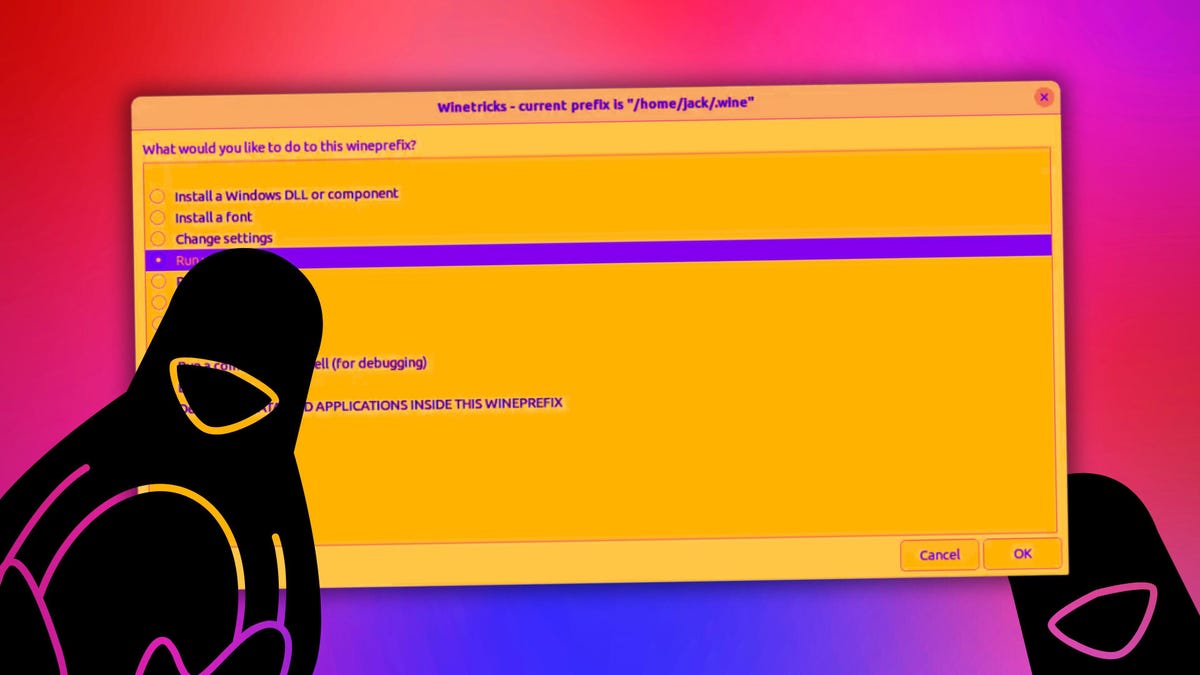
Wine has been around for a long time. The name used to stand for Wine Is Not an Emulator, and it serves as a compatibility layer for running Windows apps on Linux. I remember, back in the late ’90s, I was part of a Linux User Group and had the pleasure of walking into a meeting and announcing that I’d successfully managed to get the first Diablo game running on Linux. Everyone in the meeting was astounded that it would work. Back then, using Wine was complicated. Thankfully, Wine has come a long way. In fact, you don’t even have to touch the command line now, thanks to several good GUI front-ends (such as WineGUI and WineZGUI). If you go the Wine route, there’s always the Wine Application Database, which is a great place to start.
Also: How to easily run Windows apps on Linux with Wine
For those who are new to Linux, I would suggest starting with one of those tools because they can help you avoid the command line. Every time I’ve used Wine (mostly for testing and experimentation), I find it just works. It’s a rare occasion that I’ve ever had Wine not work for me. Honestly, if I had to run a Windows app on Linux, this is the first place I would start because it’s so reliable. Wine is also free and can be installed on nearly every Linux distribution from the standard repositories.
2. Bottles
Bottles is another compatibility layer that enables Windows apps to run on Linux. Bottles creates isolated environments (each including all of the necessary dependencies), which makes it possible to run those Windows apps such that they cannot interfere with each other.
Bottles does use Wine as its core component for making this work, but its GUI is far better than those third-party front-ends for Wine. Bottles also allows you to use whatever version of Wine you want for each app. That means if you have one app with a specific Wine version requirement, and another that depends on a different version of Wine, Bottles can help you. Bottles is about as user-friendly as any Wine front-end, and the sandboxing of apps makes it more secure than using just Wine. It’s free, and I recommend installing it via Flatpak (for even more security).
3. Steam
If you want to play Windows games on Linux, Steam is the way to go. With Steam, you’ll never have to touch the command line, and you’ll have tons of games to purchase. Steam uses the Proton compatibility layer, which is based on Wine, DXVK, and VKD3D to translate DirectX calls to Vulkan, thus enabling Windows applications to communicate with the Linux operating system and hardware.
Also: How to install Steam and start gaming on almost any Linux distro – now it’s a Snap
I’ve used Steam quite a bit and have always found it the best way to play a multitude of games on Linux. To get the most out of playing games on your PC, you’ll want to have a good controller. Fortunately, you can use most Xbox and PlayStation controllers, the official Steam Controller, and many third-party models like those from 8BitDo and Logitech. Steam is free to install and is available for most Linux distributions.
4. VirtualBox
OK, this is sort of cheating because what you’re doing with VirtualBox is running Windows in a virtual environment on your Linux guest. Essentially, you are running Windows, but doing so on a Linux host. The reason I include this is that VirtualBox is my go-to tool for running virtual environments. If I had a Windows app that I absolutely must use, I would probably turn to VirtualBox.
Also: I’ve used Linux for 30 years. Here are 5 reasons why I’ll never switch to Windows or MacOS
Before you think it, I wouldn’t even try running Windows games in this manner. Chances are good you might not be able to get sound or a gaming controller to work on the guest. However, if you’re running standard apps, running them in their native environment is a great option. Even better, you can close the virtual machine, saving the current state, so when you start it again, you are exactly where you left off. You can also take snapshots, in case something goes wrong with Windows (because that’s a reality), and you want to roll it back to a working instance. VirtualBox is free to install and is available for most Linux distributions.
5. Winboat
Winboat is the new kid on the block, but it shows serious promise. I tested Winboat and found it to be an easy way to install and run Linux apps. The Winboat GUI even simplifies finding the apps you want to install with an app store-like GUI that allows you to click your way to installing Windows apps. Winboat is currently in beta, so I wouldn’t recommend using it for production (or daily) purposes. When Winboat is finally released to the masses, it will most likely (and very quickly) take over as the best way to run Windows apps on Linux.
Also: This is my new favorite way to run Windows apps on my Linux PC – how it works
Winboat even includes automated installs and gives you access to a full Windows desktop. The biggest difference between Winboat and Wine is that Winboat runs a containerized version of Windows, so it’s not a compatibility layer, but rather, a way to run Windows apps in a virtualized environment. During my testing period, I found Winboat to be a remarkable piece of software. The only caveat to this solution is that (at least in its current form) the installation process is tricky and there are several requirements (such as Docker, Docker Compose, FreeRDP, and specific kernel modules). Give this app some time, and it’ll become your default.
Want to follow my work? Add ZDNET as a trusted source on Google.
